

Salesforce CPQ plugins are custom extensions that add functionalities to the existing CPQ application. These plugins are written in JavaScript and can be used to perform complex calculations, validations, and custom logic that go beyond the standard CPQ capabilities.
Custom scripts in Salesforce CPQ are like building blocks that enable you to organize and reuse blocks of code for various functionalities. Unlike specific rule-based components, custom scripts contain code that can be utilized in multiple contexts throughout the CPQ application.
In particular, calling a custom script within the Quote Calculator Plugin is a game-changer, as it allows you to influence how the quote calculator processes data to generate accurate quotes. Whether you wish to apply an additional discount to specific line items on the quote or alter field visibility, custom scripts give you the flexibility to make these adjustments.
Understanding Quote Calculator Plugin Methods:
In Salesforce CPQ, the Quote Calculator Plugin offers a set of methods that you can utilize to customize the pricing and calculation process. Here are the available methods:
- Oninit: This method is executed before formula fields are evaluated. It provides a suitable starting point for any pre-calculation tasks.
- OnbeforeCalculate: The calculator calls this method before the actual calculation begins, but after formula fields have been evaluated. It’s a great place to perform any preparatory actions before the real calculations kick in.
- OnbeforePricerules: This method is called before the price rules evaluation process. Utilize it to set up the stage before applying pricing rules.
- OnafterPricerules: Following the price rules evaluation, this method is executed. Use it to implement any custom logic based on the price rules’ outcomes.
- OnafterCalculate: Once the calculation process is complete, but before re-evaluating formula fields, this method is triggered. It’s a convenient spot for post-calculation tasks.
- IsfieldEditable: This method is called after the calculation process. Use it to control the editability of specific fields based on your custom logic.
- IsfieldVisible: Also triggered after the calculation process, this method is perfect for managing field visibility based on custom conditions.
Steps To Call a Custom Script in the Quote Calculator Plugin:
Step 1: Click on App Launcher —> Quick find box —> Custom Script
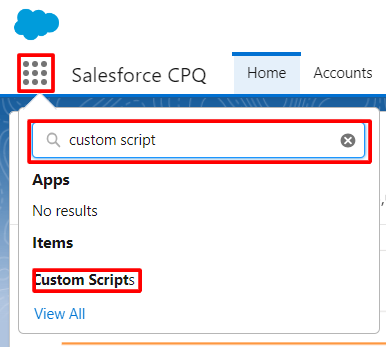
Step 2: On the Custom Script List view page click on New Button.

Step 3: In the New custom script window add:
- Name in the Script Name field.
- JS script in the Code field.
- Quote Fields used in JS script in Quote Fields with comma separated.
- Quote Line Fields used in JS script in Quote Line Fields with comma separated for
Note: Add API name of fields used in JS script only. Also, if any Quote Line Group Field is used in your JS script add them also in the respective column.

Step 4: Click on Save.
Hurray!! you have just created your first custom script. Now it’s time to add it on the calculator plugin in.
Step 5: Click Setup —> Quick find box —> Installed Packages

Step 6: From the Installed Packages list click on Configure next to Salesforce CPQ Package.

Step 7: The setting Editor window will open from there Click on Plugins.

Step 8: Add the name of your custom script in the Quote Calculator Plugin field and then click on Save Button.

Note: You can create multiple custom script but you can add only single custom script in Plugin. Create multiple method in single custom script make it perform multiple task.*
Hurray!! You have have successfully added you custom script in Calculator Plugin.
Use Case Scenario:
Account related to Quote have closed won opportunities and total amount of those opportunities is amount > 500, apply 5% discount on each quote line amount > 1000, apply 10% discount on each quote line amount > 2000, apply 20% discount on each quote line Also, if we edit discount of any quote line and the edited discount is less than our initial given discount then apply less discount but, if edited discount is greater than initial discount then apply initial discount only.
For above case custom script code:
Configure Test:
- Go to Quote and create a quote or open an existing Quote.
- Click on Edit Lines and add Products.
Note: This script will only run when an account related to your quote has closed won opportunity and the amount is greater than 500.
- In this image you can see a Discount get applied to all quote lines according to our script as the account related to this quote has closed a won opportunity whose amount totals> 500.

- In this image, we have edited the discount in two quote lines
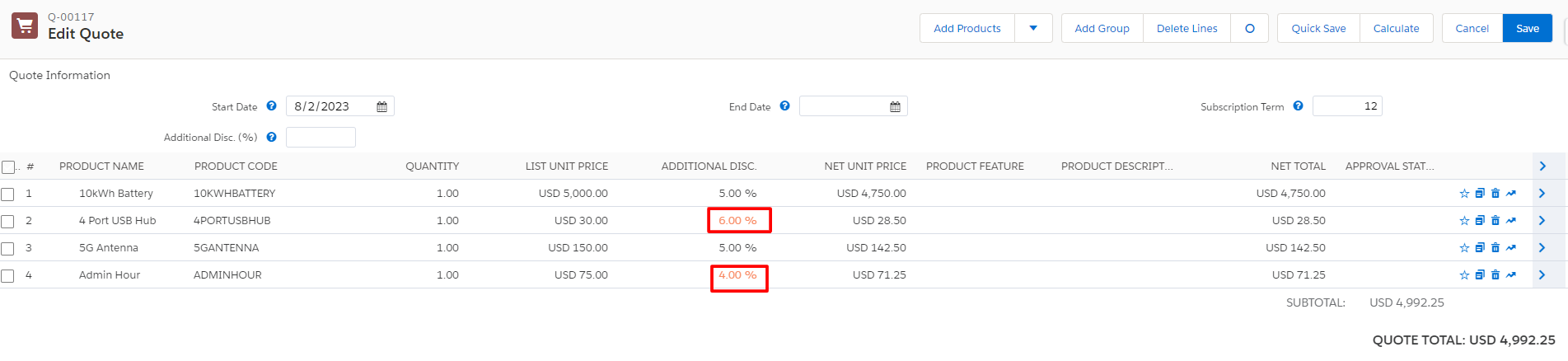
- In this image, you can see as per our script discount 4 is applied in a particular quote line item, but in place of 6, our initial discount 5 gets applied for that quote line item.
Note: Discount will reflect when clicking on the Calculate Button on the Quote Line Editor page.

Conclusion
Custom scripts in Salesforce CPQ plugins, especially within the Quote Calculator Plugin, bring a new dimension of customization and efficiency to your quoting processes. They allow you to create tailored functionalities, streamline calculations, and enhance user experiences.
With custom scripts by your side, your Salesforce CPQ plugins become an invaluable asset that aligns with your business goals, empowering your sales team to excel, exceed customer expectations, and drive growth like never before.
So, go ahead and embrace the limitless possibilities of custom scripts, and unlock the full potential of your Salesforce CPQ plugins today. And for more blogs, stay tuned!





