Managing data across multiple CRMs can be a real challenge for businesses that want a single source of truth. If your teams use Zoho CRM but want to move or sync all records seamlessly into Salesforce, you don’t need to write a single line of code. Thanks to MultiSync Made Easy, the integration process is simple, secure, and fast.
In this blog, we’ll walk you through the step-by-step process of importing all your records from Zoho CRM to Salesforce without coding.
Steps to Integrate Zoho CRM with Salesforce
To import all your records from Zoho CRM to Salesforce, follow the steps below:
Step 1: If you have the client credentials, then you can proceed to integrate the Zoho CRM inside MultiSync made easy. Otherwise, first you need to follow this Zoho and Salesforce integration guide, to sign up or log in into zoho crm and get client credentials.
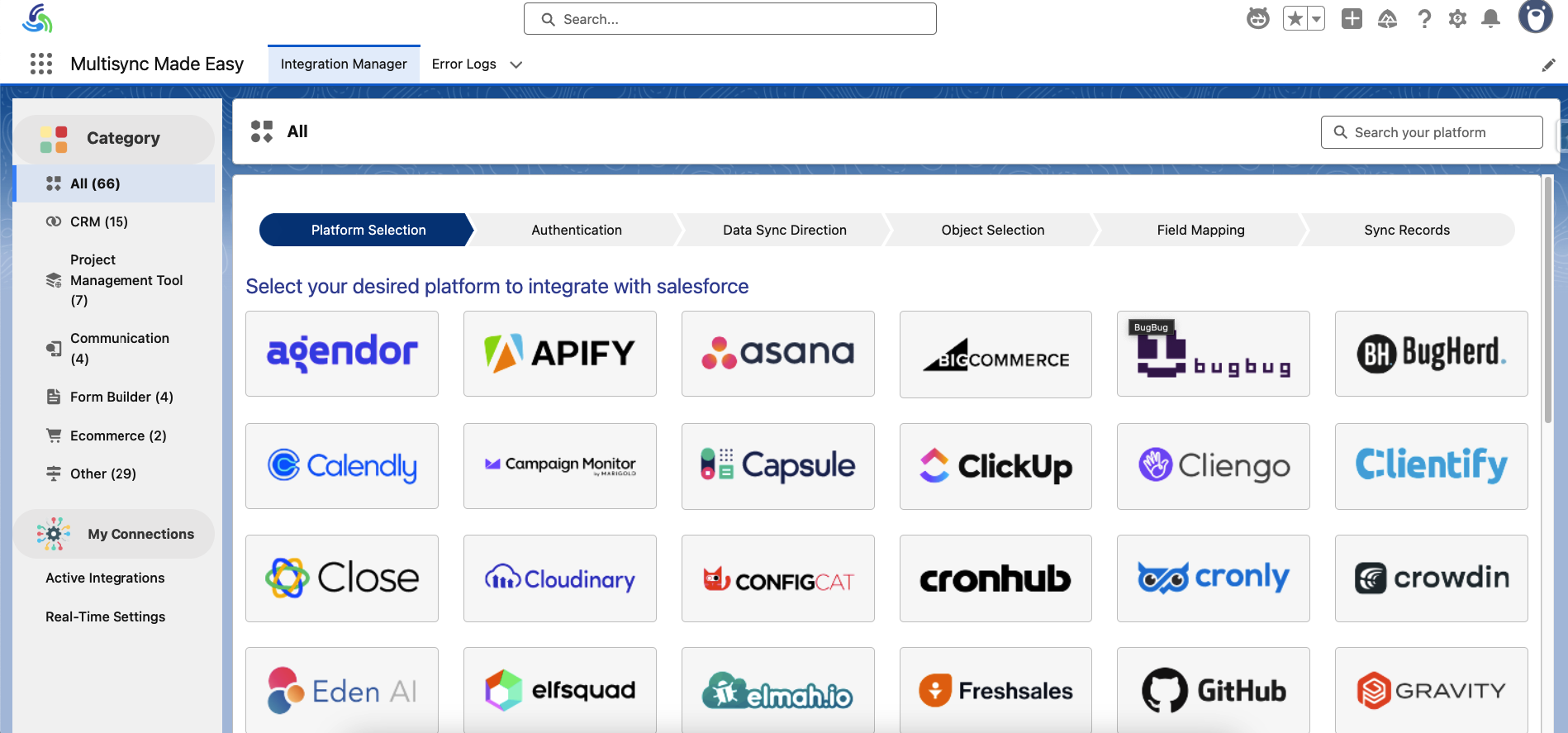
Step 2: After getting the client credentials, search Zoho CRM inside the “Search bar” located in the top right corner of the home page.
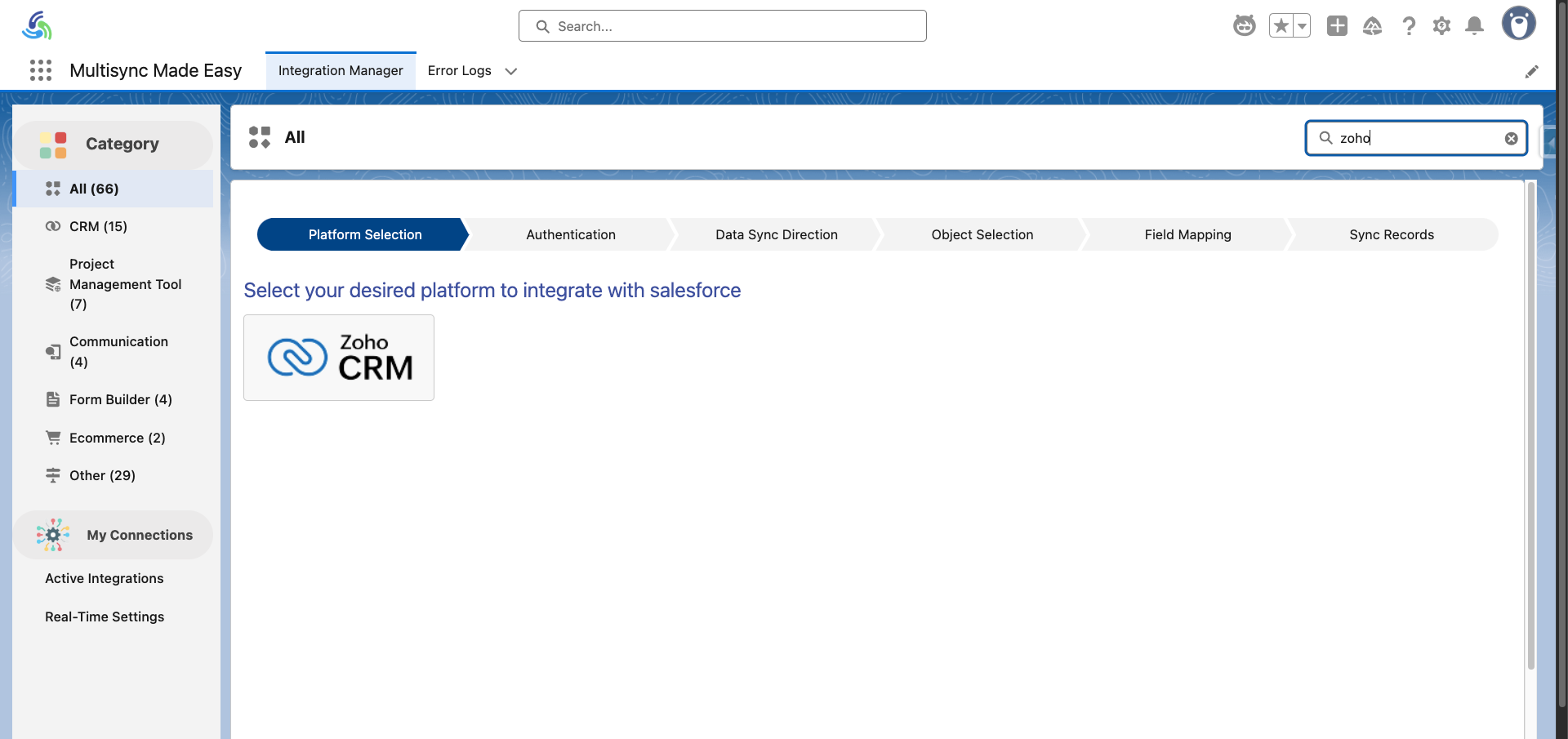
Step 3: Select the Zoho CRM from the search results, and you will be redirected to its authentication page.
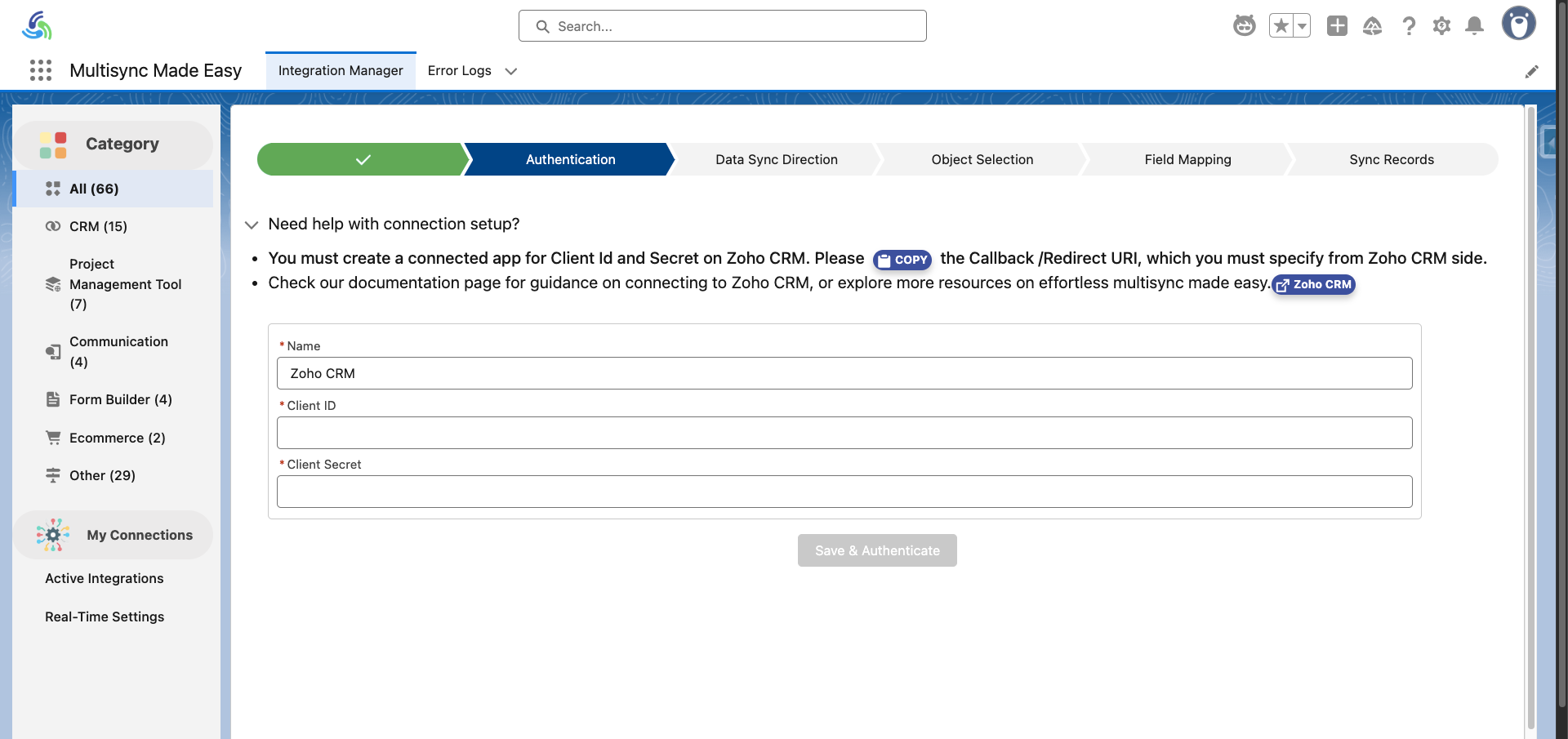
Step 4: Enter the Client ID and Client Secret inside the required fields and click on the “Save & Authenticate” button to proceed.
You will be redirected to a new tab to sign in to your Zoho CRM account, and after signing in, click the “Next” button.
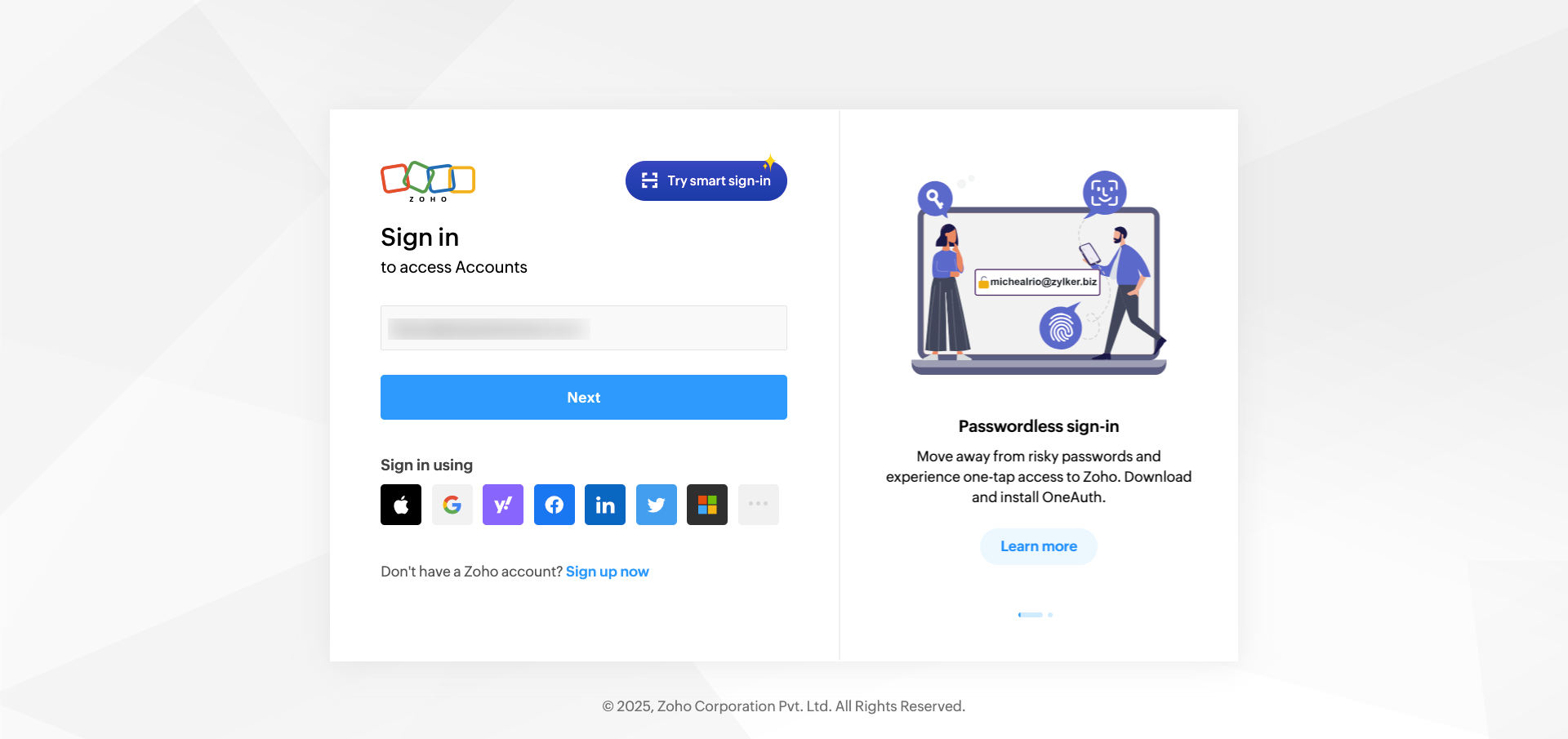
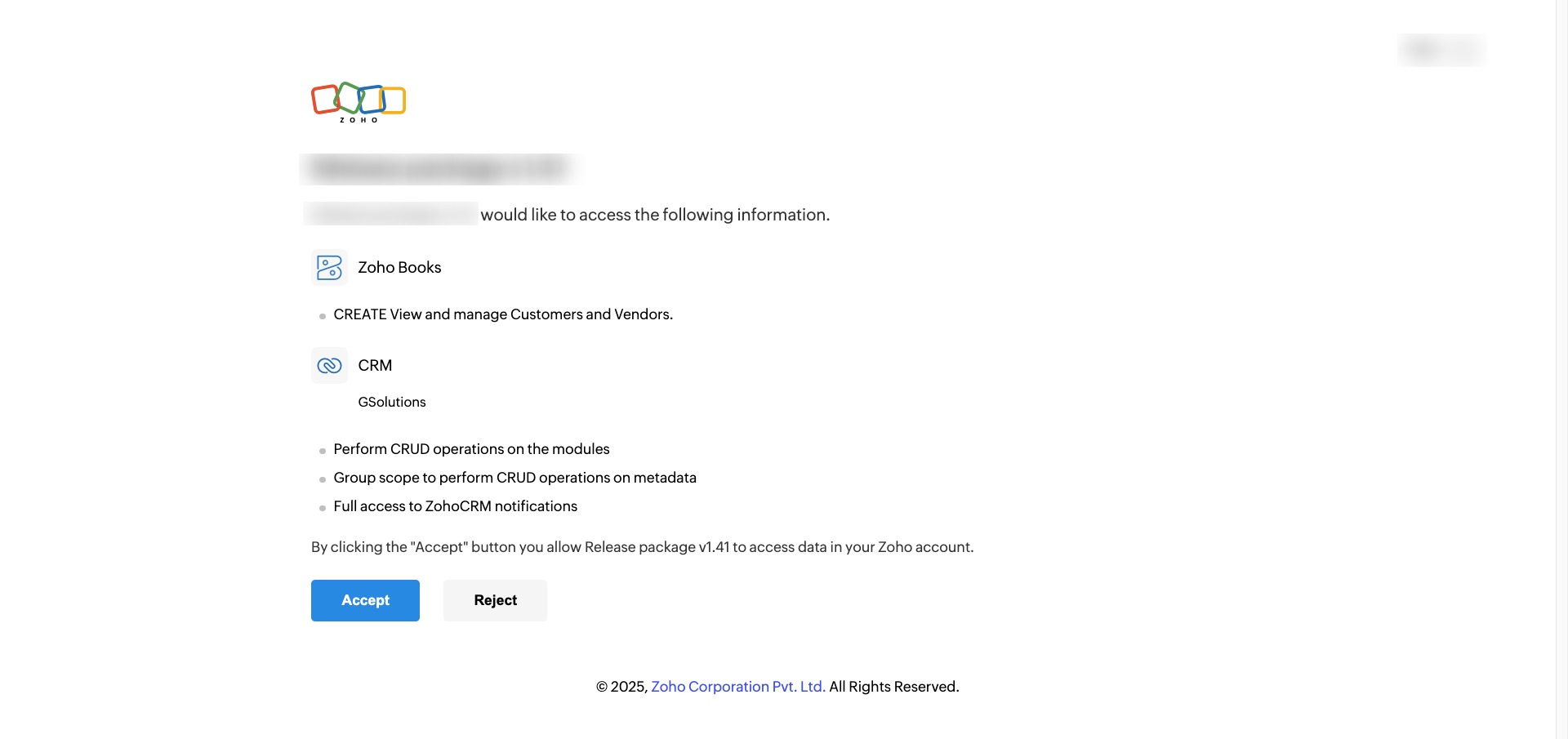
Step 5: Now, click on the “Accept” button, and you will be redirected to the ‘Complete Authentication page’.
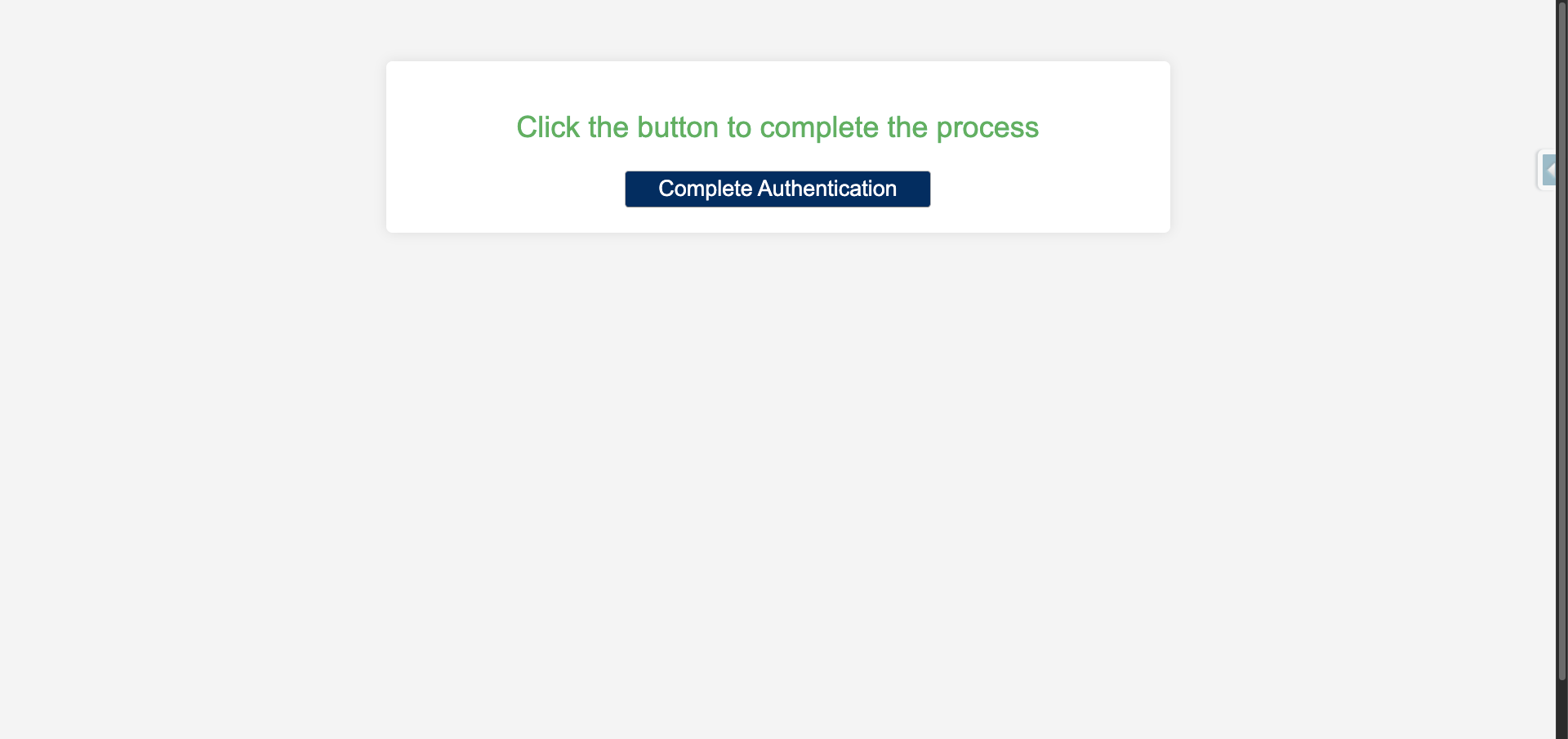
Step 6: Click on the “Complete Authentication” button to complete the Integration.
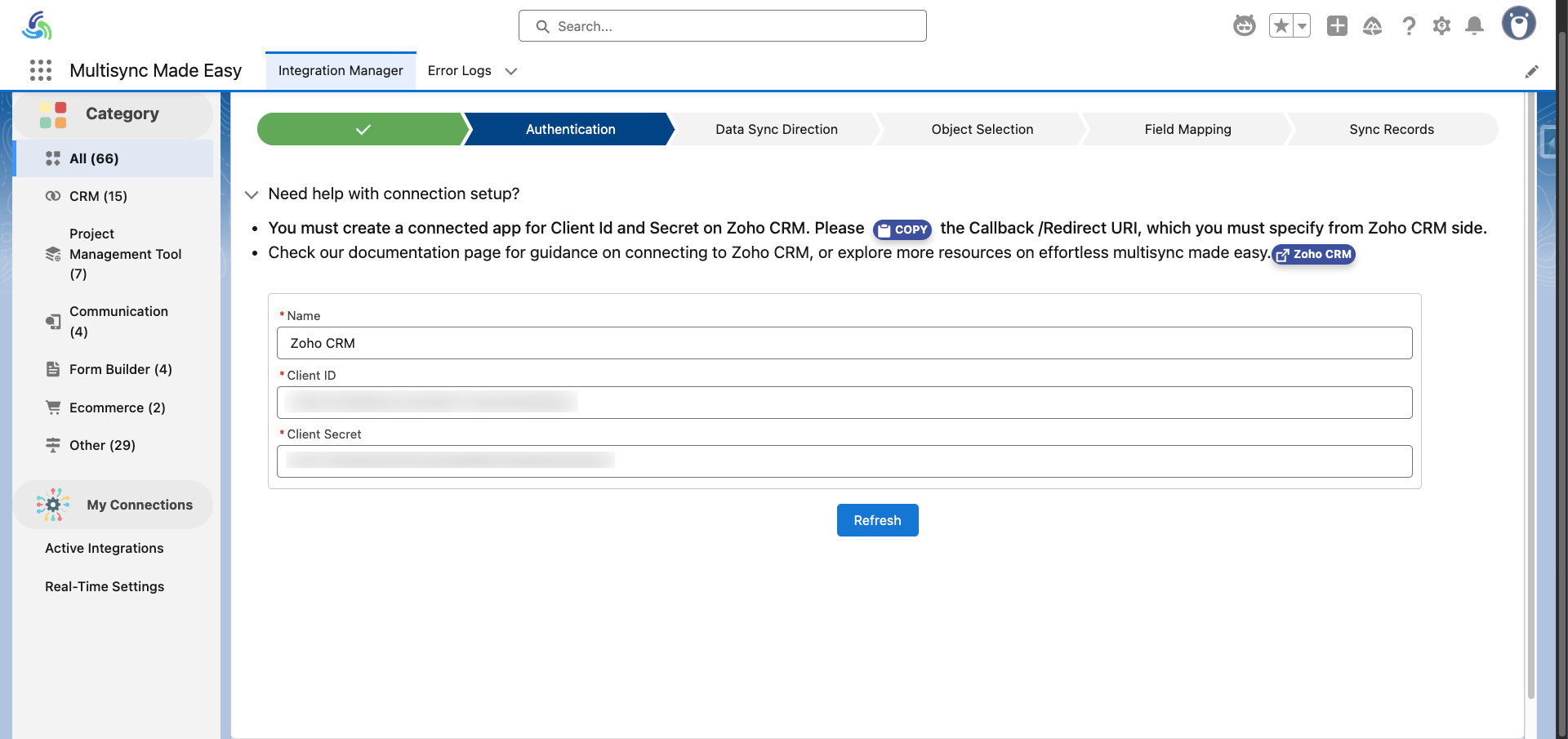
Step 7: You will be redirected back to the authentication page, and here you need to press the ‘Refresh’ button to complete the Integration.
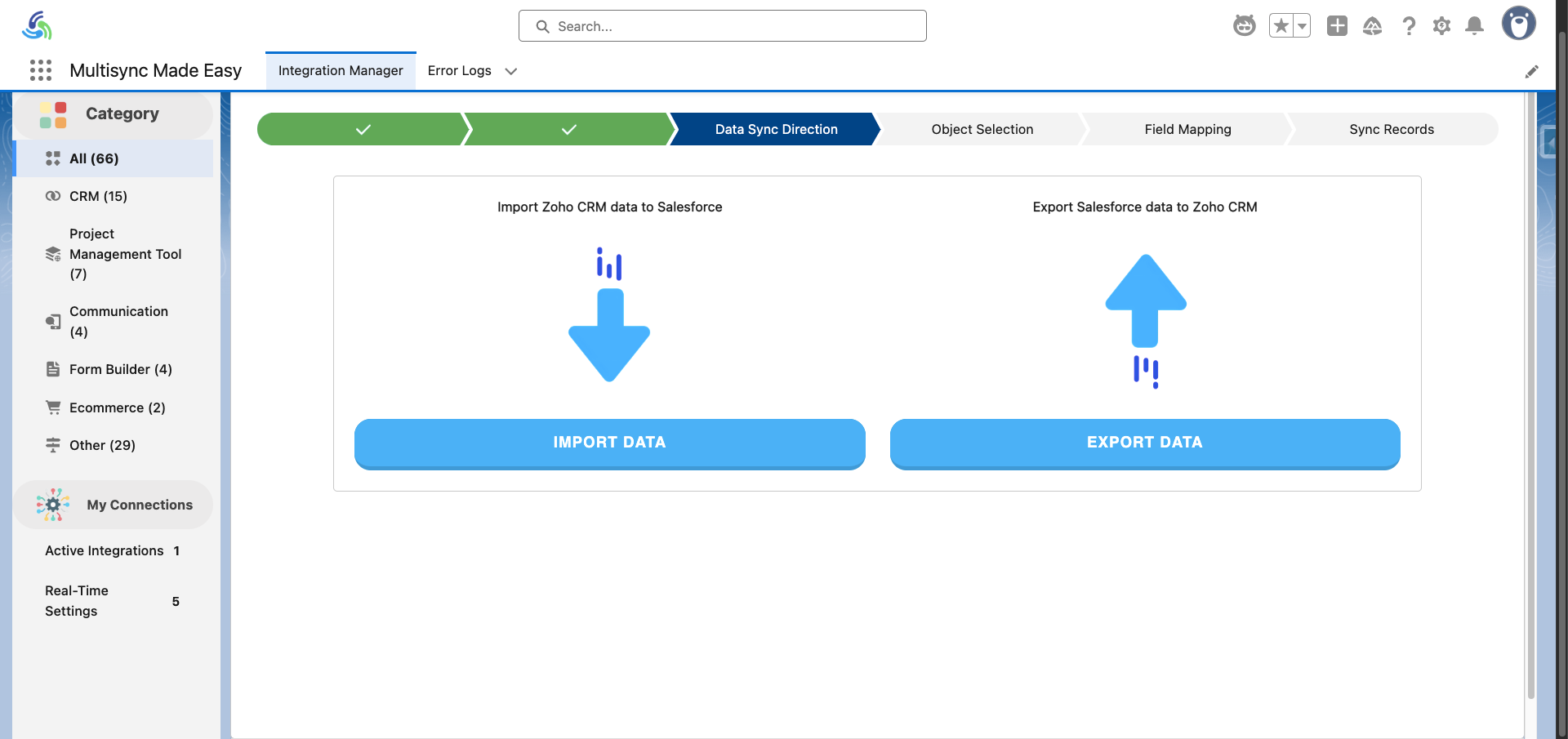
Step 8: After completing the authentication, you will be redirected to the Import Data and Export Data screen. Here you need to click on the “Import Data” button.
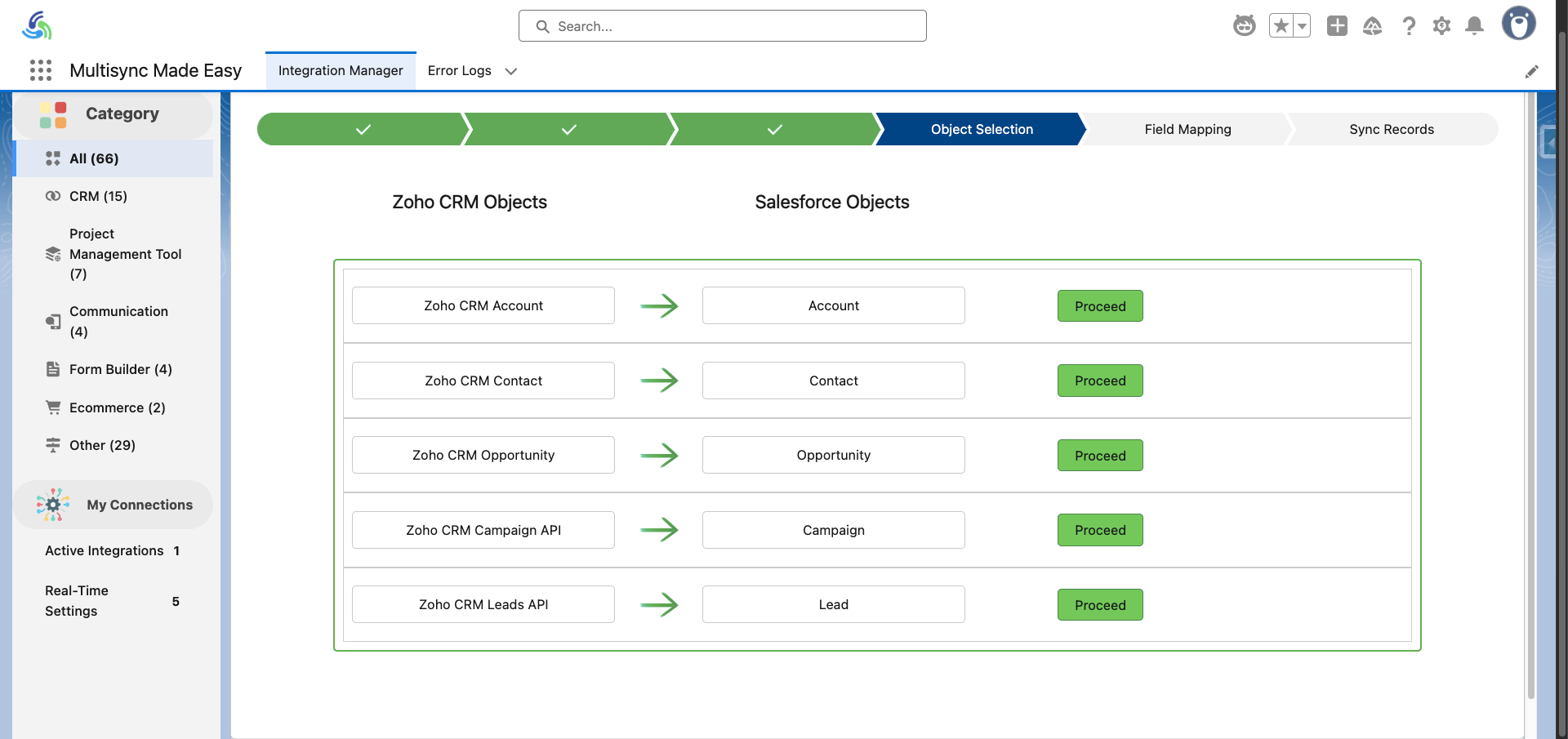
Step 9: Here you will get a list of API for all objects on the object selection page. Select an object by clicking on the ‘Proceed’ button.
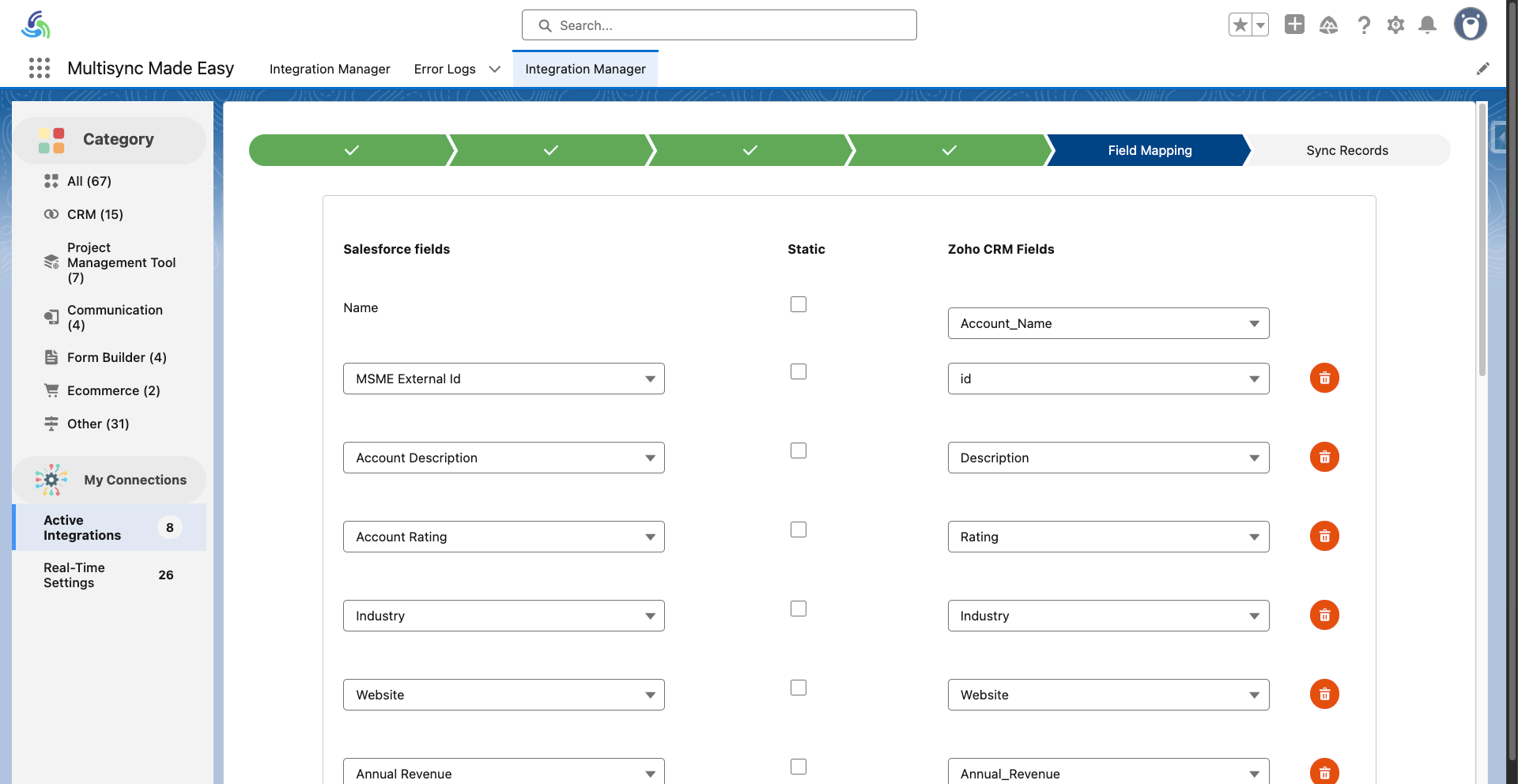
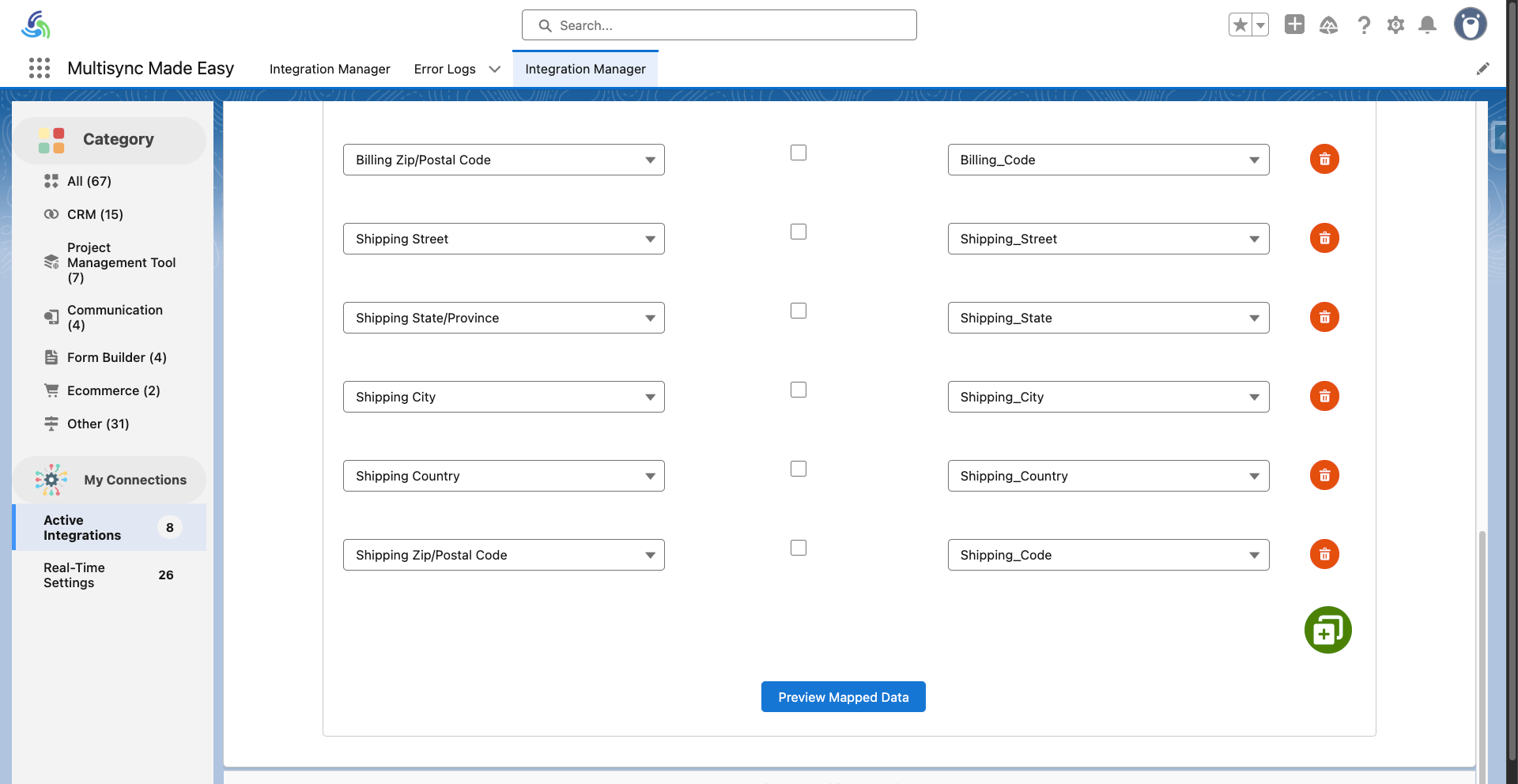
Step 10: Now, on the field mapping page, you will get default field mappings. You can modify, create and delete the field mappings as per your requirements.
After mapping the fields as per your need, click on the ‘Preview Mapped Data’ button.
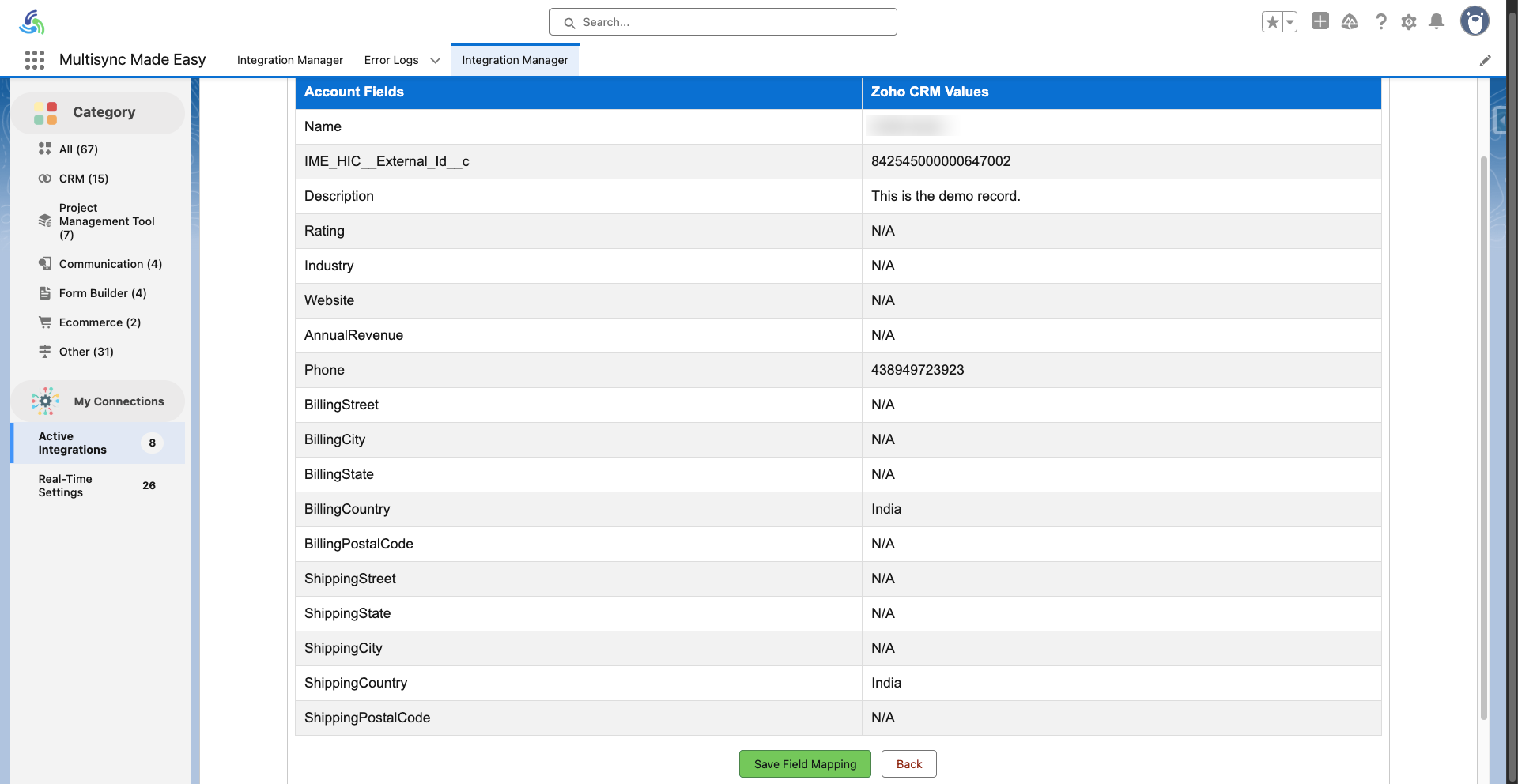
Step 11: You will be redirected to the ‘Preview’ page of all mapped fields. You can click on the ‘Validate’ button to validate them.
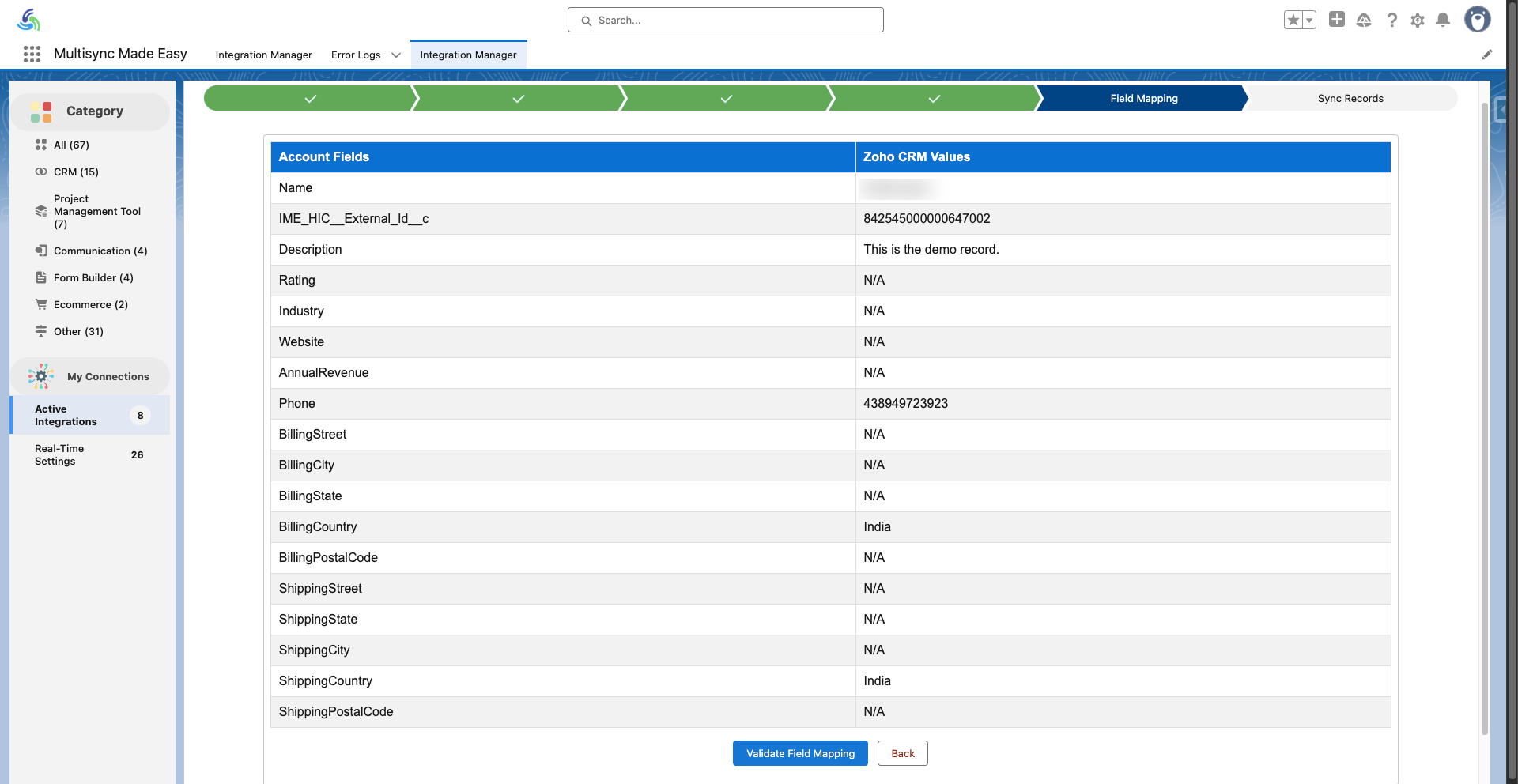
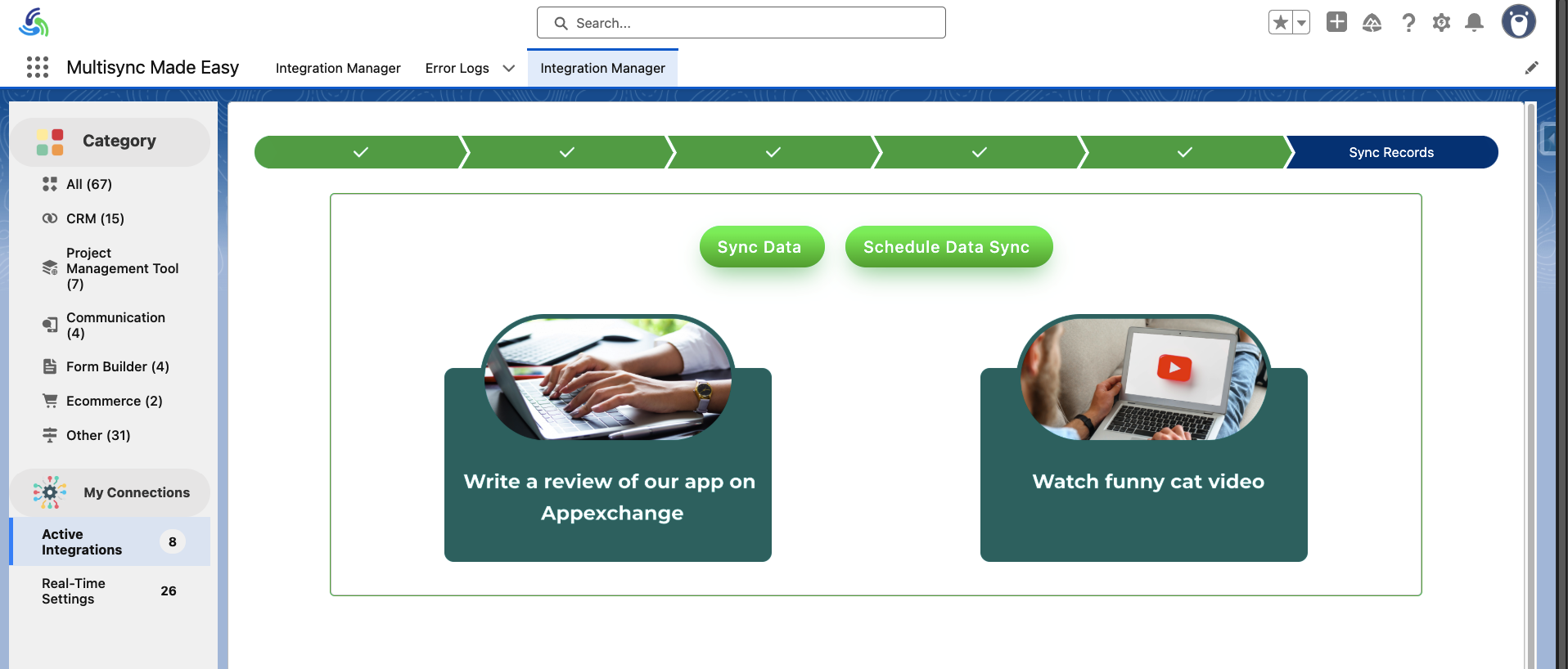
Step 13: Now, you will have two options of “Sync Data” and “Schedule Data Sync” on the sync records page. Select the ‘Sync Data’ button.
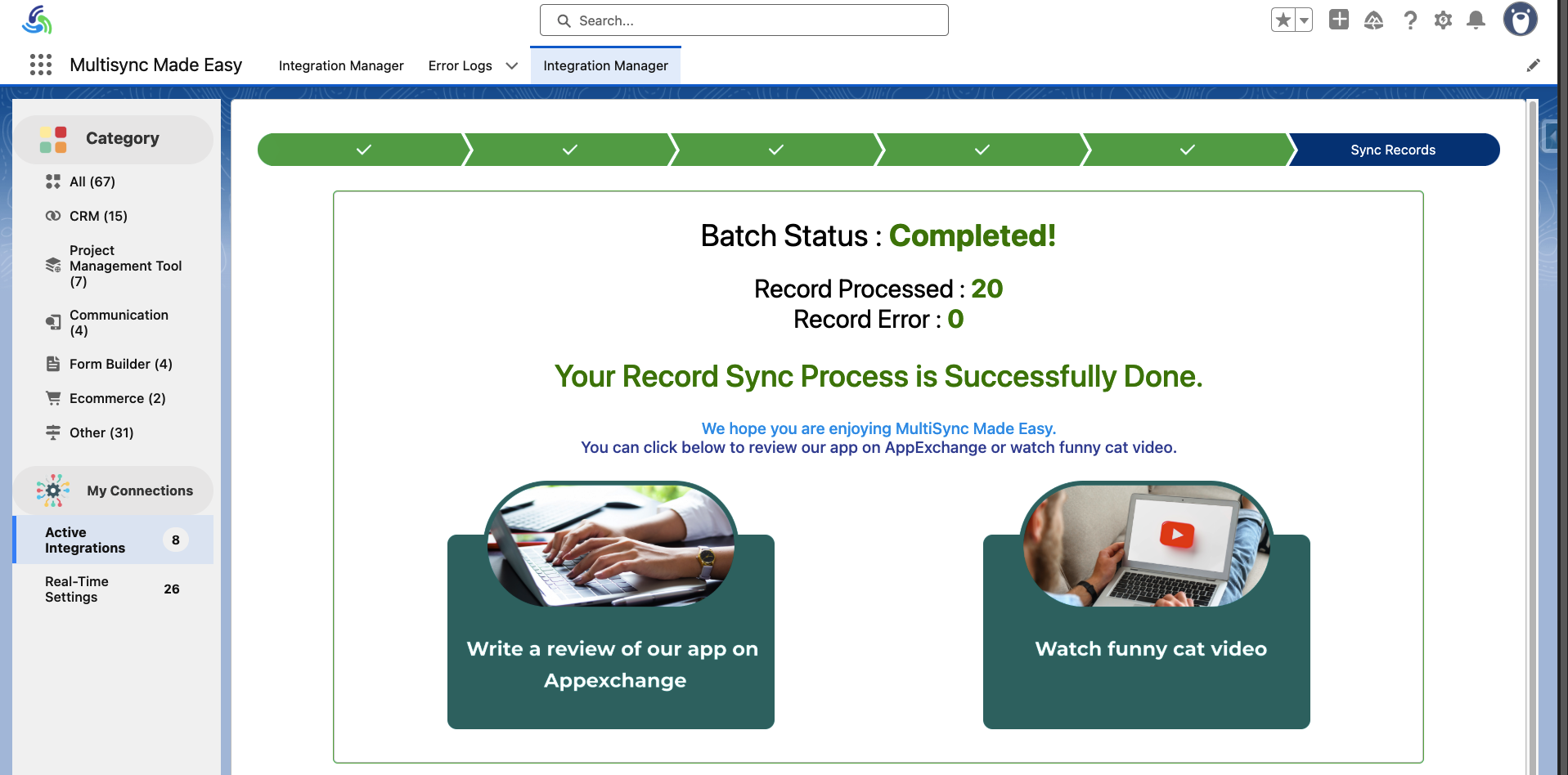
Step 14: You are now on the final screen of sync data. Here, you will get information on all the records that are synced from Zoho CRM to Salesforce successfully. Or any errors that may occur will be reflected in the ‘Record Error.’
Conclusion
That’s it! With MultiSync Made Easy, Native ETL Tool, you can seamlessly integrate Zoho CRM with Salesforce without writing a single line of code. From authentication to data import, field mapping, and syncing, everything is handled through a simple, user-friendly process.
This not only saves time and effort but also ensures that your teams always work with accurate, real-time data across both platforms.
If you’re ready to streamline your workflows and eliminate manual data transfers, MultiSync Made Easy is your best bet for Zoho CRM to Salesforce integration.
Looking for experts Salesforce Support Services to ensure seamless operations and ongoing assistance? Get in touch with our team today!
Frequently Asked Questions
Why should I integrate Zoho CRM with Salesforce?
Integrating Zoho CRM with Salesforce helps eliminate data silos, improves team collaboration, and ensures real-time synchronization of customer data. It also reduces manual work and ensures accuracy across sales and marketing processes.
Do I need coding skills to integrate Zoho CRM with Salesforce?
No. With modern no-code integration tools like MultiSync Made Easy or other middleware platforms, you can set up sync between Zoho CRM and Salesforce without writing a single line of code. These tools offer pre-built connectors and guided workflows.
What kind of data can be synced between Zoho CRM and Salesforce?
You can sync key CRM objects like leads, contacts, accounts, opportunities, tasks, campaigns, and custom fields. Depending on your integration tool, you can enable one-way or two-way sync and also set filters to avoid duplicates.
How secure is the Zoho CRM–Salesforce integration?
Security depends on the solution you use. Certified integration tools follow GDPR, HIPAA, and SOC2 compliance, ensuring encrypted data transfer and secure authentication. Always choose a trusted platform that meets your company’s data policies.
Can I scale the integration as my business grows?
Yes. A no-code integration tool lets you start with simple use cases (like syncing leads and contacts) and expand to more complex workflows as your business grows. You can add more CRM objects, custom rules, and manage large data volumes without performance issues.