When building on the Salesforce platform, code quality and security are non-negotiable, especially before submitting your app for a Salesforce Security Review. Catching bugs and vulnerabilities early not only saves time but also ensures compliance with Salesforce’s best practices. That’s where the Salesforce Code Analyzer comes in. This open-source tool scans your Apex classes, triggers, Lightning Web Components, Visualforce pages, and JavaScript code using powerful engines like PMD, ESLint, RetireJS, and Graph Engine.
The result? You get clear insights into potential risks, unused resources, and code that doesn’t meet standards without having to wait until runtime.
In this blog, we’ll walk you through the setup, usage, and limitations of Salesforce Code Analyzer step by step so you can improve code quality, strengthen security, and speed up your development lifecycle. Let’s dive into the setup, use, and limitations of a code analyzer.
What is Salesforce Code Analyzer?
Salesforce Code Analyzer is an open-source tool from Salesforce for scanning through your project. It uses multiple engines, like PMD, ESLint, RetireJS, and Graph Engine, to check the following:
- Apex classes and triggers
- Lightning Web Components (LWC)
- Visualforce pages
- JavaScript code
Key Benefits of Using Salesforce Code Analyzer
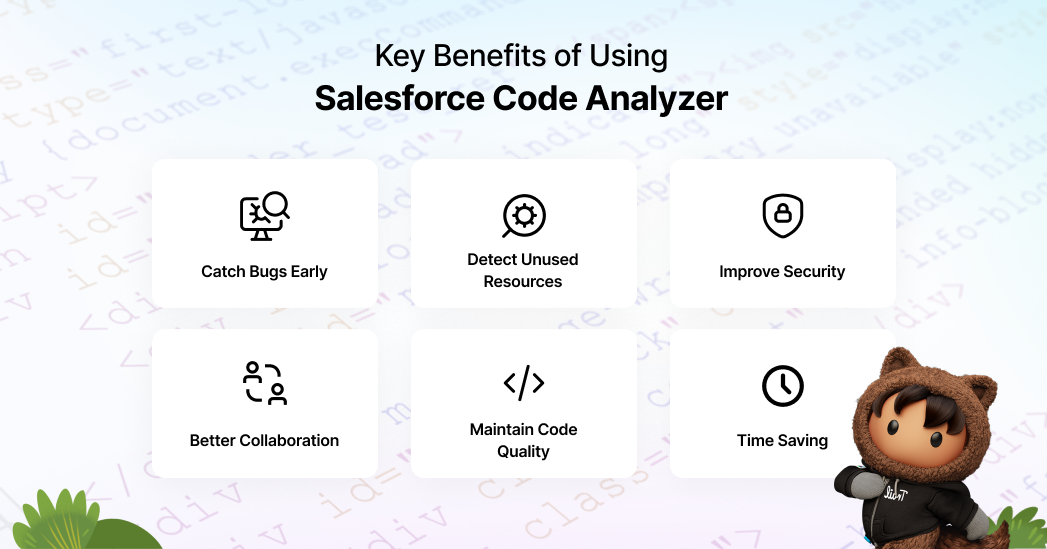
Adopting Salesforce Code Analyzer isn’t just about catching errors; it’s about improving overall code quality, security, and efficiency. By running regular scans, both developers and admins can spot issues early, enforce best practices, and keep projects on track for a smooth Salesforce Security Review.
- Catch bugs early: Identify logic issues and potential bugs before deployment.
- Detect unused resources: Highlights unused imports and variables
- Improve security: Detect common vulnerabilities like SOQL injection or unsafe DOM handling.
- Maintain code quality: Enforce best code practices and coding standards
- Better collaboration: Admins can better understand code issues and work more closely with developers.
- Time saving: Allows you to find and resolve any possible problem before final review
Step-by-Step Setup Guide for Salesforce Code Analyzer
Step 1: Install Salesforce CLI (Command Line Interface)
Download and install Salesforce CLI if not already installed.
Step 2: Install the Code Analyzer plugin.
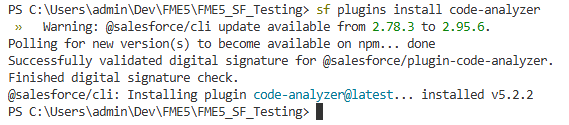
Run the command: SF plugins install code-analyzer
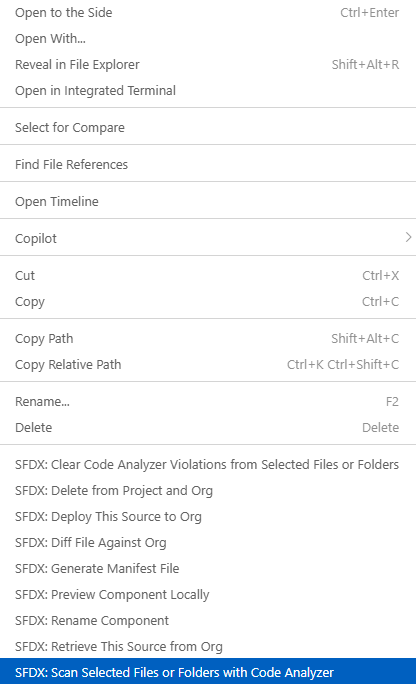
Step 3: Run your first scan.
Click on the file or folder you want to scan, then choose the option “Scan selected files or folders with code analyzer”
Step 4: Read the generated report.
Review the generated report. Prioritize high-severity issues and fix them first, with Sev1 being the highest severity and Sev5 being low severity.
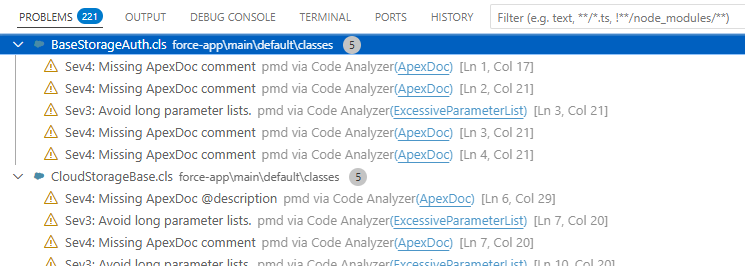
Step 5: Generate analysis report
Run the below-mentioned command in the terminal:
sf code-analyzer run –rule-selector AppExchange –rule-selector Recommended:Security –output-file CodeAnalyzerReport.html
Check the generated report with the name CodeAnalyzerReport.html in your folder structure. This file will contain the report of identified issues and can be exported in various formats.
Watch the Demo
https://www.youtube.com/embed/ETBQiXXkpfQ?si=x2SUh62eo46AF3kw
Things to Keep in Mind (Limitations)
While Salesforce Code Analyzer is powerful for static code analysis, it does have some boundaries:
- It only performs static analysis, so runtime-specific issues may not be caught.
- Larger projects can take longer to scan.
- May display false positives or irrelevant warnings that require developer judgment.
Conclusion
The Salesforce Code Analyzer is more than just a static code checker; it’s a must-have tool for keeping your Salesforce org secure, maintainable, and ready for review. By catching bugs early, improving code quality, and enforcing best practices, it empowers both developers and admins to collaborate more effectively.
If you want to save time, avoid costly security rejections, and deliver better apps, start using Salesforce Code Analyzer today. If you need services to keep your codebase secure and maintainable, choose the right Salesforce services.

Frequently Asked Questions
What is Salesforce Code Analyzer?
Salesforce Code Analyzer is a powerful tool that helps developers identify code quality issues, enforce coding standards, and improve performance across Salesforce projects.
Why should I use Salesforce Code Analyzer?
It ensures cleaner, more secure, and scalable Salesforce code by detecting bugs, vulnerabilities, and performance bottlenecks early in the development cycle.
How do I set up Salesforce Code Analyzer?
You can install Salesforce Code Analyzer via Salesforce CLI or npm, configure rules, and run it on your Apex, LWC, or Visualforce code for detailed insights.
Can Salesforce Code Analyzer integrate with CI/CD pipelines?
Yes. Salesforce Code Analyzer integrates seamlessly with CI/CD tools like GitHub Actions, Jenkins, and Azure DevOps to automate code quality checks.
Does Salesforce Code Analyzer support custom rules?
Yes, you can configure and create custom rules to align with your team’s coding standards and compliance requirements.