Salesforce allows you to improve communication by effortlessly connecting Opportunity Team Members to Slack channels. This step-by-step blog will show you how to enable Opportunity Teams, configure Slack integrations, and automate the process with Salesforce Flow.
Real-time Slack notifications may help you streamline communication, increase productivity, and keep your sales team on the same page. Let’s delve into the best practices for seamlessly integrating Salesforce with Slack!
What is an Opportunity Team Member in Salesforce?
In Salesforce, Opportunity Teams allow multiple users to collaborate on sales opportunities. This functionality is a key feature of Salesforce’s Customer Relationship Management (CRM) platform, helping businesses manage and nurture relationships with existing clients and potential leads.
You can also add Opportunity Team members to a Slack channel to facilitate communication and manage business discussions efficiently.
Prerequisites to Add Team Members in Slack?
To ensure smooth integration, certain prerequisites must be checked before adding Opportunity Team Members to a Slack channel. From enabling Opportunity Teams in Salesforce to providing Slack permissions, each step is critical for successful collaboration.
Follow these simple setup steps to improve your Salesforce-Slack connectivity:
Must Enable Team in Salesforce org.
- Verify your user into Slack which user to add into Slack Channel as a member.
- Give all Slack Permissions to the users.
Steps to Add Team Members to Slack Channel
You can easily add Salesforce Opportunity Team Members to Slack
Salesforce Opportunity Team Members to provide seamless collaboration and real-time communication. Follow this step-by-step expert guide to automate the process and increase efficiency.

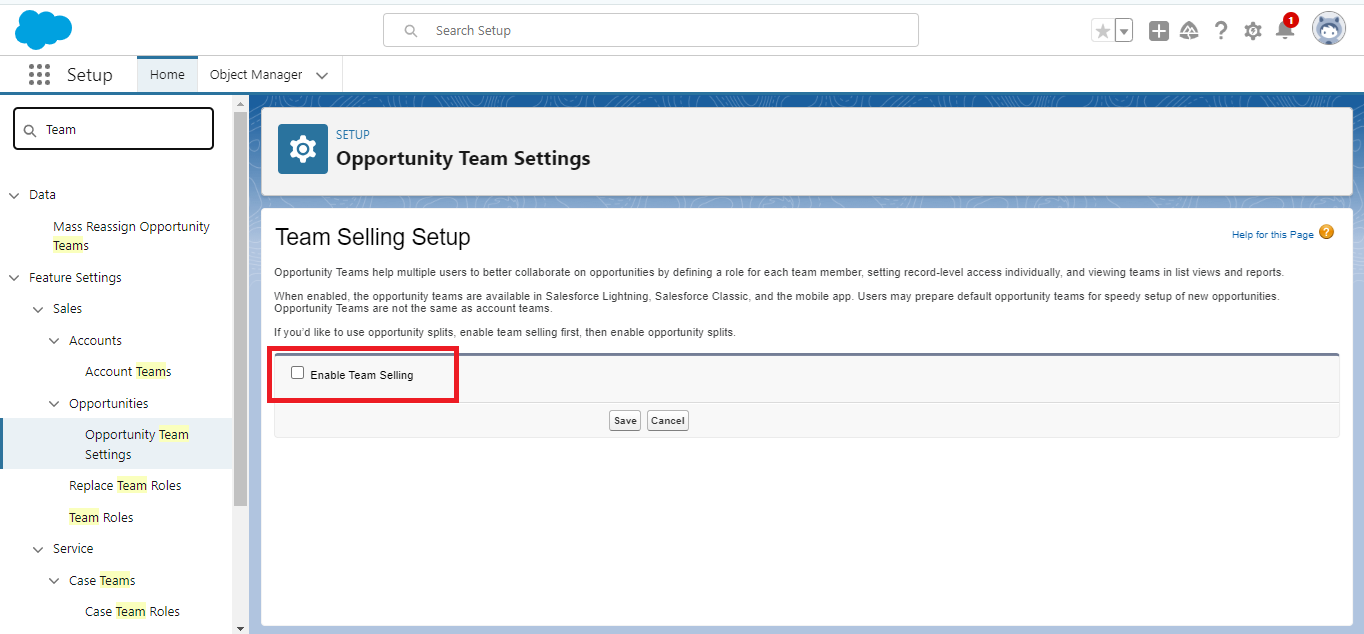
Step 1: In the Quick Find box search ‘Opportunity Team Setting’ and then Enable Opportunity Team Member. For reference check the below screenshot.
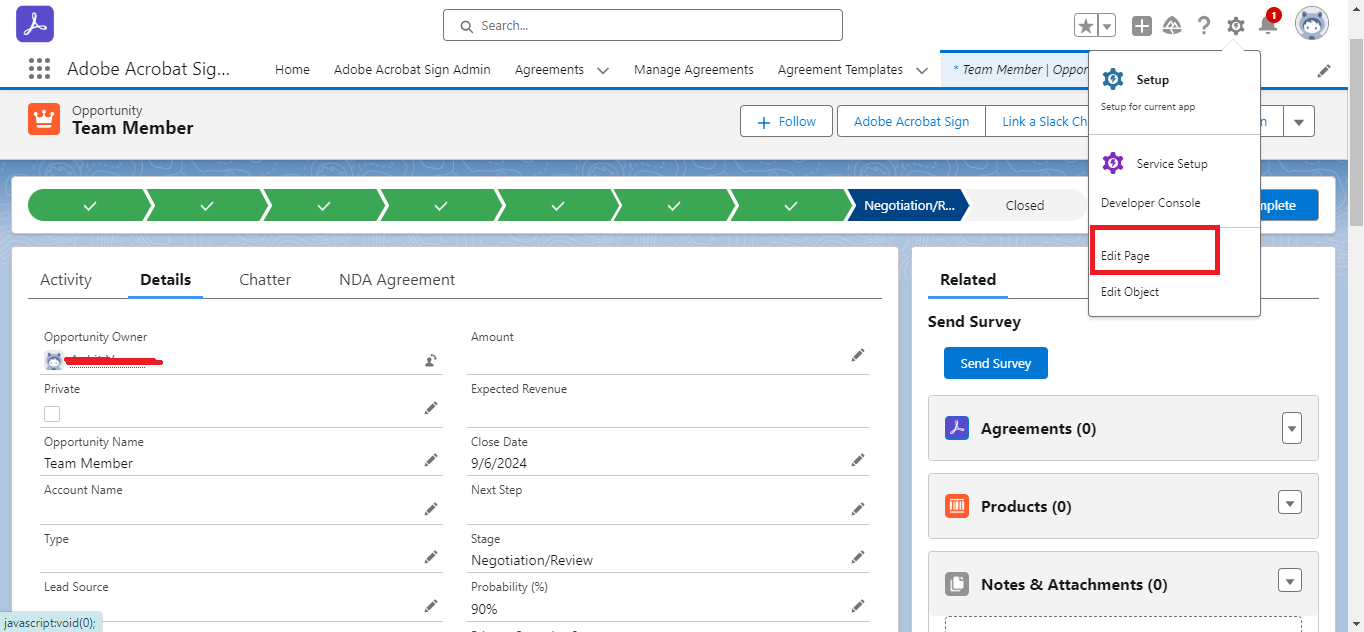
Step 2: After enabling the team, go to the Opportunity record and click on Edit Page.
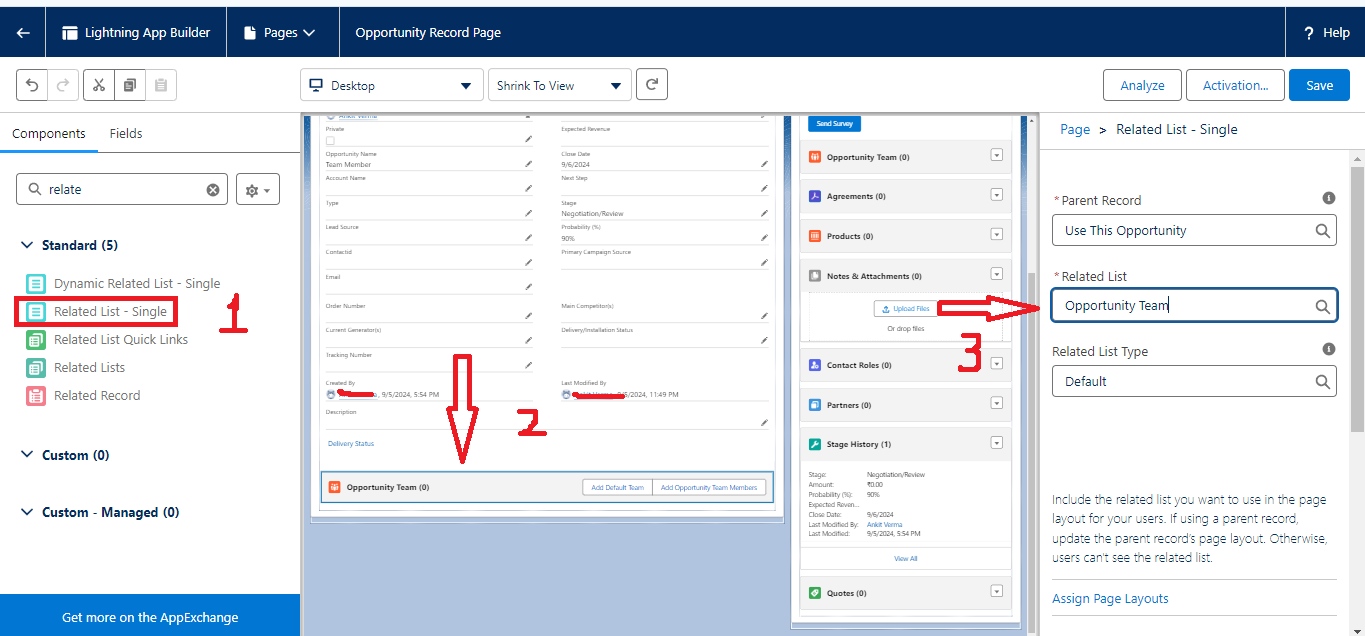
Step 3: Now, add the Opportunity Team Member to your Opportunity layout. For reference, see the screenshot below.
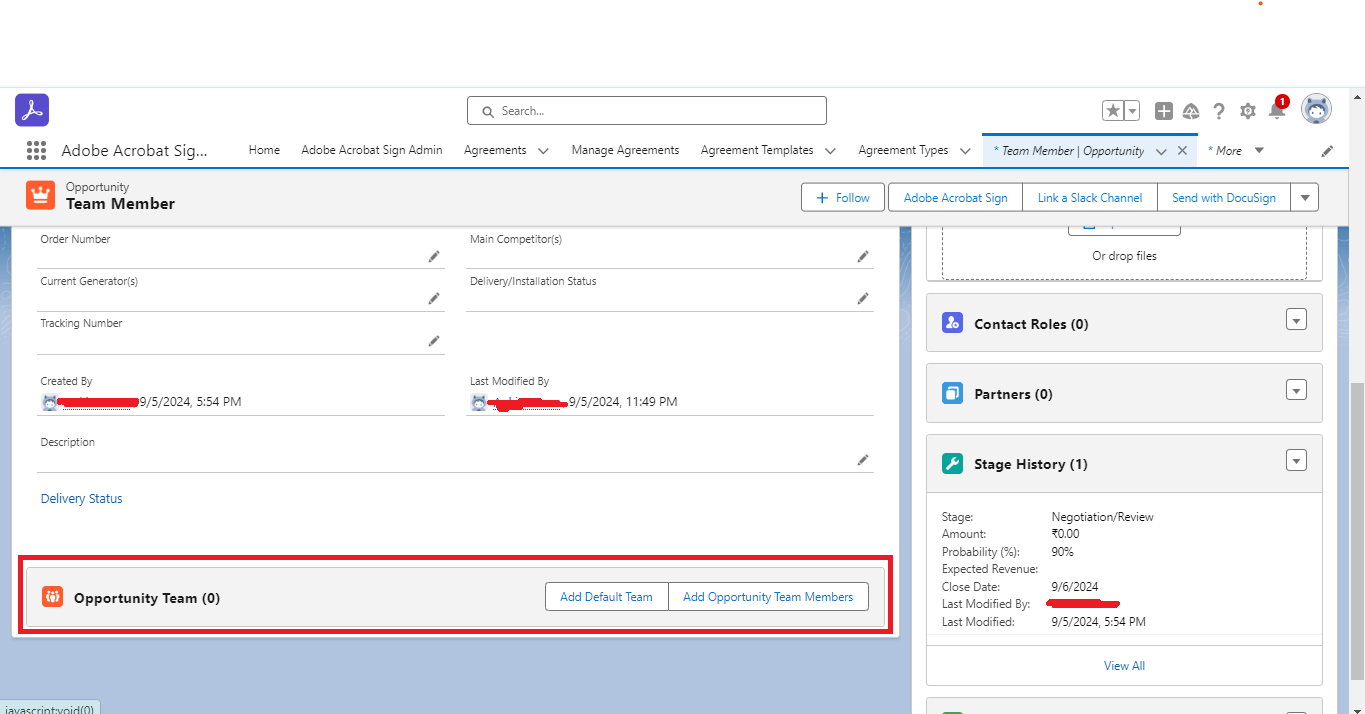
Step 4: After adding the ‘Opportunity Team’ to your page layout, your page will look like the screenshot below. Now, you can add Team Members. Click on ‘Add Opportunity Team Members’.
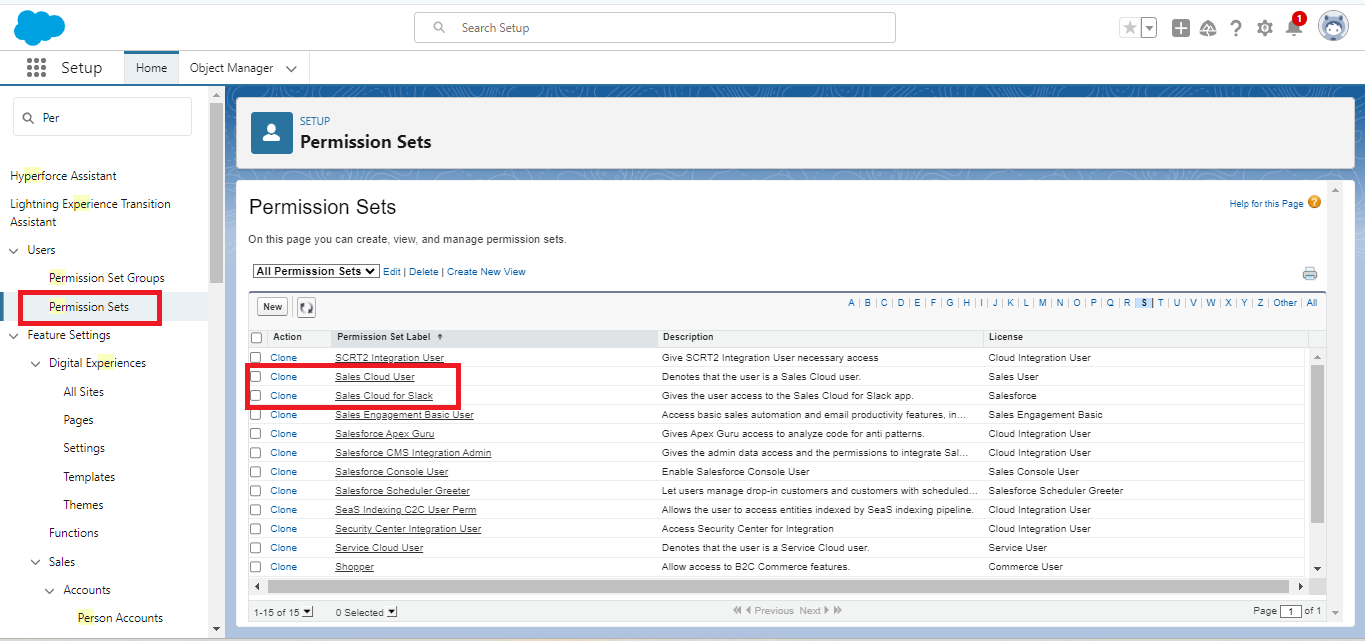
Step 5: Allow permission to the ‘Sales Cloud user’ and ‘Service Cloud user. ’ For reference, check the below screenshot. Then, create a Flow Automation to add the Opportunity Team Member to the Slack Channel.
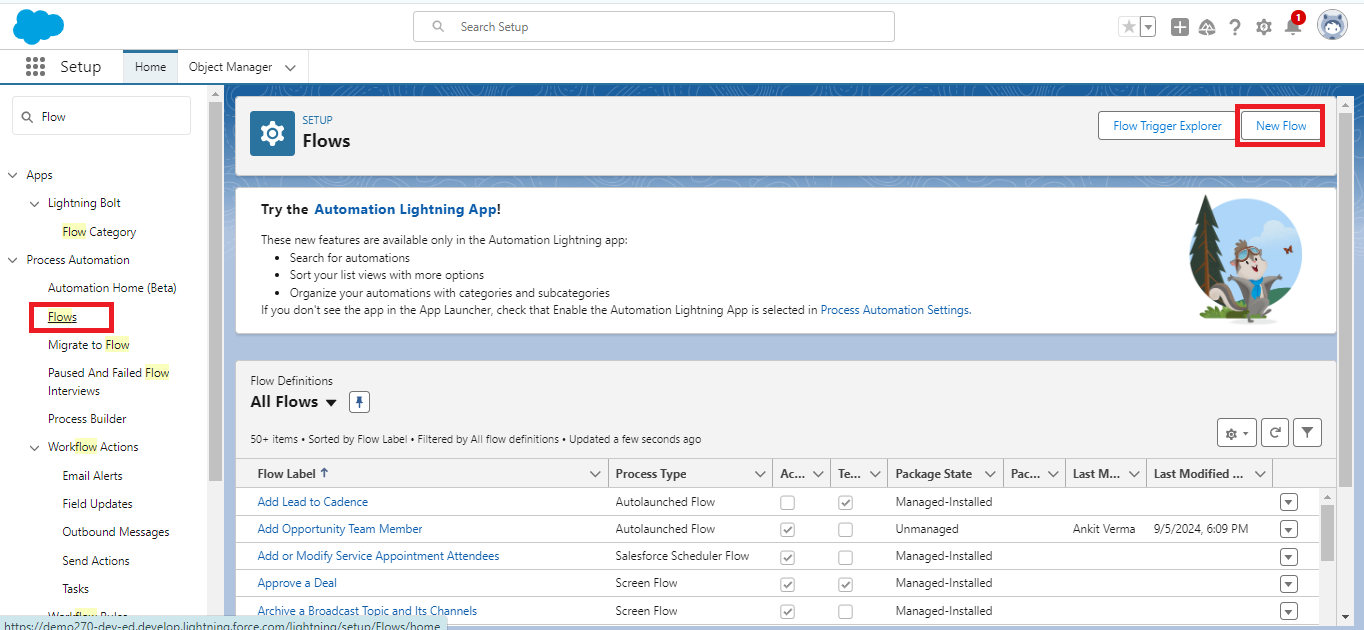
Step 6: In the Quick Find Box, search Flow, click on New Flow, and create a new Record Trigger Flow on ‘Opportunity Team-Member’.
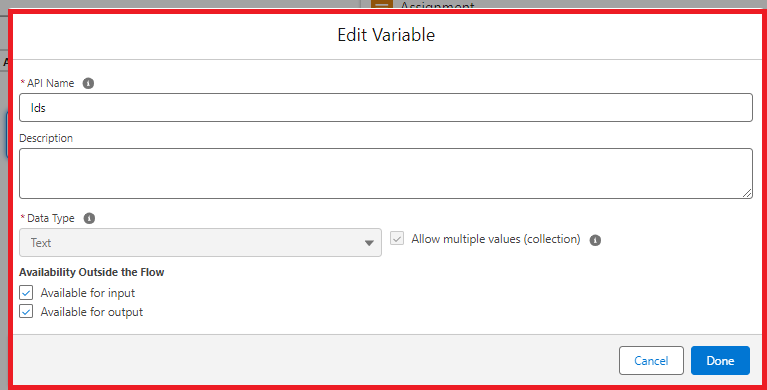
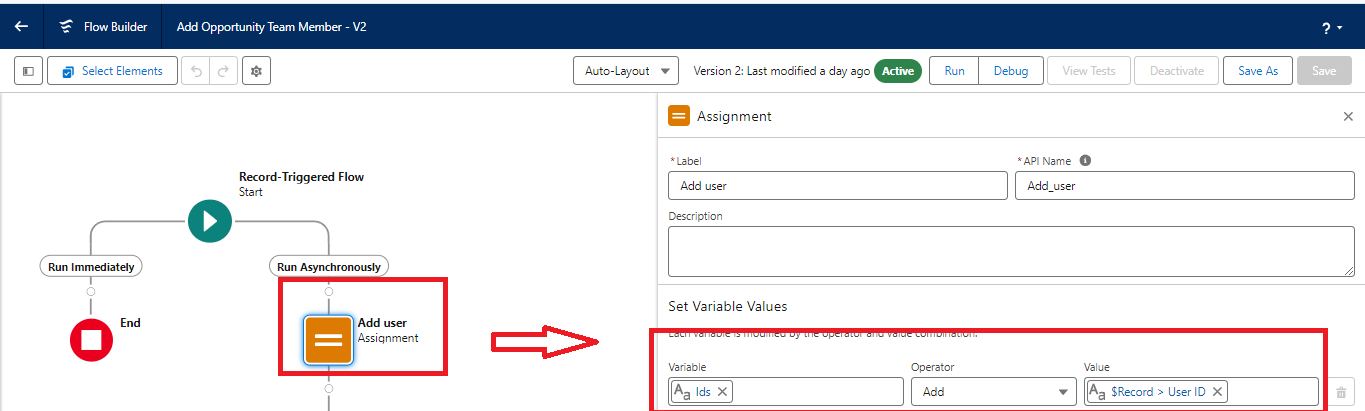
Step 7: Create a new resource named ‘ids’ as a text type to store a user ID and assign it as the record owner ID. For Reference check the below screenshot.
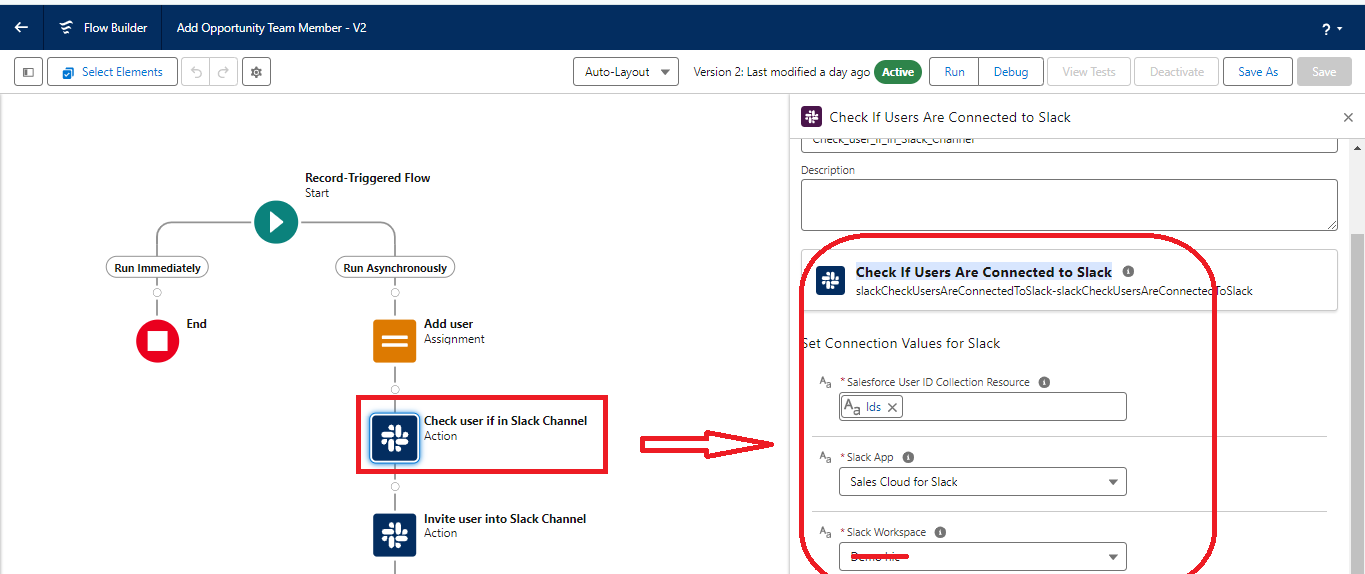
Step 8: Now, add Slack Action ‘Check If Users Are Connected to Slack’ to check users who already exist in the Slack channel. For Reference, check the below screenshot.
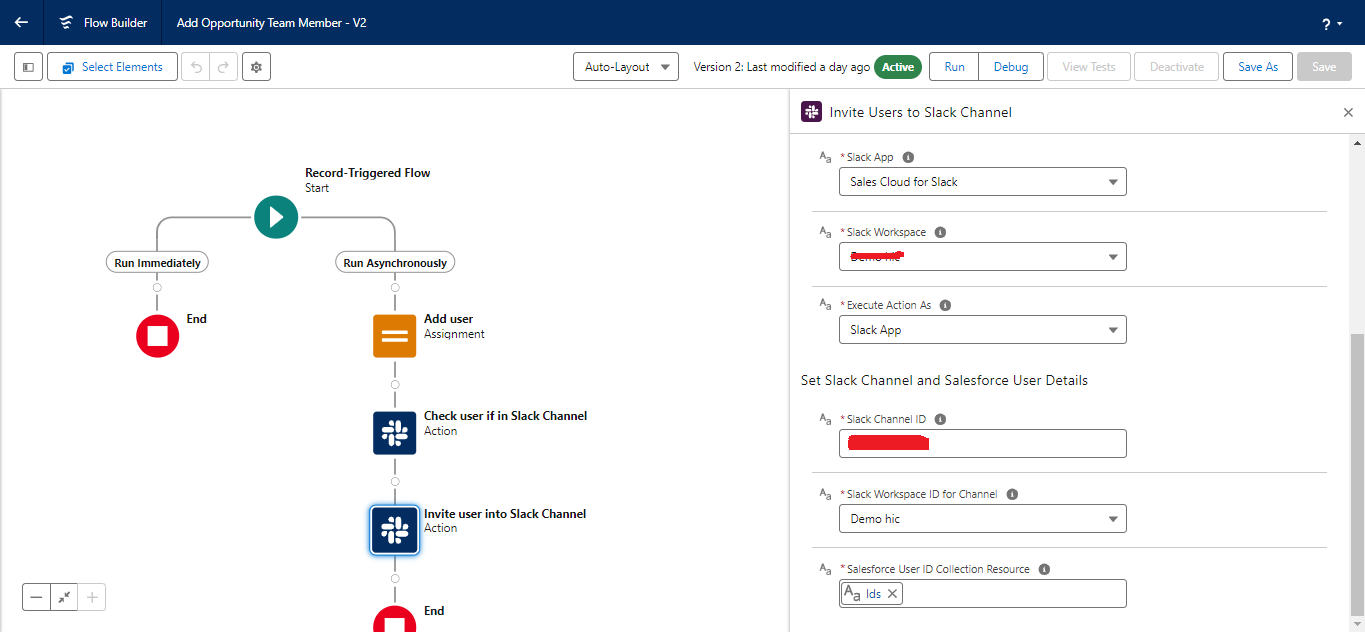
Step 9: Add a new action called ‘Invite User to Slack Channel’ to invite a team member to a Slack channel. Include the channel ID and workspace name in this Slack channel action. Then, click on Save and Activate the flow.
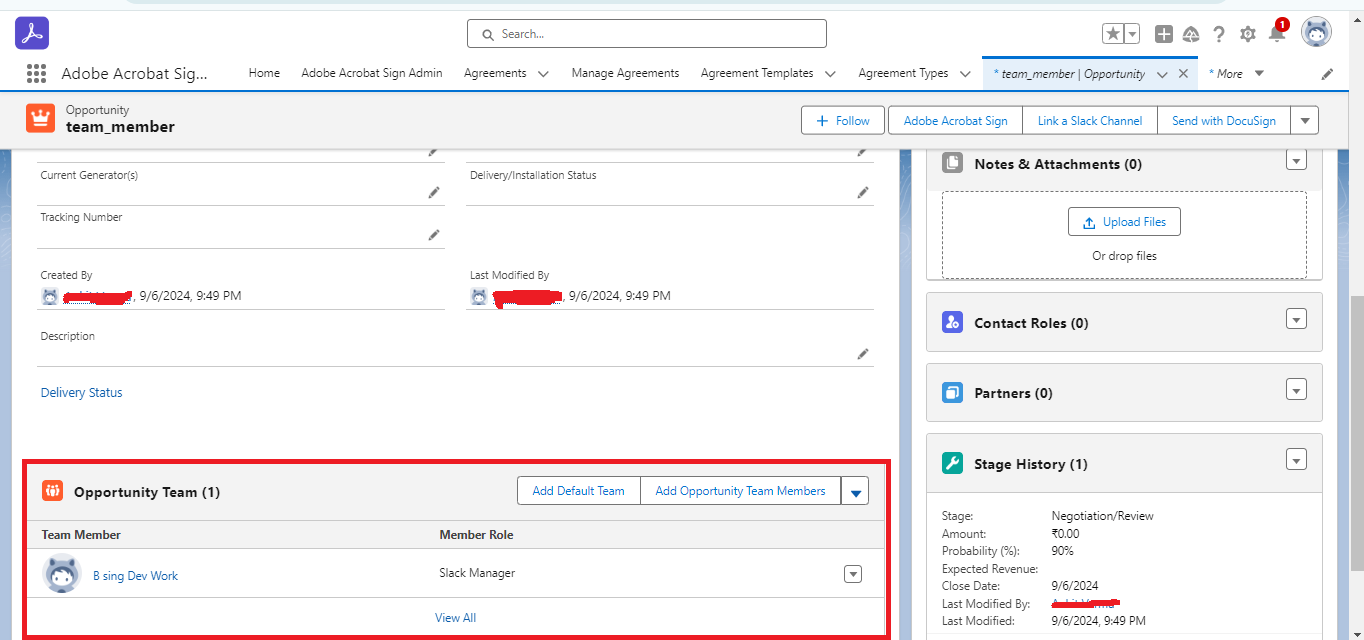
Step 10: Now, move to the Opportunity record and add a team member.
Step 11: Let’s move to the Slack channel and check if the user has been successfully added. For reference, check the below screenshot.
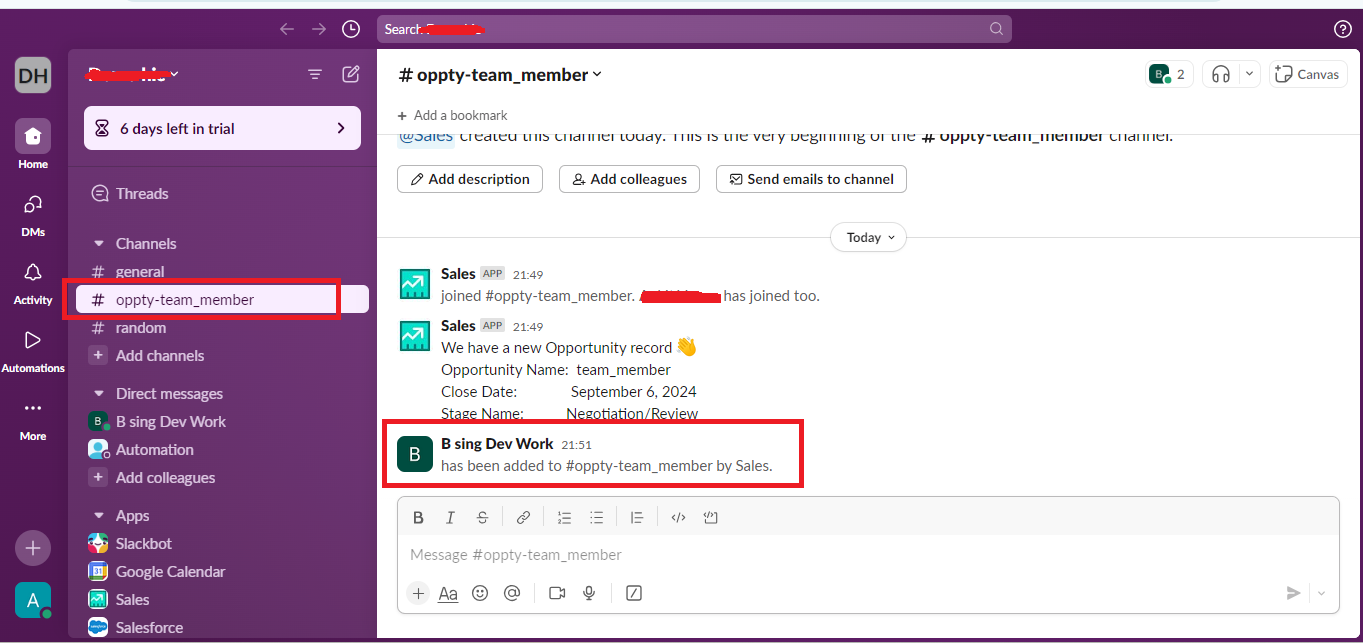
Opportunity Team Member successfully added to Slack Channel.
Conclusion:
In conclusion, integrating Opportunity team members into a Slack channel ensures seamless communication and collaboration within Salesforce. By automating the process of inviting team members to relevant Slack channels based on Opportunity records, organizations can enhance productivity and keep all stakeholders aligned.