




Making the calculations in the documents easy for you
Want to create an invoice? Salesforce document generation is just for you! They boost businesses’ performance to deliver customized, streamline, and scale document generation workflows and also help you create documents like invoices, reports, contracts, proposals, quotes, QBRs, and more. They fetch the data from your Salesforce org and create the document of your choice.
Post integration, the document generation process is a piece of cake. But sometimes you need a calculated value in your reports or invoice to share with the customer. To resolve this little glitch here’s a simple code of calculation for you.
A step by step process to sum two different tables into the third table.
STEP1: Create a table.
STEP 2: If you want the sum of the values to the left use the given formula. To make sure that the formula works well, press ctrl-F9 (to insert the special field code braces { }) key then formula braces will come in which the formula works.
Note: While writing the formula make sure you don’t type curly braces from your own.
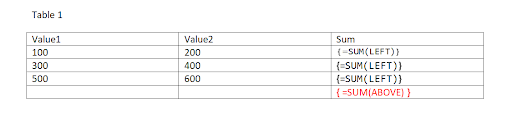
STEP 3: Similarly, create a second table.
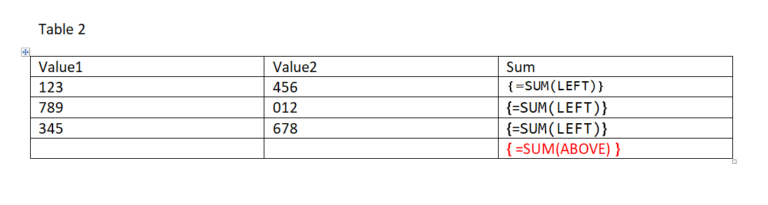
STEP 4: Create a third table in which you want the sum of the above two tables.
STEP 5: After creating the tables, Go to Insert and click on Bookmark.
STEP 6: Highlight the formula of Table 1 and then select Bookmark to insert a bookmark (let’s call it Sum1) as shown in the image.
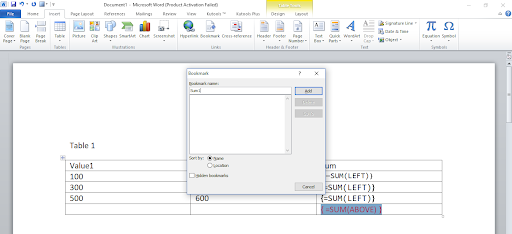
STEP 7: Similarly, insert a bookmark (let’s say it Sum2) for Table 2.
STEP 8: Now go to the third table and type the formula using braces (press Ctrl-F9 to insert the special field code braces { }) and give the reference of the bookmark as shown in the image

Conclusion:
Making the calculations in the documents easy for you, this piece of code enhances your team’s productivity. Try it out and do share your experience with us.





