
Salesforce Data Cloud is an extensive data platform that offers a 360-degree view of your data. It functions as an AI platform which is used by marketing teams, sales departments, and other businesses.
The primary goal of Data Cloud is to provide a comprehensive picture of customer data. It integrates with Snowflake which is a cloud-based platform that organizes data into fields and objects to make data sharing easier.
This bi-directional interface enables effortless data flow between Snowflake and Salesforce Data Cloud.
Prerequisite:
- Must have a Data Cloud org.
- You must have an account with Snowflake. You can utilize a 30-day free trial account. Here’s the Snowflake account.
- Integration is only available in the Supported Cloud Regions of Snowflake.
Key Implementation Steps:
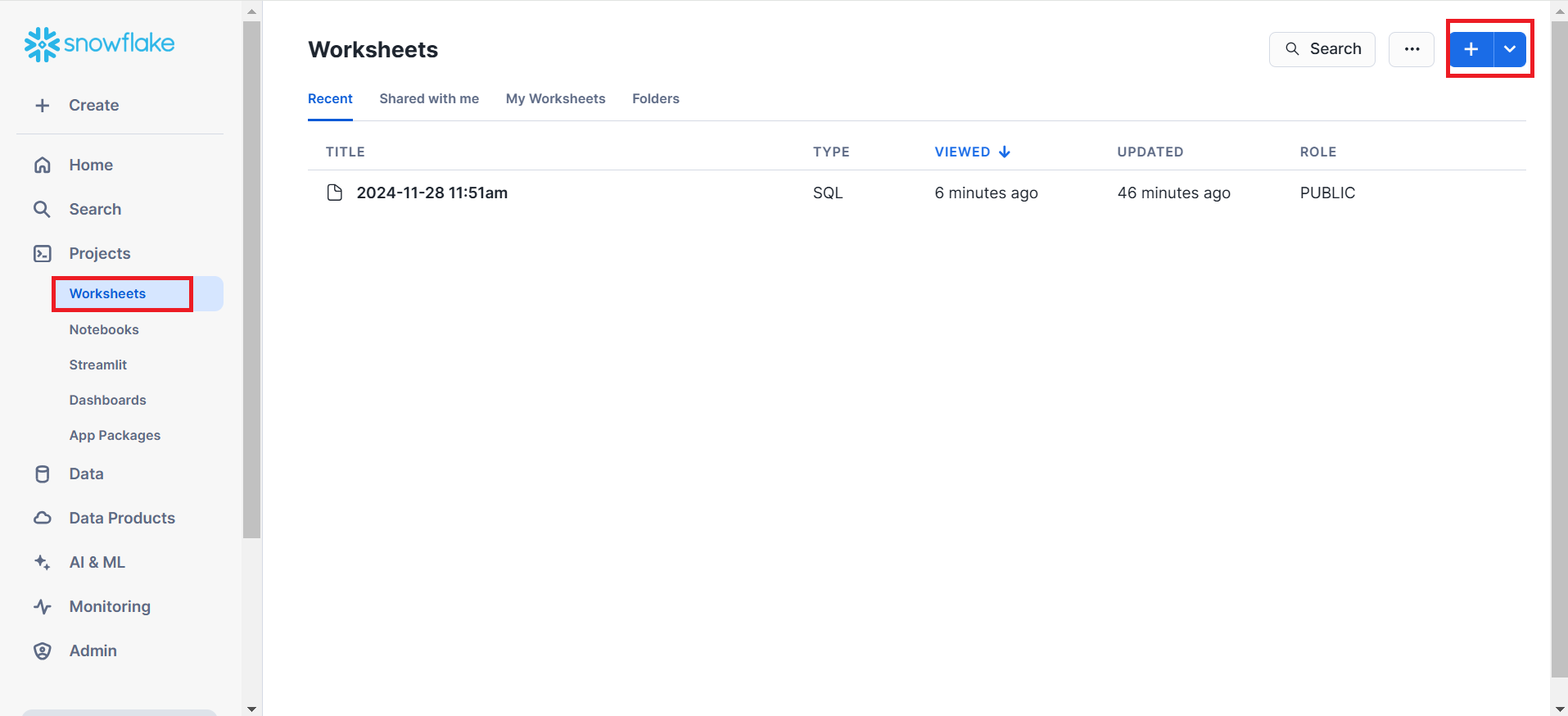
Step 1: After you’ve created your Snowflake account, utilize the SQL Worksheet to create a new user. To begin, navigate to Projects>Worksheets in your Snowflake account, and then click the (+) button in the upper right corner to create a new SQL worksheet. For reference, see the screenshot below.
Note: It is important to note that you can create a custom role as a Public. On the SQL Worksheet, execute the following steps to create a new user with all of their information
Step 2: Create a new SQL worksheet to enable OAuth access for the user Public role defined in the previous step. After pasting the script, run your worksheet to create a Security Integration.
Note: The user name in Snowflake is ‘Demo’.
Step 3: Run the script provided below to generate the Client ID and Client Secret. When the script completes properly, you will be given the Client ID and Client Secret. Copy both for later use.
Step 4: After successfully obtaining the Client Id and Client Secret key, execute one line of code to retrieve the OAuth Endpoint. After receiving the OAuth endpoint, copy it for further use.
After successfully running this SQL, you will receive an authorization endpoint like this:
https://lx52937.us-east-2.aws.snowflakecomputing.com/oauth/authorize.
Step 5: Now, add one more line to the above-mentioned script to allow role access to the security integration.
Step 6: After the statement execution is successful, navigate to the Data Cloud org and click on the Data Share Targets objects, create a data share target, and add the label, Account URL, Client ID, and Client Secret key.
For reference, you can check the screenshots given below.
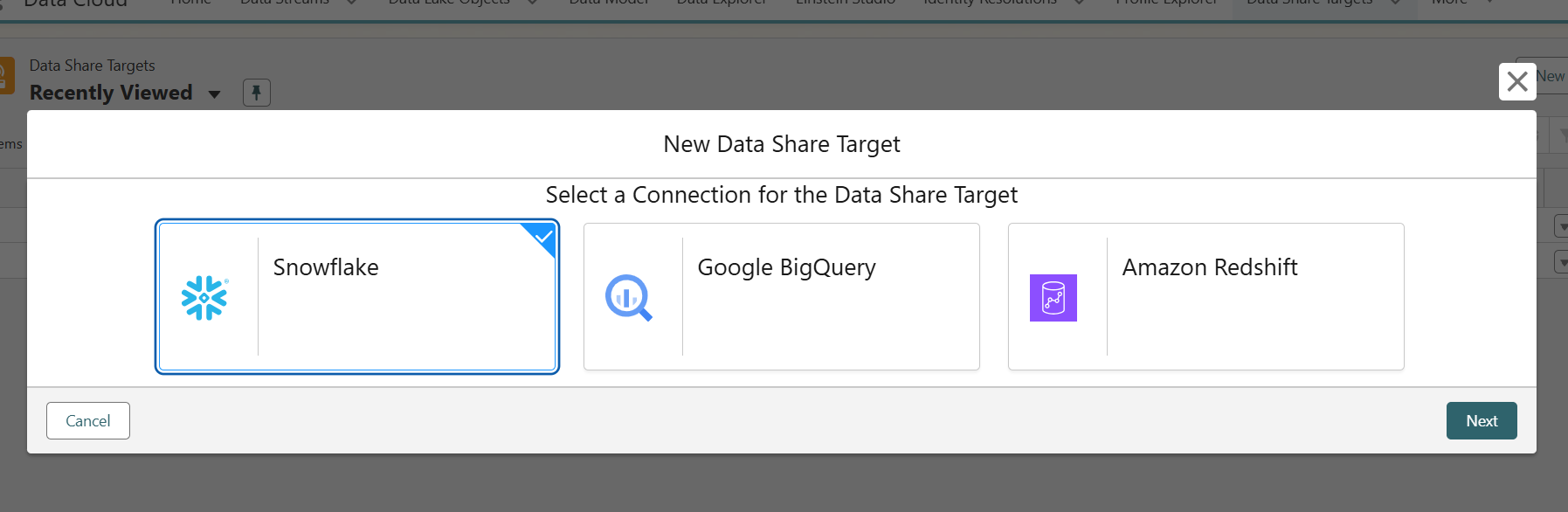
After selecting Snowflake, provide the Account URL (authorization endpoint without ‘/oauth/authorize’), Client ID, and Client Secret.
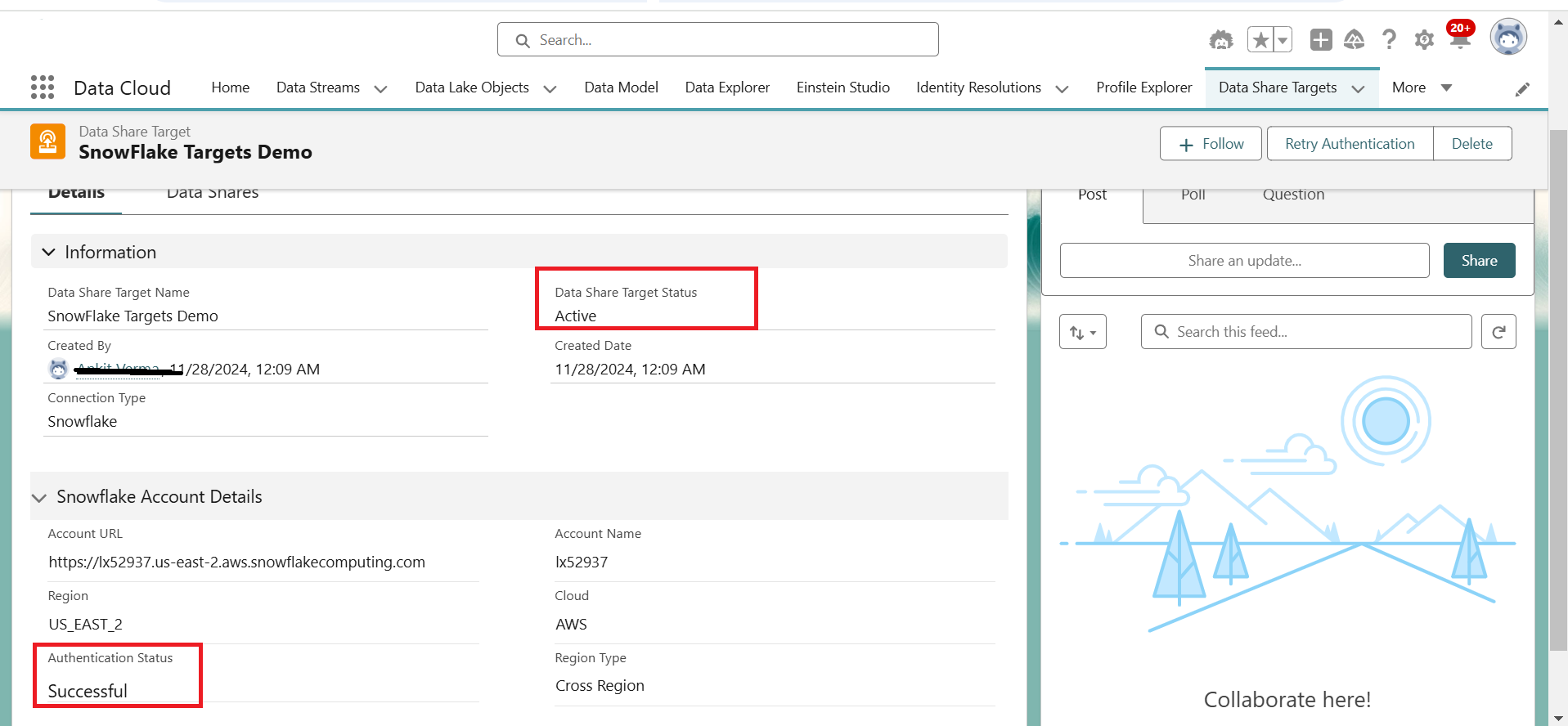
Step 7: Verify whether the confirmation of your Snowflake account was successful.
Step 8: The next step is sharing cloud data with Snowflake. To share data, select the Data Shares Tab.
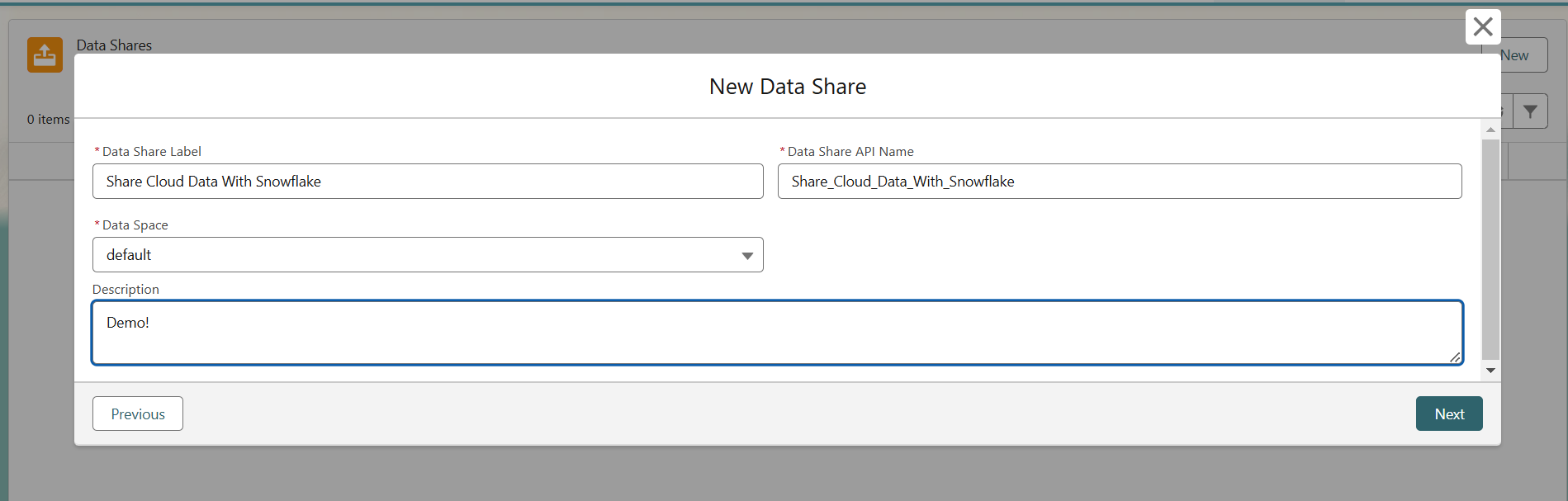
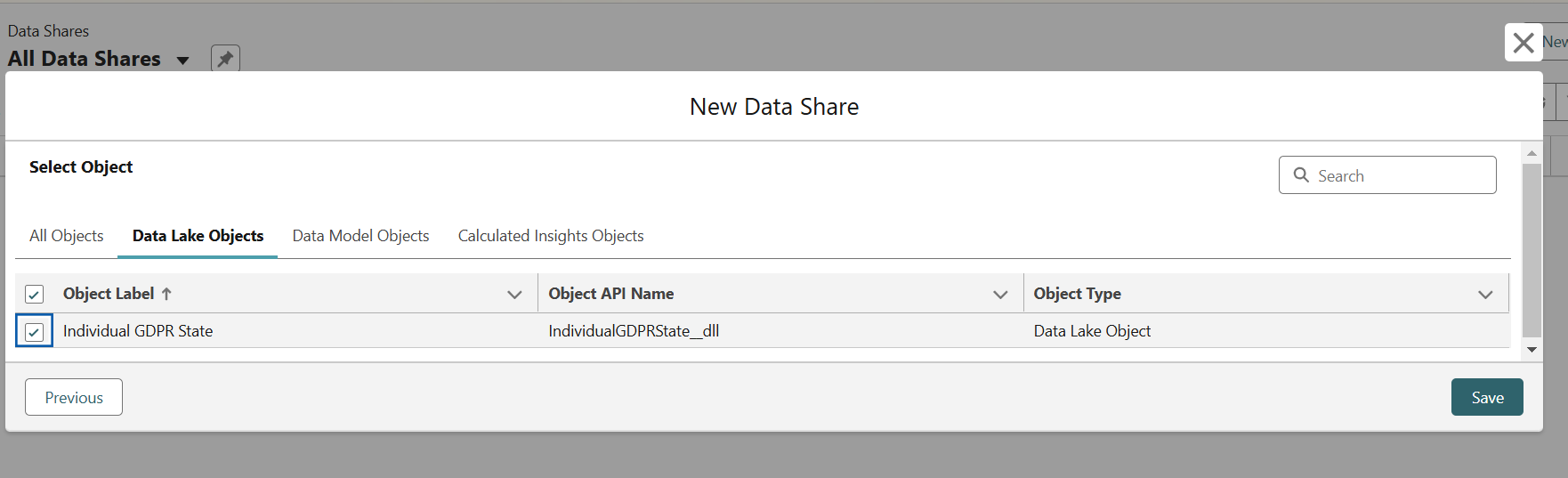
Step 9: After selecting the Data Lake object, click Save.
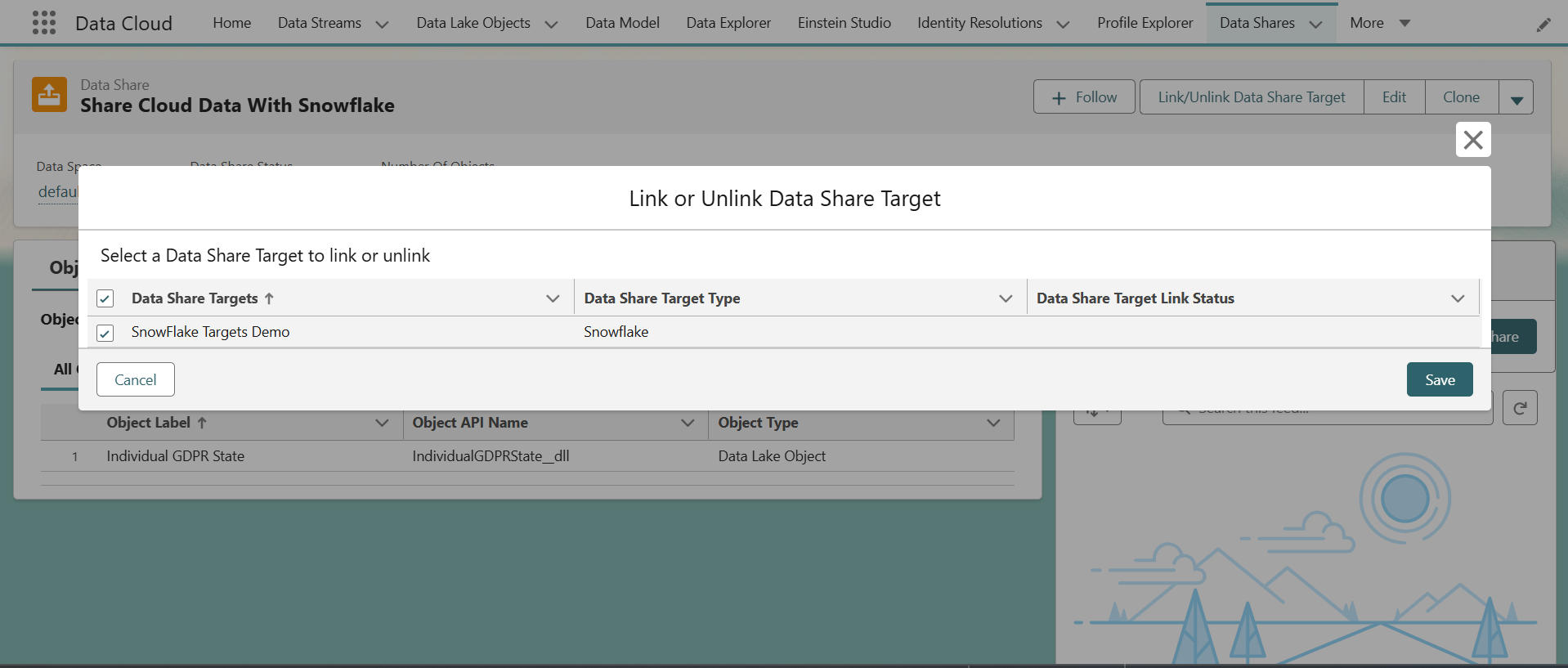
Step 10: Select your data share and click “Save” after clicking the “Link/Unlink Data Share Target” button in the upper right corner.
Step 11: Next, select Data Products> Private Sharing> Direct Shares in your Snowflake account to check the data. Your data will be visible to you.
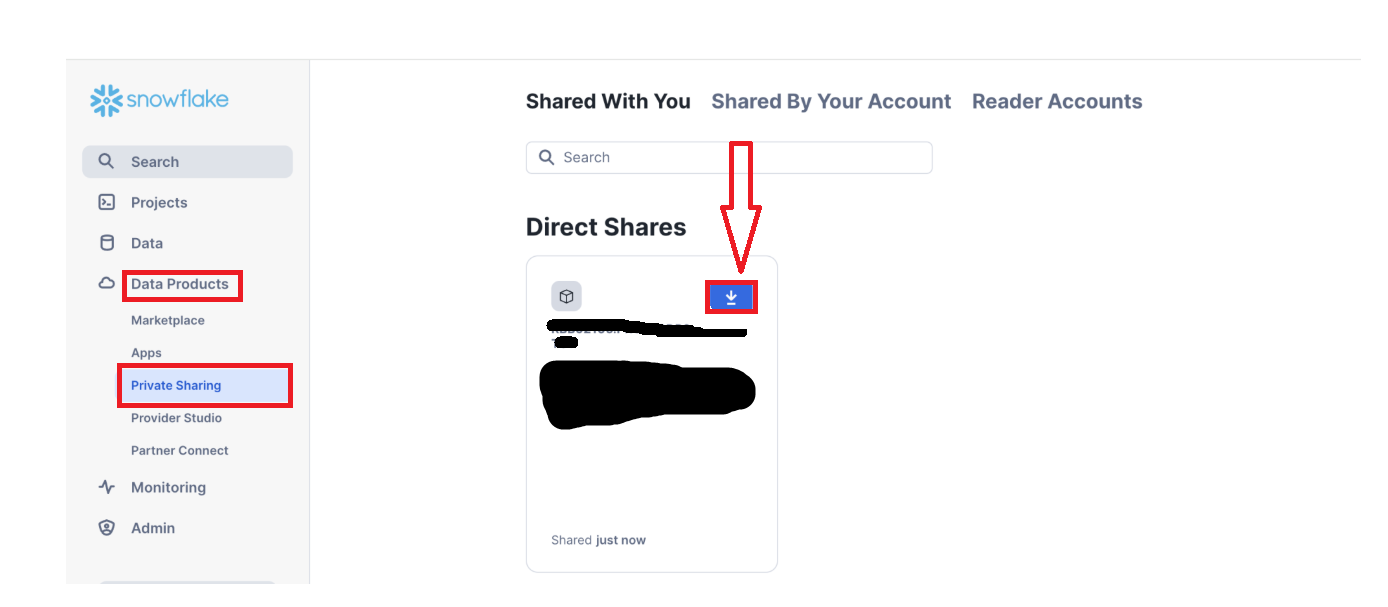
You may now see the fields mentioned under Data > Database by clicking on it.
Conclusion:
Integrating Salesforce Data Cloud with Snowflake offers a seamless, bi-directional solution for sharing data. This zero-copy integration enables effective data management and sharing by eliminating the need for duplicate data. Businesses can access a full 360-degree view of their data by combining the benefits of both platforms, which improves decision-making and operational efficiency.