



You all must have come across terms like AI, Einstein, or Einstein chatbot and listened to people saying Bot deployment is easy. However, the challenge is to create a useful and relevant bot for your customers. Today, we are going to tell you everything about the setup process of Einstein Chatbot in Salesforce.
So, let’s begin with this thoughtful solution!
Prerequisites:
Bots rely on technology you use, such as the channel, knowledge articles, Einstein, report and dashboard, etc.
- You need to have a Service Cloud license.
- Enable chat in your org. From Setup, enter Chat in the Quick Find box, then select Chat Settings. Check Enable Chat.
- From Service setup, enable ‘Chat Guided Setup Flow.’
- Turn on the permission for ‘Enable Support QuickAction Rest endpoint for Guest Users.’
- For offline support, enable guest access to the support API.
Setup Einstein Bot in Salesforce
1. Enable:
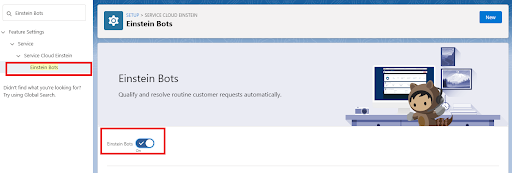
2. Now, click New. Give a name and preferred language to your bot. And skip the rest of the steps so we can see how we can set up things manually.
Note: We have named our bot Eve.
3. Here, we are on the Einstein bot builder.
A.

B. Here you can find all the feature lists of Einstein bot.

C. Let’s quickly go over the current screen:
- These are the prebuilt dialogs.
- Welcome Message shows up when the customer starts a conversation.
- Here we can set it to show a menu, Start another dialog, Transfer to an agent, or Wait for customer input, which implies you will use NLP to identify customer intent and start the next dialog.
- After the Welcome dialog, the bot immediately goes to the Main Menu dialog(if set up).
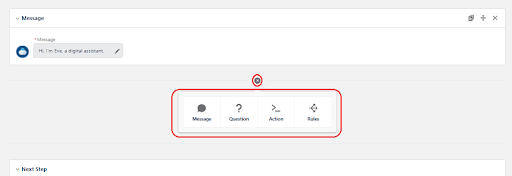
4. For every dialog we can set the dialog steps, which are built from:
A. Messages—communicate information to the customer using text.
B. Questions—ask for customer input and store that information.
C. Actions—access Salesforce automation tools such as Apex code, Flows, outbound email, or Object Search.
D. Rules—add conditional logic based on customer data and perform actions such as transfers, setting variables, or ending the chat.
E.
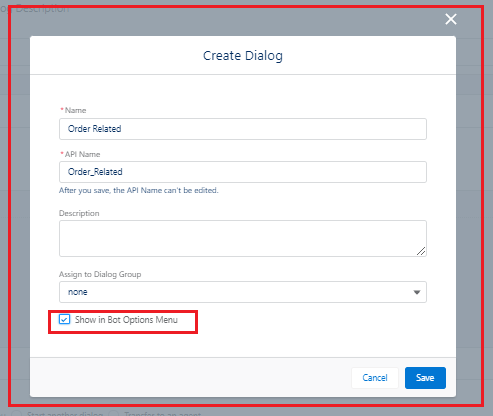
5. Add a new dialog to display a set of options to your customer
A.
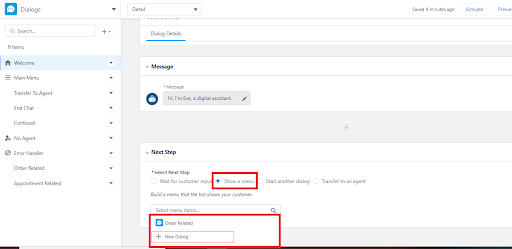
B. Now, check show in the Bot options menu
6. Now, set the final piece
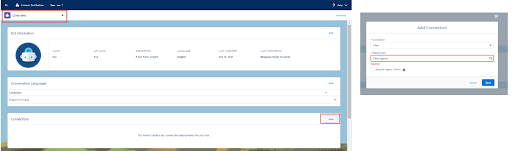
A. Add channel and save
7. Now, let’s test
A. From Dialog, active the bot and click preview and select the embedded service on which you want to test this bot.
B.
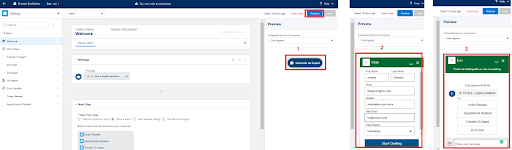
And, similarly, you can add the next steps to each dialog and prepare a bot conversation.
We have added one to Order-related 🡪 “Order status” to ask customer order number with below pattern only O-12345.
Conclusion
There you have it! Our step-by-step guide to help you set up Einstein Chatbot in Salesforce. We hope that this blog was helpful to you. If you try out this solution, then do share your experiences with us. We will be back with another solution soon to help you succeed with Salesforce. Till then, happy learning! 🙂





