




The importance of documents is undeniable in any business, as good documentation can truly make or break a business. So, if you want to build a customer base of affinities, grow deeper relationships, and build your brand image, you need to showcase your values to your documents. Today, in this thoughtful blog, we will tell you how to integrate Salesforce with document generation app, Docs Made Easy, with just a few clicks.
This tool has been developed and designed by Salesforce Consulting Company HIC Global Solutions, Your CRM Success Partners. But before diving into the blog, let’s see why you would want to integrate Salesforce with Docs Made Easy for your business.
Why Docs Made Easy for Salesforce Document Generation?
- Create multiple documents in the formats that you want: You can precisely create any kind of document, be it Proposals, Reports, Presentations, Quotes, Invoices, Contracts, or any other document; you just have to name it! This also allows you to import your document in a variety of formats- PDF, Docx, and HTML.
- Consistent Documents: With this, you can create beautiful, robust, and dynamic documents while maintaining uniformity. Now, you can reflect on your true values at all levels with consistent documentation for your business.
- Works for Non-IT users: This app has been designed while keeping non-IT users in mind. So, anyone in your team with no or limited technical knowledge can use it.
- Secure: Your data never leaves Salesforce, which means you won’t have to compromise on the sensitive information of your customers.
- Reduced Errors: This documentation tool makes arguably no mistakes! Now, your sales teams can focus more on your business goals than the documentation!
Steps of Integration
Once you have installed the Docs Made Easy app from Salesforce AppExchange, you need to follow the steps given below to integrate Salesforce with Docs Made Easy.
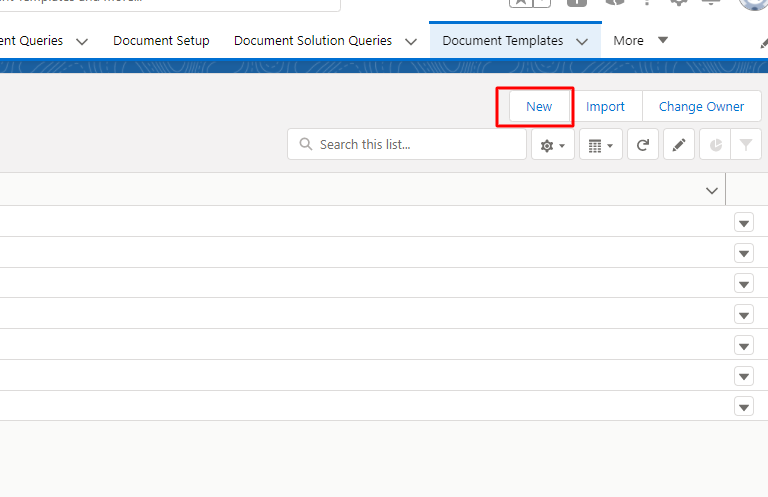
STEP 1: Click on Document Template to open it.

STEP 2: Next, click on new to create a Document Template.
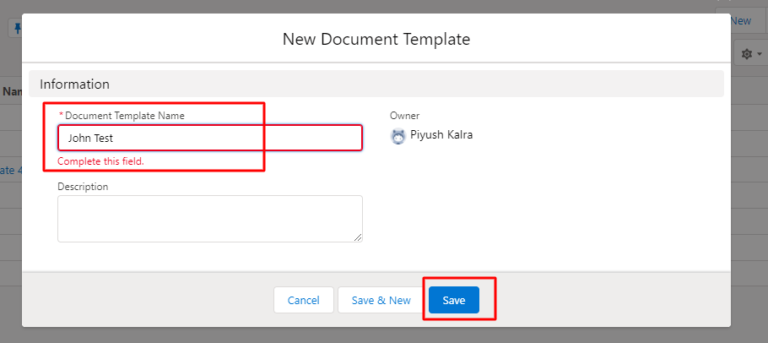
STEP 3: Now, Add the Document Template Name and click on Save.
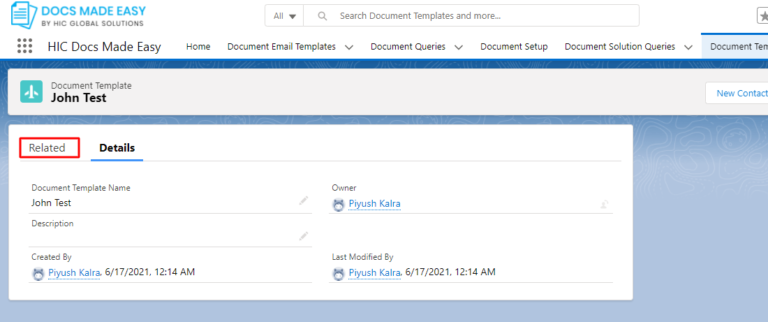
STEP 4: Here, click on the related list.
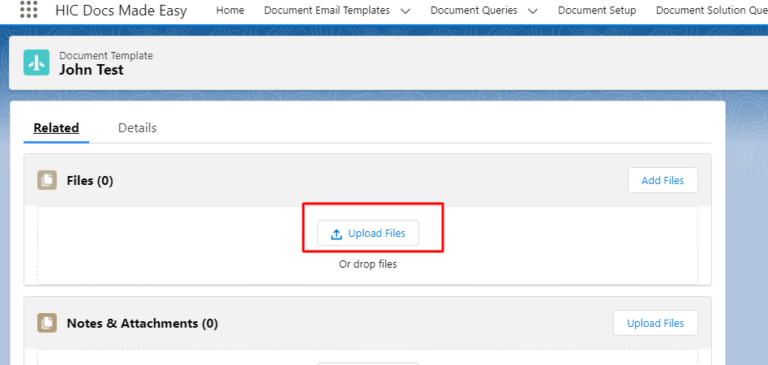
STEP 5: Now, click on Upload Files.
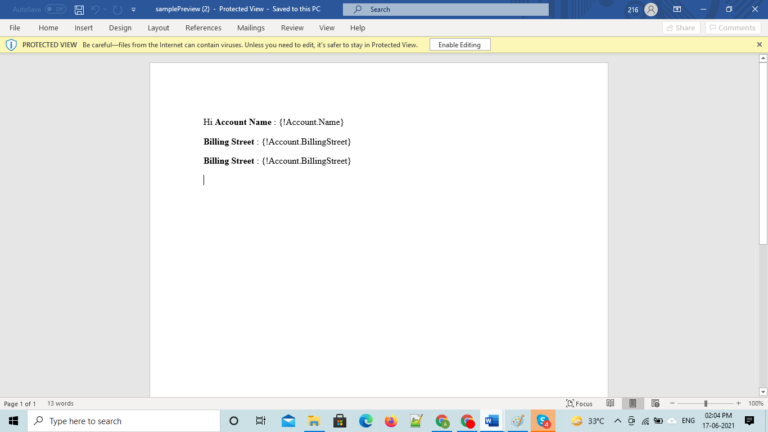
STEP 6: Next, select the file which has the template that you want. Here we have created a Template.

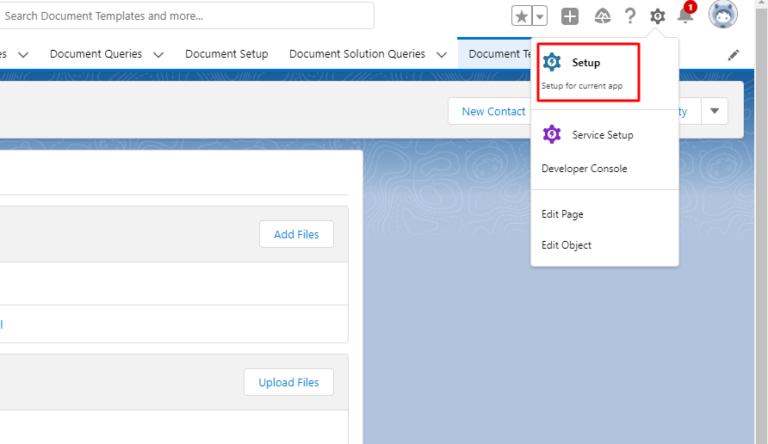
STEP 7: Now, click on the Setup to move to the setup page.
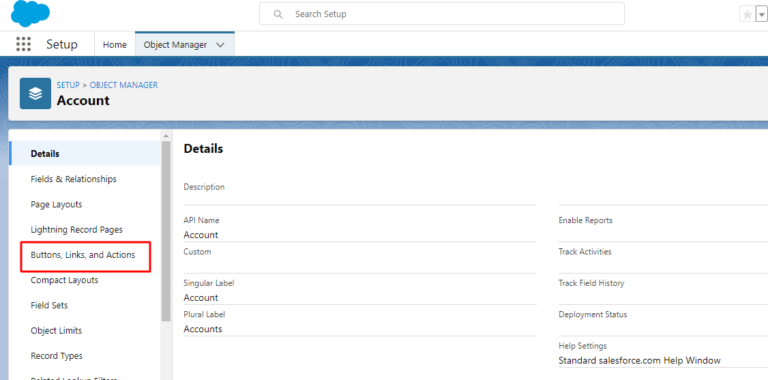
STEP 8: On Object Manager, select the Object Account.

STEP 9: Next, click on the Button, Links, and Action.
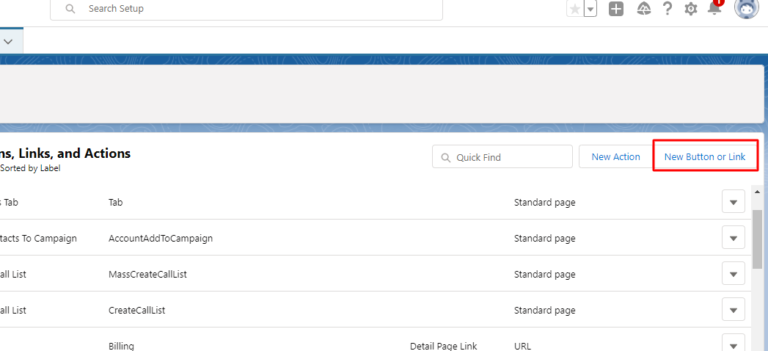
STEP 10: Now, Click on the “New Button and Links” to create a new button.
STEP 11: Now, Add Name, Display type, and the Button Url(/apex/hic_docmerge__Composer?id={!Account.Id}).

STEP 12: Now, Add the Document Template ID that we have created.
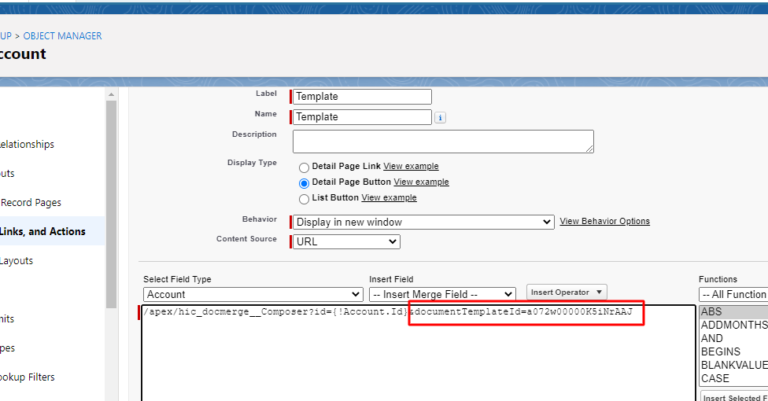
STEP 13: Click on save to create this button.

STEP 14: Add this button to the Account Page Layout.
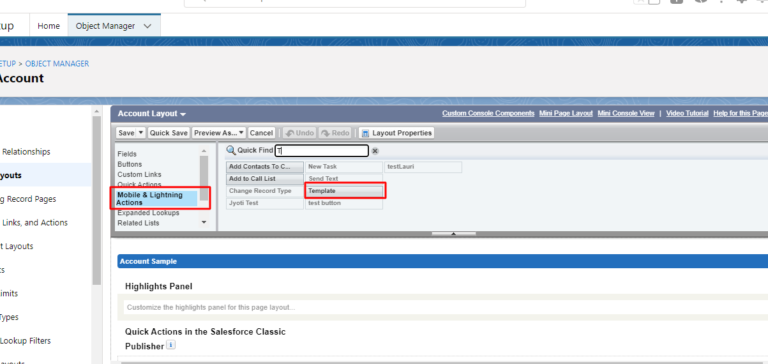
STEP 15: Now move to Account and click on this button.
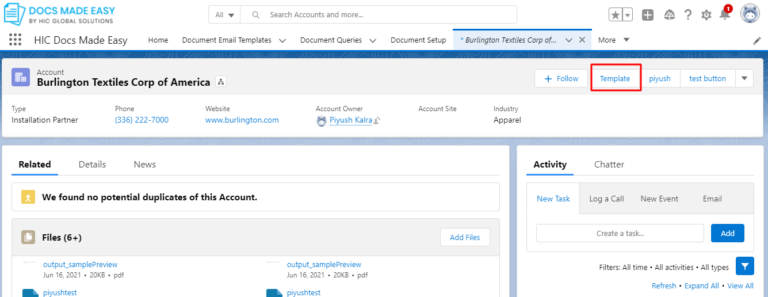
Result: This will navigate you to the composer page.
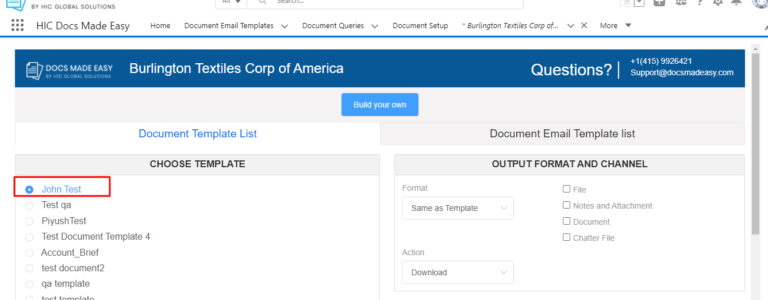
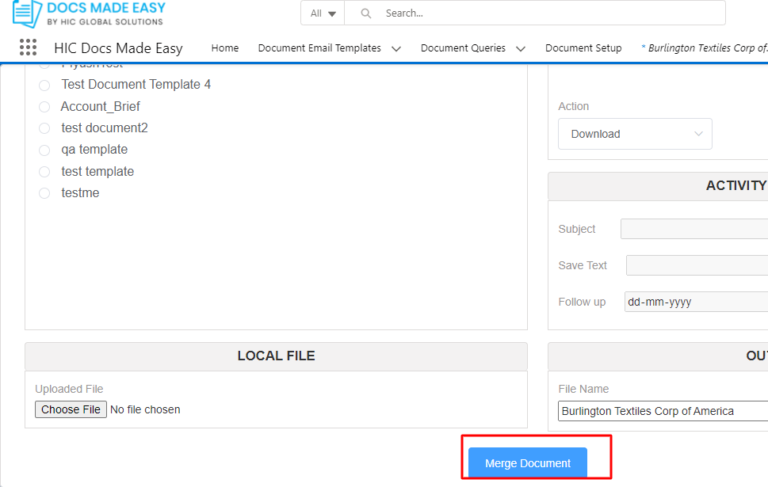
STEP 16: Now, Click on the Merge Document button to generate the file that we have added to the document template.
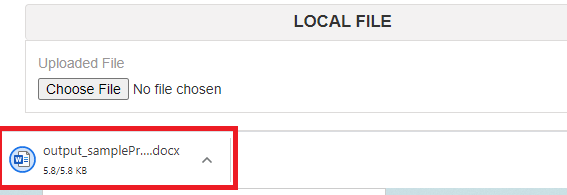
STEP 17: The document is generated, now click on the document to open it.
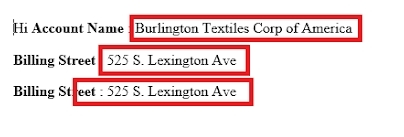
Result: The field which is added to the template is updated with its value.
Conclusion
Integrate Salesforce with Document Generation App like Docs Made Easy can never get easier than this. Now, boost your business with effective and efficient documents. If you try out our solution, then do share your experiences with us.
Also, please follow us on our social media handles to stay updated with the latest developments in and around the Salesforce ecosystem. We will be back with another blog soon to make your journey with Salesforce a lot easier. Till then, happy learning! 🙂





