

Dynamic Forms revolutionizes the capabilities of the Lightning App Builder, empowering Salesforce admins to create highly adaptable and interactive experiences that resonate with users. By configuring record detail fields and sections within the Lightning App Builder, admins can now build flexible and dynamic interfaces that users will truly appreciate.
With Dynamic Forms, the Record Detail component on your Lightning pages is deconstructed into individual field and section components that can be placed anywhere on the page. This breakthrough allows you to utilize visibility rules, ensuring that end users are presented with only the relevant fields at the right moments, streamlining their experience.
The benefits of Dynamic Forms are-
- Effortlessly position fields and sections wherever you desire.
- Employ visibility rules to display or conceal fields and sections effortlessly.
- Manage fields and sections on your pages within the Lightning App Builder, eliminating the need to interact with the page layout editor.
- Define component visibility rules to reduce the necessity for numerous page layouts and record types.
- Assign Lightning pages independently without the requirement to assign a page layout simultaneously.
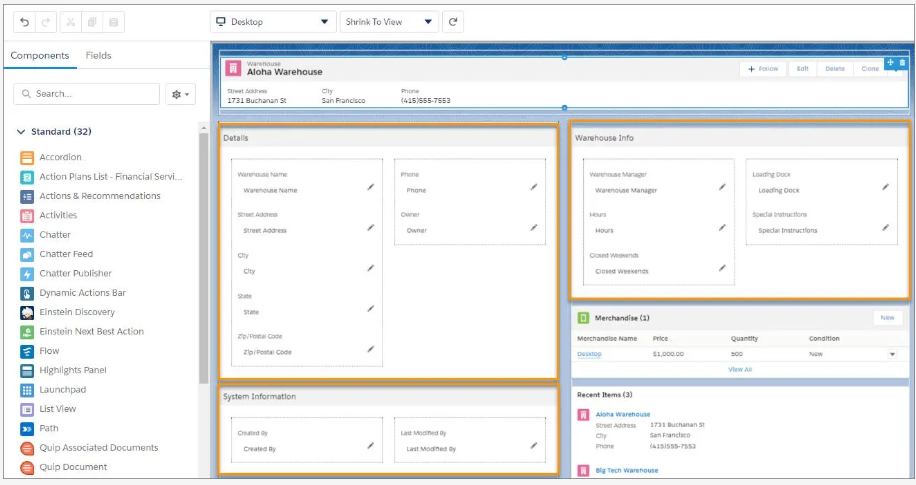
How Does Dynamic Forms Work?
There are two straightforward methods to begin using Dynamic Forms:
- Create a new Lightning record page, and within the Lightning App Builder component pane, navigate to the Fields tab. From there, effortlessly drag and position sections and fields anywhere on the page, granting you complete customization control.
- Alternatively, if you already have an existing record page, you can easily migrate its record details using the user-friendly Dynamic Forms migration wizard. With just a few clicks, you’ll be able to transfer and incorporate the record details seamlessly into the Dynamic Forms framework.
Let’s go through the steps together:
- Start by accessing the App Launcher (App Launcher) and selecting the Sales app.
- Navigate to the Opportunities tab and choose the All Opportunities list view.
- Locate and click on the specific opportunity.
- From the Setup menu (Setup), select Edit Page
- The Lightning App Builder will open, displaying the selected page.
- Switch to the Details tab, and then click within the record details area.

- This action will select the Record Detail component and reveal its properties in the properties pane.

- To proceed, simply click on the “Next” button select the desired page layout that you wish to customize, and then click Finish.

Next, let’s proceed with adding a new tab:
- Click on the Details tab once again.
- Within the Tabs properties pane, locate and click on the “Add Tab” option. This action will create a new item for the Details tab.
- Now, click on the newly created Details tab item.
- In the Tab Label list, scroll up if necessary, and select “Work Plans” from the options available at the top.

Note: You have the freedom to customize the tabs, fields, and other elements according to your specific needs, allowing you to effortlessly add or remove them as desired.
- Now Click the Save button on the top-right corner. Note: You may get an error message if the required field is missing

- Click “Cancel” and let’s identify what is currently missing.
- Navigate to the component palette and select the “Fields” tab.
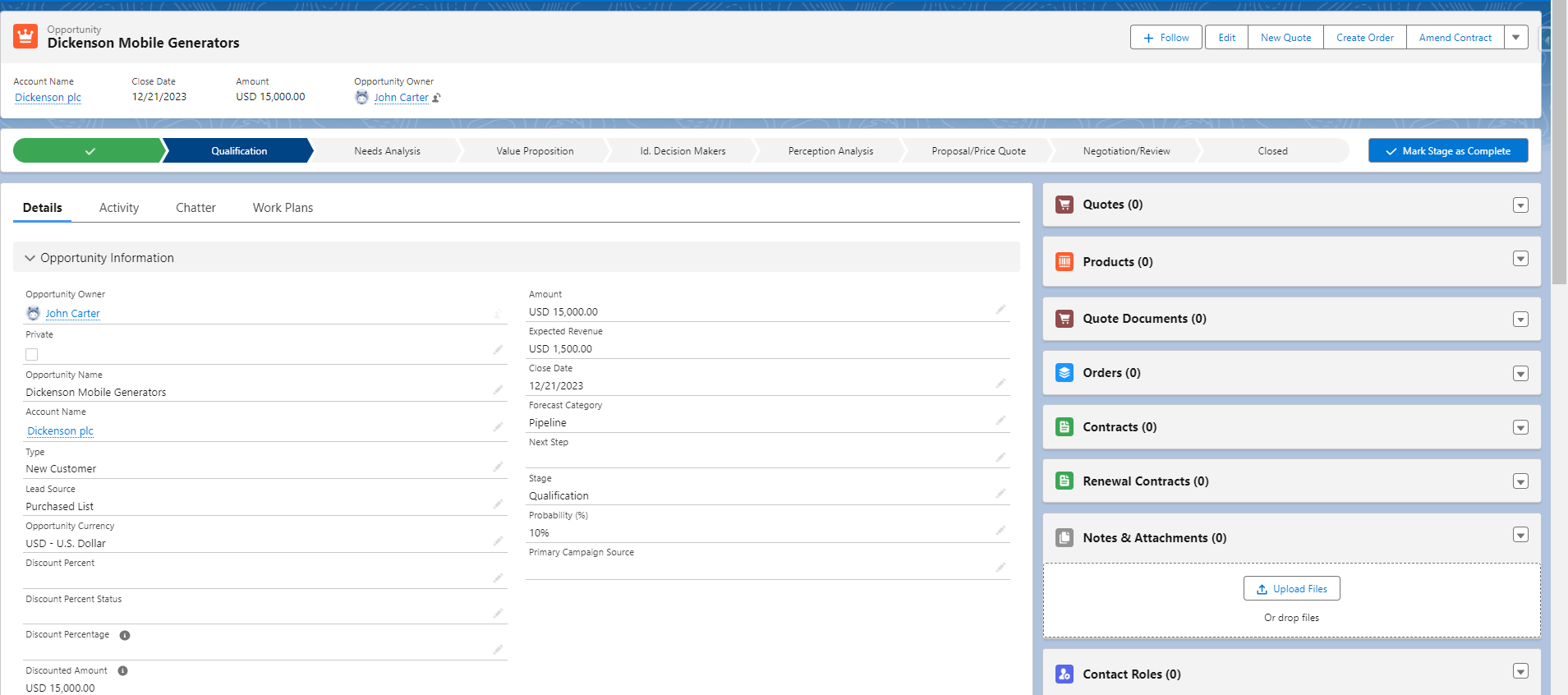
- Inspect the “Details” tab and note that the “Forecast Category” field is absent from it. The reason for this omission is that during field migration from a layout, any universally required fields that were not originally included in the migrated layout are not automatically added.
- Now, access the “Details” tab and simply drag the “Forecast Category” field into the designated “Opportunity Information” section.
- Remember to save the page once again to apply the changes.

The page has been successfully migrated. Each section and field within it is treated as a separate component, allowing for easy management and customization.
The mobile view of the above dynamic form will look like this-

Lastly, the Opportunity record page will now display the added field and include the newly added Work Plans tab, enhancing the overall layout and functionality.
Limitation of Dynamic Form:
- Dynamic Forms are not yet available for all standard objects. Presently, they are supported for Accounts, Contacts, Person Accounts, Opportunities, Leads, and Cases.
- Dynamic Forms have the potential to impact the performance of Salesforce applications, especially when they involve a large number of fields and components, intricate visibility rules, or scripts.
- Browser compatibility issues.
- Dynamic Forms can impose additional strain on Salesforce servers
- Pages based on pinned region templates and custom templates do not support Dynamic Forms.
- Dynamic Forms do not support blank spaces. In the event that you remove a field from a field section component, other fields will not automatically fill the resulting empty space.
- The Field Section component can accommodate up to 100 fields per column.
- Dynamic Forms may not function optimally with certain components or features, including dependent picklists, encrypted fields, record types, mobile apps, and dynamic interactions.
Conclusion
By transitioning the Record Detail component into separate field and section components, admins can personalize the layout, visibility, and performance of their pages without relying on the page layout editor.
Dynamic Forms also supports mobile users by adding a Record Detail – Mobile component that displays the original record details on a phone. Implementing Dynamic Forms is an excellent approach to elevate the user experience and operational efficiency within your Salesforce org.
So, go ahead and try out the powerful feature in your org, and do not forget to contact us. And for more blogs, stay tuned!





