In this detailed guide, we will walk you through the significant yet easy steps to configure Email to Salesforce.
Without any further ado, let’s get started!
About Email to Salesforce
As the term refers, Email to Salesforce is valuable for any organization that businesses use as their Customer Relationship Management (CRM) platform. It helps streamline communication and keeps all the data in one place.
Email to Salesforce is a feature that lets you log emails automatically that you send from third-party email accounts to any records available in Salesforce. These records include leads, contacts, opportunities, and more.
With this, you can keep track of all the email communications in Salesforce, making tracking & managing customer interactions easy for sales & support teams.
What Are the Prerequisites of Email to Salesforce
Go to Setup, Search “Email to Salesforce” in the quick find box>>Click on Edit >>Active.
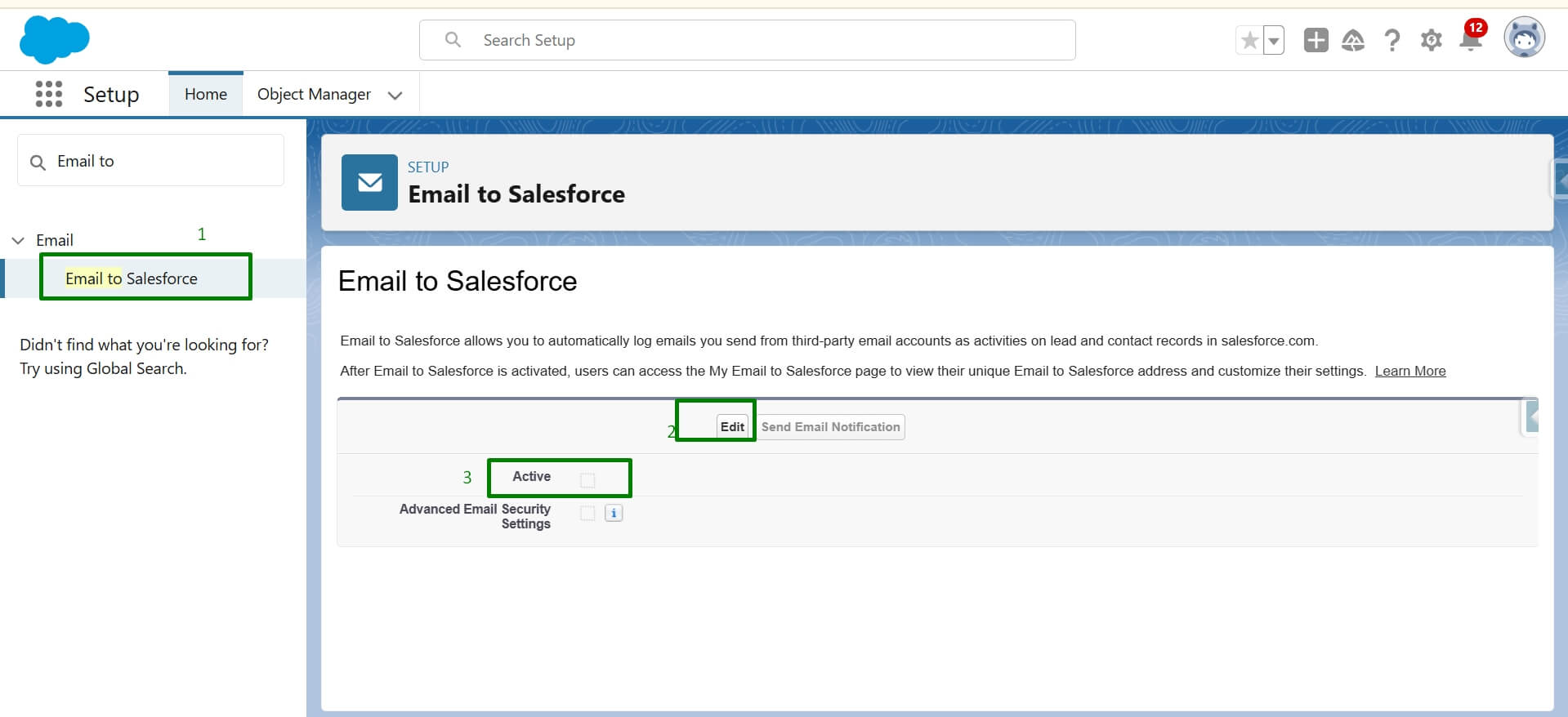
Please Note: Email to Salesforce allows you to automatically log emails you send from third-party email accounts as activities on lead and contact records in Salesforce.
Once Email to Salesforce is activated, users can navigate to the My Email to Salesforce page to retrieve their unique address and tailor their settings to fit their needs.
Key Steps to Configure Email to Salesforce
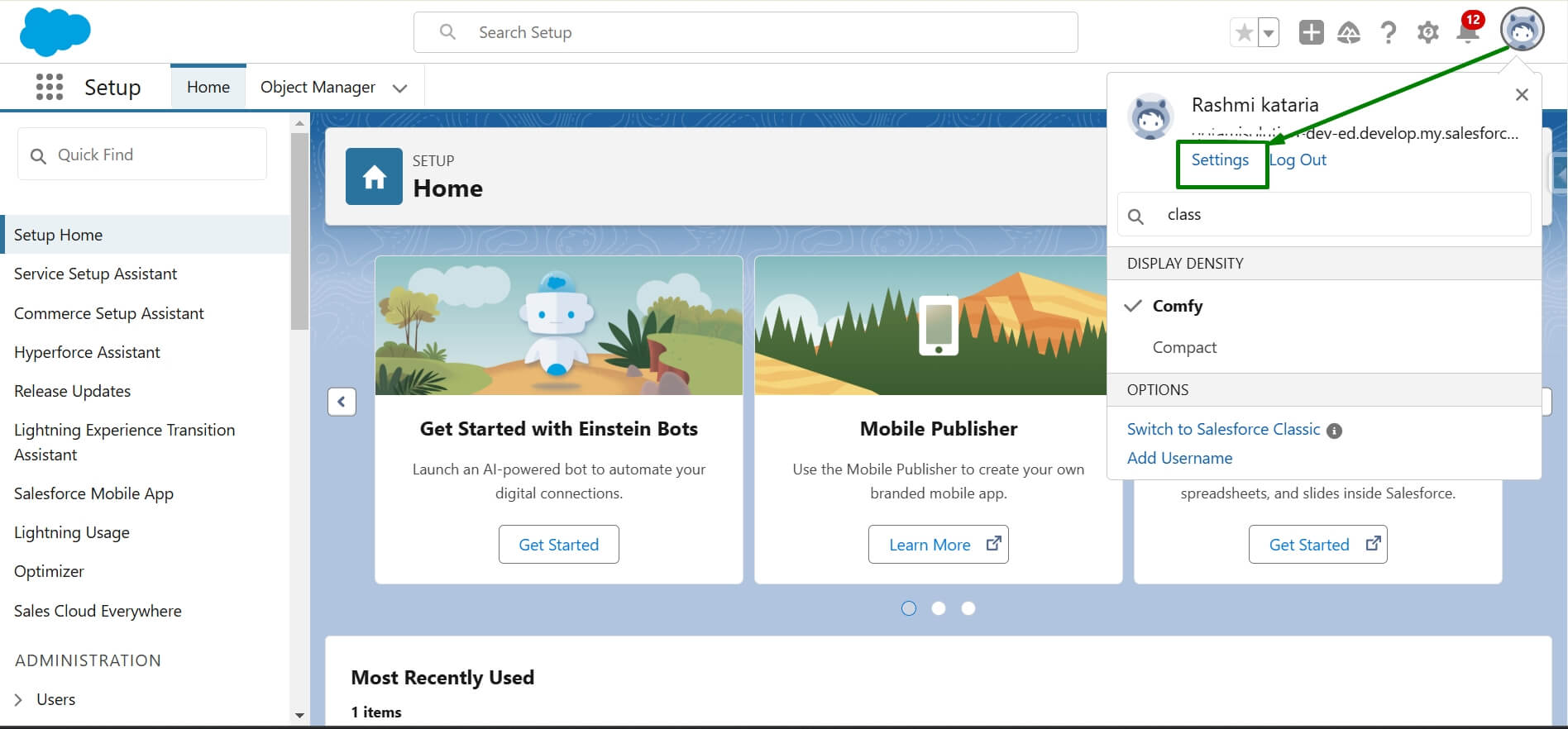
Step 1: You need to click on the profile icon located in the top Right Corner (In Lightning experience) and click on “Settings”.
Now, you can add an agent to your Experience Cloud site to interact with customers.
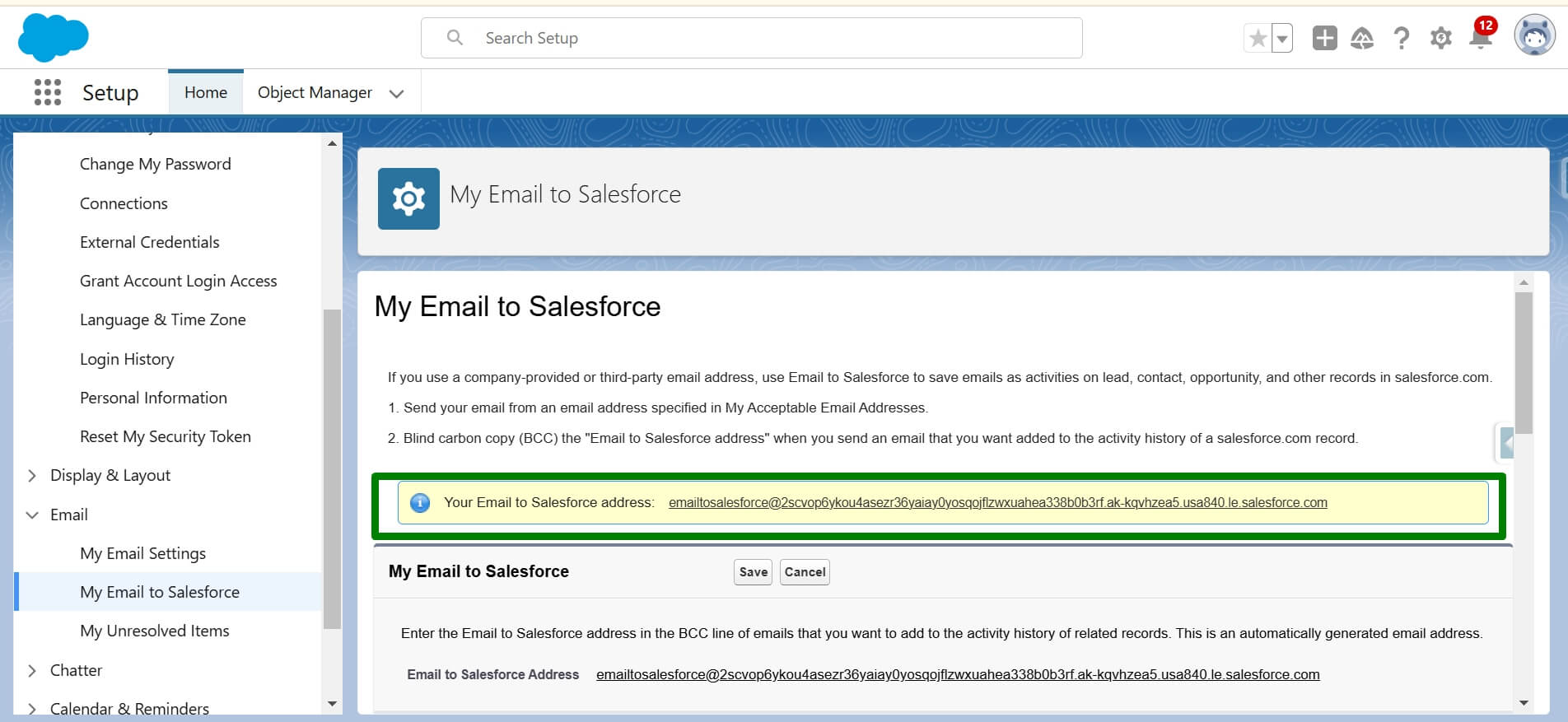
Step 2: After that, click on “My Email to Salesforce” as shown in the screenshot below.
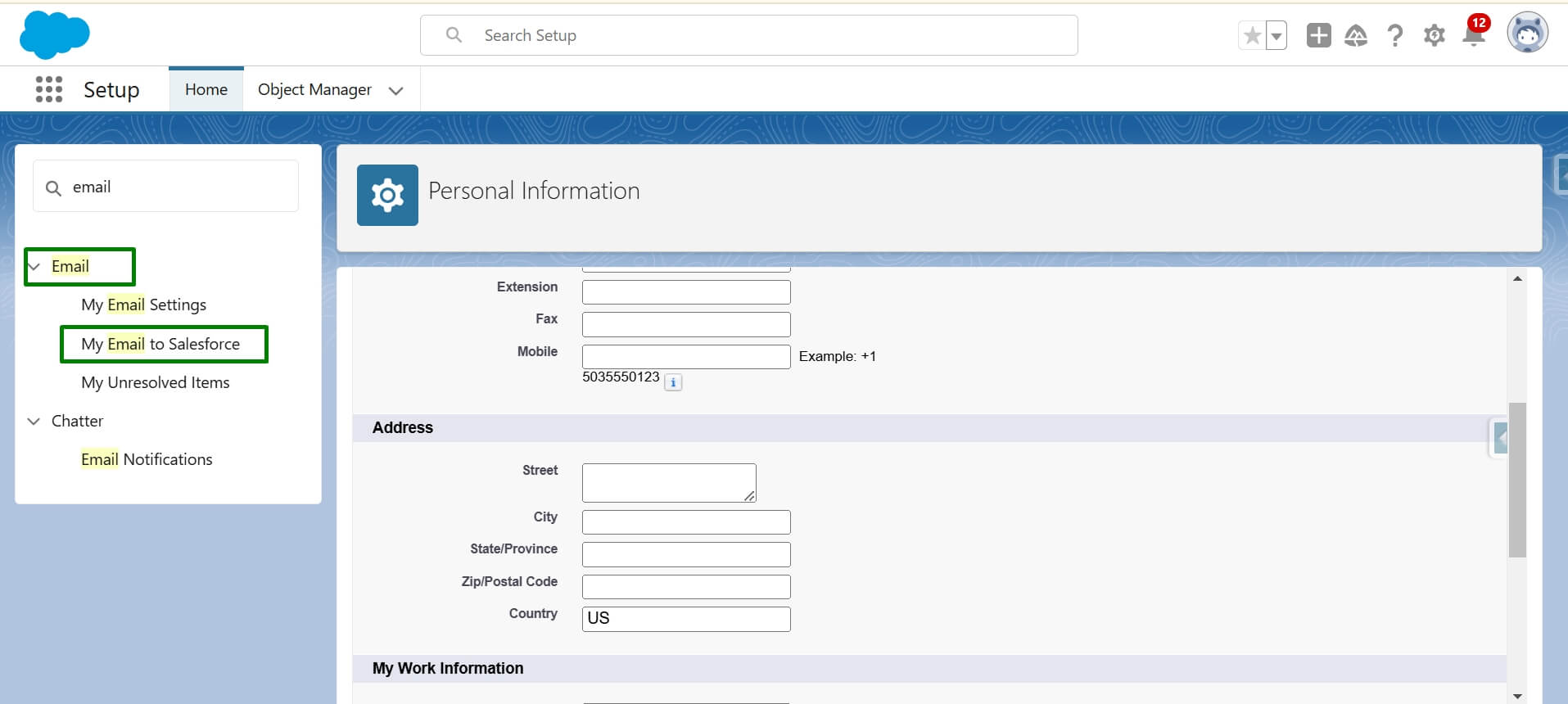
Step 3: After clicking on “My Email to Salesforce,” you will find an “Email to Salesforce address”. Copy that!
Step 4: List all the email addresses you use to communicate with leads and contacts, separating them with commas. Emails sent only from the addresses specified here will be recorded in the activity history of the associated records.
Please Note: If you use a company-provided or third-party email address, use Email to Salesforce to save emails as activities on lead, contact, opportunity, and other records in Salesforce.
- Send your email from an email address specified in ”My Acceptable Email Addresses”.
- Blind carbon copy (BCC) the “Email to Salesforce address” when you send an email that you want to be added to the activity history of a Salesforce record.
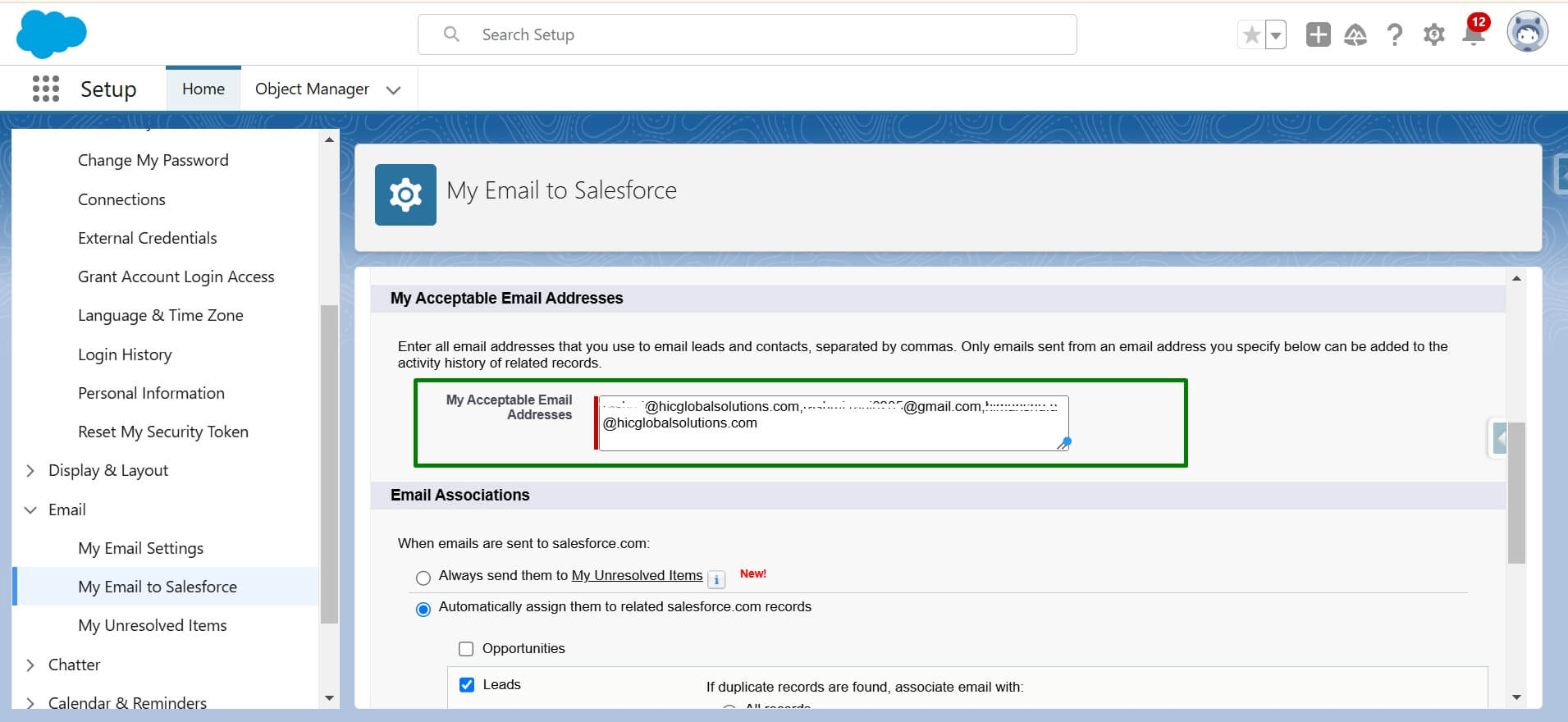
Step 5: Now, click on the “Save” button.
Important: Your Email-to-Salesforce address only accepts emails from the addresses you specify here. If an email address isn’t listed, any emails sent to your Email-to-Salesforce address won’t be linked to any records.
Step 6: You can create a contact with the same email address that is listed under my acceptable email address.
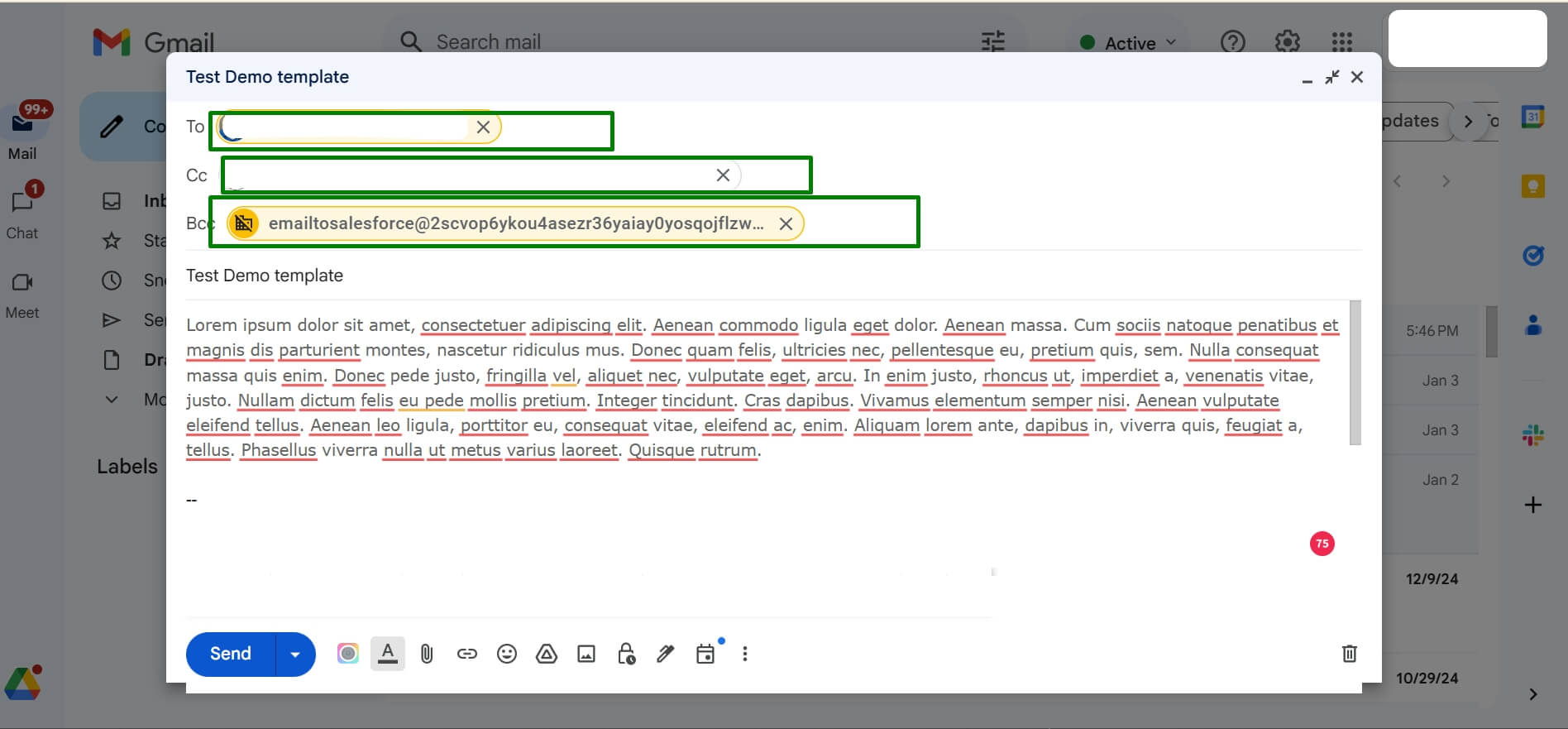
Step 7: Compose an email from an email account (Eg. Gmail) that you listed in My Acceptable Email Addresses.
- Enter your Email to the Salesforce address in the BCC field.
- Enter the Recipient’s Email Address into the TO and CC Fields.
- Now Send an Email.
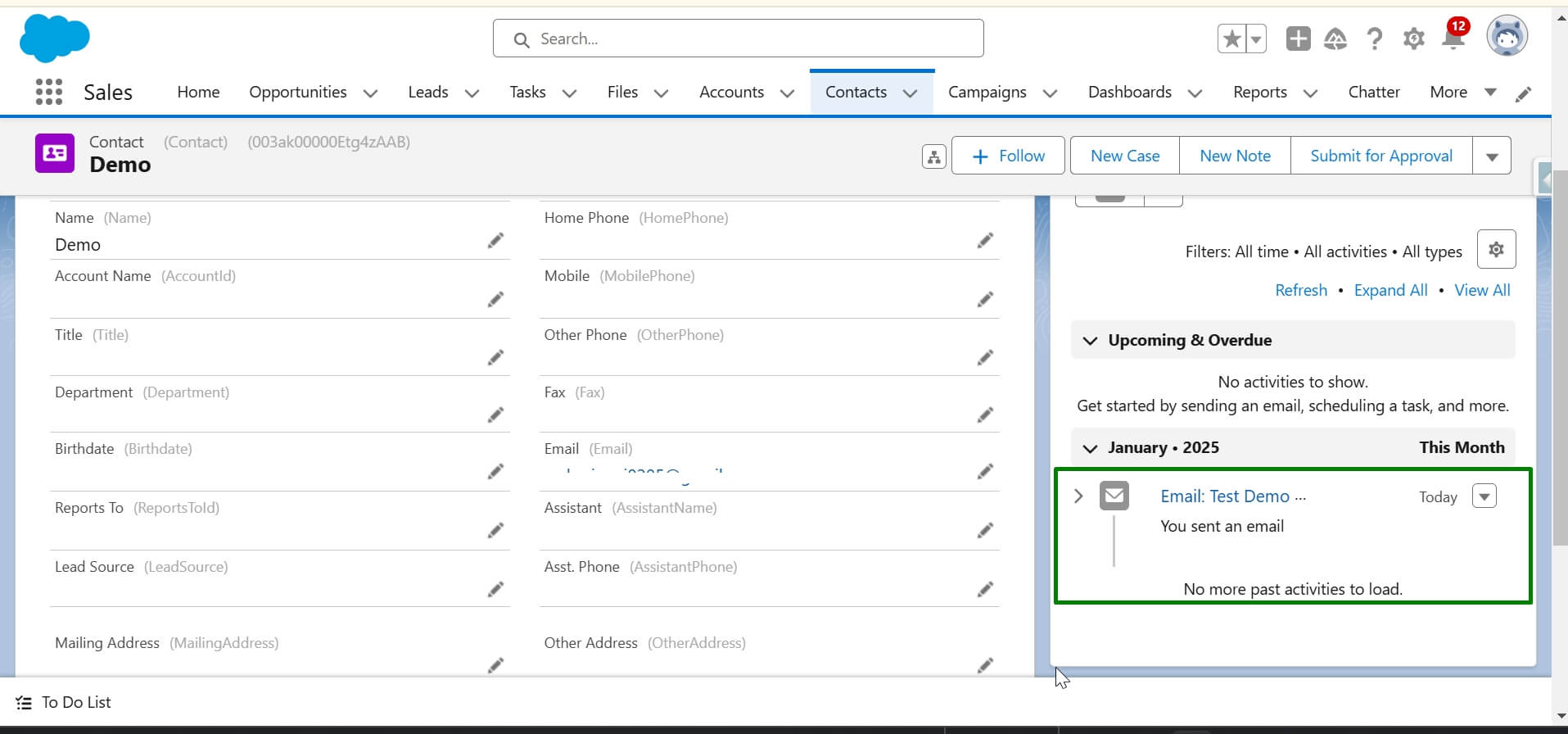
Step 8: Once you have sent the email, you can check it in the “Record Related Activity” contact section in Salesforce. For instance, you have created a contact in Salesforce using the same email address (set in “My Acceptable Email Addresses”). Here, you will find the email in a related activity section.
Limitations:
- Email Address Matching: When Email to Salesforce processes an email, it can match a maximum of 50 email addresses. This means that if there are more than 50 unique email addresses in the “To” and “CC” fields of an email, Email to Salesforce will only consider the first 50 addresses.
- Email Activity Creation: Email to Salesforce can create up to 50 email activities for each email it receives. This means that if one email contains a large number of related actions or responses, only the first 50 will be recorded as separate email activities.
- Contact Association: For each email task created by Email to Salesforce, it can link up to 50 contacts. If there are more than 50 contacts associated with an email, only the first 50 will be linked to the task record.
These limitations are important to keep in mind when using Email to Salesforce to ensure that your email-related activities are appropriately tracked and associated with the relevant records in Salesforce.
Concluding Words
The integration of email with Salesforce offers a convenient method for simplifying communication and monitoring interactions with potential leads and existing contacts. When you send emails via Salesforce and link them to particular records, you can keep a detailed history of your communication.