
In the world of Salesforce development, prompt templates are like the secret ingredient that powers some of the coolest features in Einstein 1 Studio. They’re the behind-the-scenes magicians who make things happen, from drafting personalized emails to summarizing records and beyond.
But here’s the thing: to make these templates truly shine, you’ve got to ground them with the right data. That’s where Flow and Apex come into play, giving you the tools you need to add context and accuracy to your prompts.
Let’s dive in and see how it’s done!
Understanding Prompt Templates
Picture prompt templates are the building blocks of your Salesforce workflows. They’re the reusable structures that you can mold into whatever you want based on your business requirements.
For instance, a personalized email, a field generation, and many more. When you activate them, they interact with Einstein (the Large Language Model or LLM) to get the responses you’re expecting.
Pretty neat, right?
Types of Prompt Templates
- Sales Email
- Field Generation
- Flex
- Record Summary
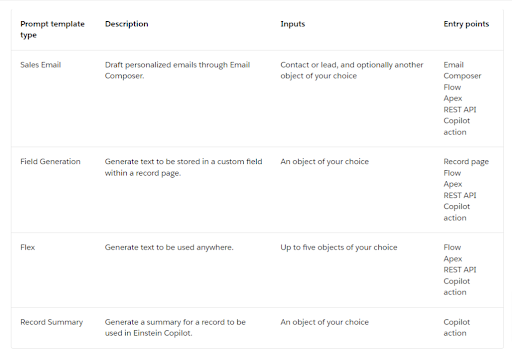
Data Providers for Grounding
Here’s where the magic happens: grounding your prompt templates with data. Salesforce gives you a few options for this:
Merge Fields and Related Lists
Flow
Apex
These data providers let you tap into your CRM data, Data Cloud info, and even external data sources to strengthen your templates with all the context they need to shine.
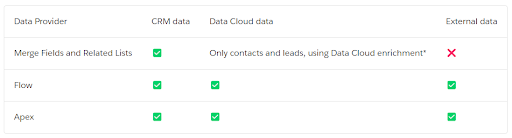
Grounding Prompt Templates with Flow
If you’re not big on code (totally get it!), Flow is your go-to option for grounding prompt templates. You set up this “Template-Triggered Prompt Flow,” plug in your template inputs, and voilà!
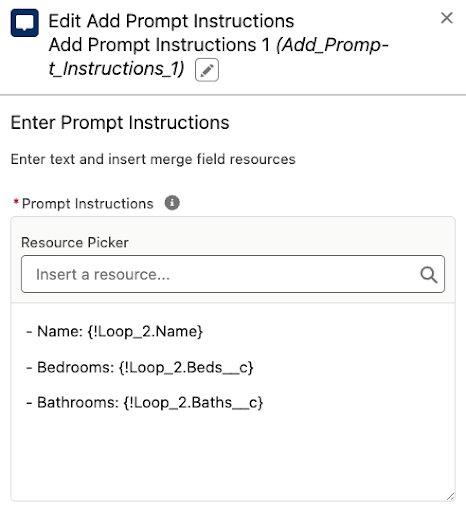
Now you can dynamically add text to your templates using the “Add Prompt Instructions” element. It’s like giving your templates a little extra boost.
Firstly, you have to turn on the below checkbox, after only you able to see the Template-Triggered Prompt Flow.
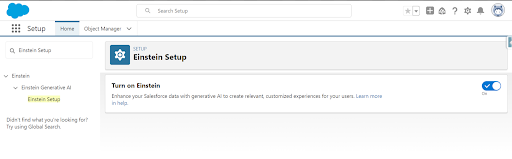
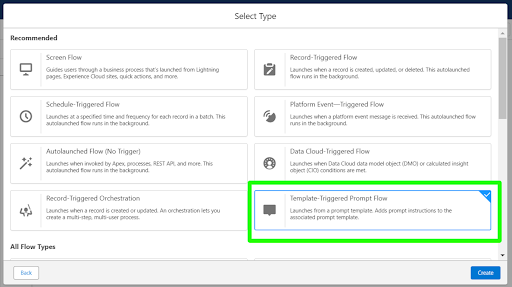
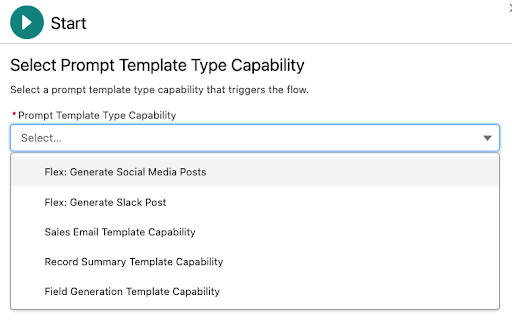
Once the flow is created, you can reference the template inputs as follows.
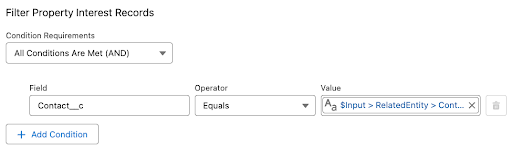
Then, once you compute the data to be added to the template, you use a new element called “Add Prompt Instructions” to add text to the template. You can use it as many ways as you need to as it’s additive.
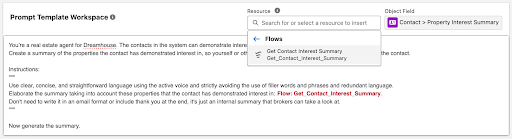
Finally, in the Prompt Builder templates for which this flow was activated, you’ll be able to see and use the flow.
Grounding Prompt Templates with Apex
Now, if you’re more of a code wizard, Apex has your back. With an @InvocableMethod and a dash of code magic, you can access your template inputs and do some serious data crunching.
Apex gives you the power to integrate with all sorts of data sources and craft the perfect response for your prompts.
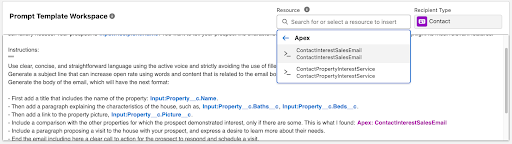
Once your Apex class is deployed to your org, you’ll be able to use it in the Prompt Builder template types for which it was activated through its capability type.
Which One to Choose: Flow or Apex?
So, which one’s right for you—Flow or Apex? It really comes down to what you’re comfortable with and what your project needs.
Flow is great for quick and easy setups, while Apex gives you more control and flexibility. Whatever you choose, the goal is the same: to make your prompt templates sync with the right data backing them up.
The best way to decide among both of them is based on your business requirements.
Conclusion:
Grounding your prompt templates with data using Flow or Apex is the secret sauce for unlocking the full potential of Einstein 1 Studio. Whether you’re a point-and-click wizard or a code-slinging superhero, there’s a solution for you.
So go ahead, and add that extra layer of context and accuracy to your templates. Your users will thank you for it!
Stay tuned for more updates and get the latest information!