
Drag-and-drop interfaces are a user experience staple, and when paired with the power of Lightning Web Components (LWC), they unlock dynamic, highly interactive Salesforce components. In this blog post, we’ll walk you through how to build a custom drag-and-drop form builder in LWC.
Users can drag form fields like text inputs and dropdowns into a canvas, dynamically rendering the corresponding components in real-time. This hands-on implementation demonstrates component reusability, event handling, and conditional rendering.
Let’s dive into how we built it, the architectural breakdown, and the implementation flow with clean, scalable code patterns.
Here’s the breakdown:
Core Components
This solution comprises two key Lightning Web Components:
- A Drag Component (dragComp) that lets users drag various field types.
- A Drop Component (dropCmp) that receives these fields and dynamically renders them using Salesforce Lightning components.
The components work together using standard HTML5 Drag and Drop APIs and LWC reactive properties to track and display form elements.
1. Drag Component (dragComp)
Handles draggable elements and data transfer:
Key Features:
- Uses HTML5 draggable attribute
- dataTransfer API for passing dragged data
- Configurable field types through dataset attributes
2. Drop Component (dropCmp)
Handles element dropping and dynamic rendering:
Dynamic Rendering Logic:
Implementation Steps
Here’s a high-level implementation guide:
1. Enable Dragging
- Add draggable=”true” to source elements
- Handle ondragstart to set transfer data
2. Configure Drop Zone
- Use ondragover and ondrop handlers
- Prevent default browser behavior: javascriptallowDrop(event) { event.preventDefault(); }
-
3. Field Type Handling
- Switch statement maps dragged types to components
- Unique IDs ensure proper element tracking
-
-
4. Layout Management
- Uses lightning-layout for responsive columns
- Size controlled by parent component property
-
-
Here’s Full code of Drag and Drop
First (Parent) Component Drag Comp:
JS:
Now the Second (Child) Component Drop Comp:
Html:
JS:
Key Considerations
Code Organization
- Separation of concerns between components
- Reusable field configuration patterns
- Dynamic component rendering system
User Experience
- Visual feedback for empty drop zones
- Clear field type indicators
- Responsive layout adjustments
- Easy element removal functionality
Limitations
- Mobile browser support limitations
- Complex field validation implementation
- Drag preview customization constraints
For more clarification, here are all the snapshots and videos:
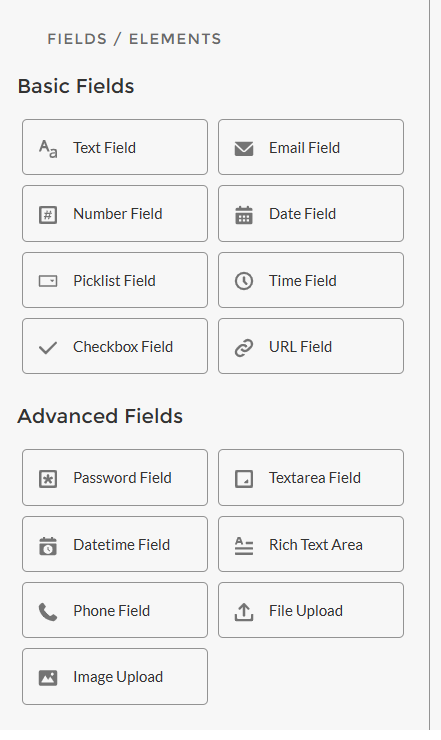
1. These are the elements that we can drag:
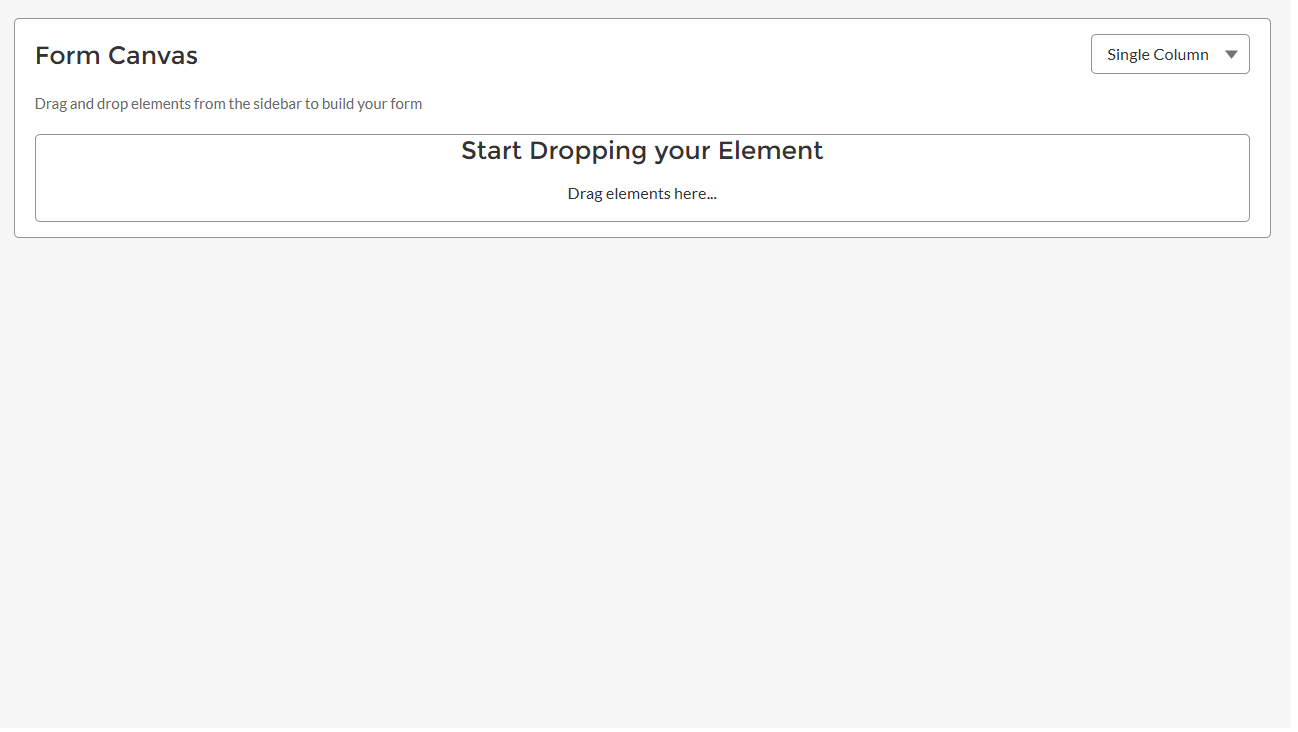
2. This is our Drop canvas:
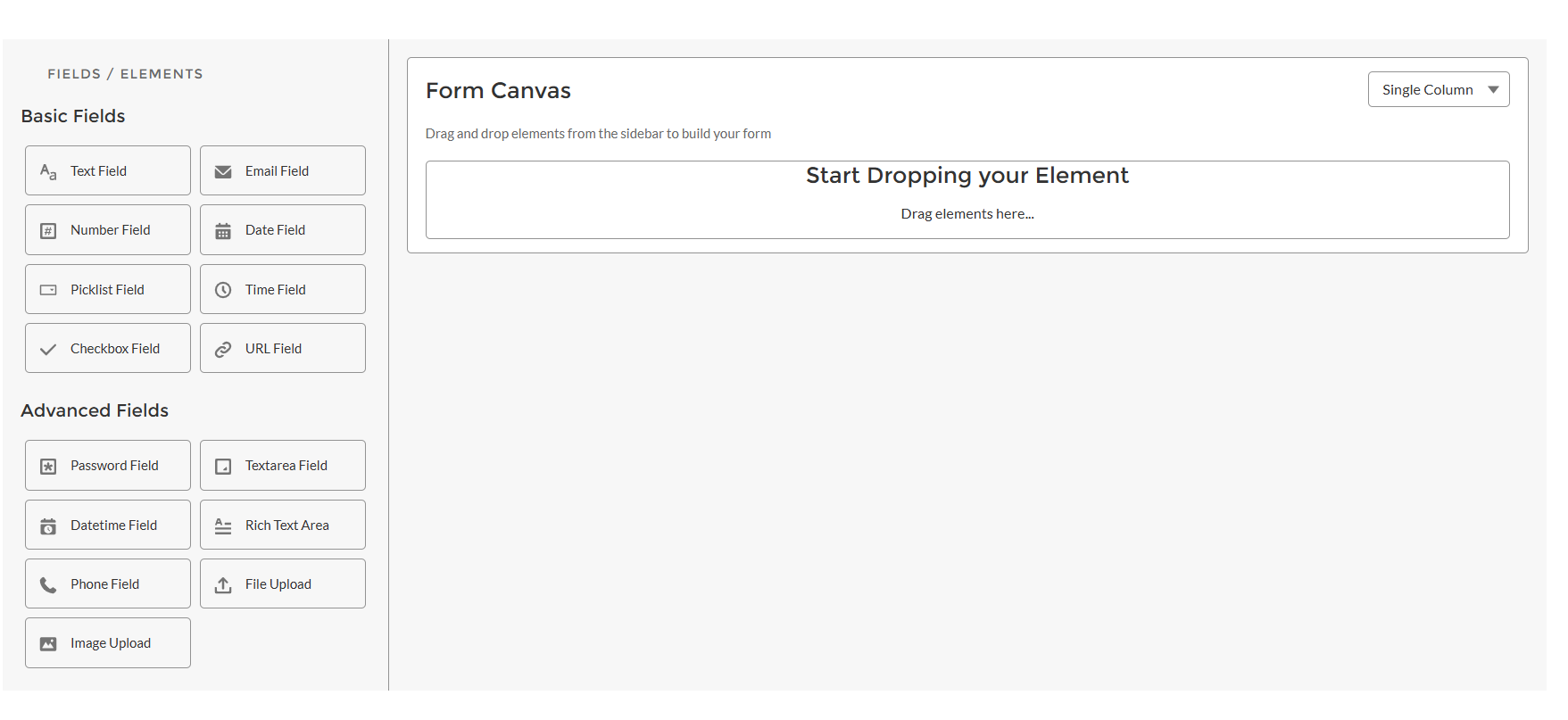
3. Here’s the full demonstration of the Drag and Drop feature.
https://youtu.be/zK3pYxBPEdw
Here’s Org reference link: https://hicdemo-dev-ed.my.site.com/dragndrop/s/
Also, if you are looking to take your UI a step further? Check out our guide on using the Lightning Map component with dynamic pointers to visualize real-time locations within Salesforce.
Conclusion
This drag-and-drop builder, powered by LW,C offers a slick, modular way to build dynamic forms in Salesforce. It’s intuitive, scalable, and a perfect fit for admin-driven app customization or low-code solutions.
Whether you’re building custom flows, onboarding forms, or survey tools, this approach sets a rock-solid foundation.
Like this? Explore more LWC innovations. Have questions or need help implementing this in your org?