

Why Call APIs Without Apex? Traditionally, calling external APIs from Salesforce has required Apex classes, Named Credentials, and careful governor limit management. But with modern web standards and the rise of JavaScript-first development in Lightning Web Components (LWC), you can now perform secure, real-time API callouts directly in JavaScript without a single line of Apex.
Let’s explore how you can do an API callout without using Apex.
What are the advantages of calling the API without Apex?
- Faster User Experience (UX) / No Server Round Trip
- Less Apex Governor Limits Stress
- No Need for Platform Events or Queueables
- Modern APIs (OAuth, REST, GraphQL) Support
- No Code Deployments
- Real-time / Event-based Scenarios
- JS callouts can easily be used with WebSockets, Server-Sent Events, or Polling.
Here are some advantages of using Apex for callout
- Security / Compliance (Named Credentials)
- Governor Limits Awareness
- Bypasses CORS Limitations
- Batch / Scheduled Jobs
- More Complex Orchestration
- API Response Caching
- Multi-User / Org-Wide Context
In this blog, we’ll show you how to build a fully functional LWC that fetches recipe data from the Spoonacular API, all without writing a single Apex class.
Step-by-Step Guide: Build a Spoonacular LWC Without Apex
We’ll walk you through everything from setting up Trusted URLs, Custom Labels, and the LWC component to executing the callout using native JavaScript fetch().
Keeping them in mind, let’s start with the API callout session. For this, we are using Spoonacular API to demonstrate the use of the API without Apex.
Spoonacular is a free API that you can also use after you create an account here. Before we create a Lightning component, we have to add the Spoonacular URL in Trusted URL, and get the API key, which we will store in the Custom Labels. For that, we need to followa few steps.
For Spoonacular URL in Trusted URL:
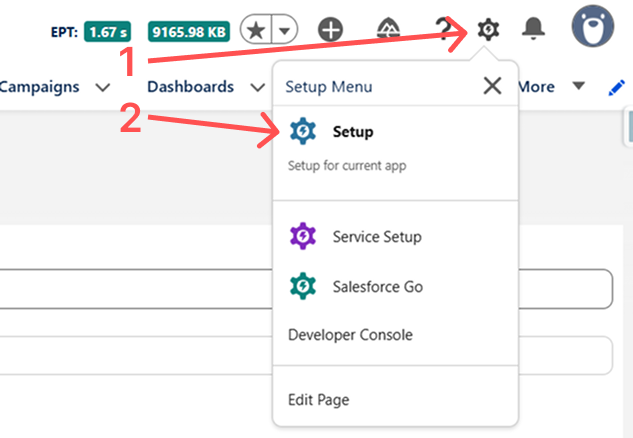
Step 1: Click on the Gear Icon and click on Setup.
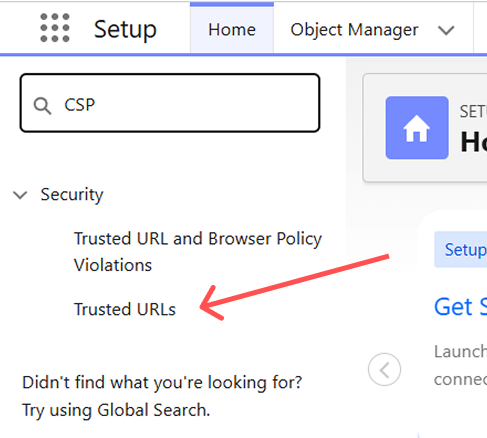
Step 2: Search for CSP and click on Trusted URL.
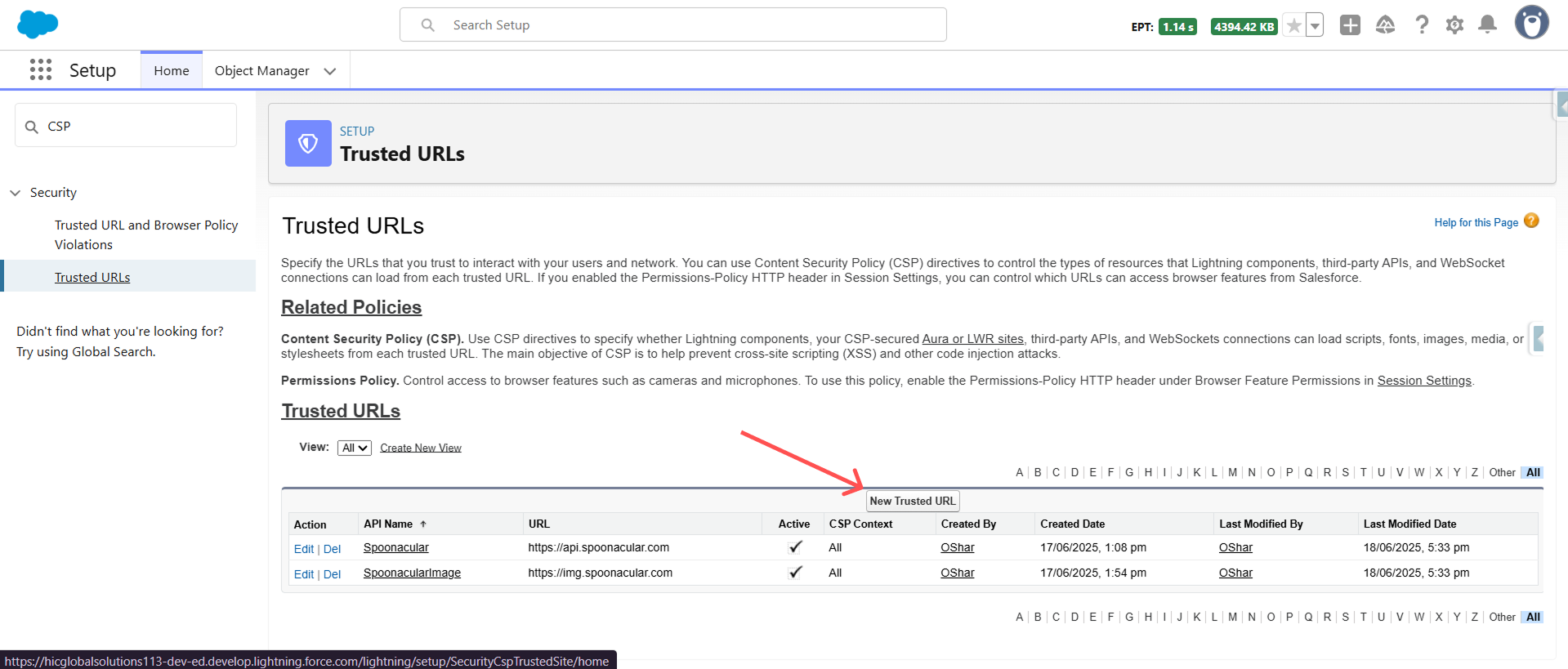
Step 3: Click on New Trusted URL.
Step 4: Fill in the required Details.
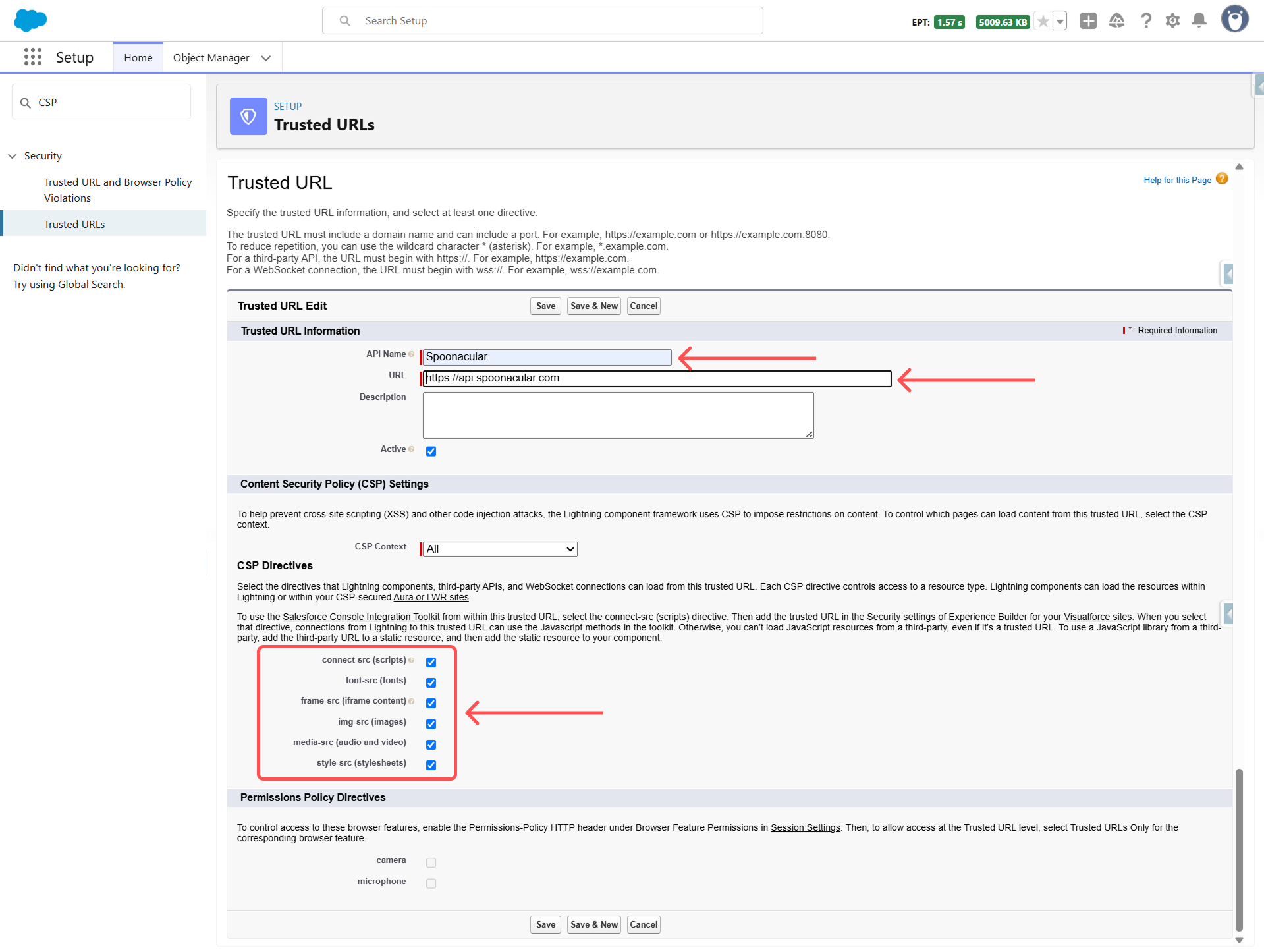
For this example, let’s select all the CSP Directives, but you can do as per your needs.
- (Optional) Click on “Save & New” and do the Same for images as well from Spoonacular
-> URL will be “https://img.spoonacular.com”
Now, once the Trusted URL is set up and ready to go, we can get the API Key and paste it into the Custom Labels.
For getting the API key and storing it in Custom Labels:
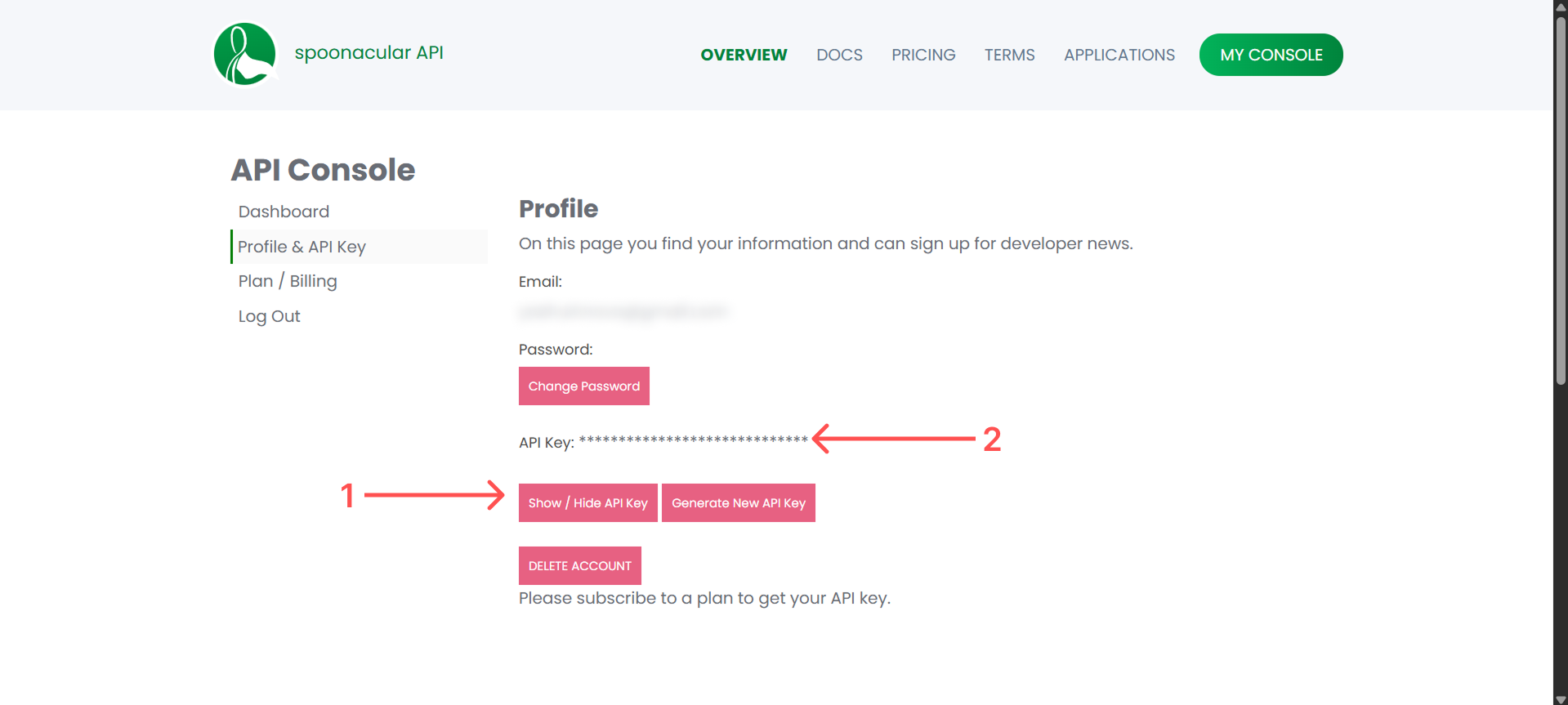
Step 1: Once you log in to your Spoonacular account, go to “Profile & API Key” section. From there, click on the “Show / Hide API Key” button and then copy the API key that will be there
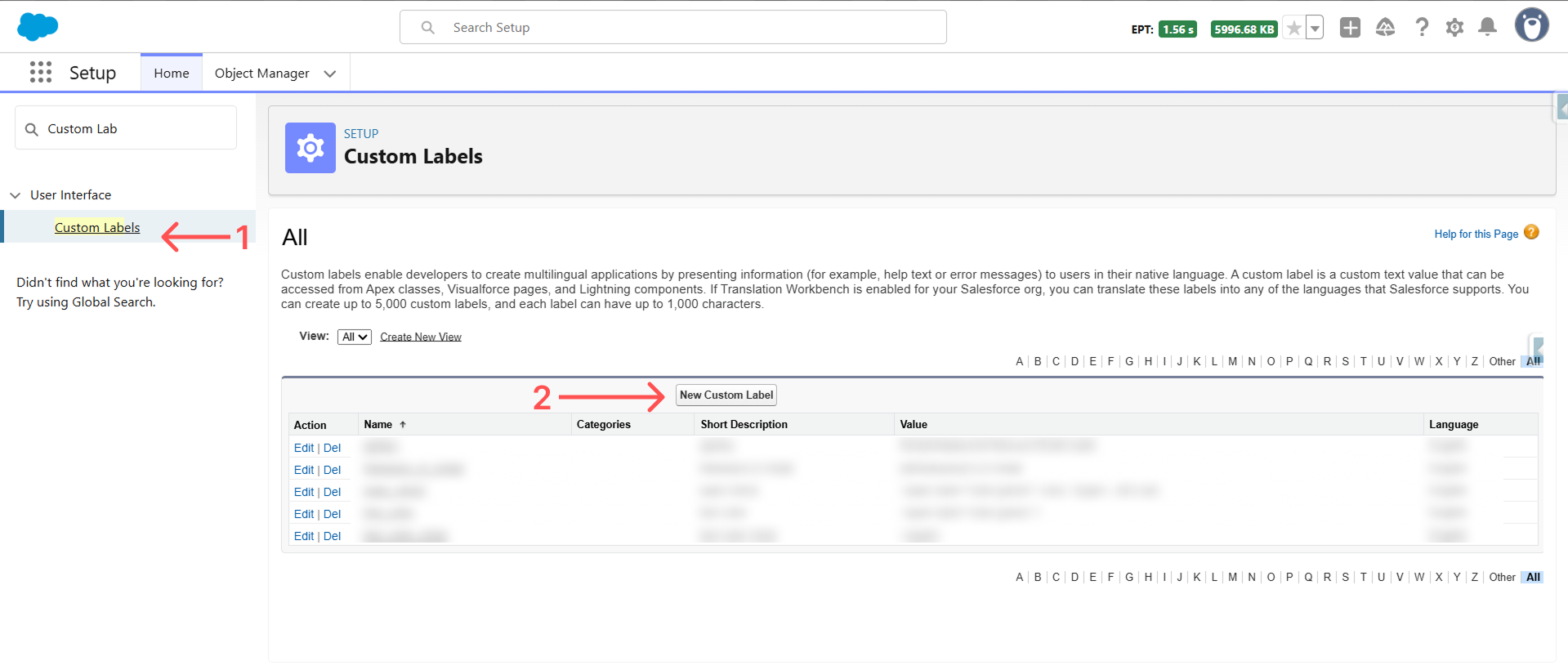
Step 2: Now, go back to your Salesforce org and in the setup section, go to Custom Labels and click on “New Custom Label.”
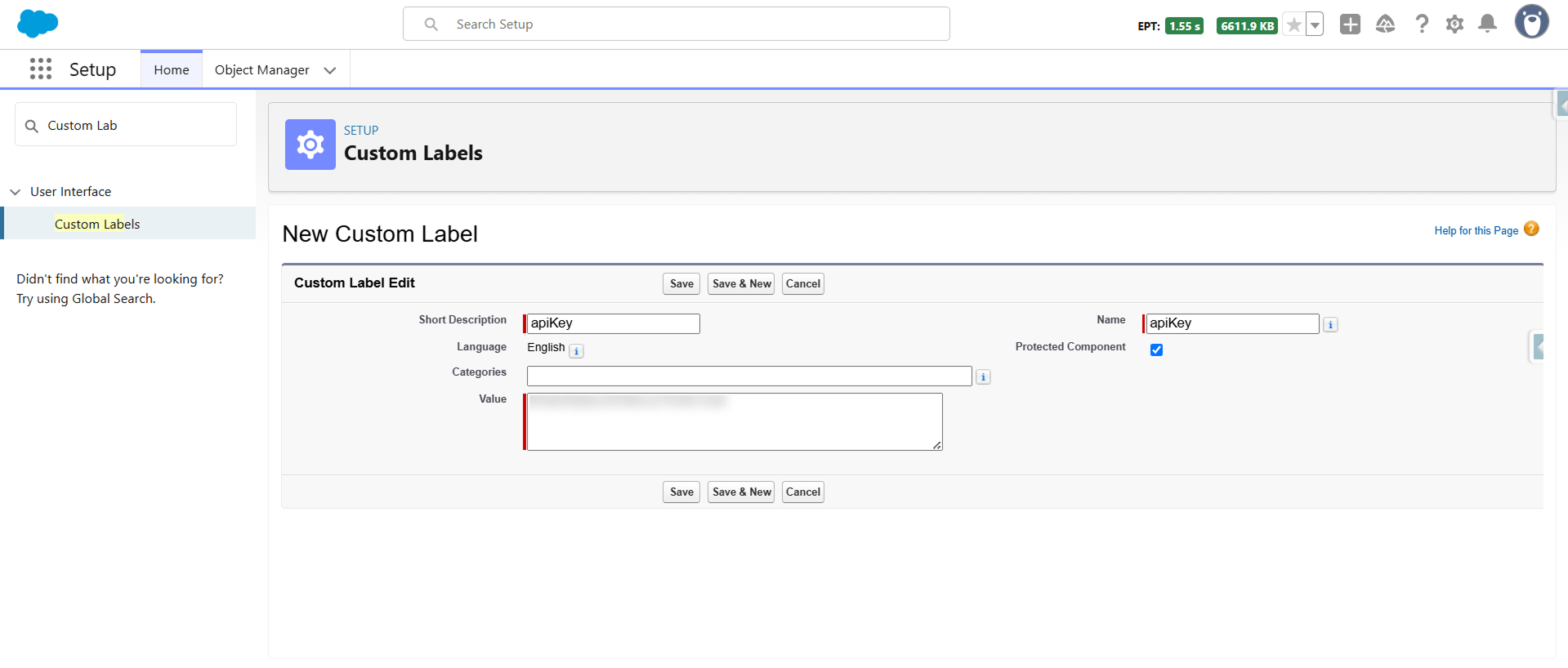
Step 3: Then, fill in Short Description, Name, and Value, and click on the “Save” button.
Once the Trusted URL and Custom Label with API key are set up, we can create a Lightning component and make a callout.
Now, create an LWC component:
Step 1: Open VS Code and create a new component:
sfdx force:lightning:component:create –type lwc -n advanceDataFetcher -d force-app/main/default/lwc
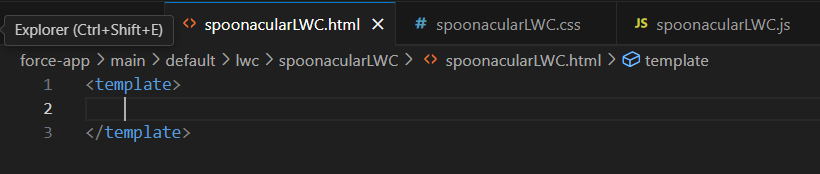
Step 2: Let’s start, i.e., we will start with the JavaScript first as it is the important part here
JavaScript
HTML
CSS
XML
Final Output
Here is the final component main screen we have created

And, when we search for some specific food item, Rice in this example, and click on the “Make Callout” button, then it will fetch the records.
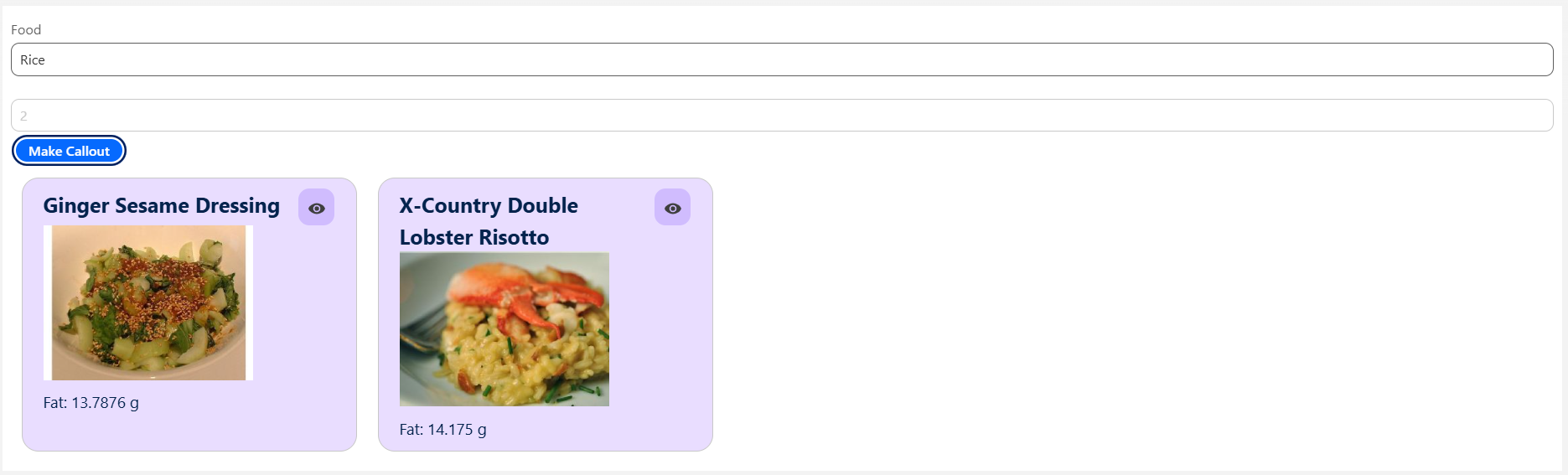
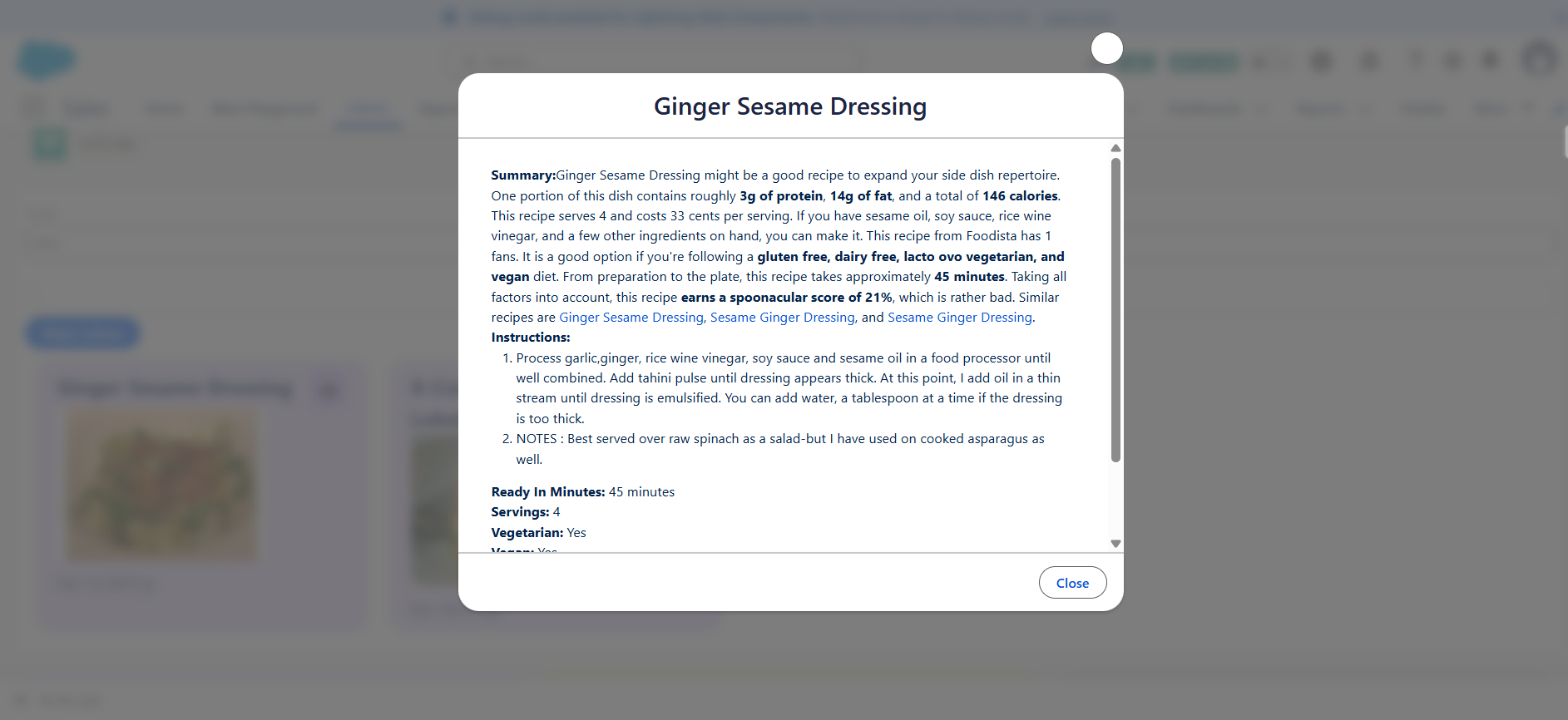
Additionally, I have added a view icon that will show more information about the recipe you have selected, and from there, you can learn more about that recipe.
Watch the quick demo to see how easily LWC + JavaScript = powerful API integrations.
Demo Video:
https://youtu.be/ih9EDEhUfOU?feature=shared
Conclusion
API callouts using LWC JavaScript unlock a modern, flexible, and developer-friendly approach to integrations inside Salesforce. With proper CORS handling and secure storage of your API keys (via Custom Labels), you can build real-time features faster than ever.
If you’re building lightweight, responsive, or front-end-heavy apps in Salesforce, JavaScript-based API callouts are a game-changer.





