Exporting Salesforce data into Excel has never been easier! Whether you’re working with large volumes of lead data or just need a quick export feature, combining Lightning Web Components (LWC) with SheetJS gives you a powerful and seamless solution.
In this step-by-step guide, you’ll learn how to integrate SheetJS into Salesforce, fetch data using Apex, and generate beautifully styled Excel files, all without leaving the Salesforce ecosystem.
This tutorial is perfect for developers looking to streamline data exports and enhance reporting with just a few lines of code.
Integrating SheetJS with Salesforce LWC for Excel Export
- Create an Apex Class to fetch data
- Add the SheetJS Library in Salesforce
- Create a LWC Component to Export Data
- Test the Excel sheet generation
Sheet JS Library Method Usage
- json_to_sheet – This will convert the lead data to a worksheet
- book_new – It will create a new workbook
- book_append_sheet – It will append the sheet to the workbook
- writeFile – It will generate an Excel file with the workbook.
Steps for SheetJS Integration in Lightning Web Component
Step 1: Create Apex Class to fetch Data.
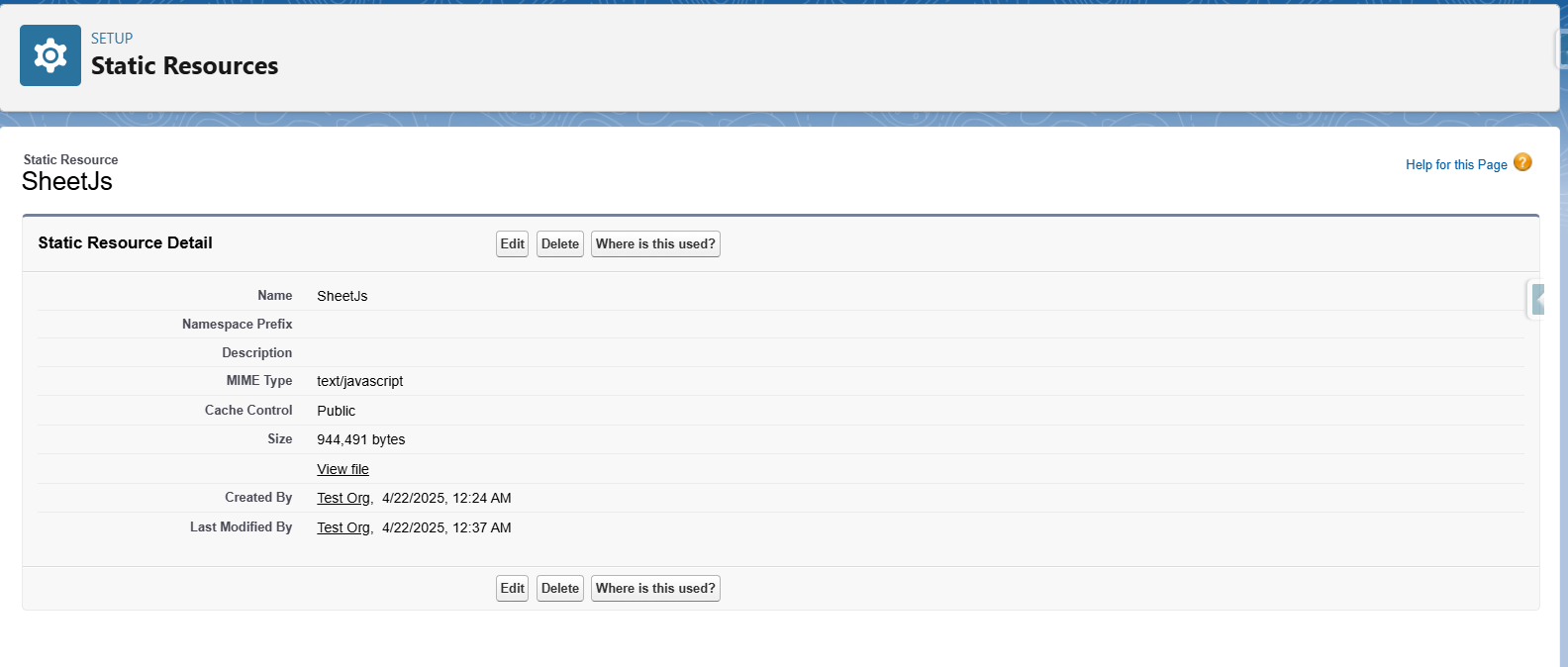
Step 2: Add the SheetJS Library in Salesforce.
The SheetJs library can be downloaded from the GitHub repository. However, we need a pro version to style records in an Excel sheet. The pro version will also support implementation.
3. Create a LWC Component to Export Data
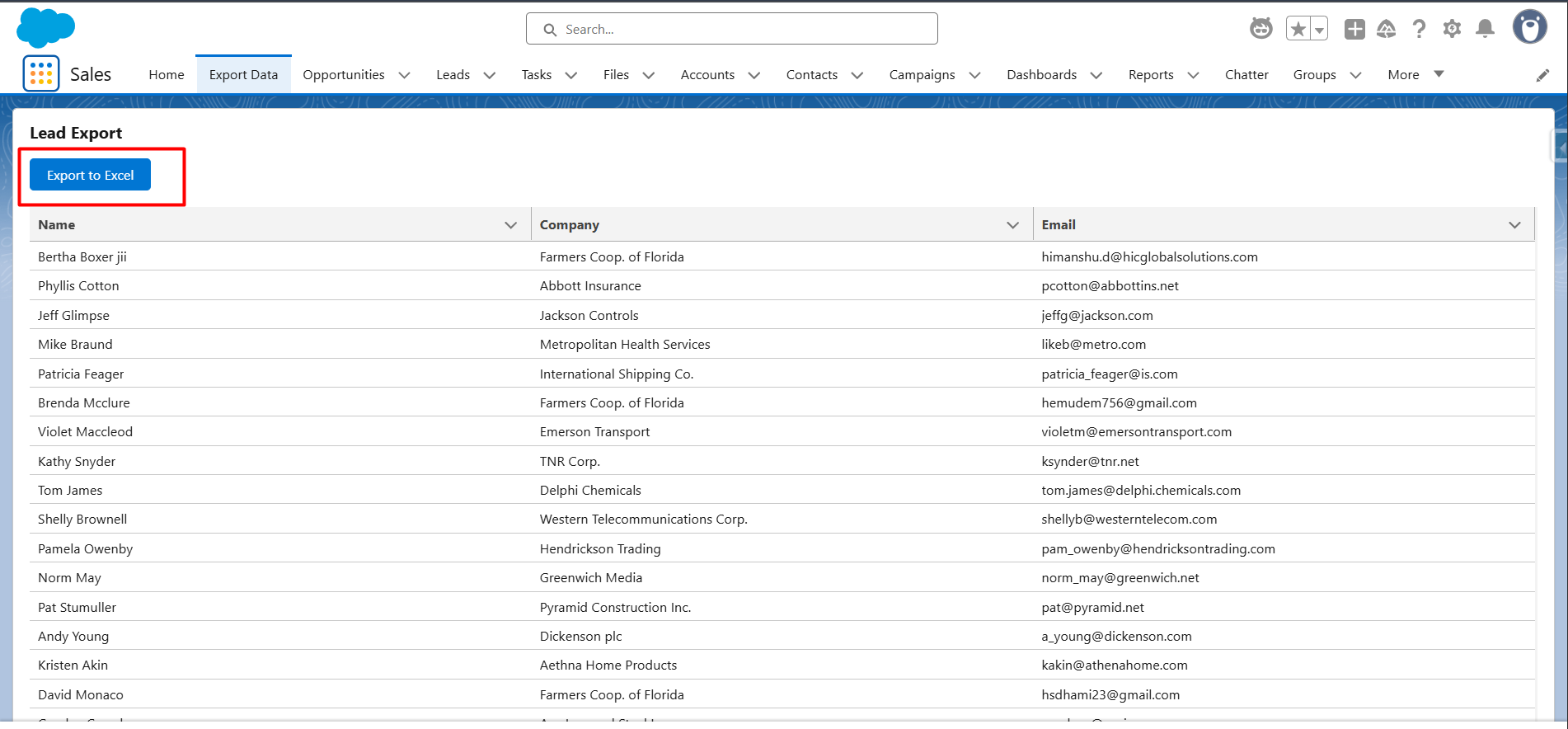
Step 4: Test the Excel sheet generation
Demo Video
https://www.youtube.com/watch?v=yVJHT3kotDg
Conclusion
With just a few simple steps, connecting Apex, embedding SheetJS, and writing your LWC, you can turn raw Salesforce data into export-ready Excel sheets. Whether it’s for reporting, analytics, or business reviews, this method ensures accuracy, flexibility, and customization.
Want to take it further? Try styling your data with SheetJS Pro for a polished, professional finish. Empower your Salesforce users with smarter data exports today!