

The Lightning Record Picker component was recently introduced by Salesforce in its Winter ’24 release.
In this blog, we will show you how to create a Lightning Web Component (LWC) that allows you to select any object and record from Salesforce by searching the name. This component can be useful for building dynamic forms, filters, or reports that require user input. This is not just a component, it’s a complete bundle of lookup functionalities that can be customized as per requirement.
So, let’s start!
Step-by-Step Guide To Create Custom Polymorphic Record Picker Component
Step 1: Create a new lightning web component.
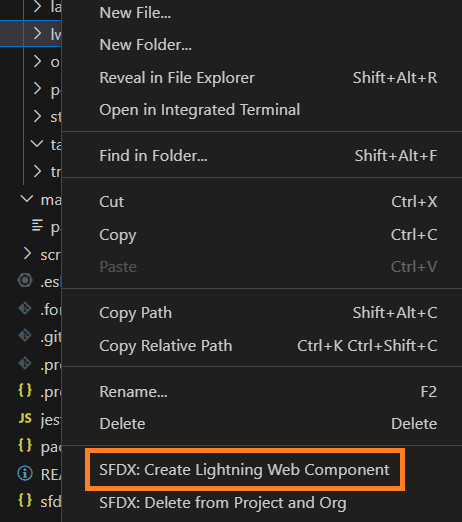
Open vs code authorize your org and create a new lightning web component. Here we have given customPolymorphicRecordPicker you can give according to you.
Step 2: Set component visibility.
Open your .xml extension file and set visibility for your component. We have set it to the lightning__HomePage, you can add more pages.
Save your code, right-click, and deploy it to the source org.
Step 3: Create an HTML layout for your component.
In HTML, we have defined a spinner that snipes till data loading and Created a combo box from where you can select objects.
At last, I have created a lightning-record-picker from where you find the record from the selected object in the combo box and select it.
Here is the HTML file after saving it deploy it to the source org.
Step 4: Create CSS file for spinner:
Now, Right click on your component’s name and choose new file.
Fill the name of your component with a .css extension.
In CSS we have defined styling for the spinner. if you did not create a spinner in html file you can skip this.
Here is the CSS file after saving it deploy it to the source org.
Step 5: Create Apex Class:
This is the main part of this customPolymorphicRecordPicker component which makes it dynamic.
- In your org folder find classes, right-click, and click on SFDX: Create Apex Class.
- Fill the name for your apex class here I have filled getObjects.
- Here we have defined a Schema class and we are getting those objects that are isAccessible() && isCreateable() && Updateable() using functions.
- At last shorting the list of Custom objects and return it.
Here is the apex class after saving it deploy it to the source org.
Step 6: Create Test Class
Here is the Test class of above Apex class:
Step 7: Create a Js handler:
In Js we are going to create all the functionality for customPolymorphicRecordPicker.
- Click on your component file which has a .js extension.
- Here I have imported wire, and track in my component.
- I have also imported the created apex file in the previous step.
- I have defined some variable to store values like targetObjects, and selectedTarget to store values.
- I have also defined @wire to bring all object data from Salesforce.org.
At last, I have defined a getter to hide the combo box and two event listeners handleTargetSelection for selecting the entered text from the user and handleRecordSelect for assigning the currentrecordId.
Here is the js code after saving this deploy it to the source org.
Step 8: After successful deployment of all files login into the source org.
Step 9: I have set its visibility on lightning__HomePage so after selecting any app from the app launcher navigate the home page.
Note: (If you selected the record page go to the record page of any object)
Step 10: From setup click on Edit Page. From the component on the left side, find your component in the custom section.

Step 11: Drag and drop your component on the screen where you want to place it.
Step 12: Click on Save.

Conclusion:
In conclusion, the LWC Custom Polymorphic(dynamic) record picker component is a useful tool for selecting records from different objects based on their name. The component is flexible and customizable, as it can accept various parameters such as object API name, field API name, label, icon, placeholder, etc. The component also handles the pagination and sorting of the records and provides an option to clear the selection.
Like the blog? Stay tuned for more such interesting Salesforce development solutions!





