ShareFile by Citrix is more than just a secure file-sharing platform; it’s also a document management powerhouse, particularly in businesses that value compliance, traceability, and automation. However, when multiple departments or teams require access to the same document versions in various folders, things can quickly become messy and disorganised.
This blog will show you how to use Salesforce Apex, OAuth 2.0 authentication, custom webhooks, and batch processing logic to automatically copy or update files from a central ShareFile folder to all subfolders. This scalable, low-maintenance solution ensures that your files remain consistent without requiring any manual intervention.
What is ShareFile?
ShareFile is a cloud-based file sharing and storage solution developed by Citrix, designed to help businesses securely manage, access, and collaborate on documents. It offers robust features for file storage, syncing, secure sharing, and remote access, making it especially valuable for industries with strict compliance requirements, such as legal, finance, and healthcare.
What sets ShareFile apart?
ShareFile has a strong emphasis on security and control. Users can send encrypted files, set access permissions, and track downloads. It also supports workflows like electronic signatures, feedback collection, and automated file retention, helping teams stay productive and compliant.
Whether you’re working from the office or remotely, ShareFile provides seamless access to your files through web, desktop, and mobile apps. With integration capabilities for tools such as Microsoft Outlook, Salesforce, and document management systems, it seamlessly integrates into most modern workflows.
In short, ShareFile is more than just a file-sharing tool, it’s a secure platform for document collaboration and business continuity.
Business Use Case of ShareFile
In many business environments, it’s important to keep files consistent across multiple folders, especially when different teams or departments rely on the same documents. With ShareFile, you can easily copy or update files from a central folder to various subfolders, ensuring everyone always has access to the most current version.
Below are the steps to copy or update files from one folder to all other folders or subfolders:
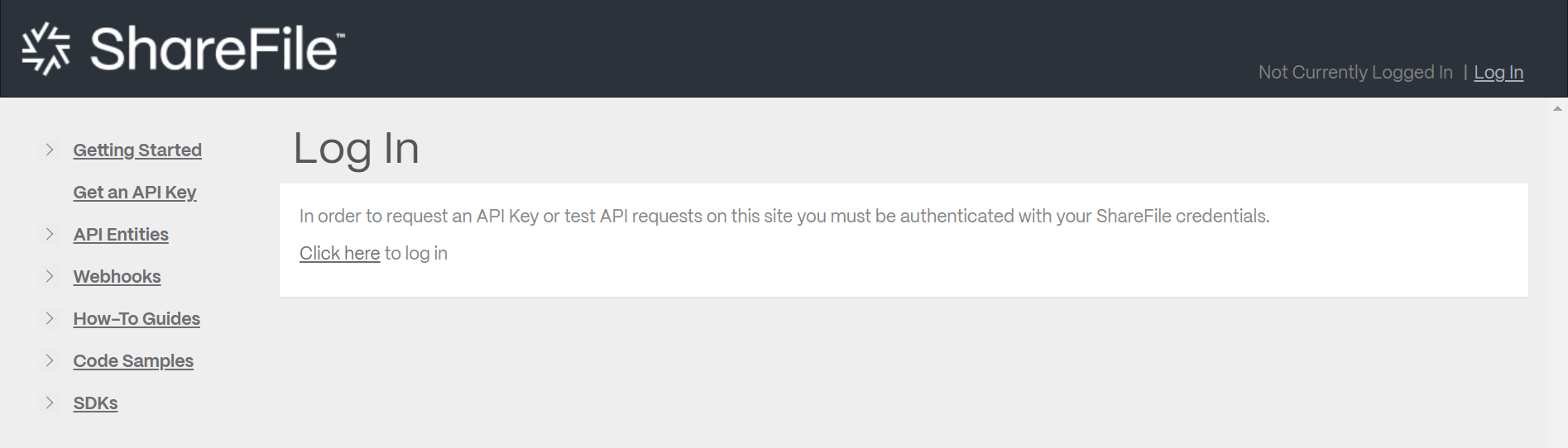
Step 1: Head to the ShareFile Login “https://api.sharefile.com” to generate an API Key.
Log in with your credentials for the ShareFile Account.
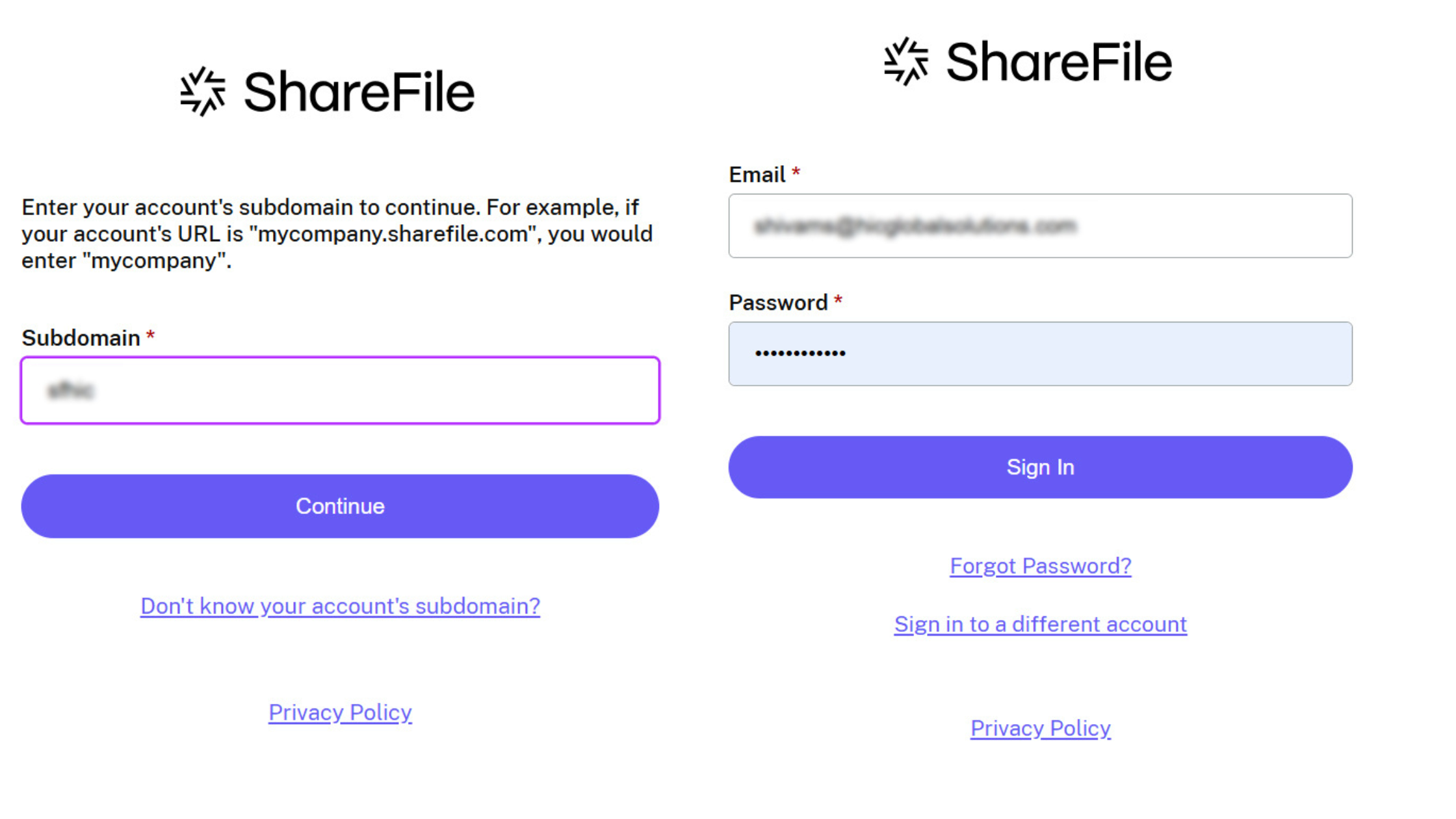
Enter your Subdomain name and enter the Email and password of your ShareFile Account.
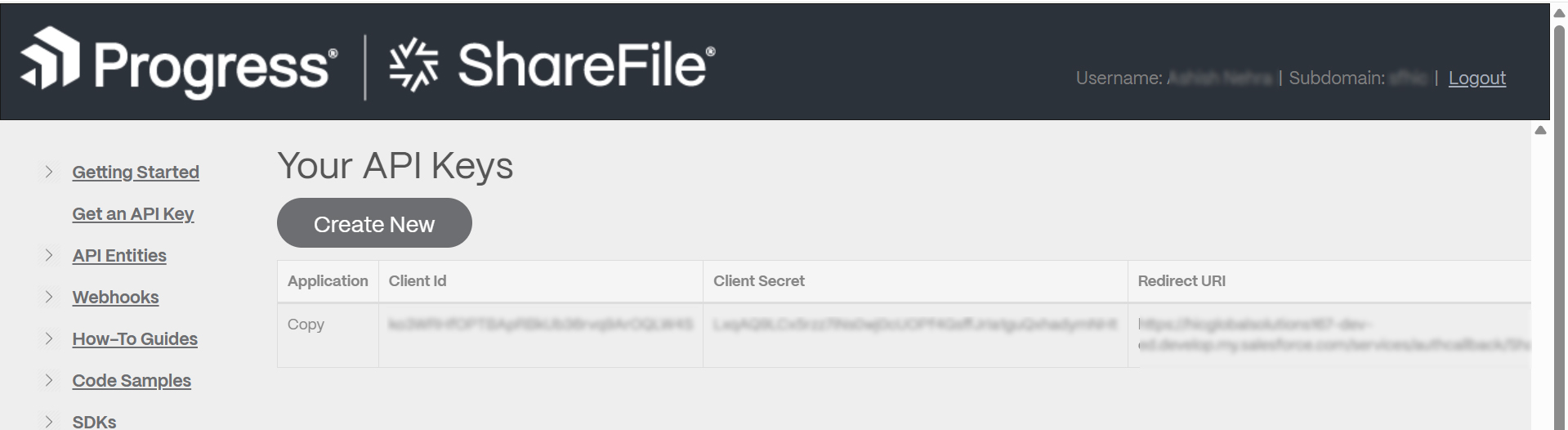
Step 2: Click on Get an API Key.
Step 3: Click on Create New to generate an API Key.
Step 4: Copy Client ID and Client Secret.
Log in to Salesforce and create an Auth. Provider with Open ID Connect.
Enter Client Id, Client Secret, Default Scopes and Token Endpoint URL as https://[subdomain].sf-api.com/oauth/token
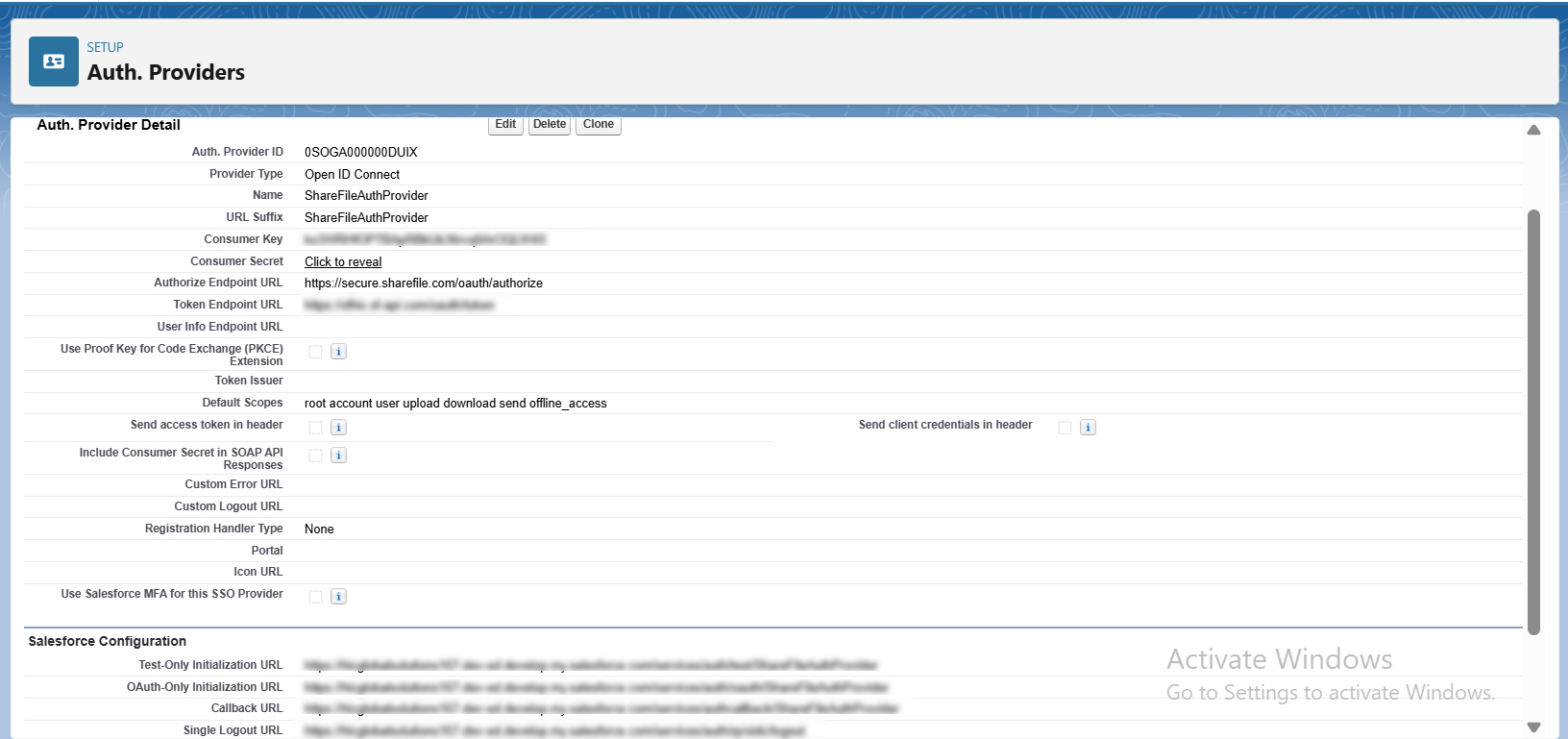
Copy the Callback URL and update the Redirect URI in your ShareFile API key. Now, we will be creating External Named Credentials and Named Credentials.
Enter your domain URL as https://[subdomain].sf-api.com in the URL field for Named Credentials from your ShareFile API Account that you logged in earlier.
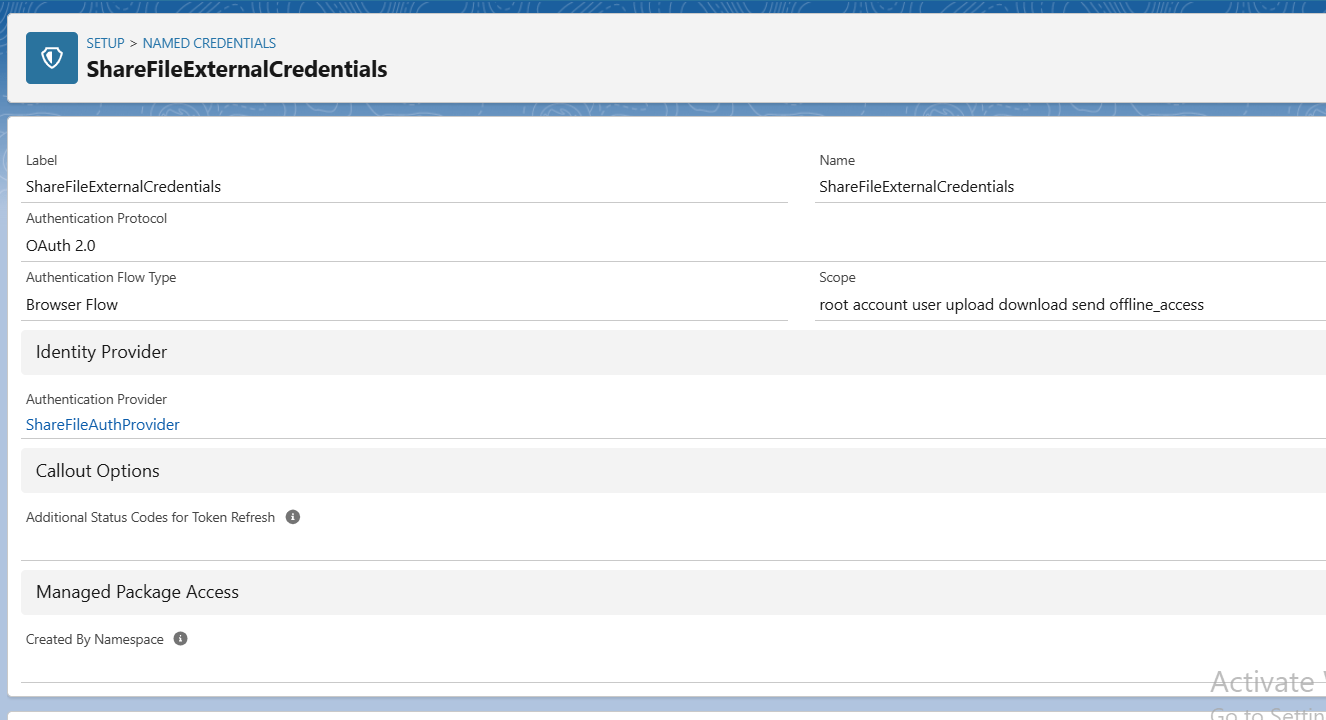
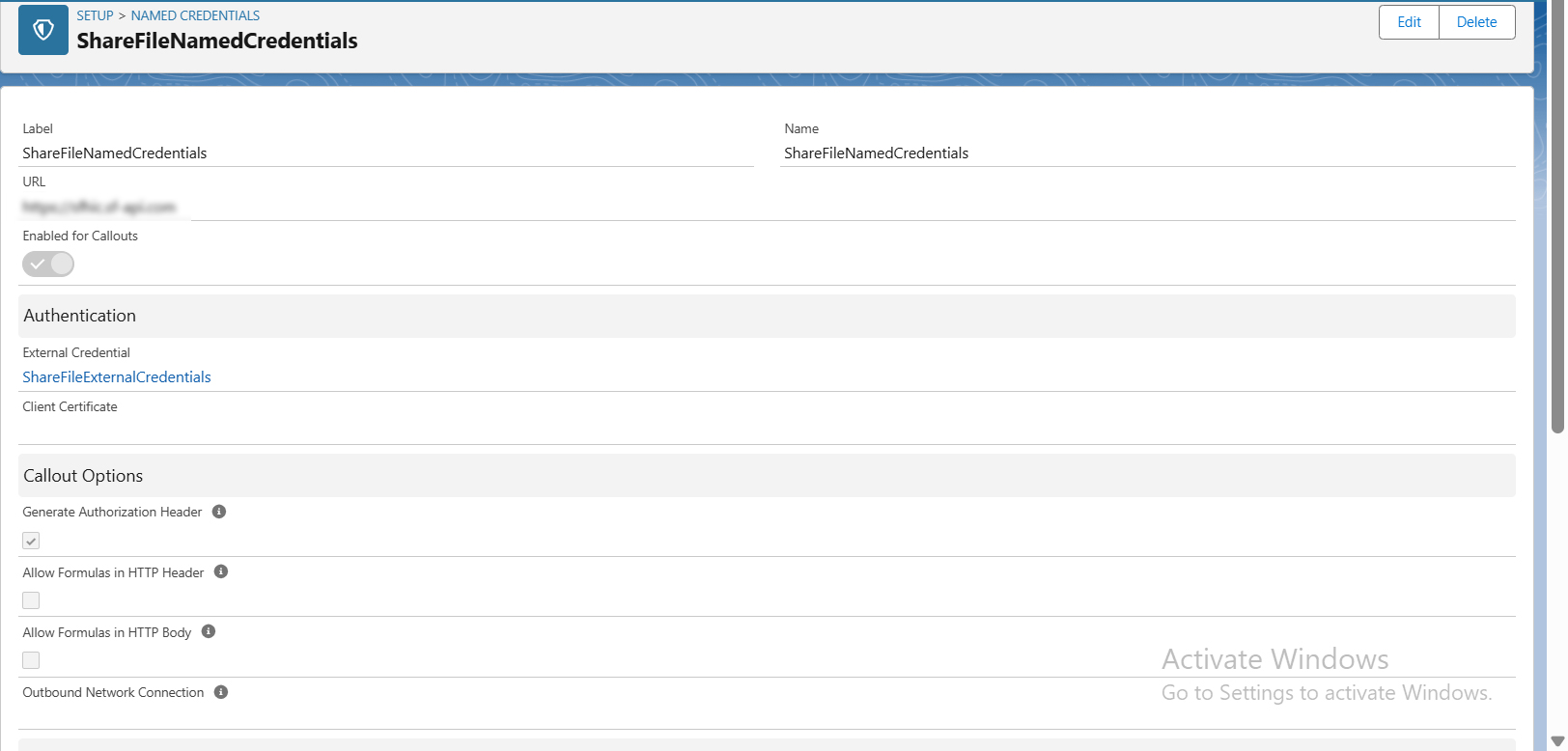
Step 5: Now, create Principal in External Credentials and configure it with your ShareFile account.
Create Remote Site Settings, add the URL of ShareFile and your ShareFile API account.
Now, we will be creating a Site for setting up webhook.
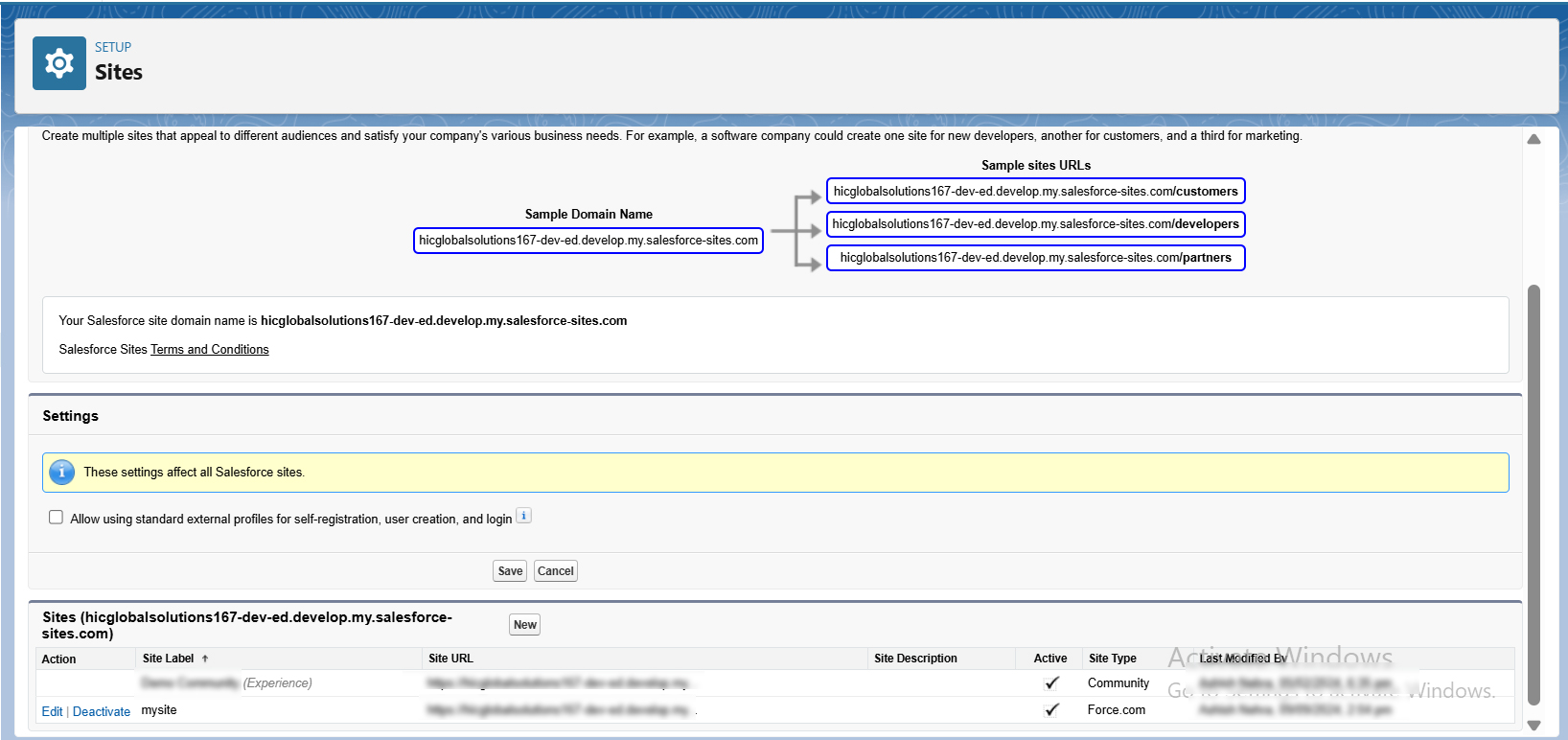
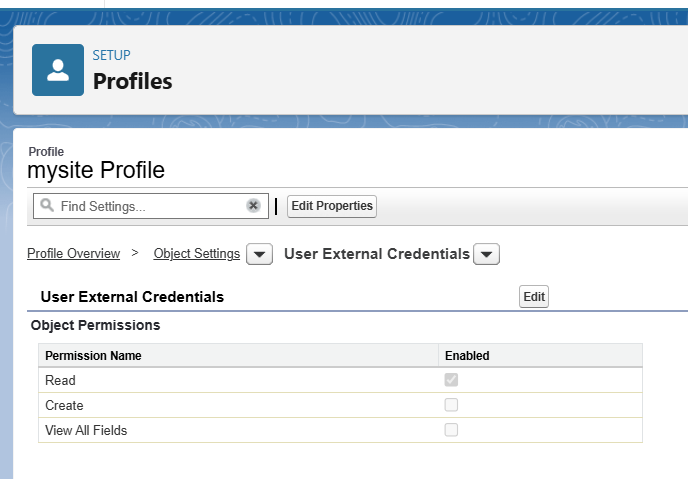
Step 6: We will add the permissions for External Credentials to our Site Profile and add the read permission to User External Credentials.
Step 7: We are all done with the setup of Auth 2.0 and will execute the webhook code using the specific folder ID we want to configure.
Step 8: After setting up the webhook for a specific folder, we will add our code to process folders and copy or update the files from the source folder to all target folders.
Step 9: Now, we will create a batch to process all child folders.
Step 10: We will create one more batch to process file uploading to all target folders.
At last, grant access to all the apex classes we created for ShareFile to the Site profile.
Here’s the demo video:
https://www.youtube.com/watch?v=LlbS9IC8sHM&feature=youtu.be
Conclusion:
Automating file management with ShareFile, especially tasks like copying and updating files across folders, can make a big difference in how efficiently your team works. By combining secure authentication, webhook integration, and custom logic, you can reduce manual effort and keep your documents consistent and up to date.
This setup not only saves time but also helps maintain better organization and control over your content. As your needs grow, you can continue to build on this foundation with more advanced automation or integration features.