
Looking to bridge the gap between your lead generation and CRM efforts? Integrating Apollo with Salesforce is the answer. This connection enables your sales and marketing teams to automate prospecting, sync contacts and activities in real time, and maintain a single source of truth for every customer interaction.
In this guide, we’ll walk you through the complete Apollo-Salesforce integration process from access verification and system configuration to field mapping and log monitoring. Whether you’re setting it up for the first time or fine-tuning your sync settings, this step-by-step breakdown will help you execute the integration with confidence and precision.
Connecting Apollo to Salesforce

Preparing for Integration
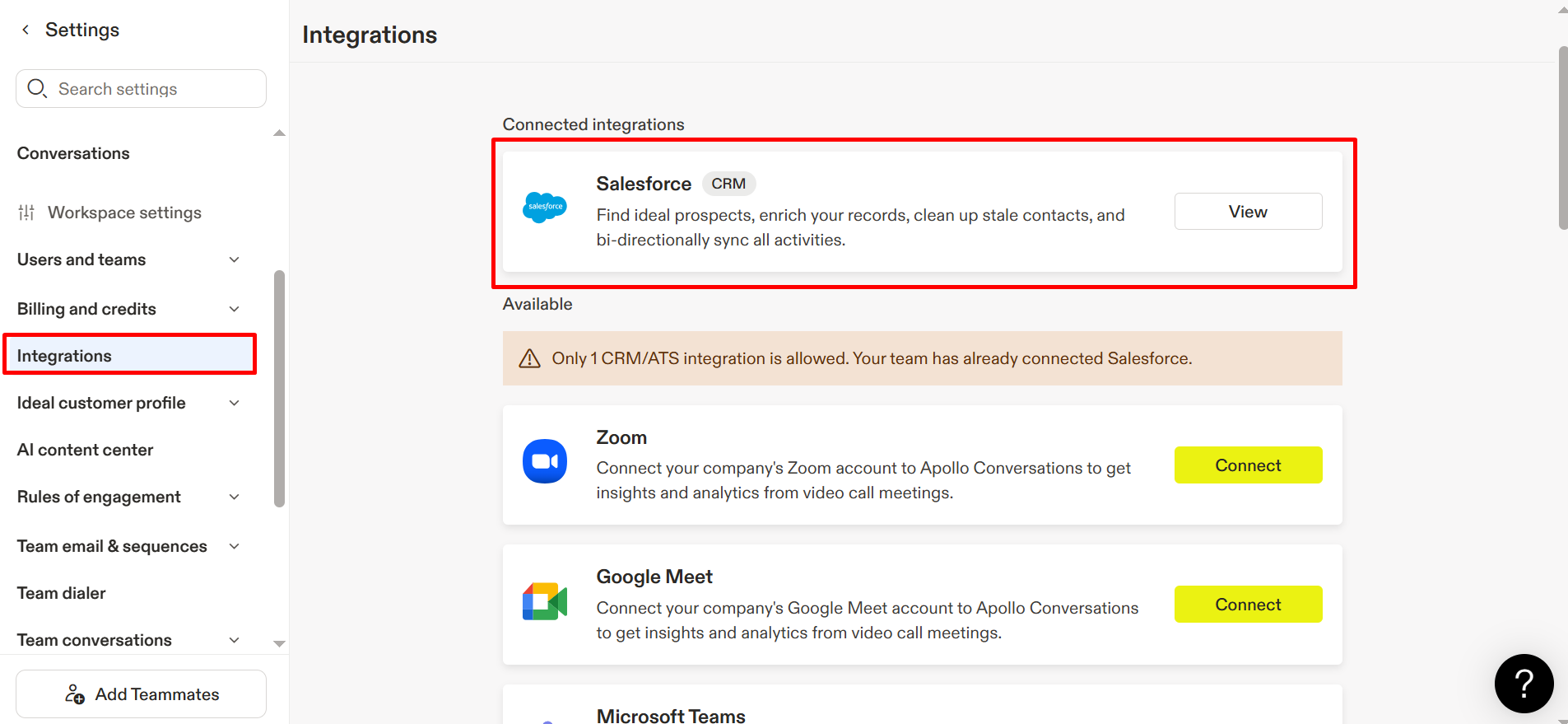
Before initiating the integration, ensure that all prerequisites and system requirements are met to avoid compatibility issues and guarantee a seamless setup process.
Steps to Connect Apollo to SF Account
Step 1: Verify Basic Access
Before proceeding, confirm that you possess admin access to both Apollo and Salesforce, check that your Salesforce version is compatible with third-party applications, and ensure you have a reliable internet connection along with a suitable browser.
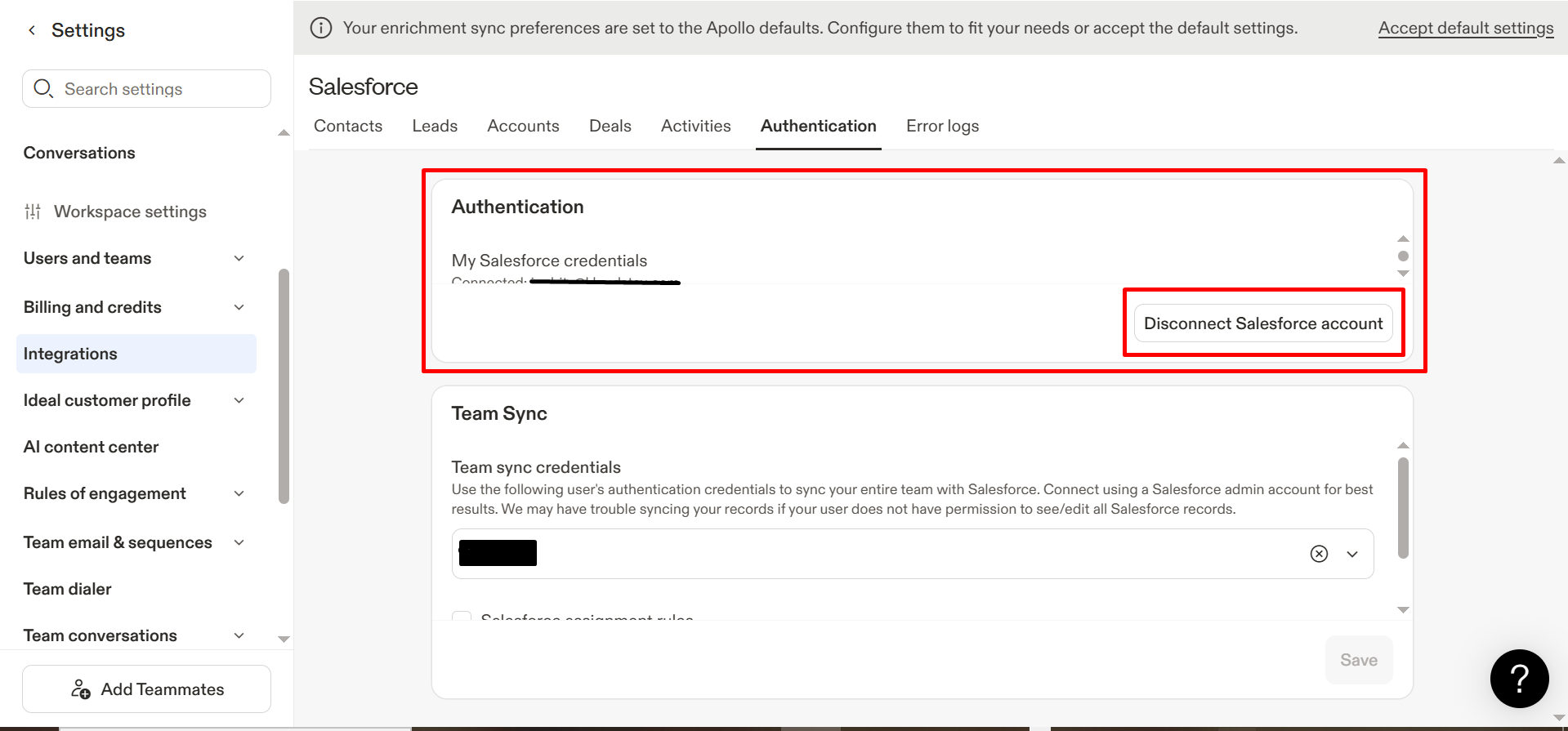
Step 2: System Configuration
The setup wizard will guide you through the process of connecting both systems, necessitating the entry of required credentials and adjustments to specific settings to align with your workflow. Additionally, you should determine the objects you wish to synchronize.
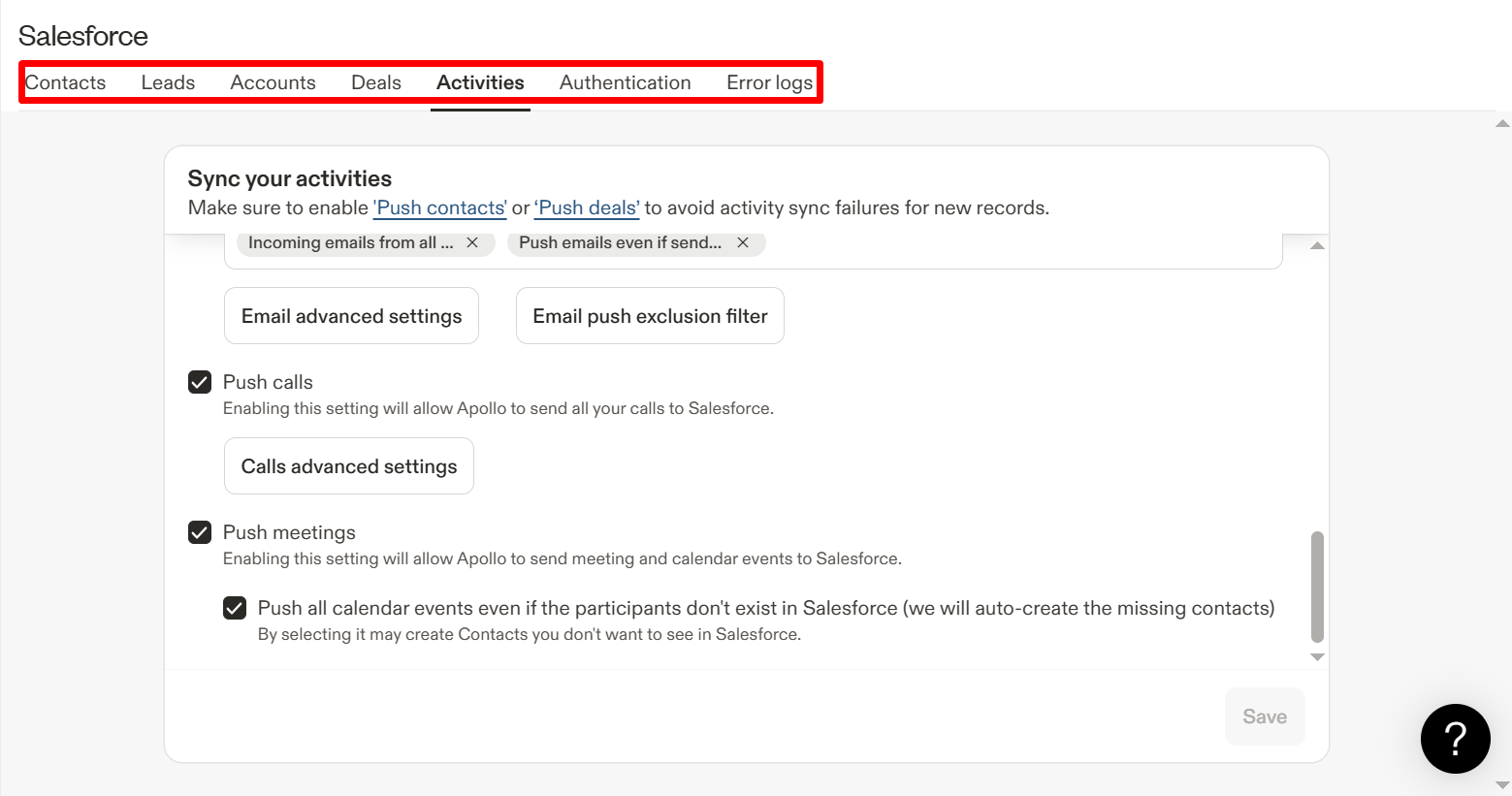
Step 3: Field Mapping and Information Synchronization.
At this critical juncture, it is essential to verify that fields are correctly mapped. Ensure that the data from Apollo corresponds with the appropriate fields in Salesforce, clearly specifying the synchronization parameters, such as the update frequency and whether they should modify existing records or generate new ones.
Conduct multiple test synchronizations to ensure that all functions are as intended, and examine the logs for any possible issues that might arise.
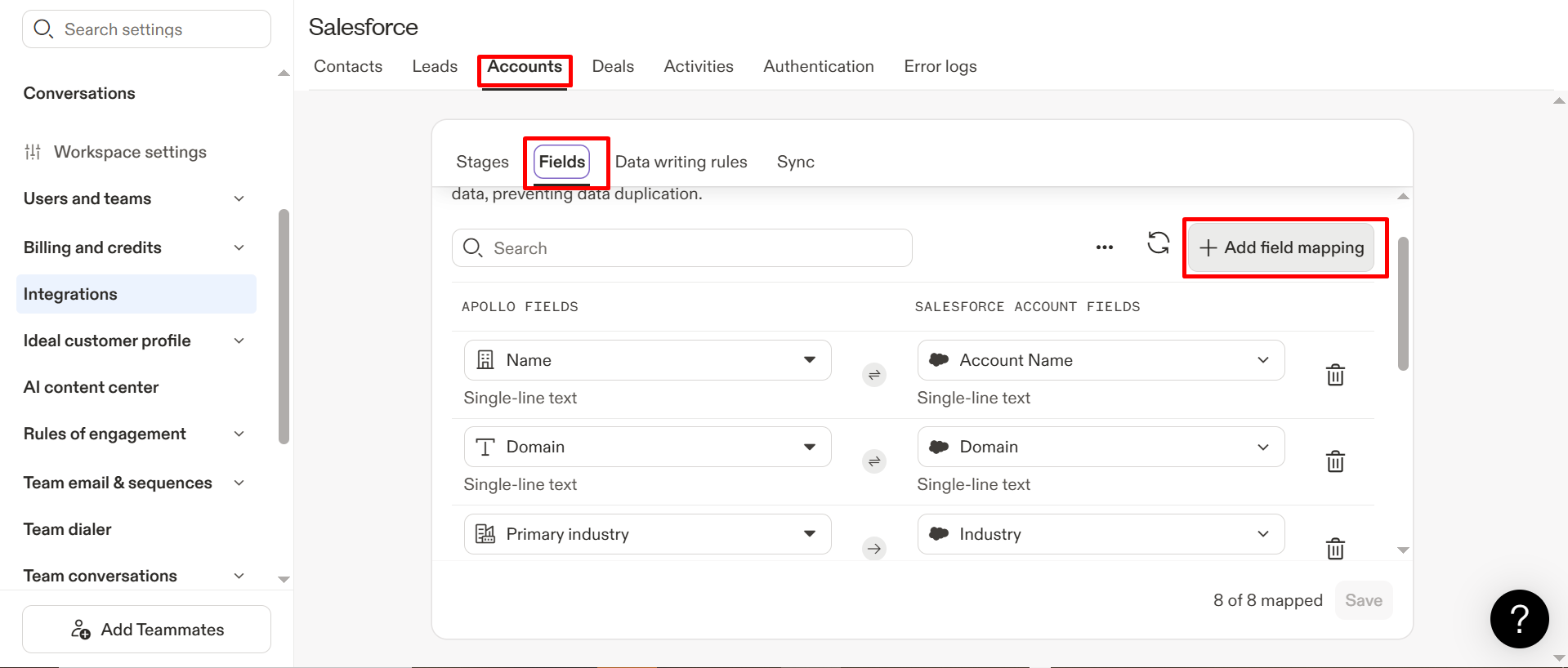
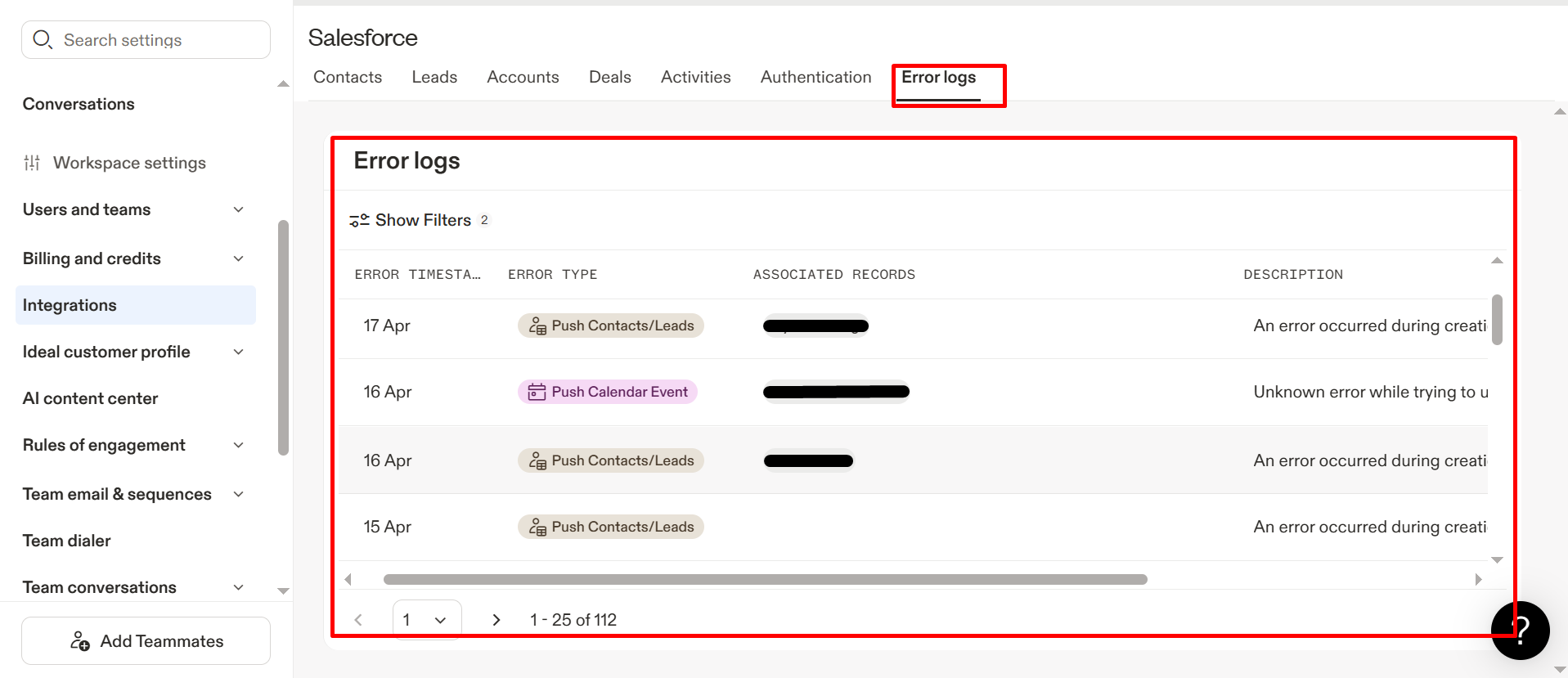
Step 4: Examine Error Logs.
Consistently monitor the error logs located in the Apollo Connector settings in Salesforce, as problems like missing data or permission errors can occur. If you find any inconsistencies, implement the required changes and try the process once more; occasionally, merely refreshing the page can fix minor issues.
Check out the live demo:
Conclusion
Integrating Apollo with Salesforce isn’t just a technical task; it’s a strategic move to supercharge your sales pipeline with better data, fewer silos, and more intelligent workflows.
By carefully following the steps outlined, verifying access, configuring systems, mapping fields, and reviewing logs, you’ll set the foundation for a robust, error-free integration that unlocks real-time prospect insights inside Salesforce.
Ready to maximize ROI from both platforms? The Apollo-Salesforce connection is your launchpad to smarter selling and faster revenue acceleration.
If you are looking to export Salesforce Data to Excel Using SheetJS in LWC, checkout this guide.