
When building financial tools within Salesforce, handling irregular cash flows with precision is a must. Whether you’re developing investment trackers, portfolio performance dashboards, or funding monitors, calculating Nominal XIRR (Extended Internal Rate of Return) becomes essential.
In this blog, you’ll learn how to build a Lightning Web Component (LWC) in Salesforce that calculates Nominal XIRR using Apex and LWC mirroring Excel’s robust financial formulas within your CRM. This expert guide is ideal for Salesforce developers looking to integrate financial logic into their org
What Is Nominal XIRR and Why Does It Matter?
Unlike the standard IRR (which assumes periodic cash flows), XIRR accounts for the actual transaction dates, making it ideal for real-world investments. It’s used when cash inflows and outflows are unevenly spaced, like mutual funds, equity investments, or project funding schedules.
Difference Between XIRR and Nominal XIRR
The XIRR is useful when:
- Cash flows happen irregularly.
- You need to annualize returns over actual timeframes.
- You want an accurate investment performance metric.
Meanwhile, the term “nominal XIRR” refers to this rate without adjusting for inflation or other external factors that might reduce the real value of the returns.
Nominal XIRR is simply XIRR without adjusting for inflation, showing the raw return of your investment without considering how inflation affects its worth over time.
Have a look at the difference between Nominal XIRR and XIRR:
- Timing of Money Movements:
XIRR accounts precisely for the timing of each deposit or withdrawal, whereas Nominal XIRR does not focus on when the transactions occur.
- Impact of Inflation:
The regular XIRR reflects a gross return that doesn’t account for inflation, which could diminish the actual purchasing power of your gains.
- Real vs. Nominal Gains:
While XIRR indicates the nominal return, a real return adjusts for inflation, giving a better idea of how much your investment grows in terms of what you can buy.
How Excel Calculates Nominal XIRR
To mirror the logic in Salesforce, here are the Excel equivalents:
Here are the Excel formulas:
Excel XIRR function: =XIRR(values, dates, [guess])
“Values”
The Cash Outflows (negative) and Cash Inflows (positive)
“Dates”
The specific dates of cash outflows and inflows
“Guess”
An approximate calculation of the internal rate of return (IRR), typically left blank if not specified.
Excel NOMINAL XIRR function: =NOMINAL(XIRR(values, dates), [days])
Let’s walk you through the key steps to create the LWC component to calculate Nominal XIRR
How to Create the Custom Nominal XIRR Calculator Component
Step 1: Create the Apex Class
Create the Apex Class by entering the code from the zip file, then save the Apex Class.
Note: Here I’m attaching the zip file that contains the code. You can extract it and add the LWC and Apex Code.
Step 2: Create the Lightning Web Component (LWC)
- Open Visual Studio Code.
- Open the Command Palette by Ctrl+Shift+P for Windows
- Select SFDX: Create Lightning Web Component
- Create an LWC component with the name “nominalXIRRCalculator”
- Copy the code from the extracted zip file and add it into your LWC Component.
- HTML in “nominalXIRRCalculator.html”
- JavaScript file code in “nominalXIRRCalculator.js”
- CSS file code in “nominalXIRRCalculator.css”
- XML file code in “nominalXIRRCalculator.xml”
Step 3: Deploy the Apex class and LWC component to your Salesforce org.
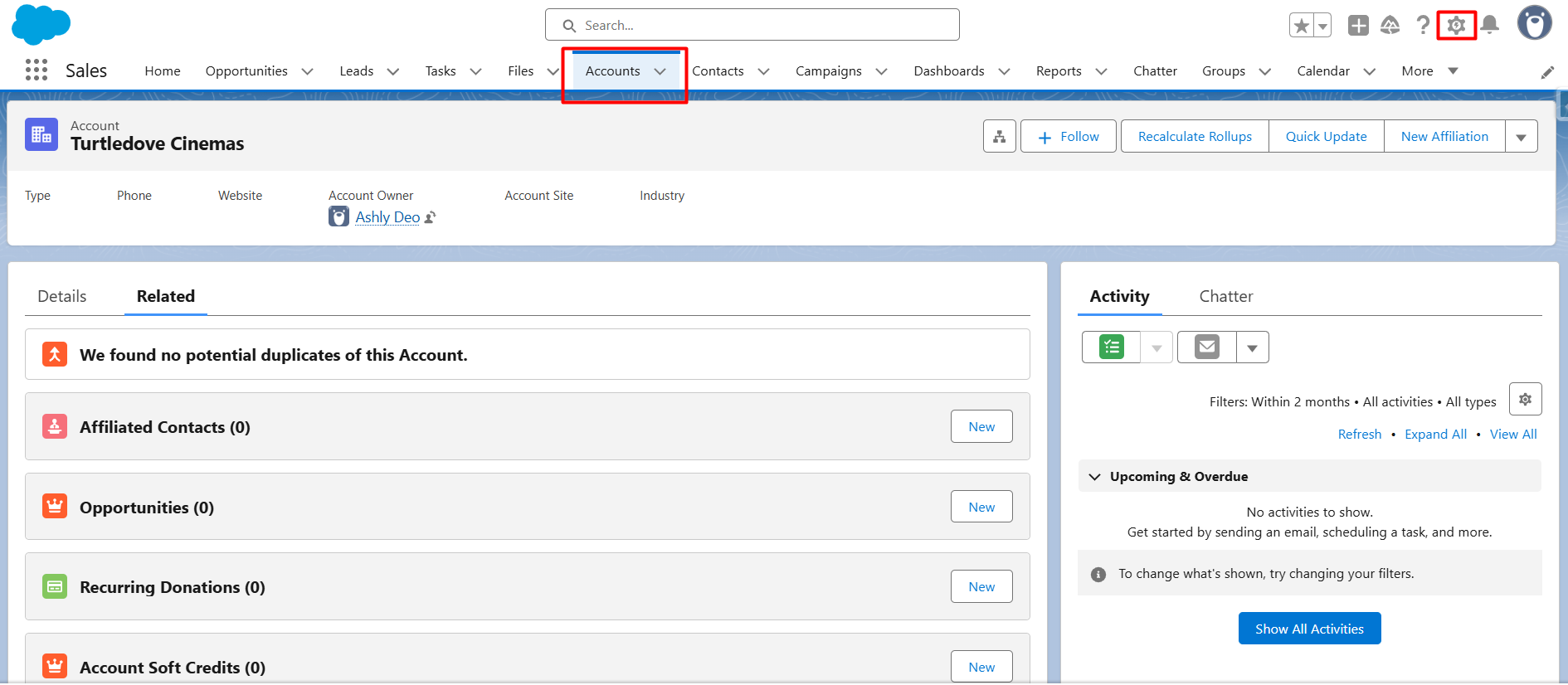
Step 4: Add the Component to the Account Page Layout, or add it to the place of your choice.
Navigate to the Account tab
Open account record →click Gear Icon → select ‘Edit Page’ option
Add the Custom Component:
- Search for your custom component from the Component panel on the left.
- Move the nominalXIRRCalculator component and place it at your desired position within the page layout.
- Click the Save button to apply changes.
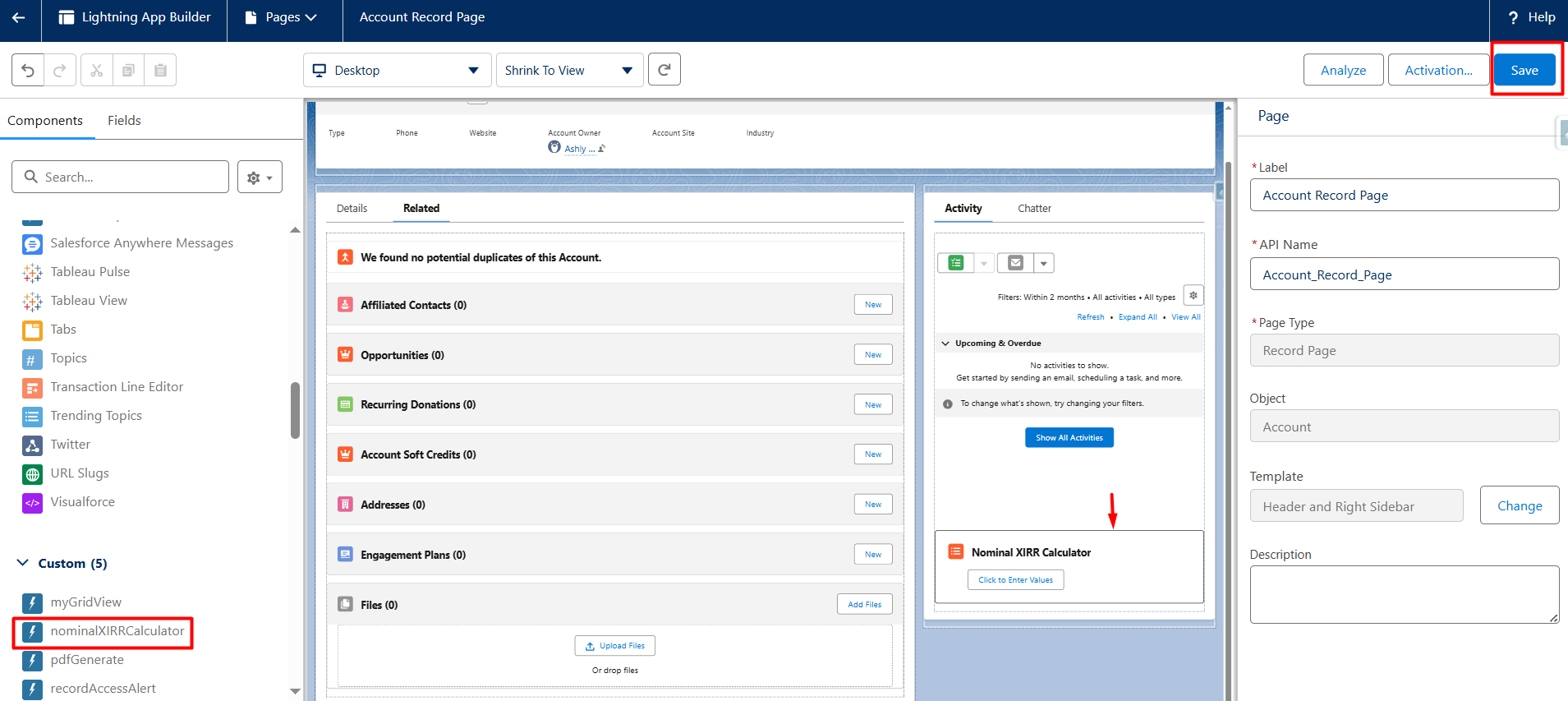
Now it’s time to test your calculator!
Testing Your XIRR Calculator
It’s time to test the functionality:
- To test the calculator working, click the “Click to Enter Value” button of the component.
- Enter the dates & corresponding cash values
- Cash Outflows ➝ Negative Number
- Cash Inflows ➝ Positive Number
Note: You will need at least one negative and one positive cash value for the calculation
- Click the “Submit” button to get the calculated Nominal XIRR on the screen.
Note: In this code, I use the default value 12 (days) for the Nominal XIRR calculation. You can enhance the code to take that value from the user or save the value to your record field.
Demo URL: https://hicdemo-dev-ed.my.site.com/NominalXIRRCalculator/s/
Check out the Demo Video
Watch the full walk-through in action:
https://www.youtube.com/watch?v=7zXPWyvp90M
Conclusion
It’s time to bring investment intelligence into Salesforce. Nominal XIRR isn’t just a fancy financial term, it’s a practical performance metric that empowers business users with real-time investment insights directly within Salesforce.
By embedding this custom LWC, you’re not only streamlining financial workflows but you’re also enabling your teams to make smarter, data-driven decisions without ever leaving the CRM.
Whether you’re building dashboards for CFOs or creating investor reports, this Nominal XIRR calculator is a game-changer for Salesforce-based financial apps.
Also, if you’re looking for a guide on how to make your LWC component multilingual, be sure to check out this blog.