
Dropbox helps you maximize inspiration and minimize distraction, letting your best ideas come to life. It’s a tool that allows you to sync your content, share important files, folders, and links, and collaborate with whomever, whenever, wherever.
In this blog post, we will discuss the Salesforce Dropbox Integration, specifically, we will focus on creating a folder in a Dropbox account using the Apex API callout. With this solution. it will get easier to directly send your import files, and folders from Salesforce into Dropbox.
In this example, we are creating a folder when the opportunity stage is closed-won and its attachments & files are stored under that folder whose name is the same as the opportunity name. Let’s start!
Account Creation, Permission, and App Creation in DropBox
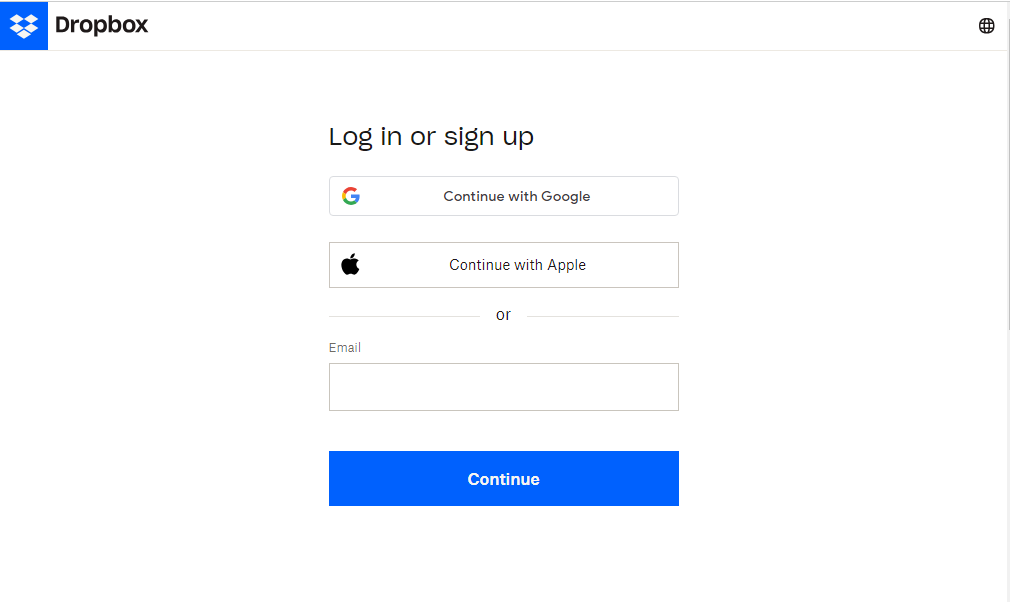
- Firstly we need to create an Account on Dropbox or log in.
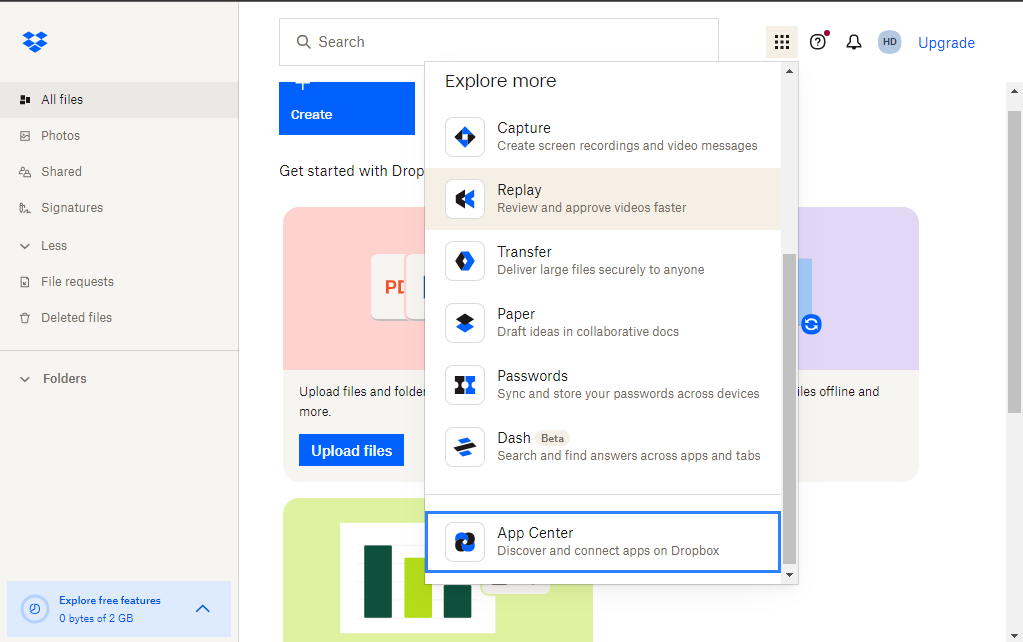
- After creating an account on Dropbox. Now click on the app launcher and then select App Centre.
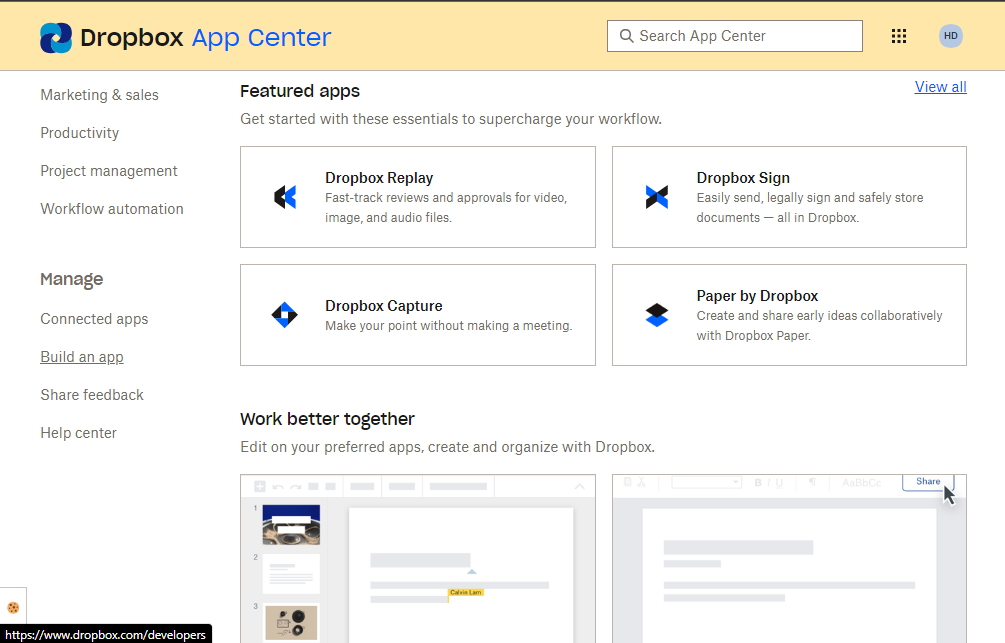
- After clicking on App Canter, Scroll down and then click on Build an App in the Manage section.
- Next, a new tab opens, and under the Choose an API you have to click on the Scoped access radio button.
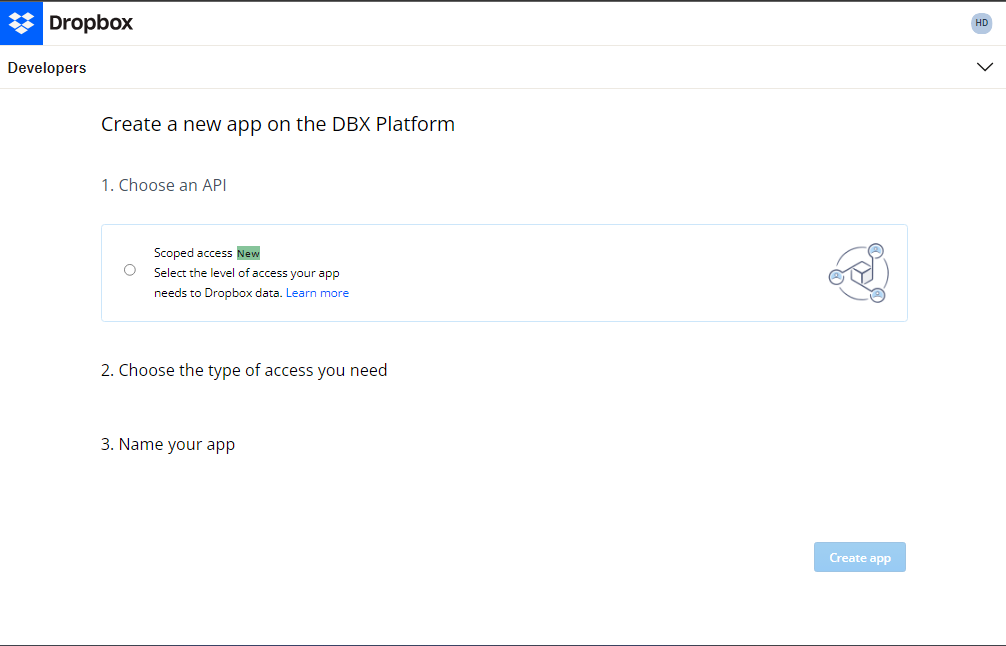
- Now other options are open, and here we have to choose the type of access. Here for now we select the Full Dropbox access.
Now moving forward we have to give the Name of the app and then click on the Create App button.
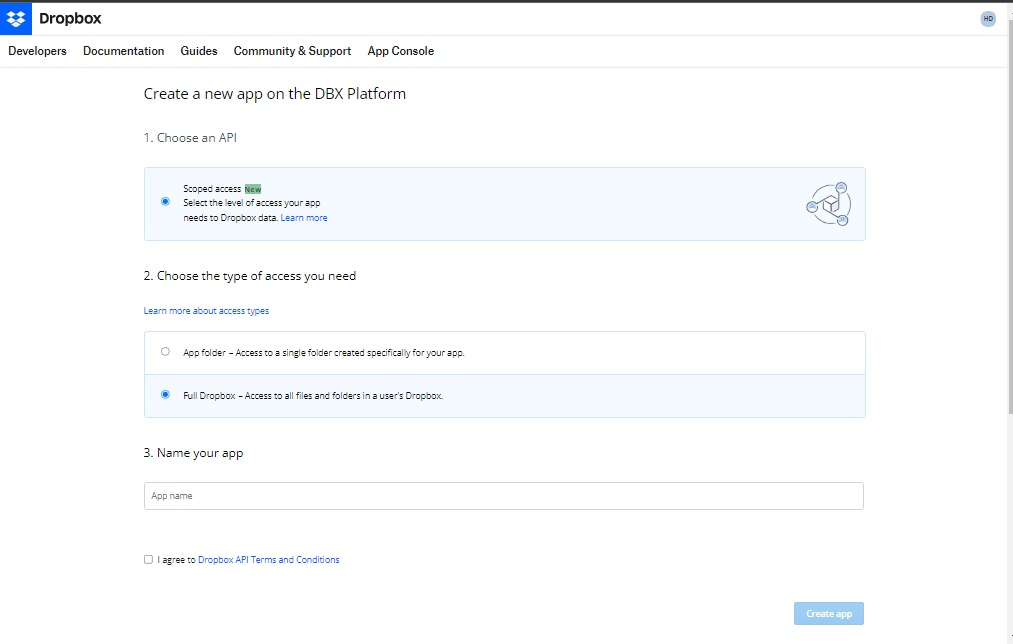
Note: The app Name should be unique. That can not already exist.
Now our app is created. Moving forward, we have to give them some permissions.
- For that click on the Permission tab.
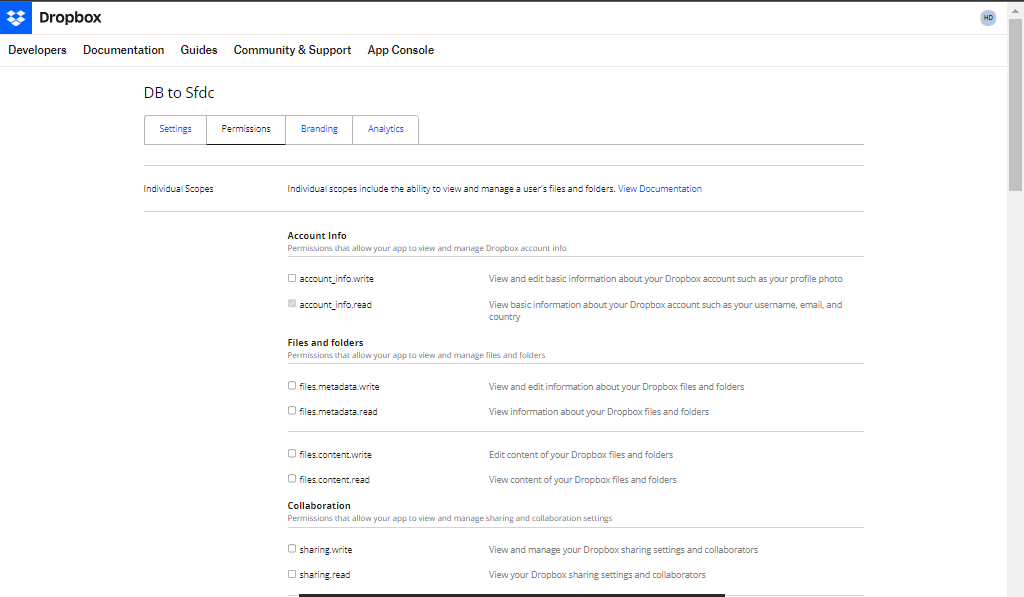
In the permission tab we have to give permission by checking some checkboxes.
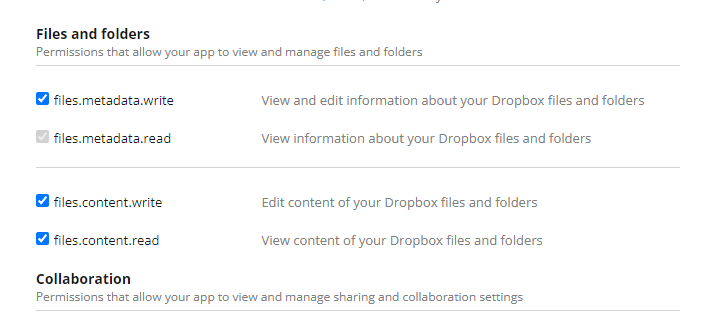
- In the Files and folders section check the checkbox of files.metadata.write, files.content.write, files.content.read, etc. After clicking all the necessary checkboxes click on Submit button.
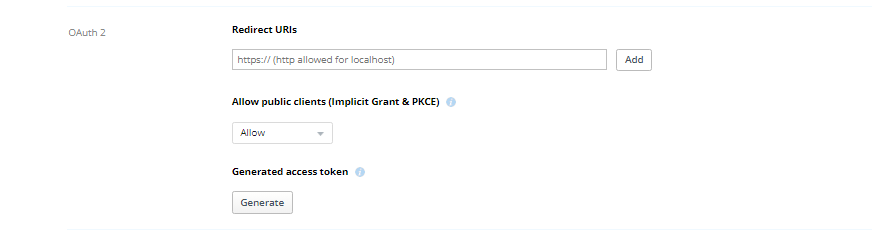
Now moving forward we need the Access token for the integration. So for that, we have to click on the Setting tab.
- Find the section OAuth 2 and here we have to click on the Generate button.
- Now the access token is generated. You have to save your access token at a secure place.
Apex API Callout to create a folder on Dropbox
Here the trigger handler code:-
Using this apex code, We can create a folder into the Dropbox with the name of that opportunity with its attachments & files when its stage is closed-won in Salesforce.
Here you can see that folder is created in your Dropbox account.
https://hicglobalsolutions.com/wp-content/uploads/2023/12/ezgif.com-video-to-gif.mp4
Note:- We need to store two Endpoint URLs in the Remote Site Settings in our salesforce org.
Url is “https://content.dropboxapi.com” & “https://api.dropboxapi.com”
Conclusion:
In conclusion, Dropbox is a very useful application for storing and sharing files, content, links, and documents within your team.
By following the steps outlined in this guide, you should be able to create a folder on Dropbox using the APEX API callout and import your Salesforce files in Dropbox.
And for more such Salesforce solutions, stay tuned to our blogs!





