




We know that Salesforce is retiring WFRs and Process Builder and recommending Salesforce Flows for all behind-the-scenes automation needs.
As a result, it has become essential to learn and master Flows for building automation solutions.
So, in this blog today, we will share an overview of Salesforce Flows and the best practices to use it, in this quick guide to learning Salesforce Flows.
So, let’s begin!
What is Salesforce Flows
Flow is the most powerful automation tool provided by Salesforce. It is an automated application that captures and records all data and takes necessary actions accordingly in your Salesforce org or an external system.
Salesforce Flow enables building complex business solutions using clicks, not code. It can be triggered for record insert, update and record delete and it can be run for both after and before events.
Types of Flows
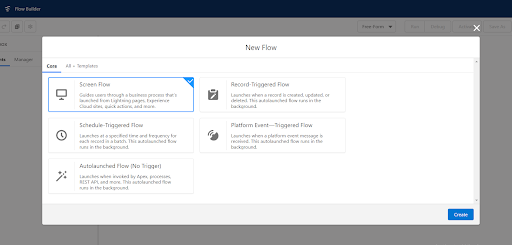
Salesforce Flow provides two types of flows: Screen flows and Auto launched flows.
Screen Flow
A Screen Flow is called through a button or action, or displayed in a Lightning Page or the Utility Bar, and appears as a screen for the user to interact with. This cannot be automatically called.
Record-Triggered Flow
This Flow launches when a record is created, updated, or deleted.
Auto launched Flow
These can be called Apex, Process Builder, or another Flow. They can perform actions automatically behind the scenes.
Scheduled-Triggered Flow
It runs automatically on a recurring schedule. It is helpful for tasks that need to be performed daily on a set of records or to handle jobs that run frequently.
Platform Event Flow
These are called when a platform event is received. It is similar to auto-launched flow.
Features Of Flows
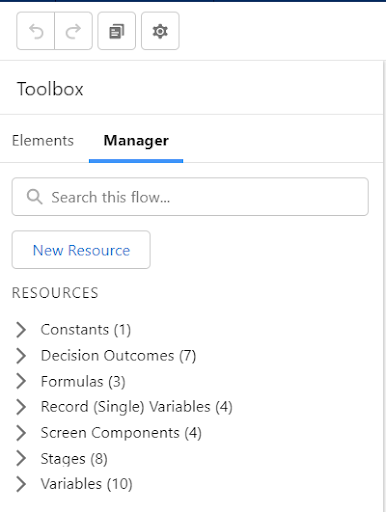
Manager Tab
The manager tab displays the existing resources. Each resource represents a value that is referenced throughout the flow. Some of the resources are as below-
- Variables: Variables are used to store data to use in the flow. The variables can be of type Text, Number, Record, Dates, Currency, Boolean, Picklist, or Object record.
- Collections: Collections are used to store a list of variables. They are used to process multiple records at a time.
- Constants: Constants are values you set once and never change. Constants are recommended when the flow needs to reference the same value multiple times.
- Formulas: It displays a dynamic value depending on other values within your Flow. If you need to calculate a future date based on when the Flow was run, a Formula will be helpful.
- Choices: Choices are used in Screen flows to show options to the user.
Elements Tab
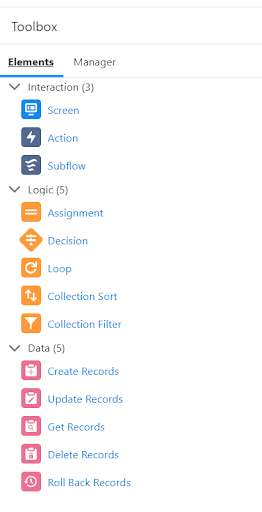
Elements tab displays Interaction, Logic, and Data elements available for the flow. Each element is an action the flow can execute.
Interaction Element includes –
- Screen: This element is available only in Screen Flows. The screen can be used to display information or can be used to collect data from the user.
- Actions: An Action element allows you to pass data through to a pre-existing standard or custom action such as Send Email, a Quick Create, or a custom Apex action.
- Subflow: A Subflow element allows you to call another Flow within your current Flow – this means that if you have another complex Flow set up, you don’t need to replicate the logic in your new Flow.
Logic Elements include-
- Decisions: Decisions split the flow depending on the data that’s being sent through the decision element.
- Assignments: Assignments allow you to give a value to a variable.
- Loops: Loops allow you to handle multiple variables at once using collections.
Data Elements allow the flows to fetch, create, update or delete records in the database. The elements include
- Get Record,
- Create Record,
- Update Record,
- Delete Record.
Whilst Get Record is used to fetch records from the database, Create Record, Update Record, and Delete Record are used to activate the data in the database.
Connectors decide the available paths that a flow can take at run time. Various elements in the flow are connected using the connectors available. Some types of connectors are Unlabeled, Decision Outcome, Fault, Pause, For each, etc.
Best Practices For Flows
- Plan out your flow before you start building.
- Build your flows in a test environment—like a sandbox or Developer Edition org.
- Never hard-code Salesforce IDs.
- Wait until the end of the flow to make changes to the database.
- Control when running users can navigate backward.
- Provide an error handler.
- Save early and often.
- Restrict data access via profiles and permission sets.
- Control data access with the Subflow element.
- Test as many permutations of your flow as you possibly can.
- Avoid accessing external objects after DML operations in a transaction.
General Limits For Flows
| PER-ORG LIMIT | ESSENTIALS OR PROFESSIONAL EDITIONS | ENTERPRISE, UNLIMITED, PERFORMANCE, OR DEVELOPER EDITIONS |
|---|---|---|
| Versions per flow | 50 | 50 |
| Executed elements at runtime per flow | 2,000 | 2,000 |
| Active flows per flow type | 5 | 4,000 |
| Flow interviews that are resumed per hour or groups of scheduled actions from processes that are executed per hour based on a specific time | 1,000 | 1,000 |
The combined total of this automation that starts or resume is based on a record’s field value.
|
20,000 | 20,000 |
| Schedule-triggered flow interviews per 24 hours | 250,000, or the number of user licenses in your org multiplied by 200, whichever is greater | |
Conclusion
We hope you find this quick guide useful. If you have liked the blog or have any suggestions, do not hesitate to reach out to us at HIC Global Solutions. Catch you in the next one, stay tuned!





