
The Prompt Builder enables organizations to seamlessly integrate reliable generative AI. Admins can effortlessly create prompt templates, enhancing employee productivity by rapidly generating and summarizing content. With Prompt Builder, we can boost productivity and respond promptly. The prompt templates communicate with large language models (LLM) to generate substantial material.
In this blog, we will demonstrate how to set up Prompt Builder in an Einstein Generative AI org. Here we go!
Prerequisite of setting Prompt Builder in Einstein Generative AI Org:
- We have must an Einstein Generative AI org. Here is the org Sign-up.
- Must Enable Einstein Setup in org.
Step by step how to Setup a Prompt Builder:
Step 1:
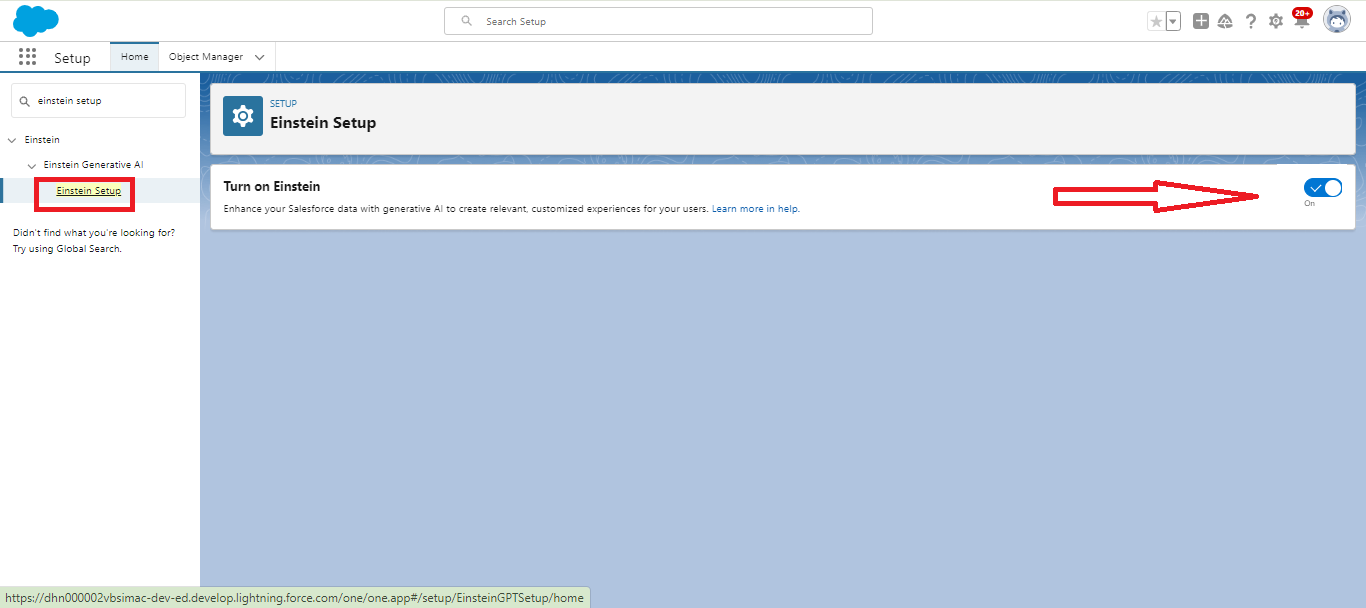
In the Quick Find box, Search “Einstein Setup” and click on Einstein Setup and “Turn on Einstein” Toggle.
Step 2:
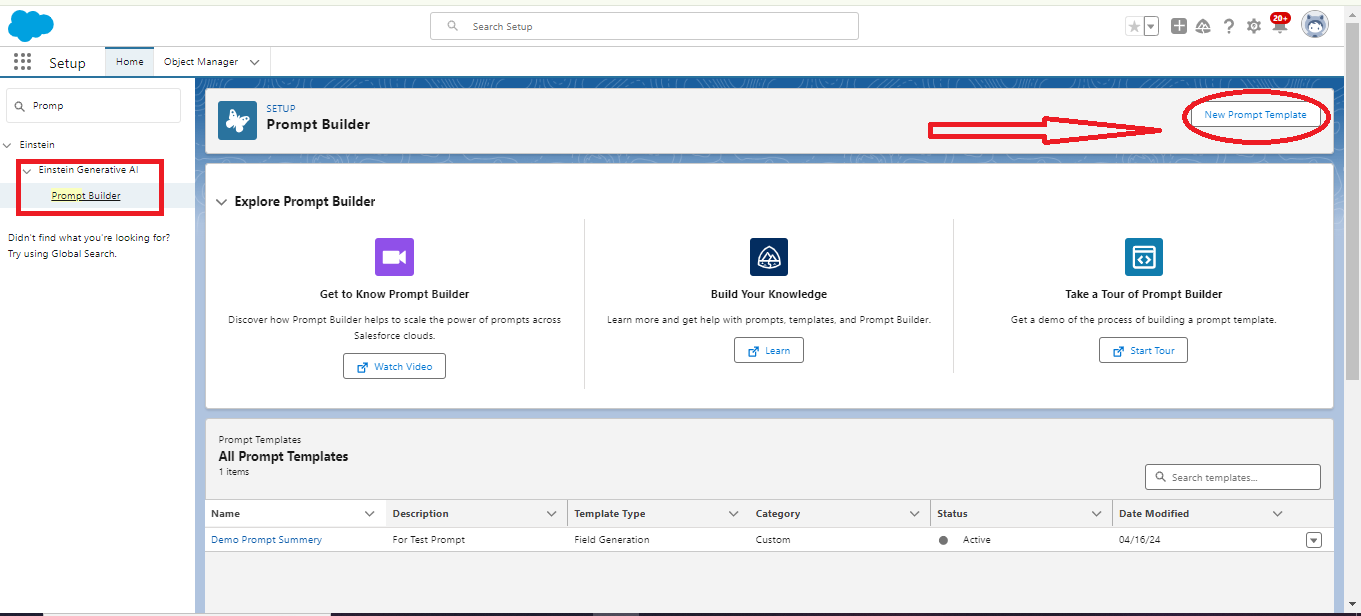
After “ on Einstein” Setup toggle. In the Quick FinTurnd box, Search “Prompt Builder” to create a new “Prompt Builder’’ and then Click on “New Prompt template”. to create a new Prompt Builder.
Step 3:
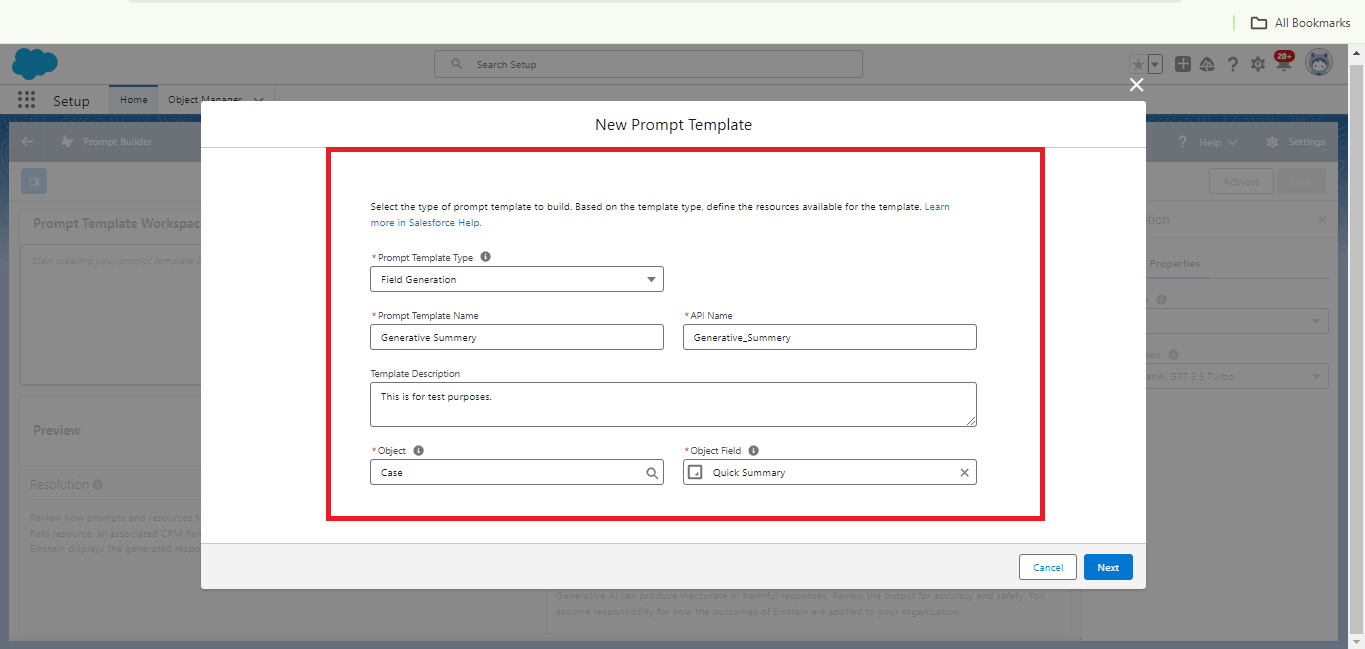
After clicking on “New Prompt Template” give it a name and select an object along with the field you’ve set in Prompt Builder. Currently, we’ve used the “Case” object with the “Quick Summary” field. And then click on “Next”. For reference, please check the screenshot below.
Step 4:
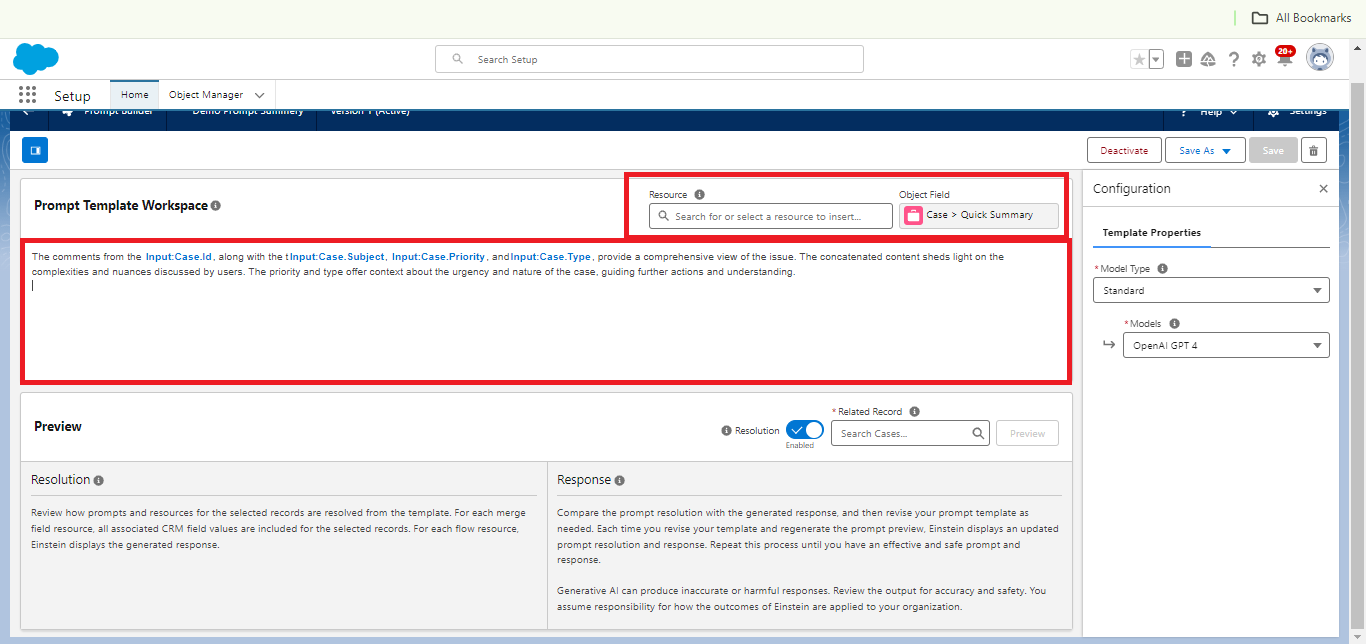
In the Prompt Template, there are two sections: “Resource” and “Object Field.” Click on “Resource” to add Case object merge fields to display in the Prompt template. You can merge fields like Status, Subject, Priority, etc. In the “Object Field” section, you can add the object field you want to set for the Prompt Builder’s Generative AI. For Reference Check the below Screenshot.
Step 5:
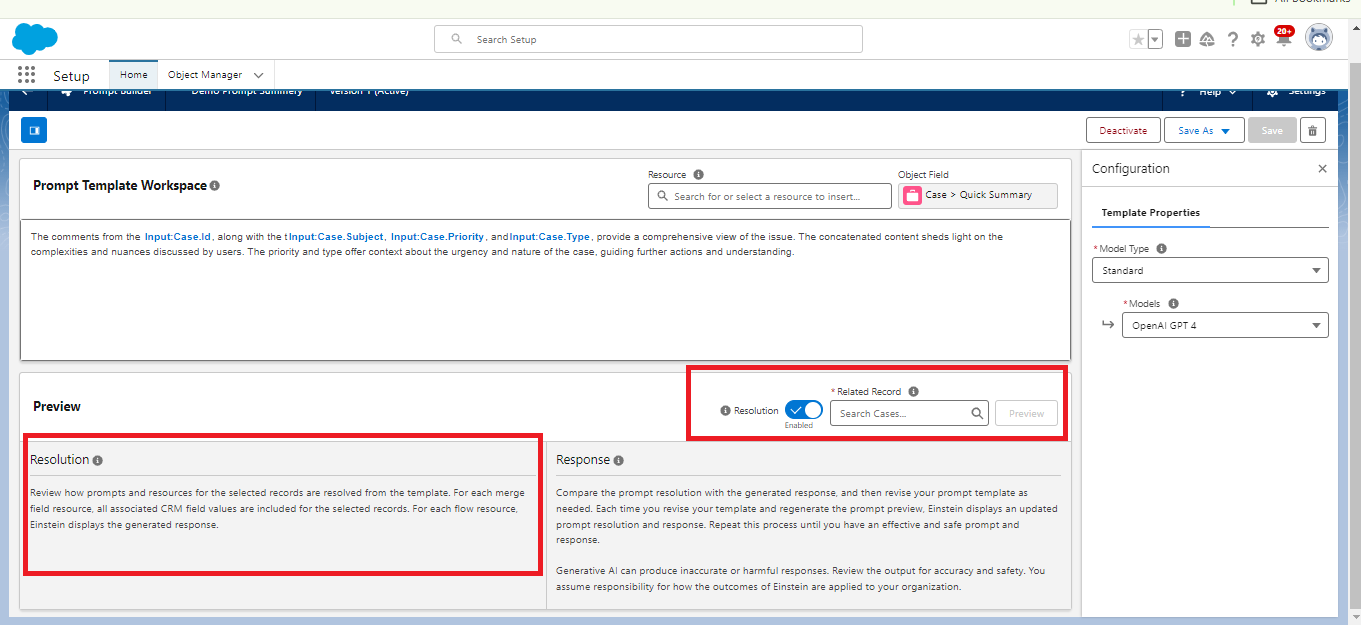
In this Step Click on Related Record and and then select Case Record. After Selecting the Case record then Click on the Preview tab to “preview” to Check your Response in the Prompt Template.
Step 6:
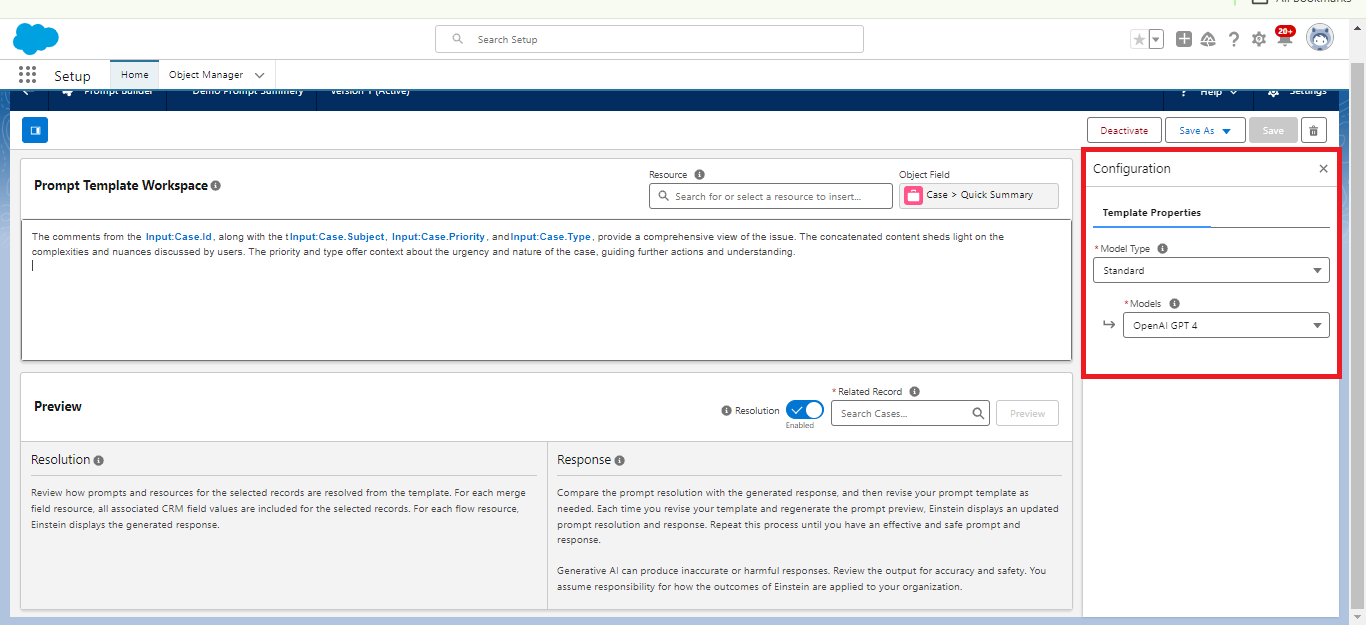
In the template Section “Model type”, Choose the Standard and “Models” sections. Choose “OpenAI GPT 4” for better productivity. And then “Save” and “Activate”.
For reference Check below Screenshot.
Step 7:
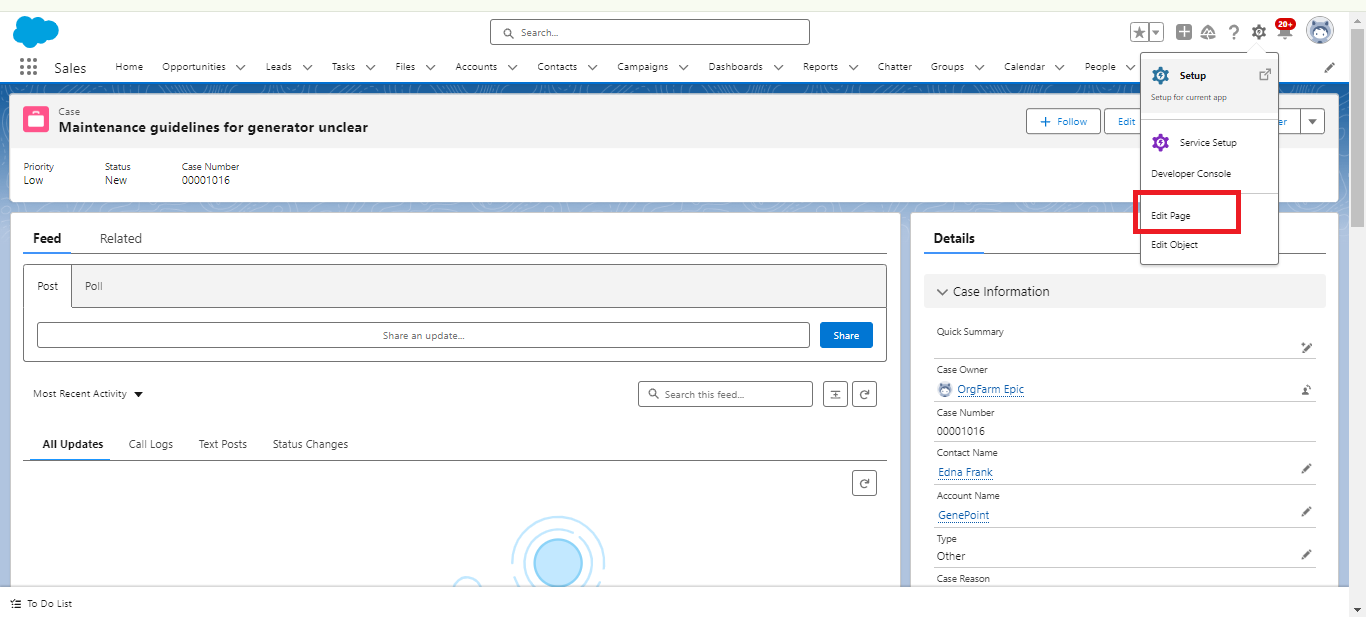
Now move to the “Case” object and open the Case record. Under Case Record Click on Edit page to Setup “Einstein Generative AI”.
Step 8:
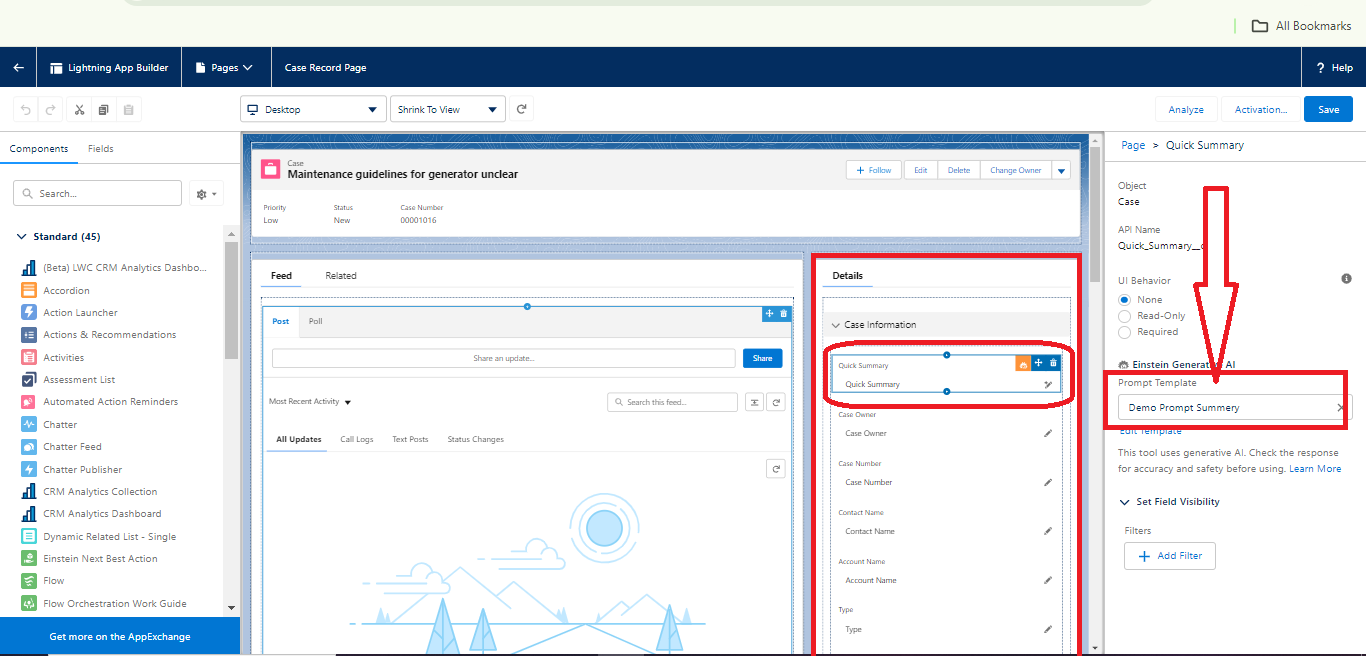
After editing the page, click on “Upgrade Now.” Then, navigate to the Case Layout Detail section. Click on the “Quick Summary” field, and in the top-right section title “Einstein Generative AI” add the Prompt Template that I have created in Step 3. And then “Save” and “Activate” it.
Step 9:
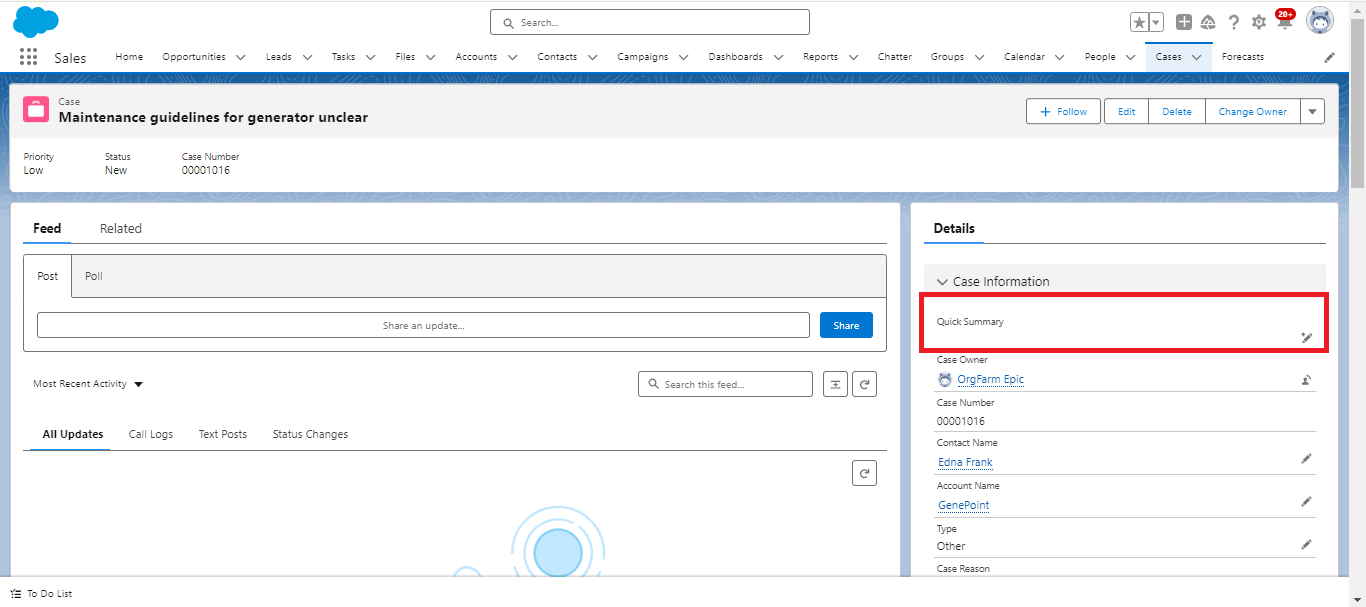
Now, it’s time to use “Prompt builder Einstein Generative” under the case record Click on edit and use it.
Step 10:
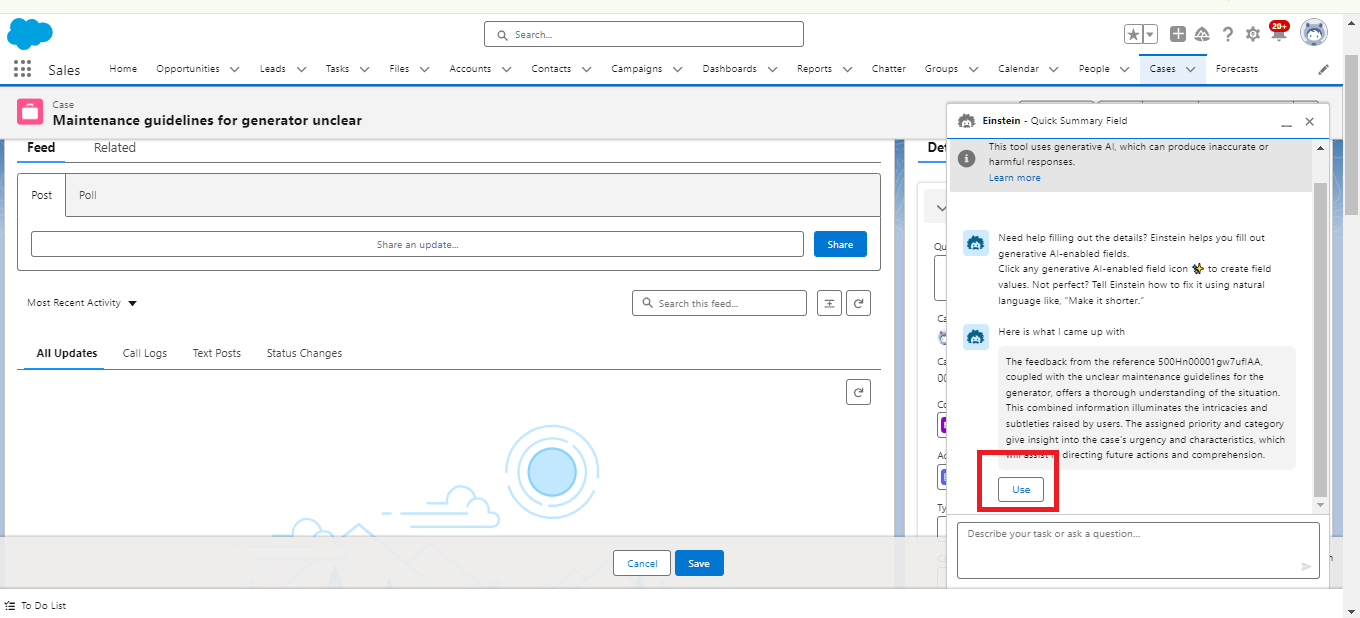
Einstein Generative AI provides a prompt response when we ask anything. After asking, clicking the “Use” button will automatically add it to the “Quick Summary” field.
Conclusion:
In conclusion, the Prompt Builder is a powerful tool that allows you to create dynamic and interactive prompts for your users. It provides a structured way to guide the user’s input and can greatly enhance the user experience. With its ability to incorporate variables, conditions, and loops, the Prompt Builder offers a high degree of customization and flexibility.
Hope you liked the solution! We will be back with another solution, till then stay tuned!





