

Salesforce Flow is a powerful automation tool that allows users to build custom business processes and automate complex tasks within the Salesforce platform. With the introduction of HTTP callouts, Flow has become even more versatile, enabling seamless integration with external systems and services.
In this article, we will explore the concept of HTTP callouts in Salesforce Flow and discover how they can enhance your automation capabilities.
Understanding HTTP Callouts:
An HTTP callout is a mechanism that enables a Flow to make requests to external systems or services using HTTP protocols. This capability opens up a world of possibilities, as it allows you to interact with a wide range of APIs, retrieve data from external sources, or even trigger actions in external systems.
To implement HTTP callouts in Salesforce Flow, you need to follow these essential steps:
Steps to HTTP callouts in Salesforce Flow
We need to create our Permission Set. With the help of permission sets, we are allowing users so that they can make HTTP Callout from Salesforce Flow.


After Creating Permission sets, now we are going to Add a user so that the user can make an HTTP callout from Salesforce Flow.


Now We go into the Quick Find Box and type “Named Credentials” to add External Credentials & Named Credentials.

In the Authentication Protocol, we will select “Custom” because we are using free API. If we select “Custom” then we don’t need the Client & Consumer secret key to hit the API you need to select “OAuth 2.0” and similarly “AWS Signature v4”.
Now After Saving the External Credential. We are going to Create new Principles. You can add these principles to permission sets so that your permission set can know about the named credentials.


Now We create our Named credentials and in the “URL” section we are going to use Abstractapi.com Website where we are going to hit the Email validation API.


In this “URL” section we are using an Email Validation API URL.
Now we are adding our External Credential into the Permission sets “External Credentials Principal Access” section.


Till now we are done with the setting to perform to hit the API from Salesforce Flow.
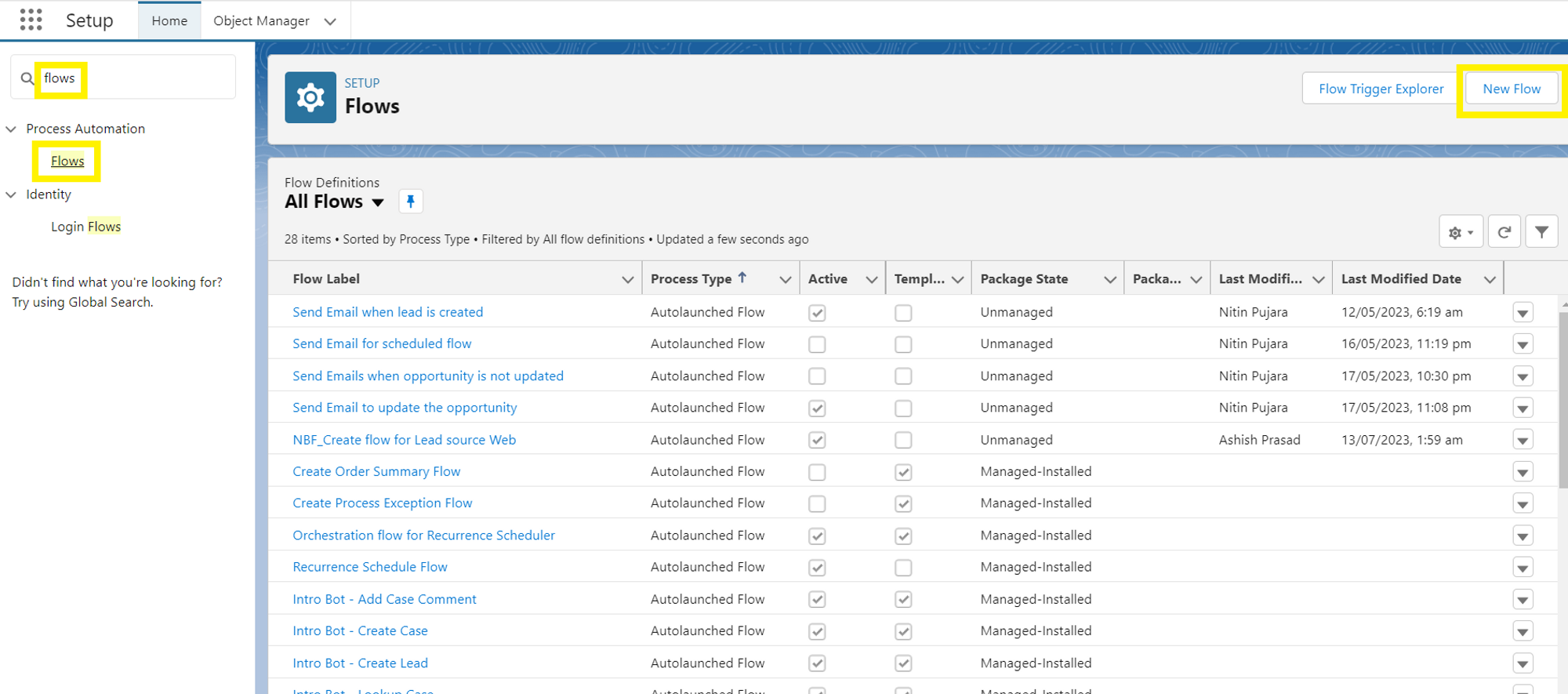
How to Create Screen Flow ?
Now we will see how to create Screen Flow in Salesforce and this will show us the result of whether our Input Email is Deliverable or not and its Quality score.


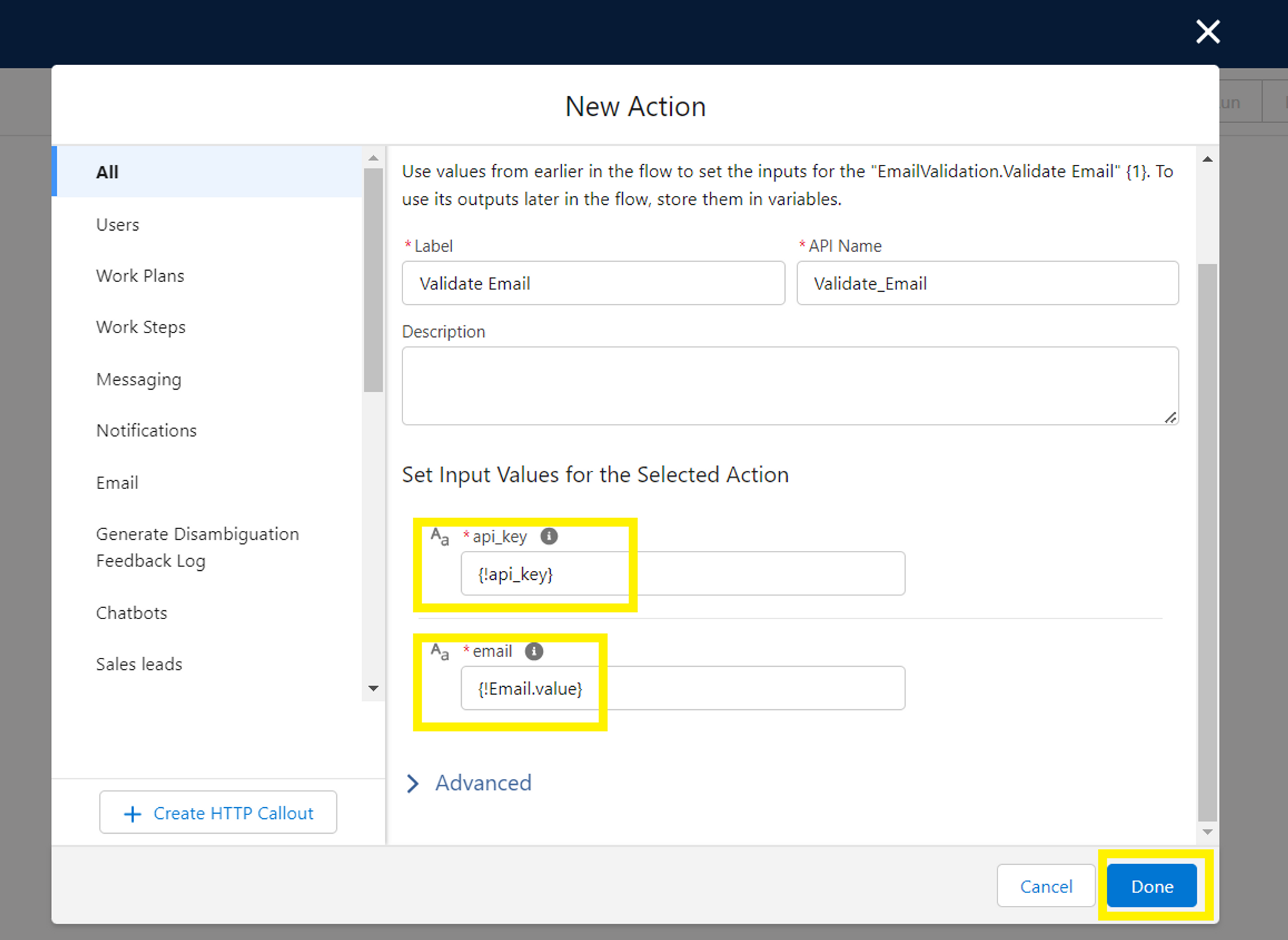
After implementing the Screen element. Now we will add an Action element.


when done with JSON Response “Provide Sample Response” will be green checked

Now to add api_key we are copying it from abstractapi.com website. and store it in a variable and the data type would be Text.


After creating a new Resource add it in api_key Input Values. and select in the “email” field “email. value”.
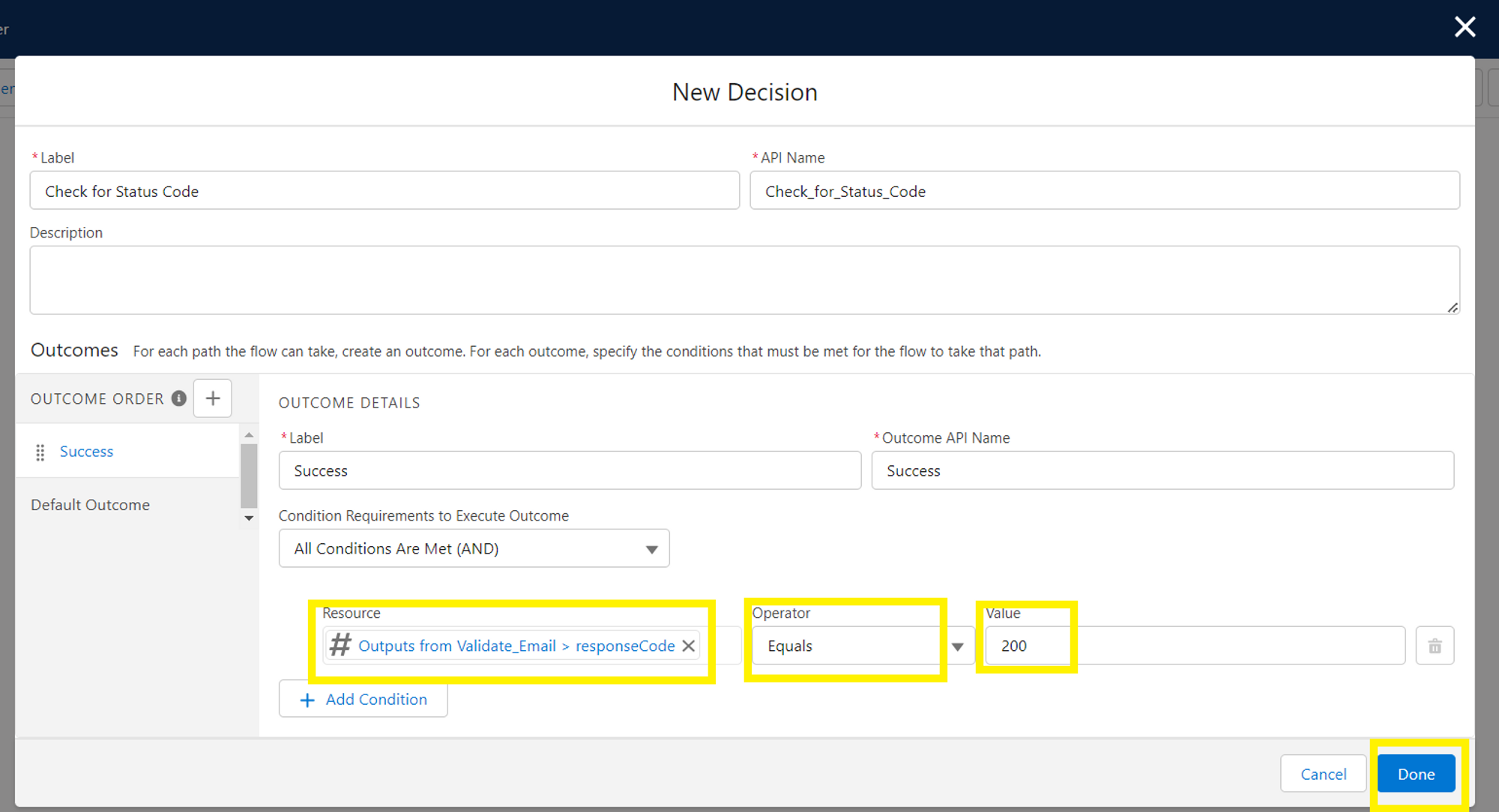
then we will add the decision element
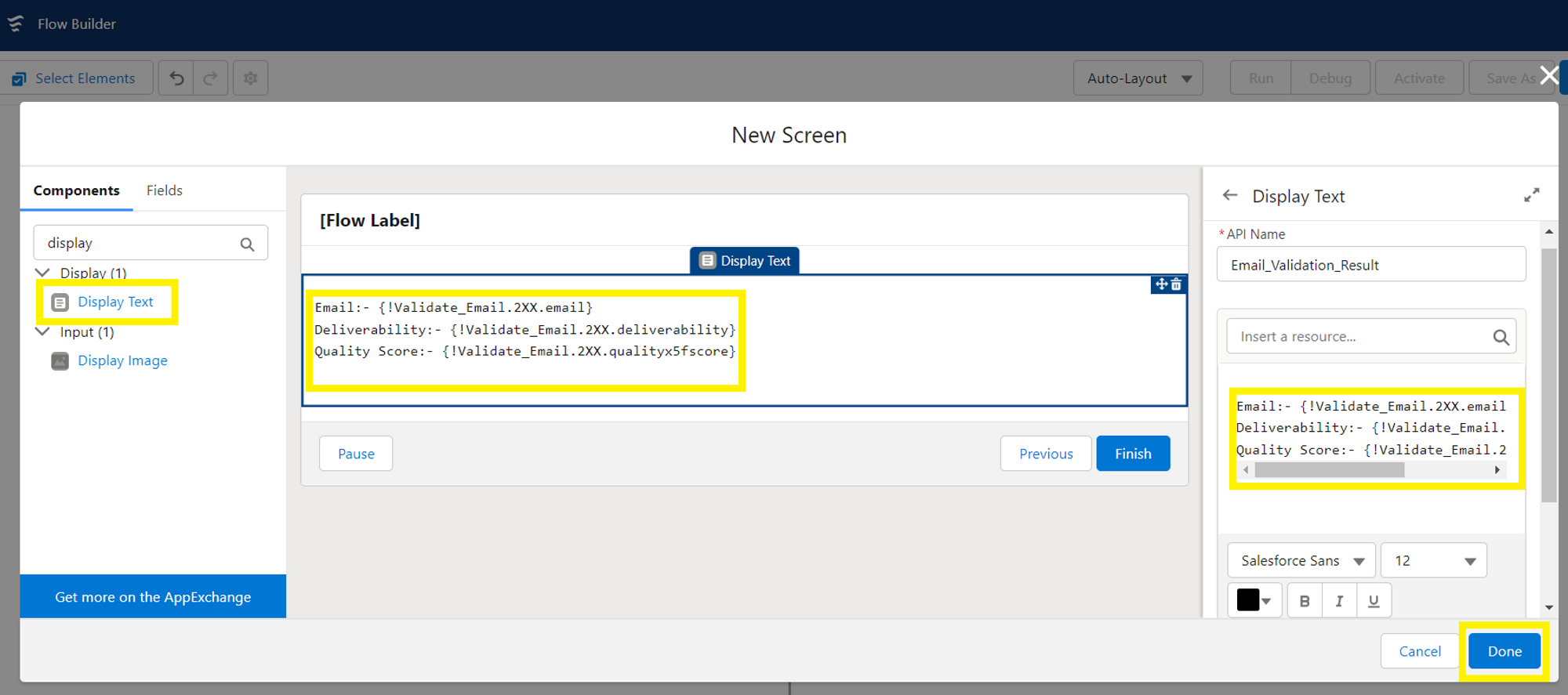
Now we will again add screen element to show result we get from entering input.
Then Save the flow.
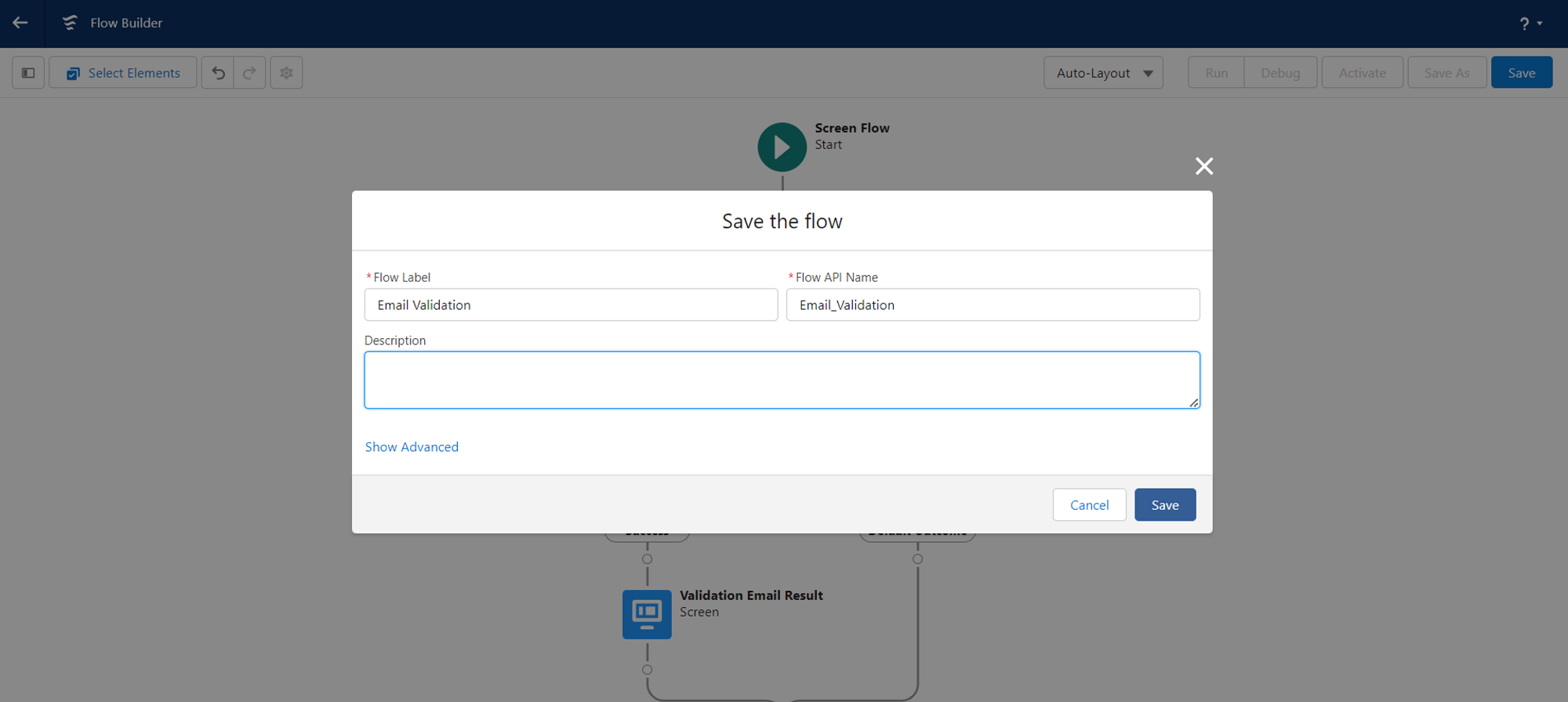
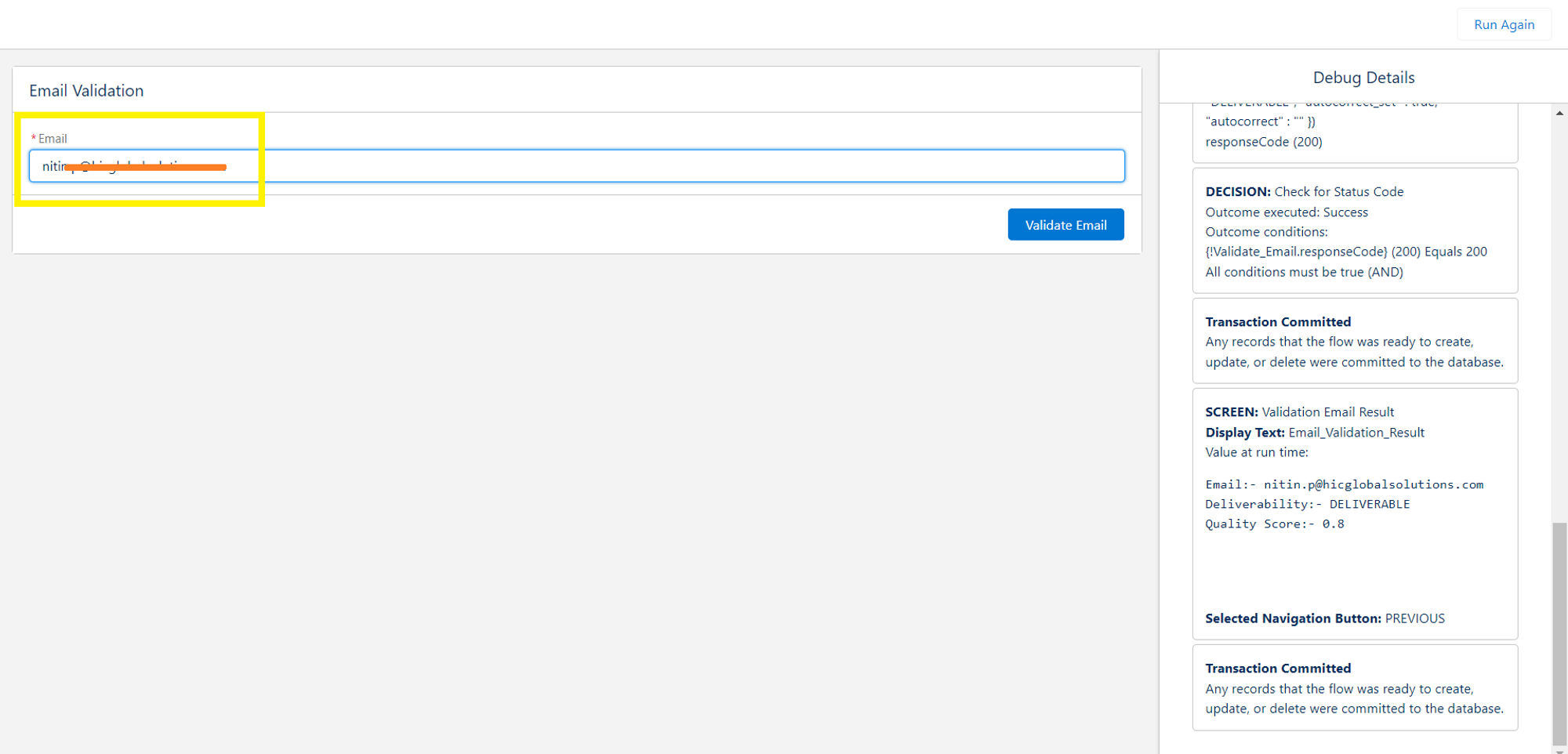
After saving the flow, now we will debug the flow to test whether it is running properly or not.
and in the Email input field enter any valid email id then click on Validate Email and it will show you the result whether it’s Deliverable or not and it’s Quality score.

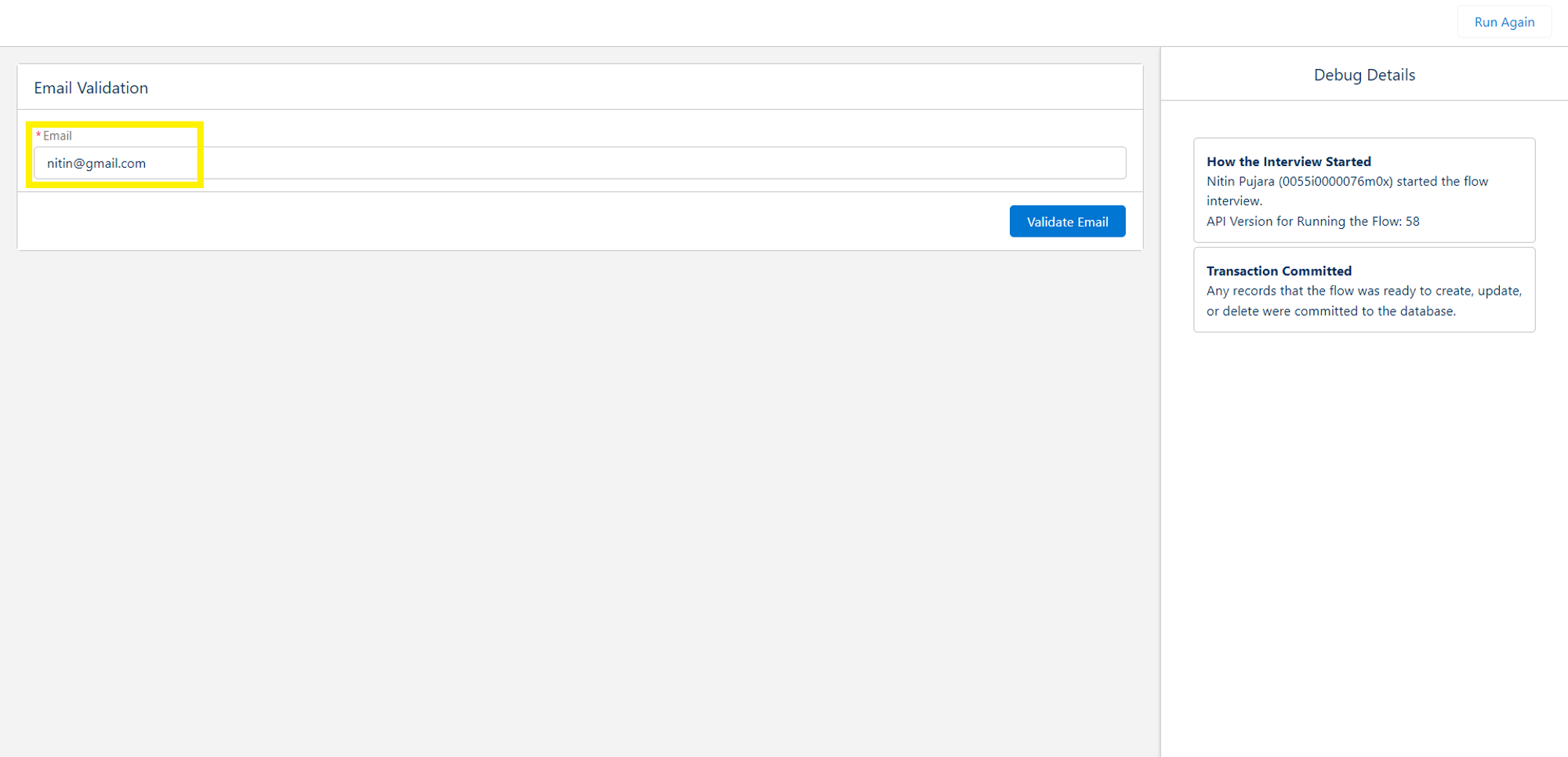
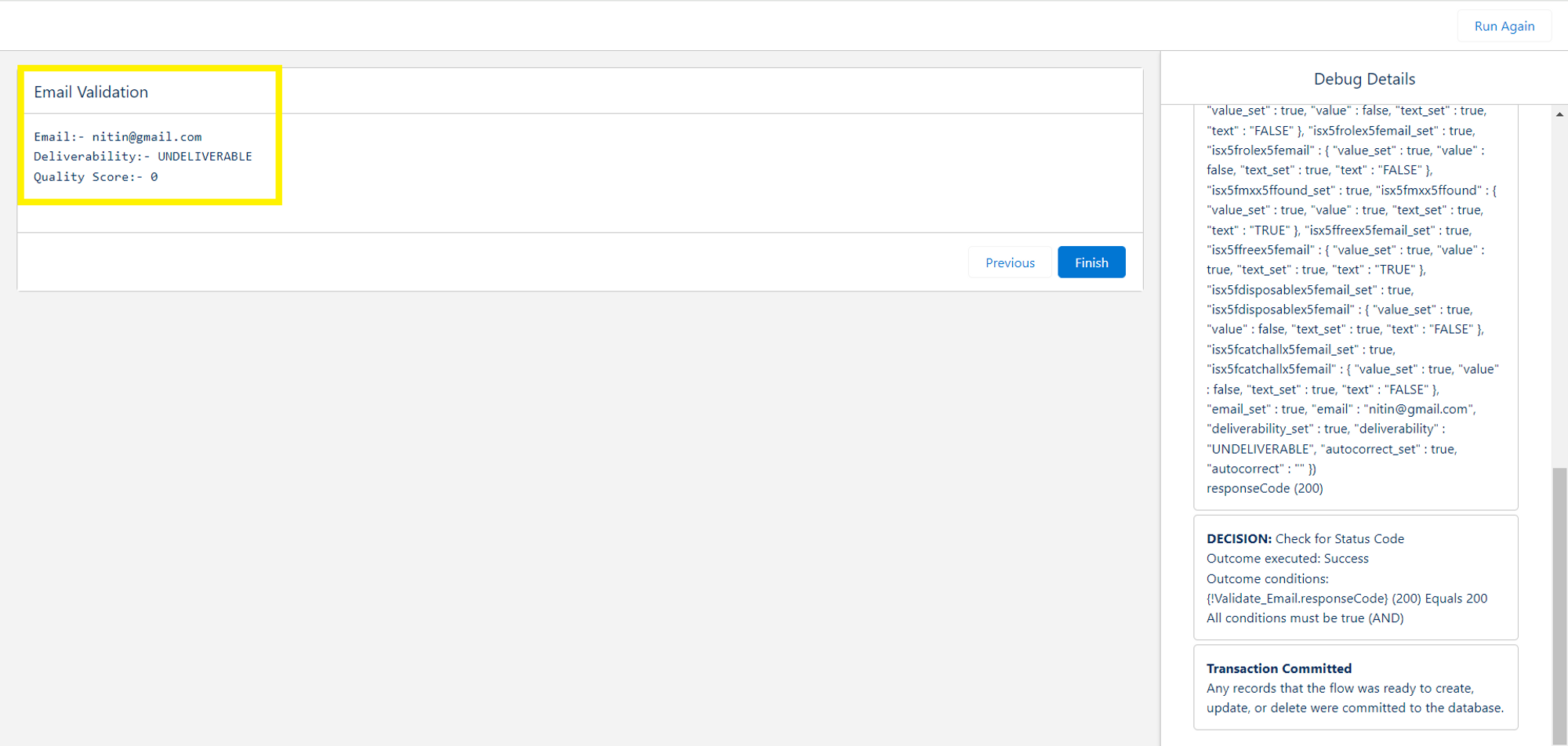
And now enter an email which is not valid then it will show you the Deliverability whether it’s Deliverable or not and it’s Quality score.
Conclusion
HTTP callouts have revolutionized the capabilities of Salesforce Flow by enabling seamless integration with external systems and services. With the ability to retrieve real-time data, trigger actions, and enhance decision-making, HTTP callouts empower users to build dynamic and intelligent automation processes within Salesforce.
By following the above-mentioned steps, you can implement HTTP callouts in Flow to unlock new automation possibilities. Be sure to try out the solution and Stay tuned for more!





