

Chart.js is a popular JavaScript library for creating interactive and visually appealing charts and graphs.
In Salesforce, you can use Chart.js to build dynamic charts within Visualforce pages to visualize your data. Visualforce is a framework provided by Salesforce that allows developers to build custom user interfaces for their Salesforce applications.
In today’s issue, we will learn how to create VisualForce pages in Salesforce using ChartJs in Salesforce.
Step-by-Step Guide to using Chart.Js on VF page
Here is the introduction to using Chart.js on a Visualforce page in Salesforce:
Step1:Set Up Your Salesforce Environment
Ensure you have a Salesforce Developer Edition or a Salesforce sandbox account where you can create Visualforce pages and test your code.
Step 2: Create a Visualforce Page
To get started, create a new Visualforce page in Salesforce. You can do this by navigating to “Setup” > “Develop” > “Visualforce Pages” and clicking on the “New” button to create a new Visualforce page.
Step 3: Include Chart.js Library
In your Visualforce page, include the Chart.js library. You can either host the Chart.js file in Salesforce as a static resource or use a CDN. For example, you can include the library from a static resource like this:
- First, download the chart Js library from Google or you can download it from the chartJs website. Click here!
- After Successfully downloading, now upload charts lib. in the static resource.
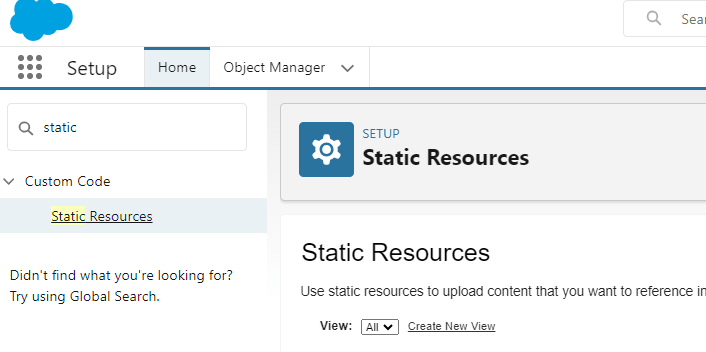
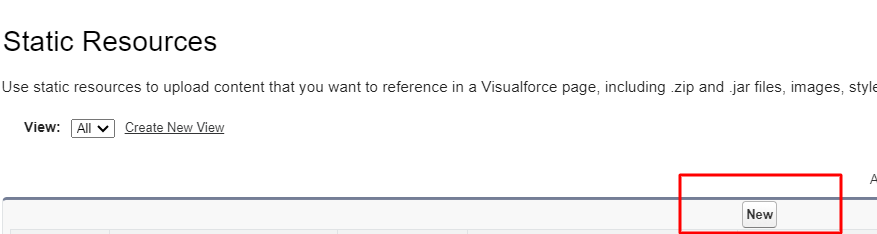
- Go to setup> type: static Resource> now click on new
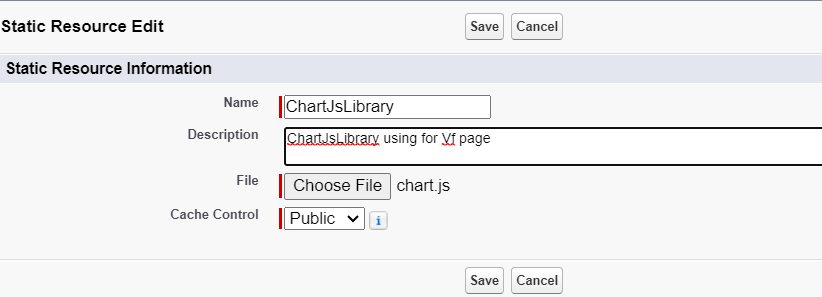
- Enter, ChartjsLibrary for the Name.
- Click Choose File, and then choose the ChartjsLibrary JavaScript file you downloaded previously.
- for cache control, choose public.
Step 4: Include ChartJs library in your Vf page
-
<apex:page showHeader=”false”> <apex:includeScript id=”chart” value=”{!$Resource.ChartjsLibrary }”/> <!– Rest of the Visualforce page content goes here –> </apex:page>
- Prepare Data: Retrieve the data you want to display on the chart. This data can come from a Salesforce controller or an external data source. Organize the data in a way that fits the chart type you want to create (e.g., bar chart, line chart, pie chart).
- Render the Chart: Using JavaScript, create a Chart.js instance and render the chart on the Visualforce page. Customize the chart options, labels, colors, and other settings to meet your specific needs.
Here’s an example of a bar chart using Chart.js on a Visualforce page:
Step 5: Creating a Controller for VF Page
First, Create a Controller for Your Vf Page.
In Developer Console> Go to File> new> create Apex Class> enter a name for your new Apex class:
chartjsVFpageController:
Step 6: Creating a Vf Page
Navigate to Developer Console> Go to file>Click on the new> VisualForce Page>enter a name for your new Apex Page
ChartJsVFPage.vfp:
Step7: Preview your Vf Page
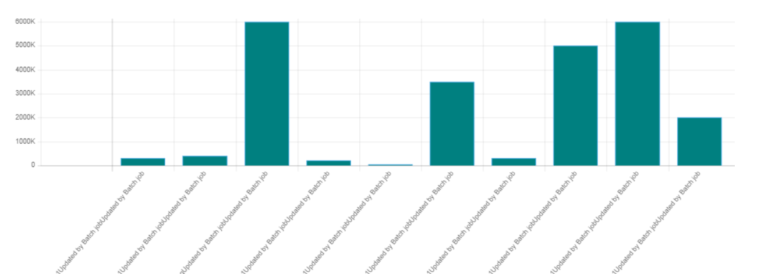
Output:
Conclusion:
Summing up, using Chart.js in Salesforce Visualforce pages provides a potent and straightforward method for visualizing data.. By utilizing Chart.js’s capabilities in Visualforce, developers may improve the efficacy of Salesforce apps by elevating the way data is presented.
We hope you enjoyed the Salesforce development solution. Stay tuned for more blogs!





