
Are you looking to streamline your LWC development workflow but confused about how to do it? Then you are in the right place. The Salesforce Logger API is a powerful tool that helps you monitor, debug, and improve code quality in real time.
This step-by-step guide walks you through how to set it up and implement it seamlessly into your Lightning Web Components.
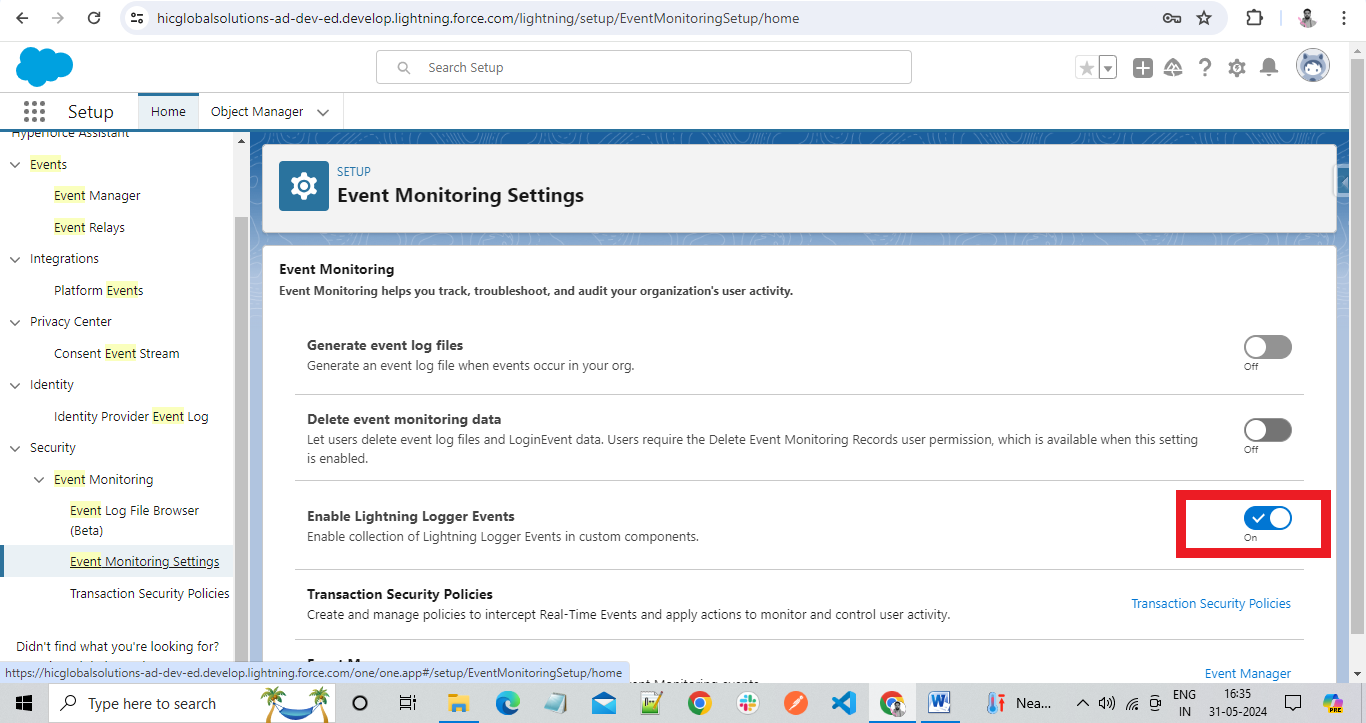
Step 1: Enable the Toggle in Event Monitoring Settings.
- Navigate to Setup: Log in to your Salesforce org, then navigate to Setup.
- Search for Event Monitoring: In the Quick Find box, type “Event Monitoring” and select the result.
- Click on Event Monitoring Settings: Click on the “Event Monitoring Settings” link.
- Toggle On: Click the toggle button to enable Event Monitoring.
Step 2: Importing the Logger Module in the LWC Component.
The first step is to import the logger module from “@salesforce/logging” into your LWC component. This can be done by using the standard ES6 import syntax as follows:
This will give you access to all the methods and properties of the logger module.
Step 3: Initializing the Logger
Next, you need to initialize an instance of the logger by calling “getLogger()” and passing in a unique name for your component as a parameter. This will create a new instance of the logger specifically for that component.
Step 4: Adding Log Statements
Logger Api provides a set of methods for logging different types of messages, such as debug, info, warn, and error.
Here is an example of how to use the Logger API in Salesforce:
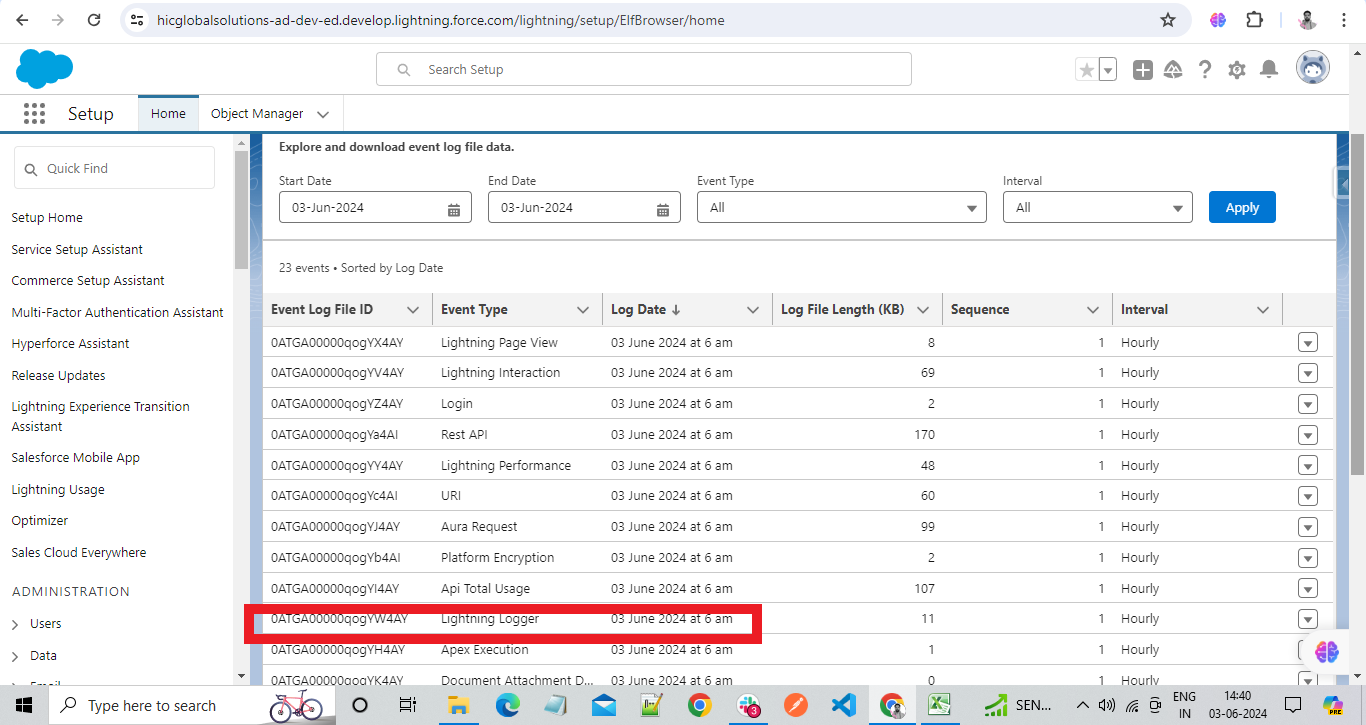
Step 5: Now, to monitor the log, download the log File.
Next, to view the Event log file, you have to go to Event Monitoring from their select Event log File.
To generate an Event Log file, you also have to enable the Generate Event Log Files in Event Monitoring Settings.
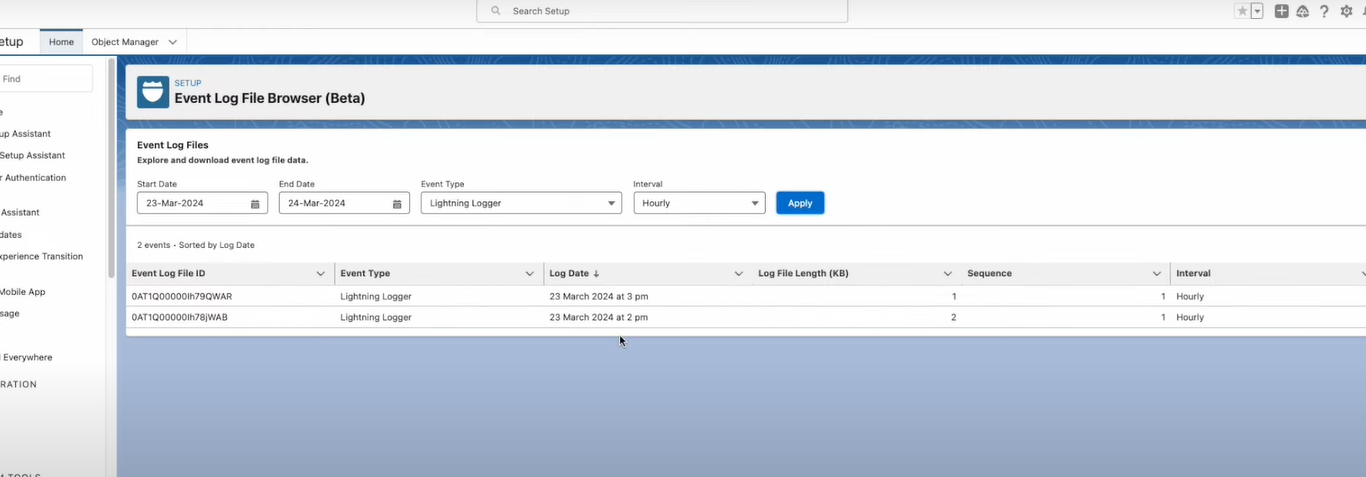
Example of Implementation of Logger API in LWC
JavaScript Code
Output
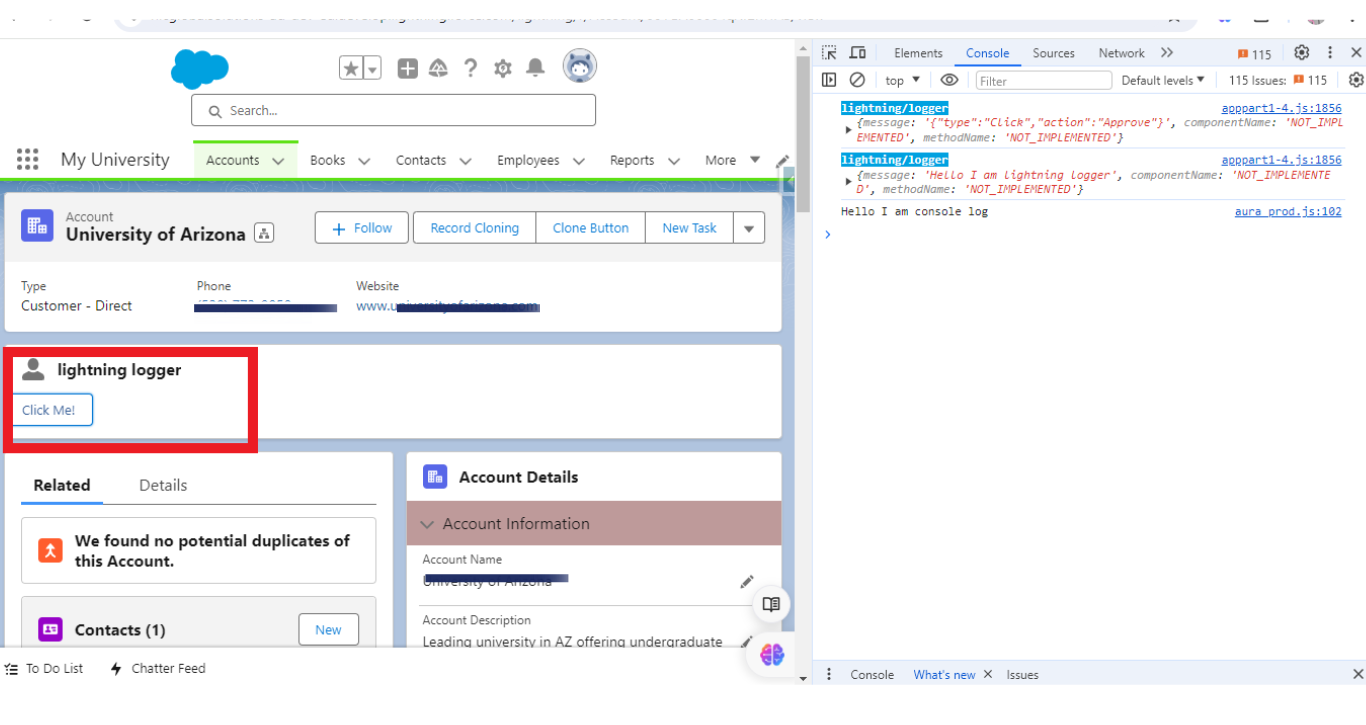
We can also click on the “Click me button” and then see the console.
Or we can simply view the file in the File Log.
Wrapping Up
By leveraging the Logger API, you can elevate your LWC development workflow with structured, real-time logging and better debugging visibility. Start using it today to boost efficiency and build more reliable Salesforce applications.
Also, if you’re interested in building a real-time chat application using LWC and the Models API, check out this blog for a full walkthrough!