



We know Chatbots are used on websites, Facebook, and Whatsapp to assist customers even if the agents are unavailable in the office at that time.
The Salesforce CRM platform also provides the Chatbot Functionality to help customers manage clients in an effective way. You will find it in the quick find box just by entering “bot”.
It is very easy to use. We can call flows, Apex classes and also directly access the objects available in Salesforce.
But for some purpose what will happen if we have to show our custom messages or any image with some custom change?
So, here in this blog, we are going to show you how to call your Lightning Web Component in your chatbot. And believe us it is very easy. Let’s go step by step on this journey.
So first we are going to set up a chatbot on our public site. So let’s create one.
Step 1. Go to the Quick find box and type Einstein Bots
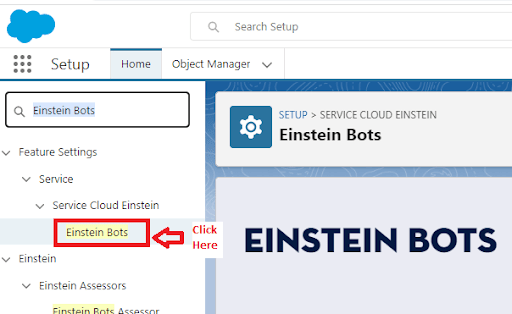
Step 2. Then click the New button to create a new chatbot or you can proceed with your created one.

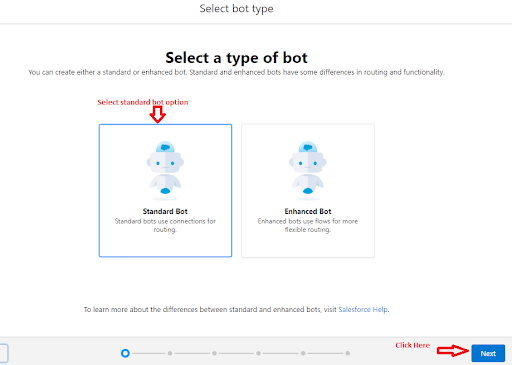
Step 3. Select the standard bot then click next
Step 4. After creating the chatbot our dialog page looks like this
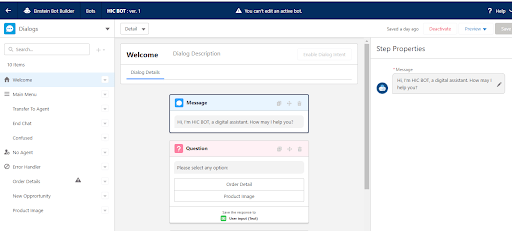
After creating the bot now is the time to integrate our bot with the community site.
Step 5. Go to the Quick find box and type all sites.
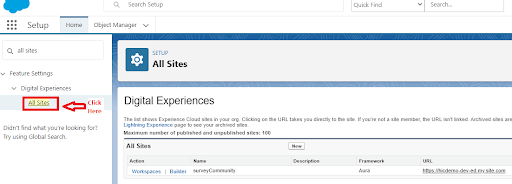
Step 6. Go to the builder page of the community site

Step 7. Go to the builder page and click on the gear icon. Go to security and privacy add a trusted URL and enable the security level.
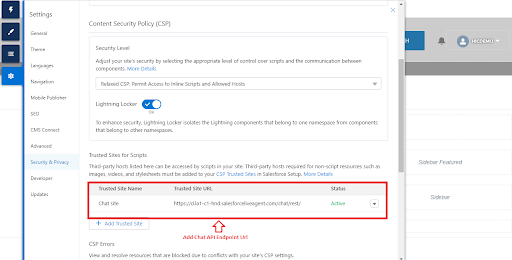
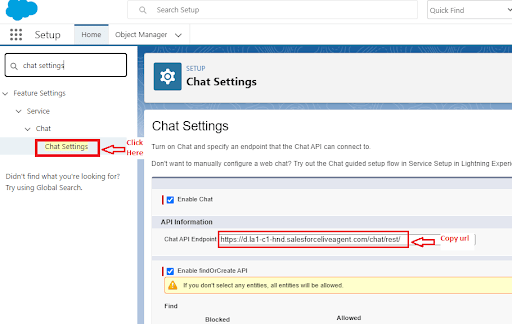
Step 8. To Add a trusted URL go to the quick find box and type chat settings and copy the Chat API endpoint URL.
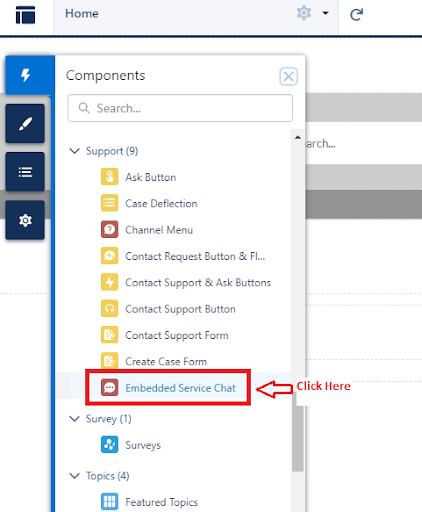
Step 9. Set the bot to the community page.
After adding the chat API endpoint URL it’s time to set our bot to the community page.
Go to component and scroll down and go to the support section and drag the embedded service chat to the community page
Step 10. Create an LWC component
After integrating our Einstein Bot into the community site. Let’s create an LWC component just to show an image on page
Step 11. Create an LWC component to make changes in the chat
Now we have finished setting up the chatbot. Let’s Create an LWC component to make changes in the chat as per our choice. For reference have a look at this URL Link: Base Chat Message.
i) Here, We will create an LWC component to show the image whenever a client asks for the product image.
ii) For this we have created some dialogues and at a certain point, we have called the LWC component.
iii) To use the LWC component we have used “lightningSnapin__ChatMessage” in target and imported “lightningsnapin/baseChatMessage” module in the javascript class.
iv) We have created some custom CSS to modify our message and chat theme.
v) Here is the code for the LWC component that we have used in our chatbot after creating this lwc we have deployed it into org.
HTML File
JavaScript File
XML File
CSS File
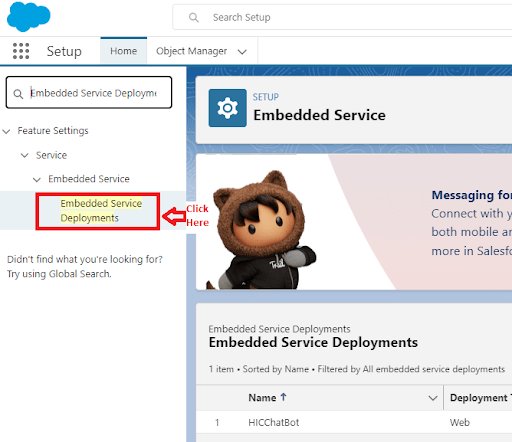
Step 12. After deploying your LWC to your org go to quick find box and type Embedded Service Deployment
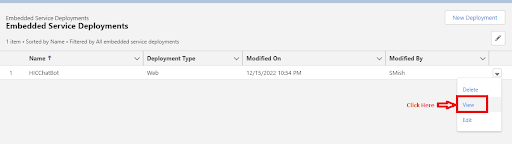
Step 13. Click on dropdown and select View
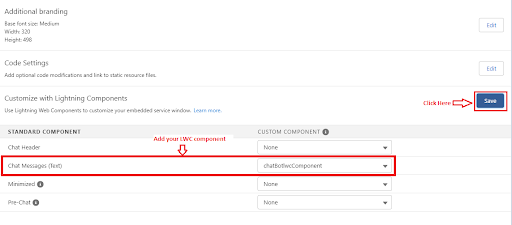
Step 14. Select Chat setting and click on edit

Step 15. Add your lightning web component in Chat Messages and save it.
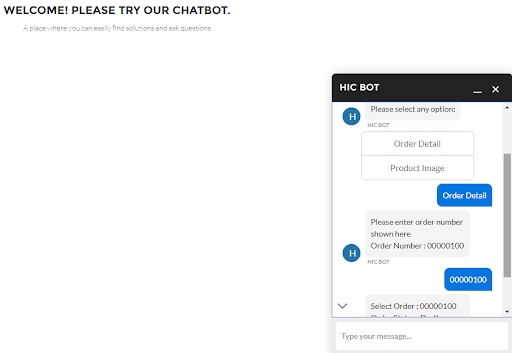
Here are some sample snaps of our working bot:
- When we select Order Details the bot show this message.
- When we select Product Image the bot shows the image

Please Test our chatbot! Click Here
Conclusion:
Now our Einstein Bot is ready to go. Try to create your own Bot by performing the above steps and share your experience with us. Stay tuned to our blogs for more interesting Salesforce development solutions. Until the next, Keep Learning!





