




We know Dell Boomi is a cloud-native PaaS platform that provides an intuitive drag-and-drop interface for creating integration modules and connecting data to applications.
Boomi seamlessly deploys data into the Salesforce platform and makes it possible to instantly access the entire database and workflow, regardless of on-demand or cloud applications.
So, in this blog today, we will share a comprehensive Dell Boomi process for integrating Salesforce with Shipstation, the leading platform for eCommerce fulfillment. So, without any further ado, let’s start!
Steps involved in the Dell Boomi process
Step 1: Log in to your Dell Boomi account and select integration from the services menu.

Step 2: Create a new process and edit the Start Process shape.
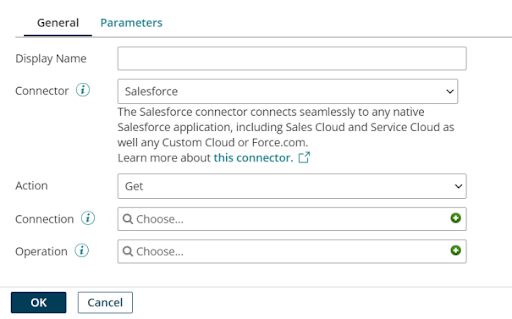
- Select the Salesforce connector and choose the “Get” action.
- Create a new connection and operation using the + icon.
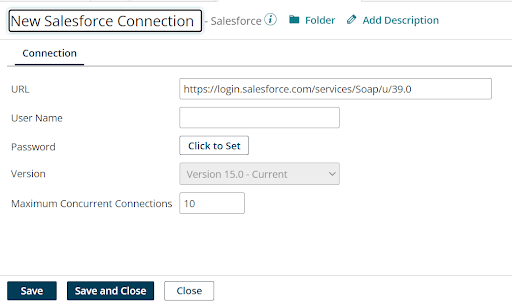
Connection
- Enter your end-point URL.
- Insert your organization ID.
- Combine your password and your organization’s Salesforce security token(password+ security token).
- Save the connection.
Operation
- Using the import button, import the order object from your salesforce.org.
- Response profiles are automatically created after selecting an entity (object).

The response profile stores your object data

Step 3: Add a map shape to your process using drag and drop.

- Create a new map using the (+) sign button.

- After creating a map, you can choose a response profile for your source profile and create or choose a JSON profile for your destination profile.
- Simply drag fields from the source and drop them on the destination fields to map

Step 4: Add an HTTP Client Connector shape to your process using drag and drop.

- You can select “send” in the action field.
- Create a new connection and operation using the + icon.
Connection
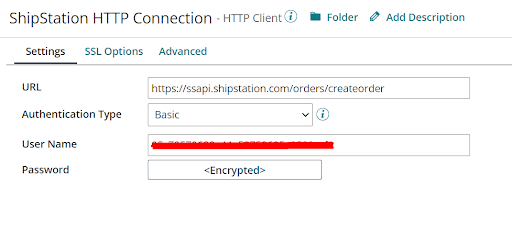
- Enter your end-point URL.
- Set Authentication type “Basic”
- Enter Your org username and password.
Operation
- You can select the source profile in the Request Profile field and the destination profile in the Response Profile field in the operation section.
- Select Content Type and HTTP Method.
- Save.

Step 5: Now add a stop shape into your process using drag and drop and save the process.

Your process has been successfully created; you can test it using the Test Button

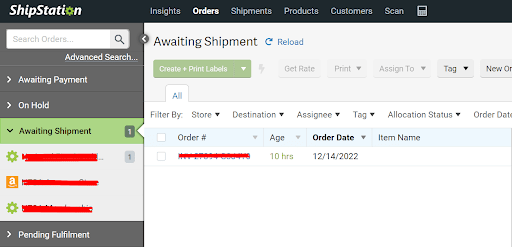
When the test is finished, check your ShipStation account to see if a new record was created.
The record has been successfully created.
Conclusion
There you have it! A comprehensive guide on how to integrate Salesforce with Shipstation using Dell Boomi’s integration platform. Stay connected with us for more such blogs on Salesforce integration and development solutions. See you at the next one, happy learning!





