
Maintaining security and compliance in Salesforce requires effective user access management. This article will lead you through the process of creating expiration dates for Permission Sets and Permission Set Groups, allowing you to automate access removal while minimizing manual work. Know how this functionality simplifies workflows, guarantees compliance, and improves security procedures.
Why Use Expiration Dates for Permission Sets and Groups?
This section highlights the importance of assigning expiration dates to Permission Sets and Groups. By implementing this feature, organizations can effectively prevent unauthorized access, streamline administrative tasks, and ensure that users only have active permissions that are truly necessary.
What Are Permission Sets and Permission Set Groups?
Permission Sets are useful for granting specific functionalities to users in addition to the permissions provided by their Profile. For instance, if you need only a select group of sales users to have the ability to convert leads, you can create a permission set with the convert lead permission and assign it to those specific users, rather than creating a separate sales profile.
Permission Set Groups bundle multiple permission sets that a user may require. Moreover, with the permission muting feature, you can add or remove individual permissions from a Permission Set Group to ensure that users receive only the permissions relevant to their job roles.
Our Business Use Case:-
How Jon Doe Streamlined Permission Management with Automated Expiration in Salesforce?

Jon Doe, a Salesforce Consultant at HIC Global Solutions, received a request from his management team to assign the Sales Manager Permission Set Group and automatically remove it after a week. Jon wanted to avoid building a flow or spending time searching for other declarative solutions. Below is the solution that we provided:
Steps to Set the Expiration Date for Permission Sets and Permission Set Groups:-
Step 1: Activate Expiration Dates for Permission Set and Permission Set Group Assignments:-
Once the setting for Permission Set and Permission Set Group Assignments with Expiration Dates is enabled, you can configure assignment expiration dates for both permission sets and permission set groups. Assigned users will retain access to all combined permissions until the specified expiration date.
- Go to Setup.
- In the Quick Find box, type User Management Settings and select it
- Enable Permission Set & Permission Set Group Assignments with Expiration Dates.
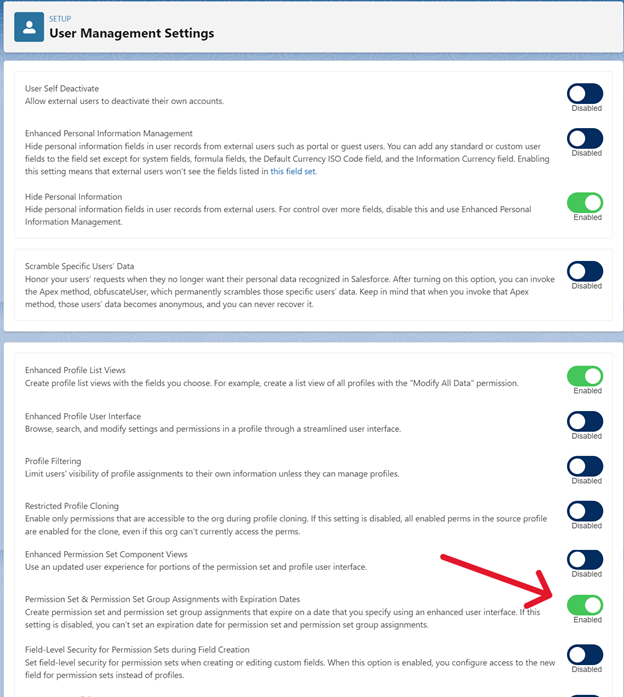
Note: The next time a System Administrator assigns a Permission Set or Permission Set Group to a user, they will see an option to specify an Expiration Date.
Step 2: Select an Assignment Expiration Option for the Users You Chose:
- Go to Setup: Click Setup in Salesforce.
- Search for Permission Set Groups: In the Quick Find box, type Permission Set Groups and select it.
- Select the Sales Manager Permission Set Group: From the list, click on the Sales Manager permission set group.
- Manage Assignment: Click on Manage Assignment.
- Add Assignment: On the Current Assignments page, click Add Assignment.
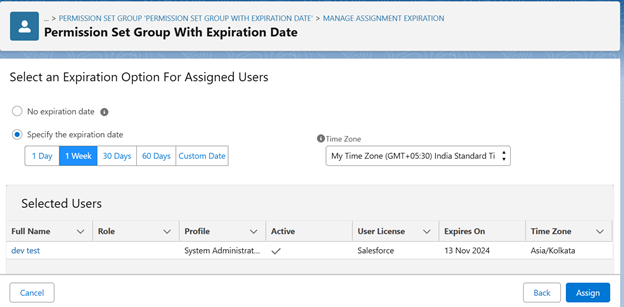
- Choose an Expiration Option: Select an expiration option for the users you selected.
- Set Expiration Date and Time Zone: To specify an expiration date and time zone, select Specify the expiration date. You can either select a time frame (e.g., 1 Week) or choose Custom Date to set a specific expiration date.
- Assign and Complete: After selecting the expiration options, click Assign, then click Done to complete the assignment.
Conclusion:
Setting expiration dates for permission sets and permission set groups in Salesforce is a powerful feature that allows administrators to manage user access better and ensure compliance with company policies. By following the steps outlined above, you can easily assign permissions to users with a predetermined expiration period, automating the removal of access when it is no longer needed. This not only enhances security but also simplifies the management of user permissions. Implementing these practices helps maintain a streamlined workflow, reduces the risk of unauthorized access, and aligns with best practices for user access management.