




When an Opportunity owner is deactivated or inactive in Salesforce, we like to update the stage of the inactive user’s opportunities.
And we can do this declaratively using Salesforce Flow
Salesforce Flow, being a fantastic tool, has features like Columns, Record Triggered Flows, Auto Layout, ISCHANGED() functionality.
So, in this blog, we will run through the steps to update Opportunities for an Inactive Opportunity Owner using these features of Salesforce Flow. Let’s begin!
Steps to Update opportunities for an inactive Oppurtunity owner
1. Add picklist value “Pending Reassignment” to the Opportunity stage.
First, we will create an Auto launched flow. To create an Auto-launched flow go to setup, search flows, and click on it.
Now click on create to create an Auto launched flow.
A. Create a variable called “varUserId ” to store the user’s id which will be passed from the Process Builder.
- Resource type: Variable
- API Name: varUserId
- Data Type: Text
- Availability Outside the flow: Available for the input

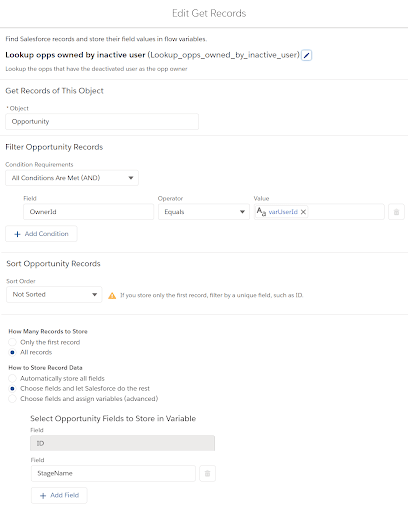
B. Now we will fetch all the related opportunities with the deactivated user for this we will create Get Record Component like this
- Object: Opportunity
- Condition Requirements: All Conditions Are Met (AND)
OwnerId Equals {!VarUserId}
- How Many Records To Store: All records
- How to Store Record Data: Choose fields and let Salesforce do the rest
ID
StageName
C. Now we will create a decision component to check whether the Get Records in the previous step get any opportunities or not.
- Outcome: Found
- Condition Requirements to Execute Outcome: All Conditions Are Met (AND)
{!Lookup_opps_owned_by_inactive_user} Is Null {!$GlobalConstant.False}
- Default Outcome: None Found

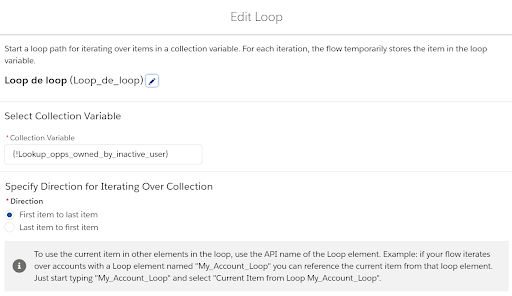
D. Now we will create a loop component like this
- Collection Variable: {!Lookup_opps_owned_by_inactive_user}
E. Now we will update the opportunity stage using assignment components
- {!Loop_de_loop.StageName} (i.e. loop record’s stage name field) equals Pending Reassignment.
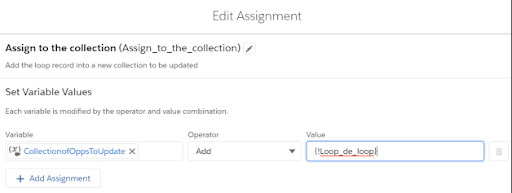
F. We will add each item of the collection to the new collection to update it.
- {!CollectionofOppsToUpdate} add {!Loop_de_loop}
G. Now we need to update the collection for this we will create the update record component like this:
- How to Find Records to Update and Set Their Values: Use the IDs and all field values from a record or record collection
- Record or Record Collection: {!CollectionofOppsToUpdate}

H. Connect all the components of flow as mentioned in the below screenshot.

2. Now create a Process Builder by clicking on setup and search process builder
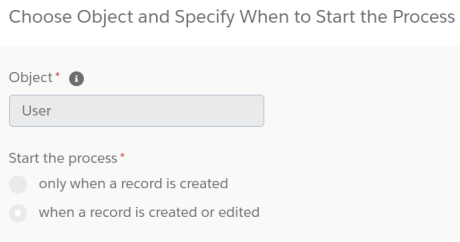
A. Then create a process builder and select “A record changes”

B. Select user as object and choose when a record is created or edited
C. Now Specify the criteria node as mentioned in below attachment:
- ISCHANGED([User].IsActive) &&
- [User].IsActive = false

D. Now create two schedule actions as mentioned below:

Wrap Up
We hope this interests you. If you try out this solution, then do share your experiences with us. We will be back with another solution to help you do your work in Salesforce with ease. Till then, happy learning!





