




How to integrate Twilio with Salesforce
Twilio is a new-age communication API used by developers to build innovative solutions and send messages, along with video and voice conversations within the web and mobile apps.
Integrating Twilio with Salesforce presents several benefits empowering users to track customers’ journeys at every stage in a personalized manner.
So, If you are looking to integrate Twilio with Salesforce, Twilio for Salesforce is the best solution out there to bring Twilio’s programmable communications into your Salesforce org.
Without delaying further, let us quickly move to the subsequent sections to learn how to integrate Twilio with Salesforce in our step-by-step guide.
Step 1: Install Twilio for Salesforce from the AppExchange
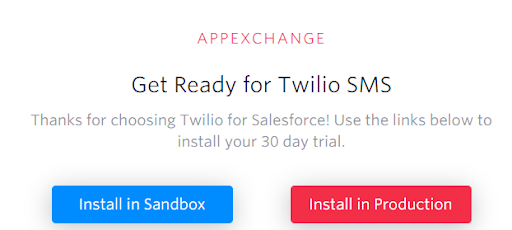
Install Twilio for Salesforce using the link https://ahoy.twilio.com/salesforce-ty.
When prompted, select install for All Users:

Step 2: After Installation Search Twilio Configuration

Step 3: Obtain your Twilio Account SID and Auth Token
1. Create the Account on Twilio to get the account

2. Once your account is created you will get your Account SID and Auth Token.
3. Use the Account SID and Auth Token and validate it.

4. When you validate it you’ll see a confirmation message like this

Step 4: Create messaging service
1. Create Messaging Service by this link https://console.twilio.com/us1/develop/sms/services?frameUrl=%2Fconsole%2Fsms%2Fservices%3Fx-target-region%3Dus
2. Click on create messaging service

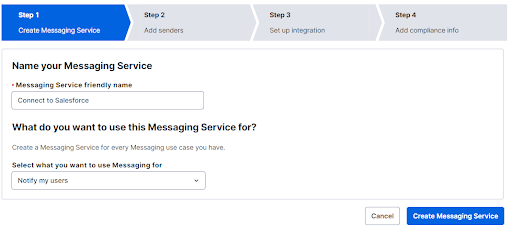
3. Add Phone number for messaging service, click Explore products

4. Add Senders to Service
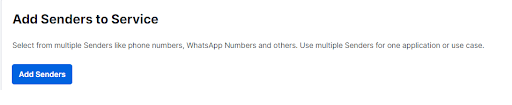
5. Click Add Senders

6. Now select the number, and Add Phone Number button.

7. Select the phone number and click on Add Phone Numbers
Step 5: Create a webhook for your messaging service
1. Go to Explore Products, then Developer tools and click on Twiml Bins.


2. Click on Create New TwiML Bin
3. Inside your new TwiML bin, add a single-line TwiML snippet
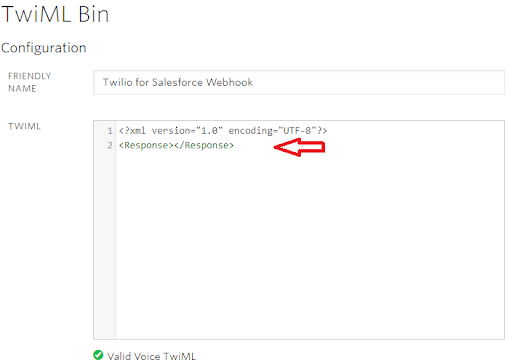
4. Click Create.
5. Copy the TwiML Bin’s URL.

Step 6: Select your messaging service in salesforce

1. Select Messaging Service.
2. Fill Email.
3. Click Validate Credentials.
Step 7: Setup to Integration
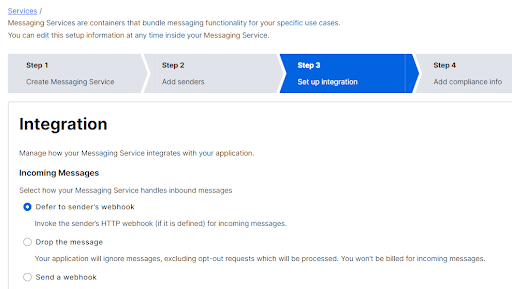
1. Paste your webhook URL here
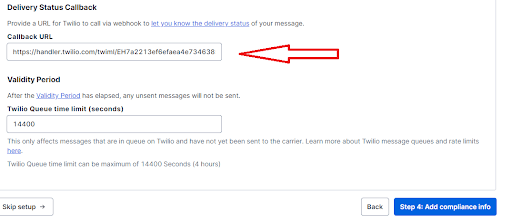
2. Click Add Compliance info
Step 8: Add Compliance info

1. Click on complete messaging setup.
2. Click Try to Send a Message.

3. Type the Body Text anything you want.
4. Click to Send test SMS.
Conclusion
We hope the solution helps you with seamless Twilio-Salesforce integration.
Reach out to us if you have any suggestions or need assistance with any Salesforce Development Services. We would be happy to help!





