




In every organization, Sales reps use both Microsoft Outlook and Salesforce. In fact, they spend almost 28% of their day working on email and calendars. A good chunk of their time is spent on entering data and switching between the two software.
Wouldn’t be great if they could get Salesforce data and insights into contacts and leads related to their Outlook emails, directly in Outlook?
Well, in today’s edition, we will share a No Code Salesforce-Outlook integration guide to help you integrate Salesforce with Outlook simply by following a few steps, without ever needing any code.
So, here we go!
Step by Step Salesforce and Outlook Integration
Here is a walkthrough of the steps involved in integrating Salesforce with Outlook.
Step1: Give user permission for Einstein Activity Capture
From Setup, Search Permission Sets, and click on Standard Einstein Activity Capture.
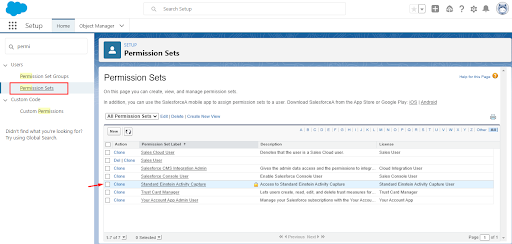
Then, Click on Manage Assignment

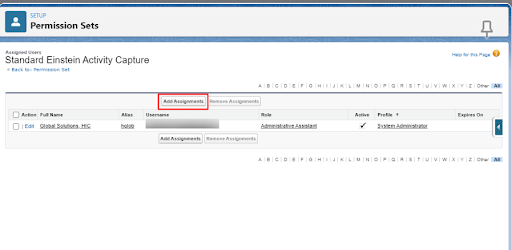
Now, Click on Add Assignment and then Select the user and click Assign
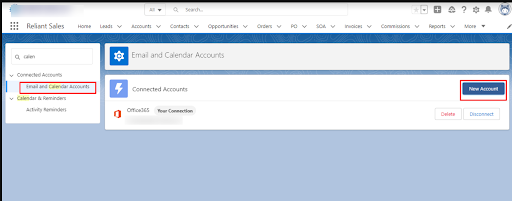
Click on Settings

And then, Search for Email and Calendar Accounts, and add your Outlook account.
Step2: Enable Outlook Integration and Sync from setup.
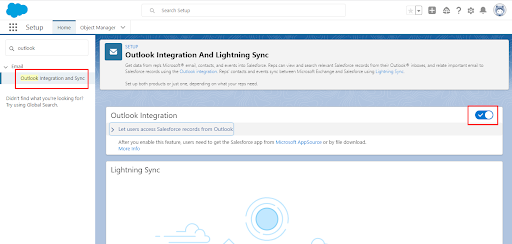
To enable Outlook Integration and Sync, type Outlook in the Quick Find box and Click on Outlook Integration and Sync.
Now, turn the toggle on to let users access Salesforce from Outlook,
Next, Scroll down and click on Activate and Notify RepsNext, Scroll down and click on Activate and Notify Reps
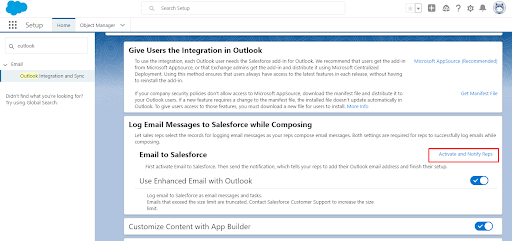
Now, Activate the Email to Salesforce

Now, on Outlook Integration and Sync settings, click on ‘Take me there’ to setup Einstein Activity Capture
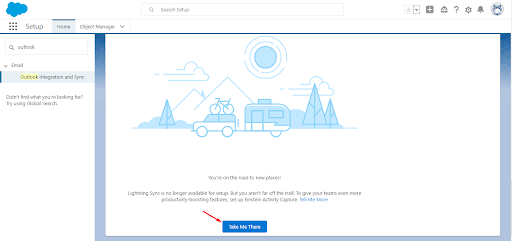
Step 3: Einstein Activity Capture Set up
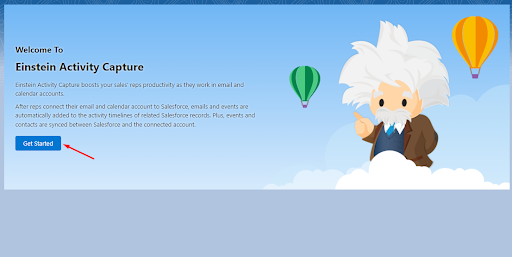
Select Get started
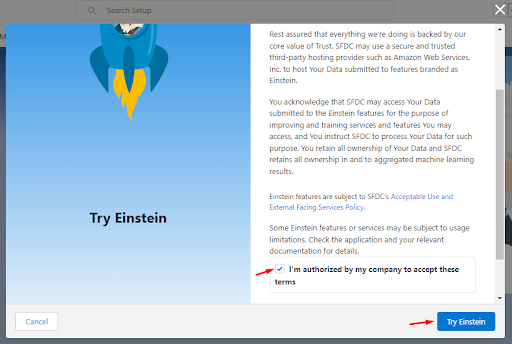
Click on the check box then Try Einstein
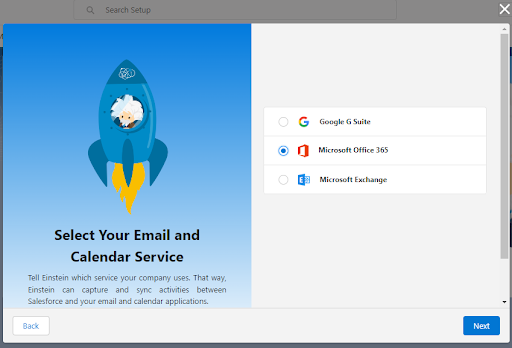
Select your email service,
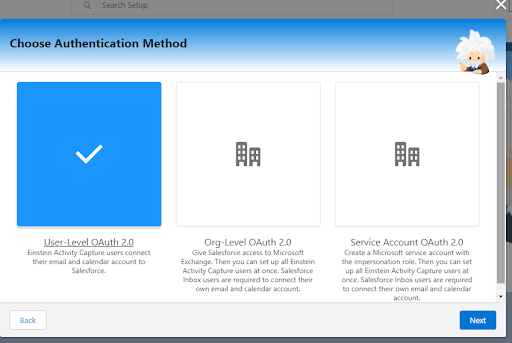
Select User-Level OAuth 2.0 then Next
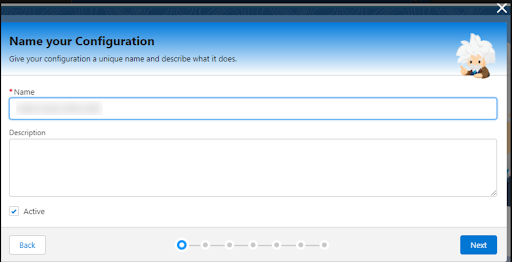
Name your configuration then Next
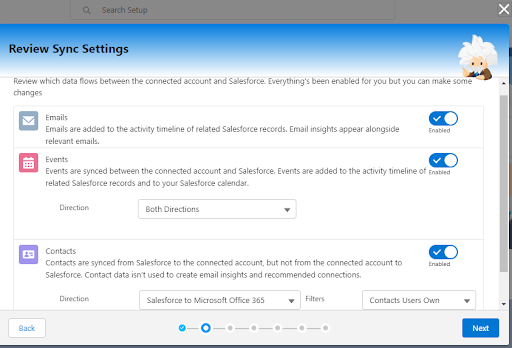
Review Sync Settings, then Next
Advanced Settings Then next

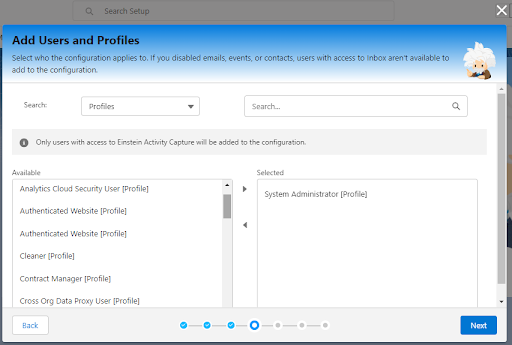
Add Users and profile

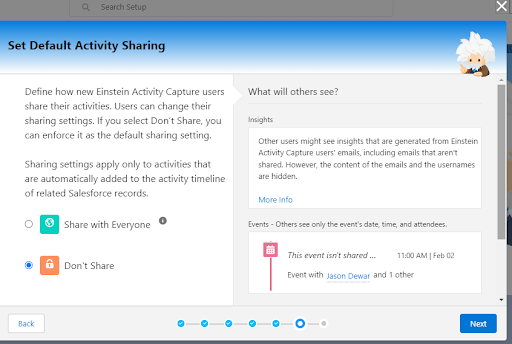
Set Sharing settings
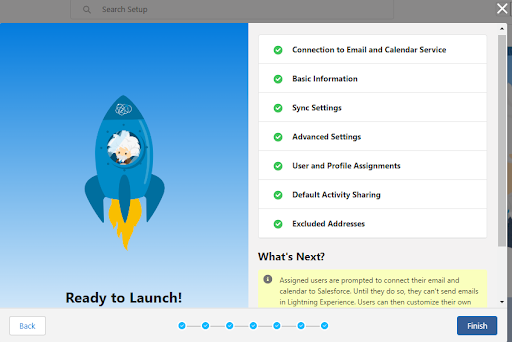
Click finish
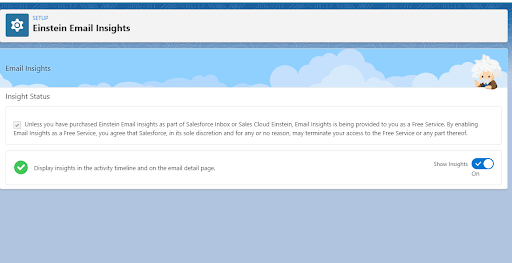
Step 4: Einstein Email Insights Set up
To set up Einstein Email Insights, click on set up now and enable insight.

Step 5: Add Salesforce in Outlook
Log in to your Outlook account and click Add-Ins
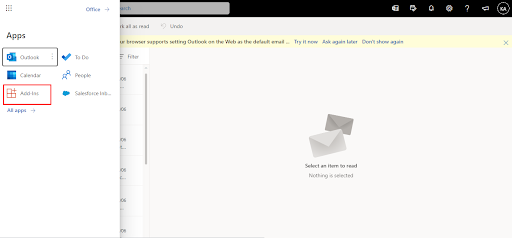
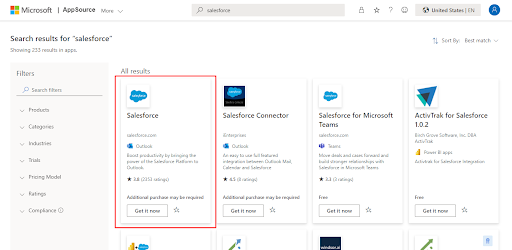
In AppSource, search for Salesforce and click on Get it now.
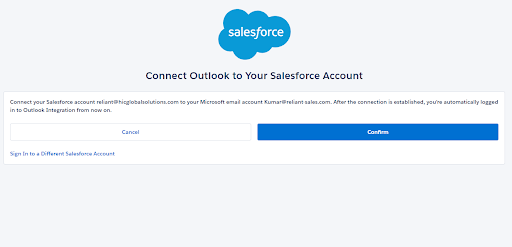
Log in to your Salesforce account from Outlook.
Click Confirm

Conclusion
Hence, by integrating Salesforce with Outlook, sales reps can access important Outlook email messages and relevant Salesforce records in one place, eliminating the effort to manage two applications.
Feel free to try this approach of no code Salesforce Outlook integration in your org and share your experiences with us. And stay tuned for another Salesforce development solution coming soon!





