




If you are from the sales team, you must know how crucial it is to have visibility in order to inspect deals, coach reps, forecast, and assign resources to manage their team’s pipeline.
Many of you use “Excel Spreadsheets” but do you know there’s a more effective way to track deal changes and prioritize your focus—without relying on them?
Salesforce CRM!
Salesforce reports play a significant role in sales management. They allow sales leaders to monitor performance and the overall health of a sales pipeline.
In this guide, we will walk you through the key steps that you must know to export Salesforce reports to Excel.
Let’s begin!
Methods to export Salesforce Reports to Excel
There are some methods to consider for exporting Salesforce reports to Excel
- Manually export
- Schedule export
- Salesforce API
1. Manually export:
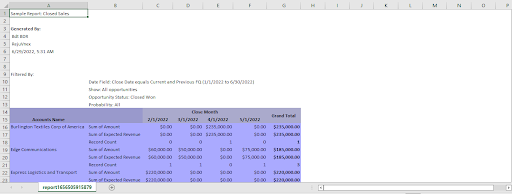
This is a native functionality that allows you to Export Salesforce reports to Excel manually. You can export formatted reports as Excel files or the raw data as Excel.
To export reports from Salesforce, a user must have the ‘Export Reports’ permission. The Export Reports permission manages a user’s ability to export a report into Excel or CSV file format.
Steps to export Salesforce report to Excel in Lightning Experience
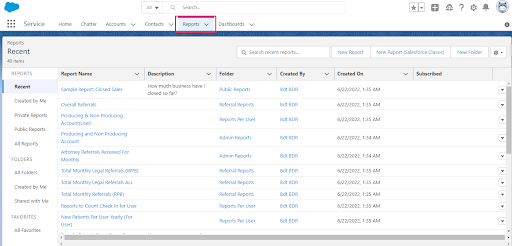
1. Go to the Reports tab.
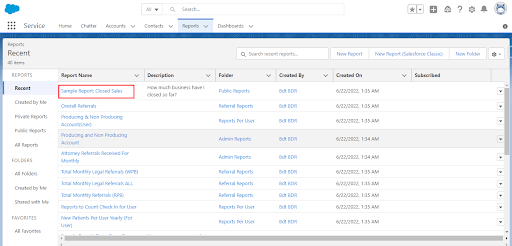
2. Open the report you want to export.
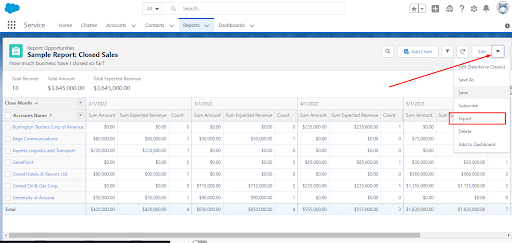
3. Click the Edit drop-down menu on the right side of your Salesforce report and select Export.
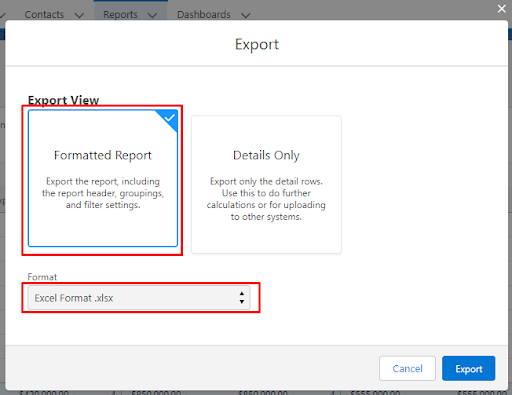
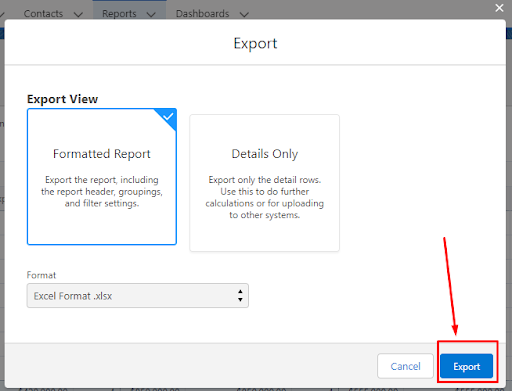
4. Select the format for exporting the Salesforce report to Excel
- Formatted Report is available for export only as an XLSX Excel file.
- Details Only are available for export as XLSX or XLS file, as well as CSV.
5. Click Export
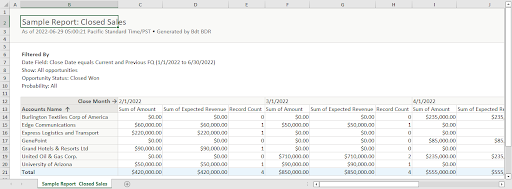
6. View your Salesforce Reports in an Excel file downloaded to your device.
Steps to export Salesforce report in Salesforce Classic
1. Go to the Reports tab.
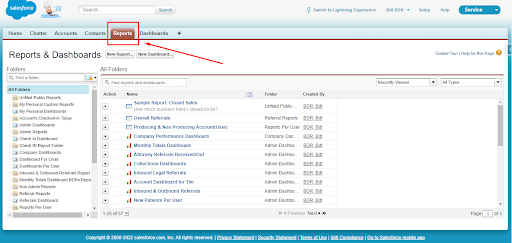
2. Open the report you want to export.

3. In Salesforce Classic, reports do not have an Export button with exporting formats. You Simply click on Printable View.
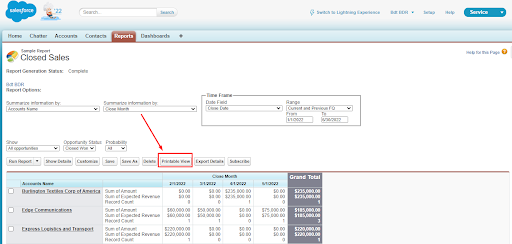
4. The file with your Salesforce report will be downloaded to your device.

2. Schedule export
This is the approach for custom reporting. You can automate exports of specific data entities to Google Sheets or Excel. Salesforce does not allow you to export Salesforce reports to Excel on a schedule.
For exporting Salesforce data via Excel Connector, we must be careful not to mess up. You can easily export Salesforce data to Excel with Coupler.io to avoid any extra challenges,
3. Salesforce API:
Another option for exporting Salesforce reports to Excel is the Salesforce REST API.
This is an advanced approach, which may require coding skills to extract data via the Salesforce API. We have to write a code yourself to withdraw data.
What Are the Export Limits from Salesforce to Excel?
- There is no limited number of rows and columns for Details Only reports in XLS or CSV formats.
- Up to 100,000 rows and 100 columns for Formatted Reports or Details Only in XLSX format.
- Joined reports can include a maximum of 2,000 rows
- We can’t export historical trending reports.
- We can only export a maximum of five reports at one time.

Conclusion
In a nutshell, exporting Salesforce reports to Excel can be done in multiple ways based on different business requirements. If you prefer manual exports for quick access, scheduled exports, or Salesforce API for advanced data handling, choose the right method.
Once you understand Salesforce’s export limitations, you can easily avoid roadblocks while handling large datasets.
So, start exporting smarter and optimize your sales reporting today!





