
Salesforce CPQ (Configure, Price, Quote) is a powerful tool that allows sales teams to generate quotes with speed and accuracy. One of the key features that makes CPQ so flexible is its dynamic search filter capability.
In this blog, we’ll explore how you can create dynamic search filters in Salesforce CPQ to make your quoting process even more efficient.
Before moving further, you must have an understanding of the top features of CPQ solutions which is imperative for the sales team.
What Are Dynamic Search Filters?
Dynamic search filters in Salesforce CPQ allow users to filter product options, price rules, or any other data dynamically based on the context of the quote or user input. This means that as the conditions change—such as selecting different product features—the available options adjust automatically.
Let’s start setting up a Dynamic Search Filter in CPQ.
Before diving into creating dynamic search filters, it’s crucial to understand your specific use case. Think about the field or values based on which you want to create a filter.
With this blog, we are trying to implement a dynamic filter for product selection based on the product family. We already have a standard field on products for product family (picklist).
Step 1: As we want to create a filter based on product family picklist values for this you need to create a new picklist field on the Quote object. Make sure to have the same values as the product family field of the product object.
Click on setup —> Object Manager —> Quote —>Fields & Relationships —> New
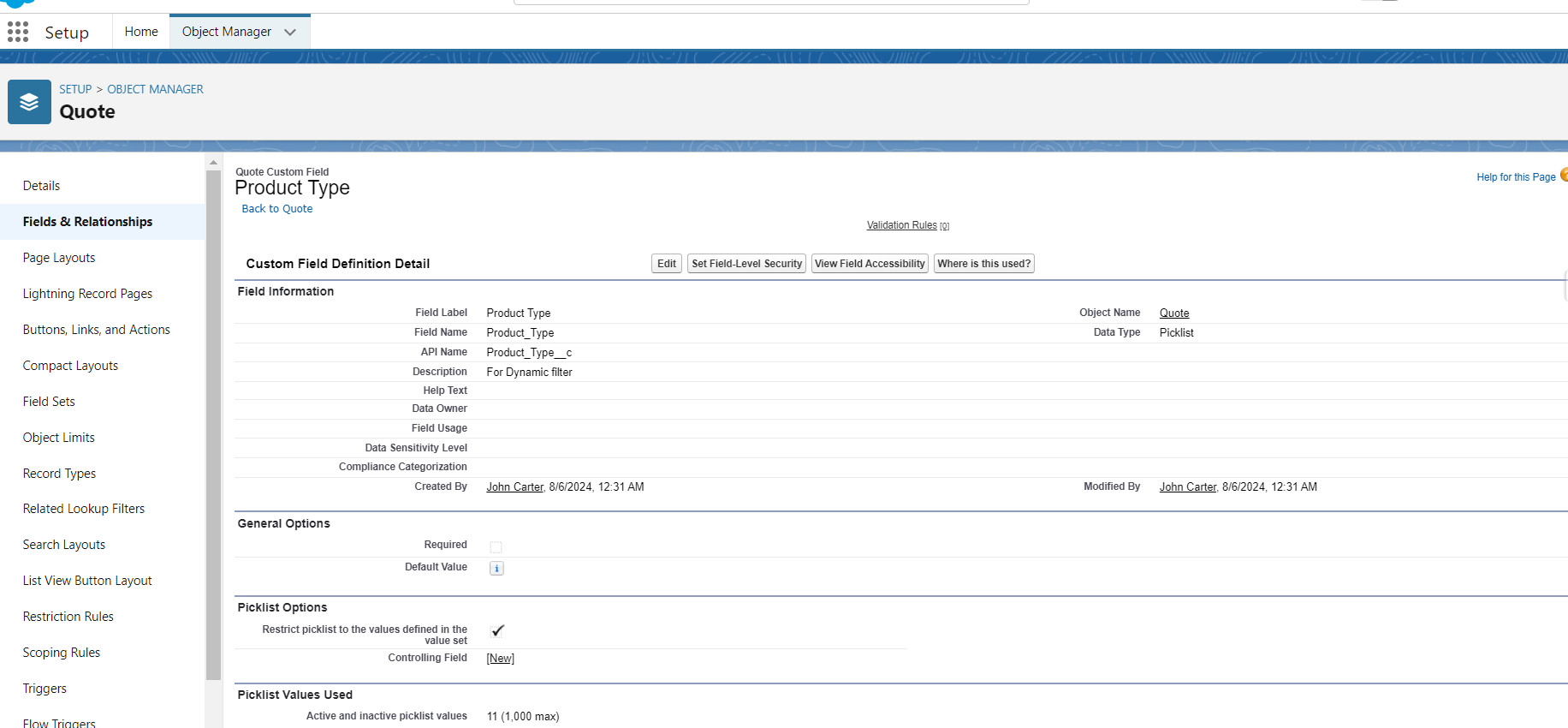
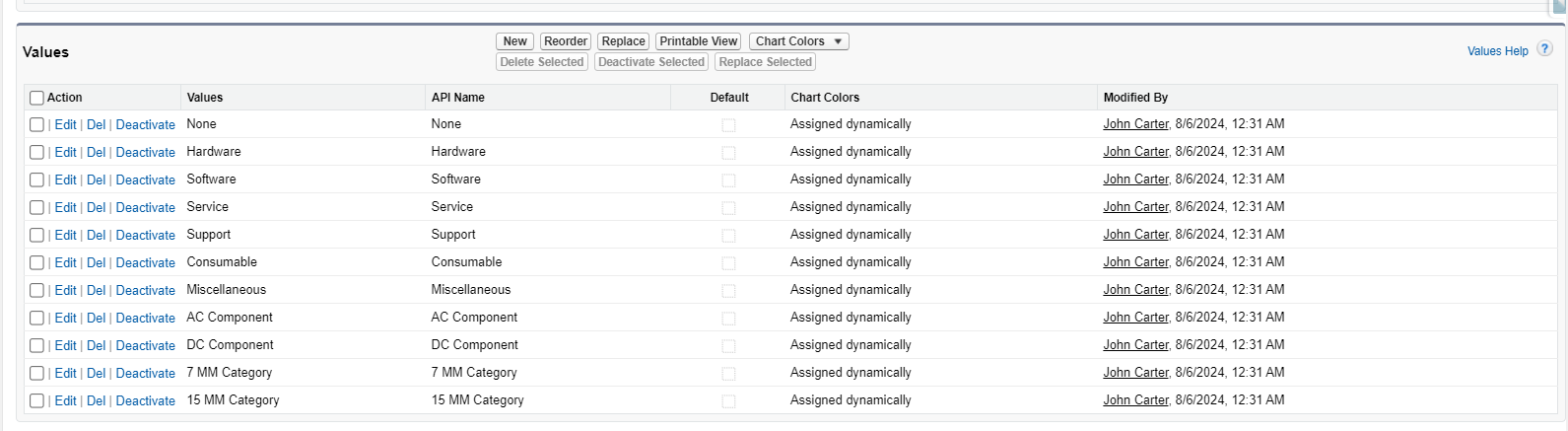
Step 2: Add the above-created picklist field under the Filter Source Field picklist of the Search Filter
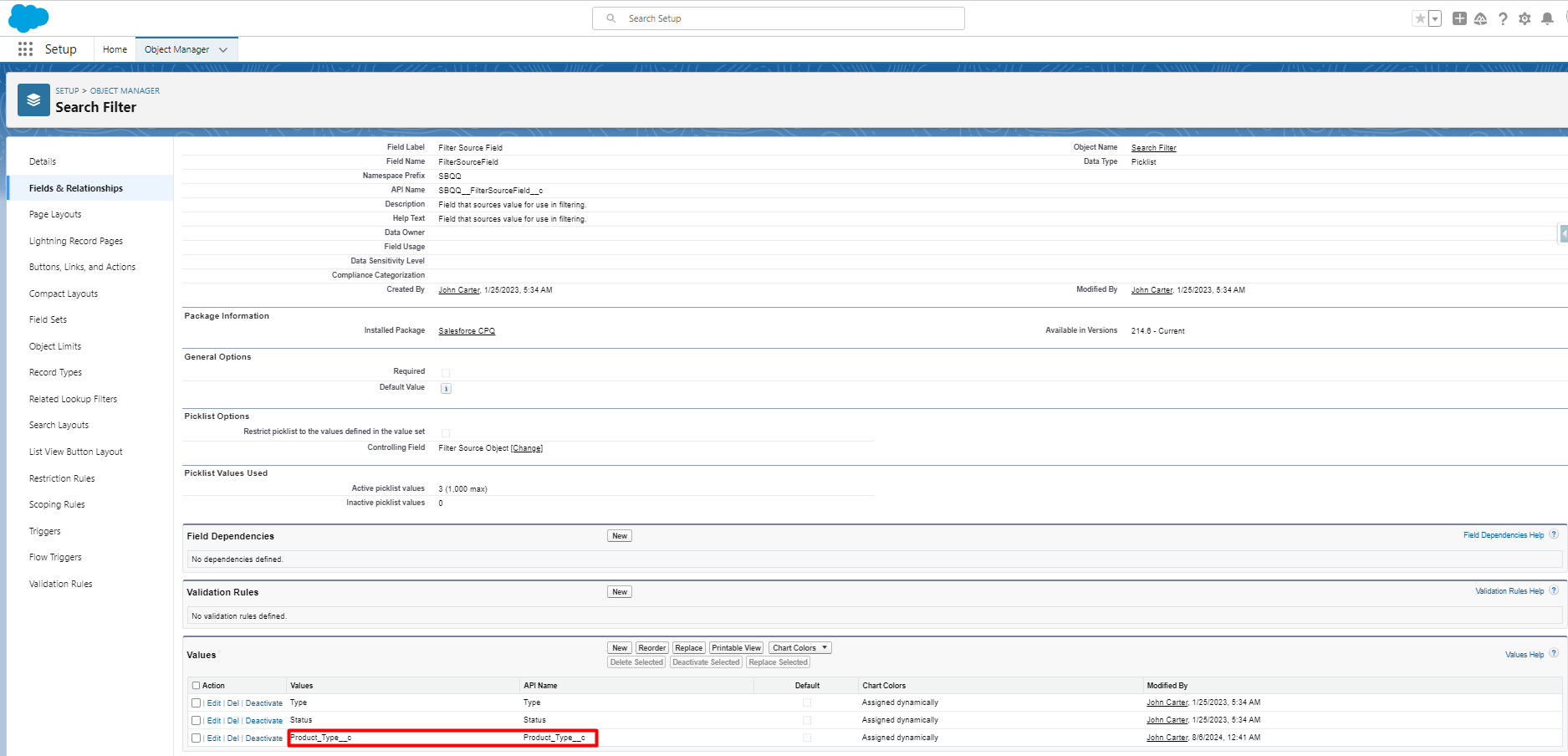
Step 3: Add this newly added picklist value ‘Product_Type__c’ in its dependent picklist field ‘Filter Source Object’ of the Search Filter object
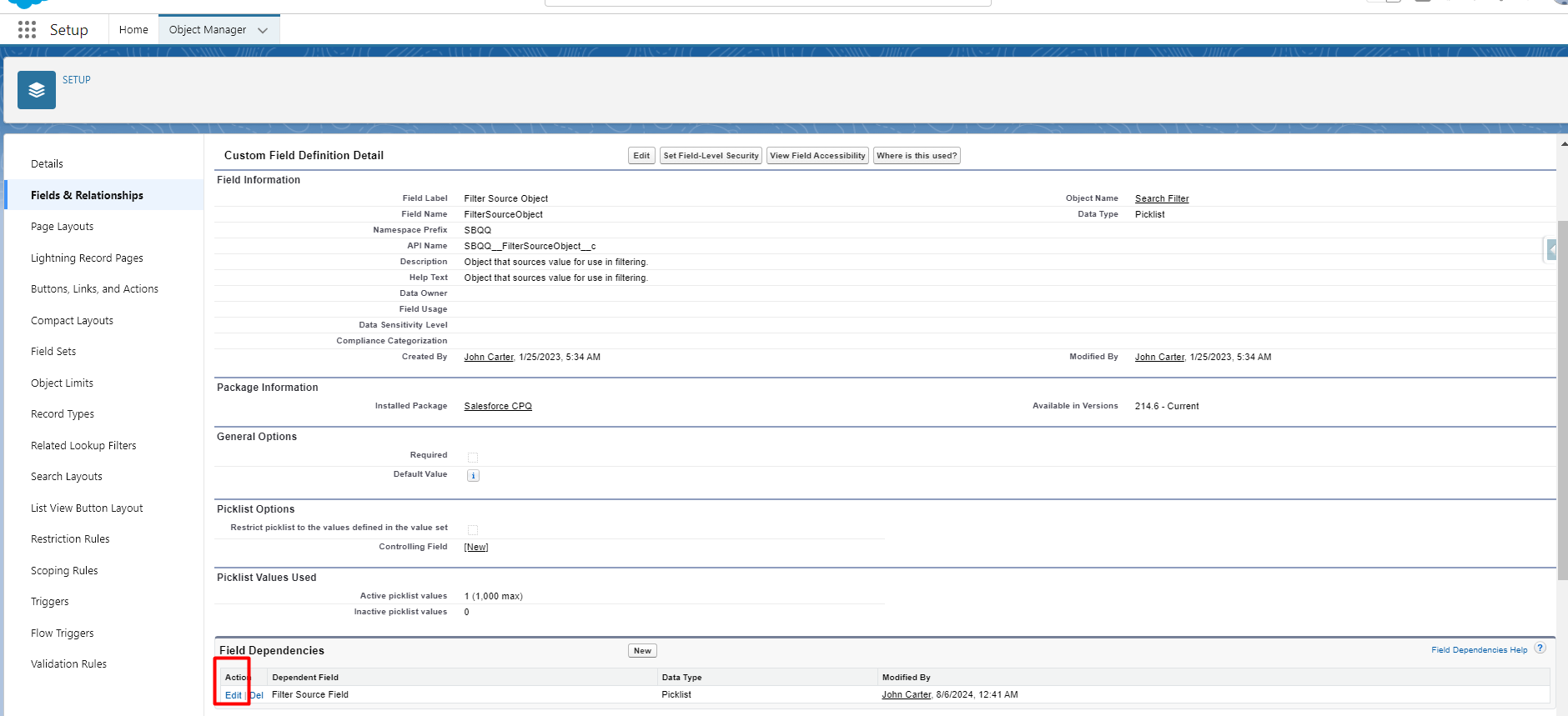
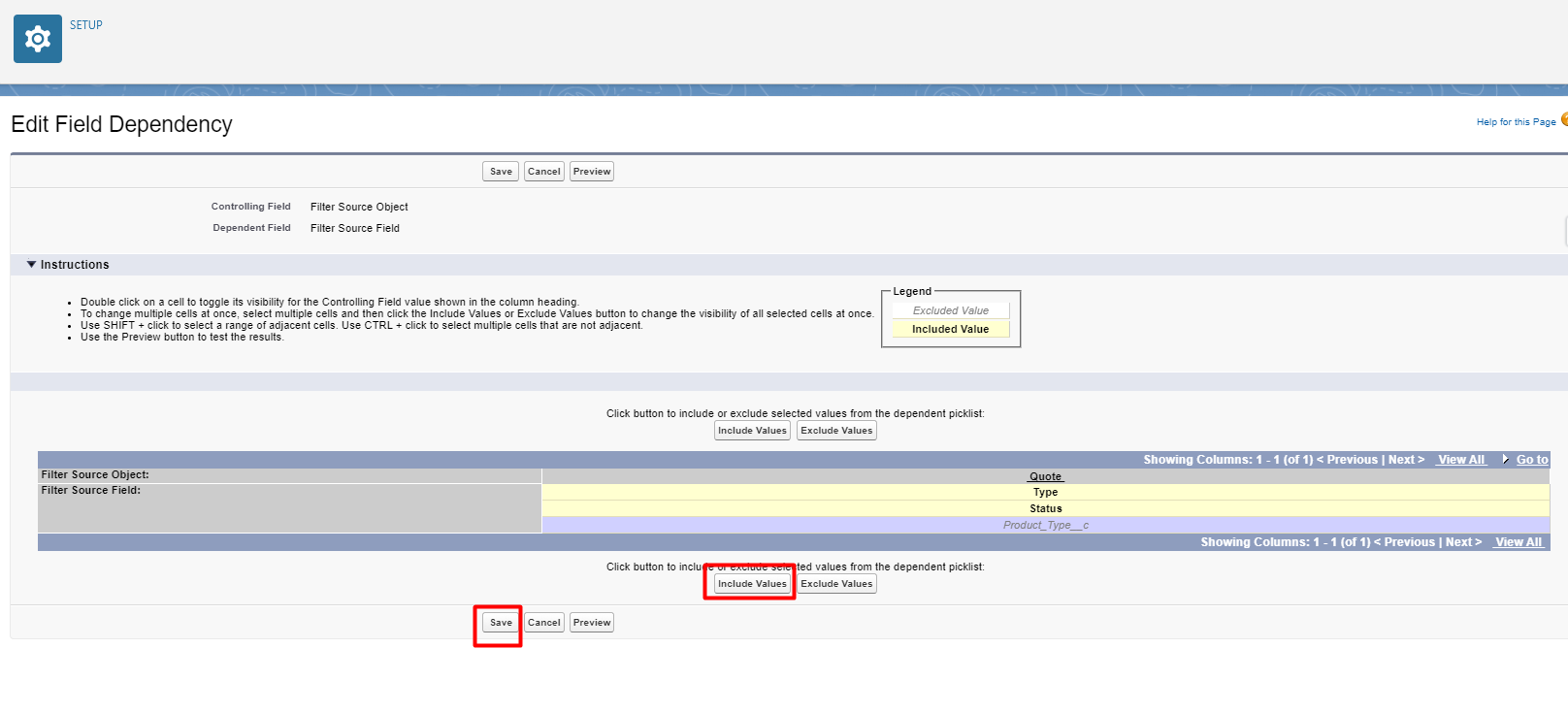
Step 4: Create a search filter record
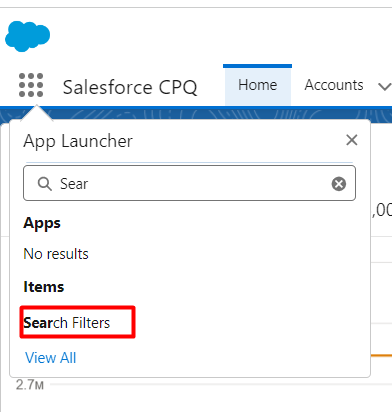
App launcher —> Search Filters —> New


Step 5: Fill in details on the Search Filter record —> Save
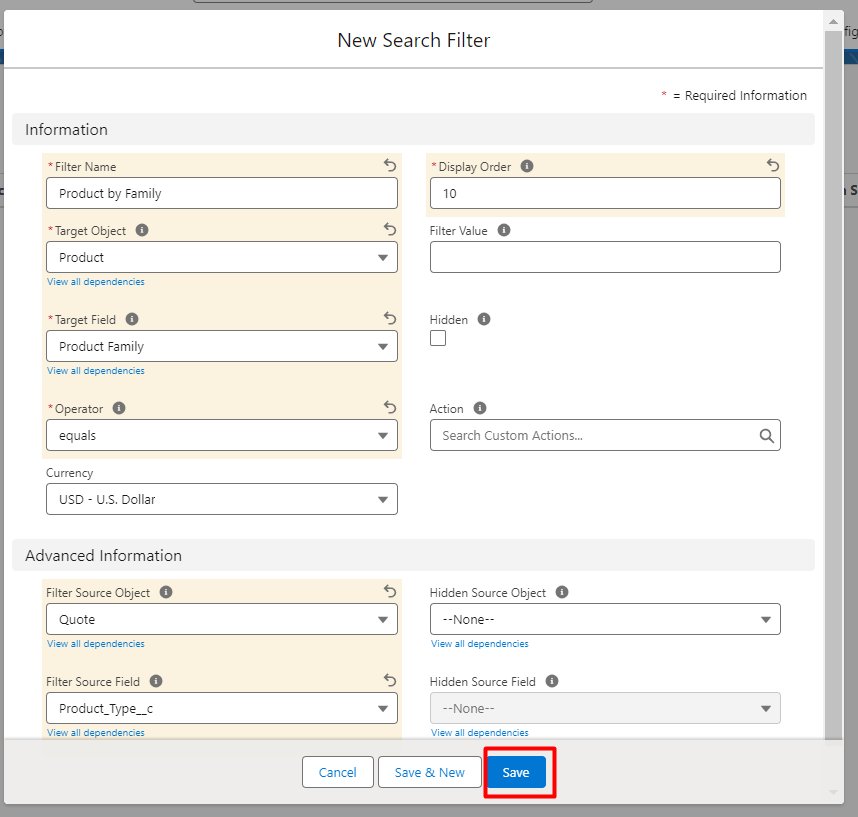
We are done with setting up a dynamic search filter. Now it’s time to check how it will be implemented on our Quote.
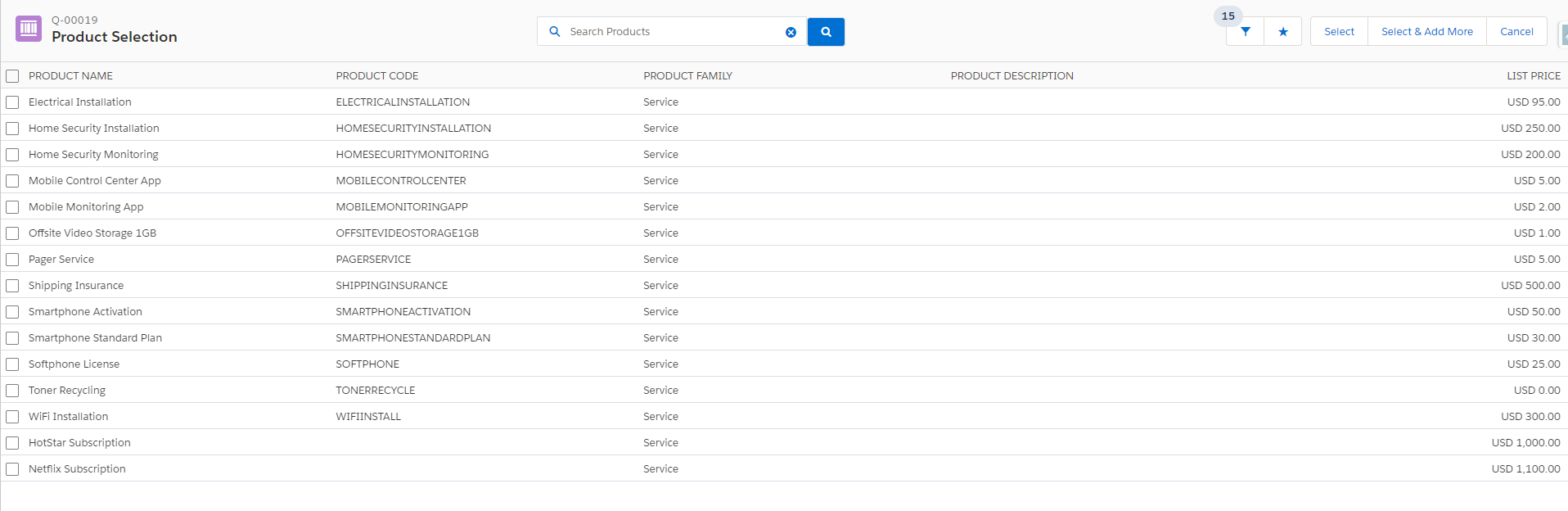
In below example our Quote have Product type = ‘Service’ so on QLE we are getting filtered products having product family ‘Service’
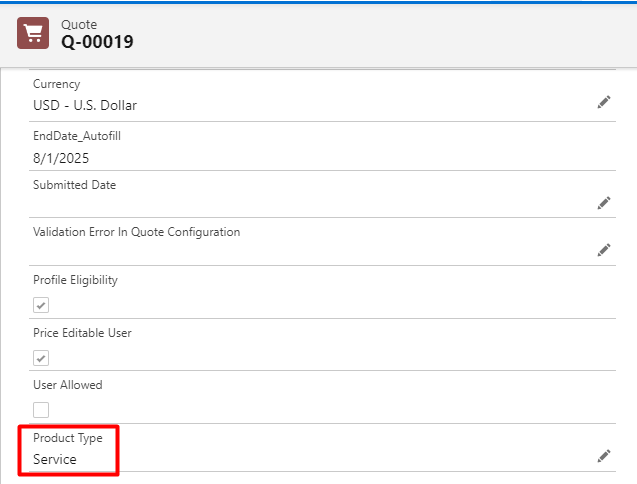

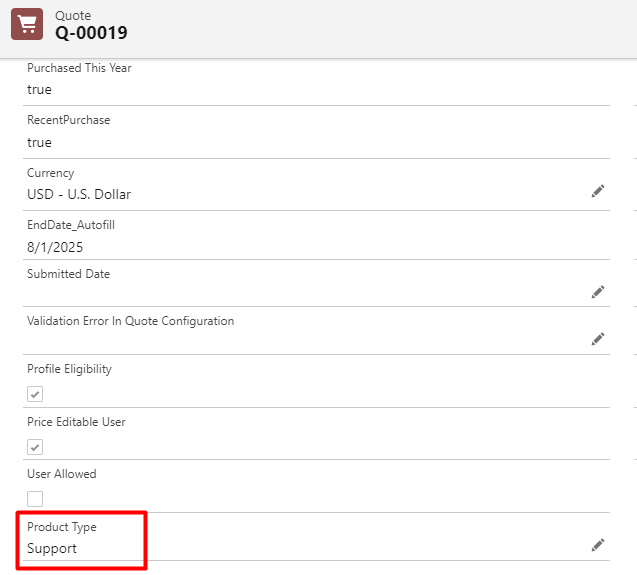
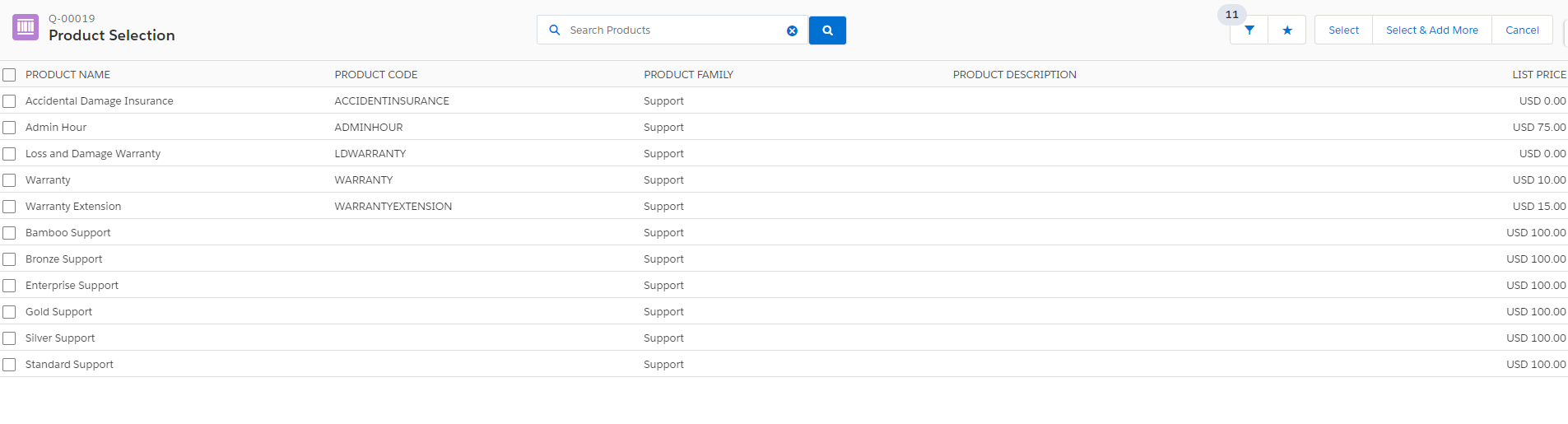
Now when we change the product type value to Support in our Quote we will get the products having family ‘Support’
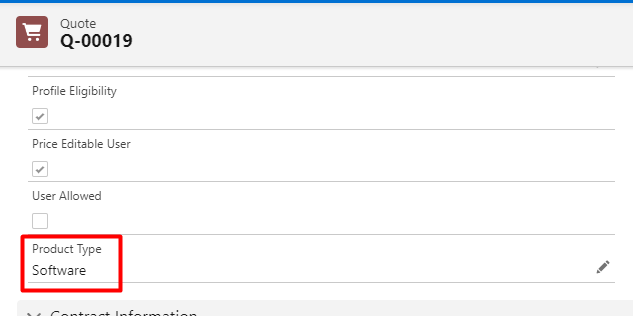
Now when we change the product type value to Support in our Quote we will get the products having family ‘Software’
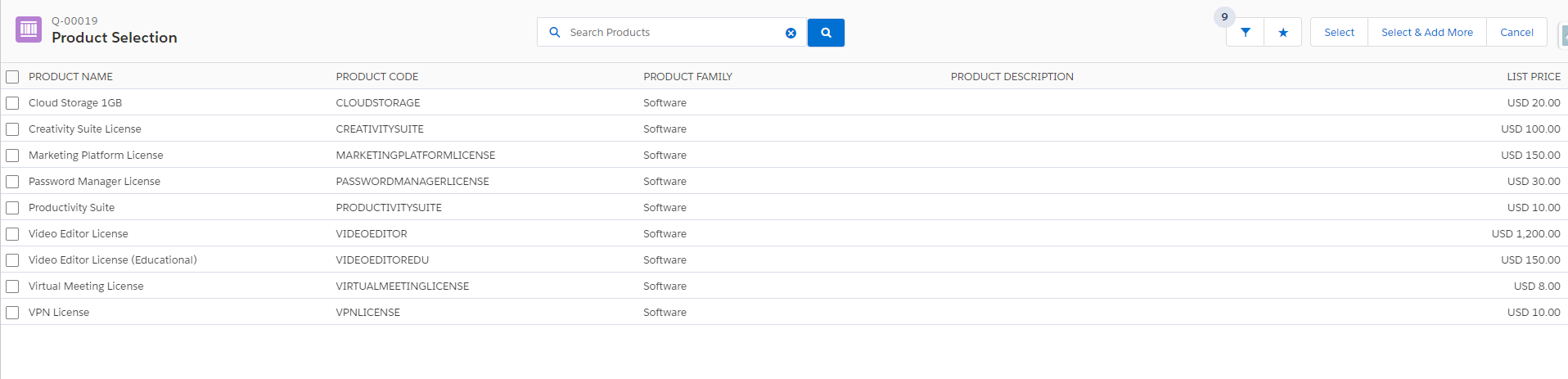
This is how Dynamic Search Filters work in CPQ. Now its time to go out and create you own filter and test how it works.
Conclusion
Dynamic search filters in Salesforce CPQ are a powerful way to enhance the quoting process, making it more intuitive and error-free. By carefully planning, setting up custom fields, and testing your filters, you can create a more responsive and user-friendly quoting experience.
All the best! For more updates, stay tuned with us.