




Wouldn’t it be much easier for you if you could calculate the average number of closed opportunities in Salesforce? This solution is here to make things easier. A rollup summary in salesforce a field that allows you to calculate values from related records. For instance, you want to calculate the average number of closed opportunities, the average amount of closed opportunities, or the SUM, MIN, MAX number. Today, we are going to tell you how you can create rollup summary in Salesforce with flow. So, let’s just jump right into the steps!
Steps
Use Case
Here is a simple example of how to create a roll-up summary that counts how many contacts exist for a given account and keeps this number up-to-date as you add/edit contacts that are related to this account.
Create a new Account field
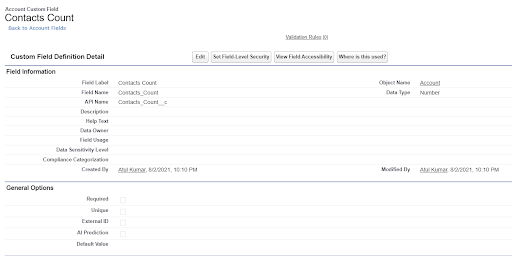
Starting with the Account object (where we want our counter), we create a new number field (with 0 decimal places) called Contacts Count (Contacts Count__c).
To start building this flow, create a new flow, type = Record Triggered Flow.
The object is the contact as we want to see when a change occurs on a contact record. For example, it gets related to an account. We need to do this after the contact record is saved.

Unfortunately, there are no filters on the contact that we can use to determine if we need to update the account contact count, so we have to check them all. It’s not a very efficient method, but it only runs when we create or update a contact record.
The ideal situation would be to only update those where the record is new or the AccountId has been added or changed. Using the changed operator would like the solution. However, it will always be true when we create a new contact as the AccountId will go from null to a valid AccountId.

Add a Decision element:
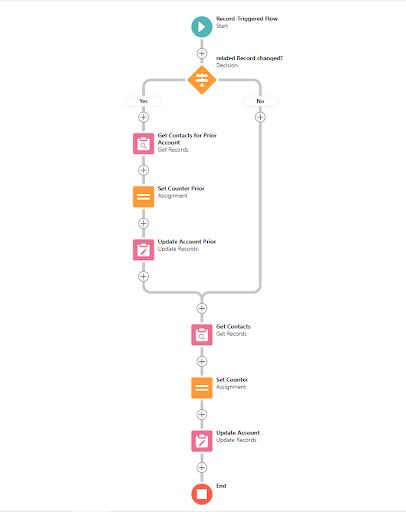
Now, we can add a decision to see if the AccountId has been changed. The Yes condition is for an existing contact record where the related Account (Account ID) has been changed.

Add a Get Records element (for Prior accounts):
Here, we want to get any contact records where the Account Id was changed on the contact. We need to update this account contact because the record may no longer be related to the account and the count needs to be recalculated.
We want to count any contact records where the Account Id is the same as the contact record that triggered this flow – before the change (they were related to the same account).
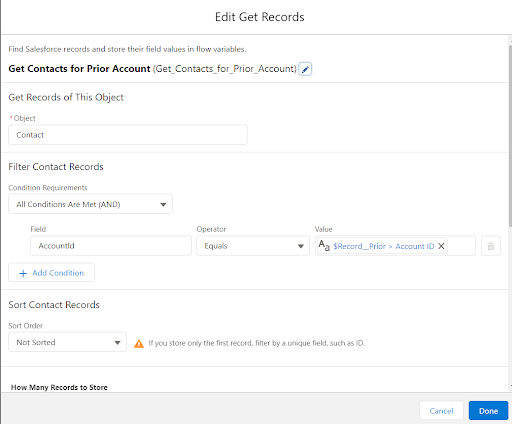
First, we need to create a variable to save these records to:

Click on New Resource to create a variable.
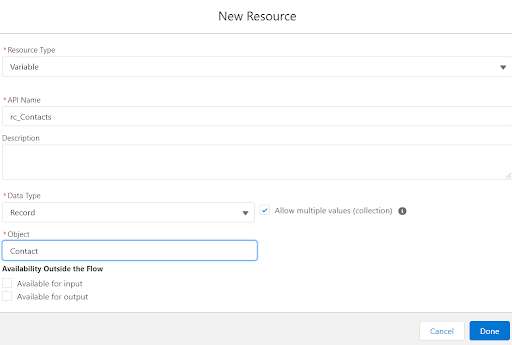
Create another variable rc_ContactsPrior

Back to the get records element:
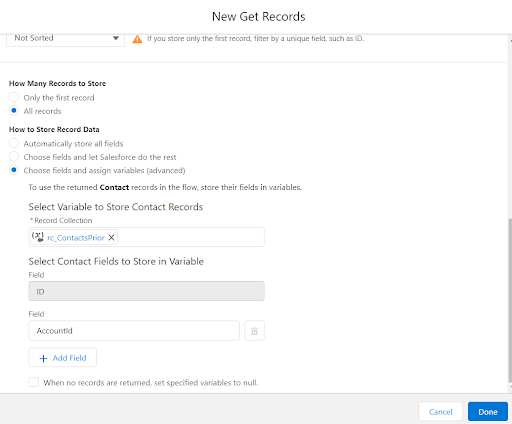
ContactsCounterPrior variable:
Create another variable to store how many contacts were found:

before
Create an Assignment Element
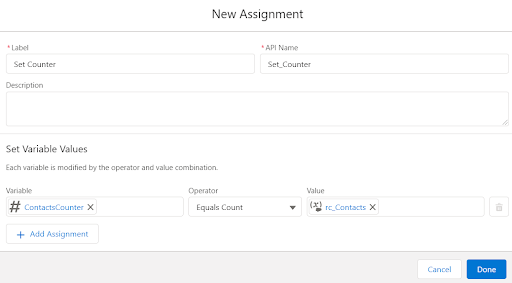
Set our new counter to the number of contact records we found.
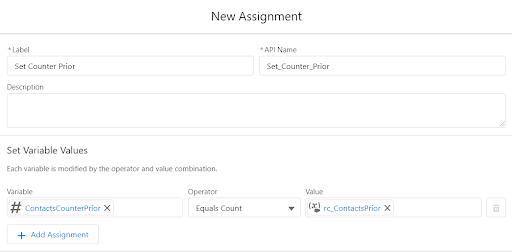
Add an Update Records Element:
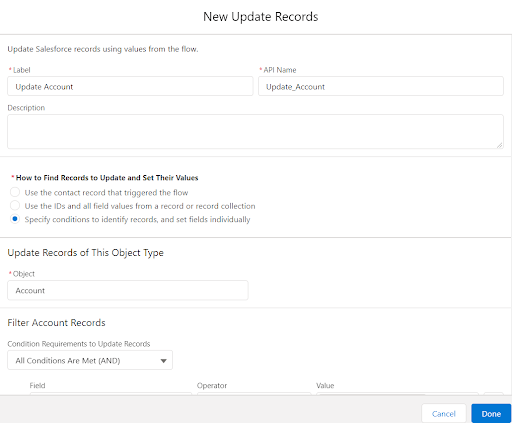
Next, update the account record with the new count of contacts:
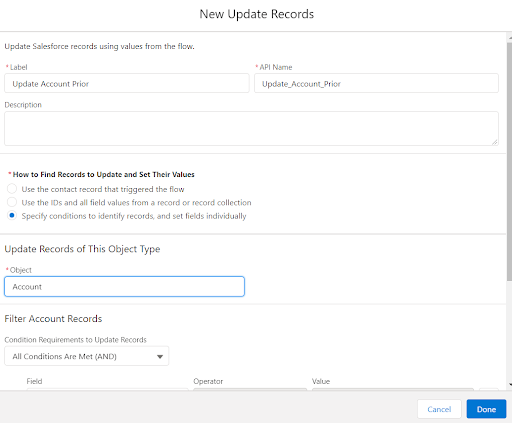
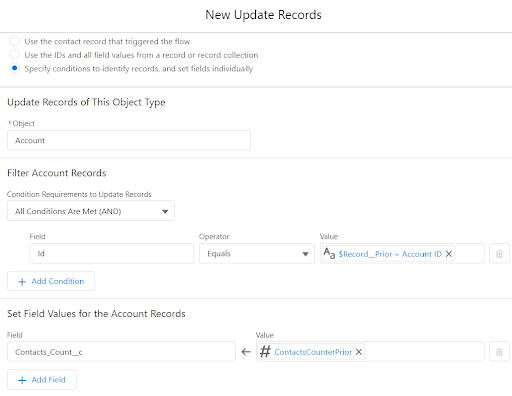
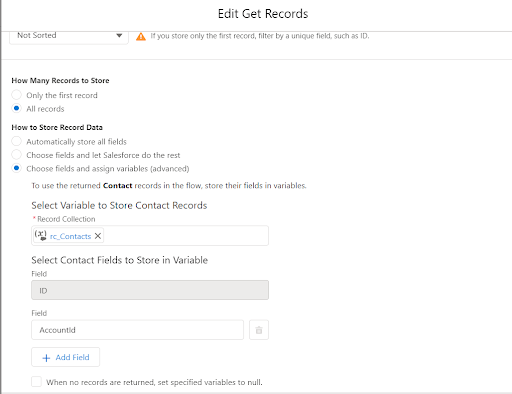
Get our contacts:
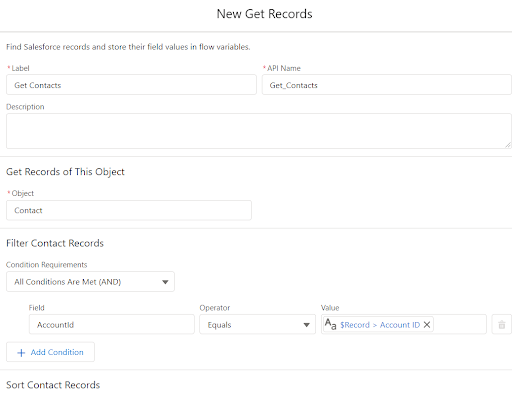
Add the fields we want in our record collection:
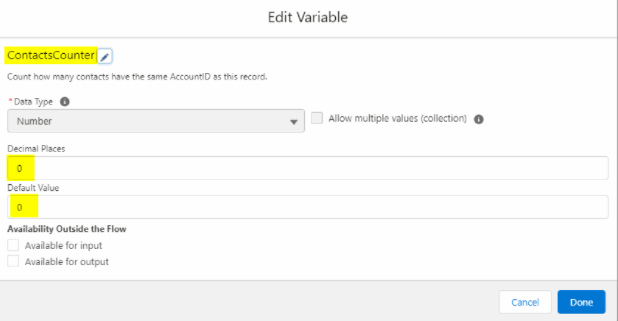
Create another new variable for the count of records:
Assign the value to the counter: (add Assignment)
Update our Account with the new counter value:

Save your Flow
Finally, Save and activate your flow and check if your flow looks like the one in this pic:
Conclusion
We hope that you liked this blog and now you can create your own roll-up summary with the flow in Salesforce. If you try out this solution, then do share your experiences with us. We will be back with another interesting blog soon.
Also, you can follow us on our social media handles to stay updated about all the latest developments in and around Salesforce. Till then, happy learning! 🙂





