




We know the importance of good email signatures as they reflect your professionalism to the readers and also helps them with the correct information they need to contact you. This is why we have come up with a perfect solution that allows you to create dynamic user signatures for email templates in Salesforce.
Now you can create perfect email signatures for all users that have different fields in Salesforce. The email signature may include name, email, and other contact information.
This would automatically allow the user sending the email to have his very own dynamic signature attached to the template. Wasn’t that great? We bet you would like to get the code for this one! So, let’s just jump into the code for this thoughtful solution.
Steps
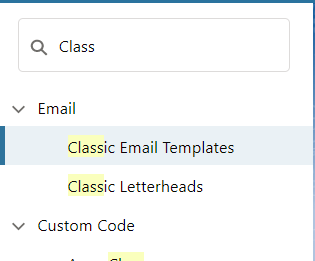
- To begin with, go to Quick Find search > Classic Email Templates.
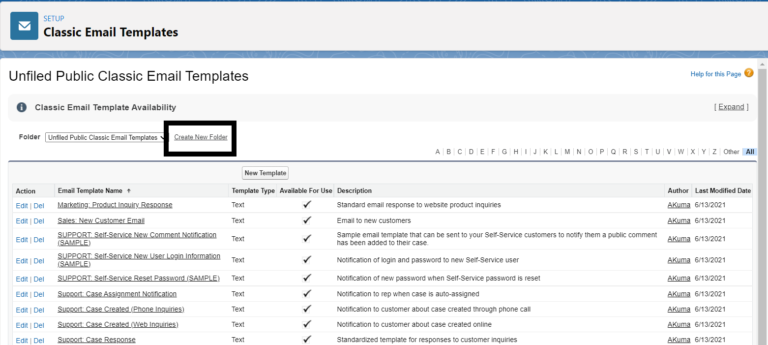
2. On the right of the screen, you’ll probably see a bunch of email templates that come “out of the box” and are in a folder called “Unfiled Public Email Templates.” To keep things tidy, let’s create a new folder for our HTML emails by clicking the “Create New Folder” link in the screenshot below.
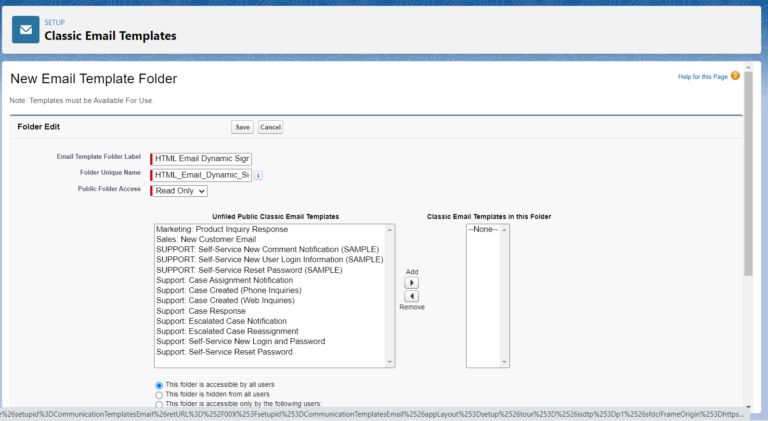
3. On the next screen, you need to give your folder a name, make sure it’s available to all users, and click “Save.”
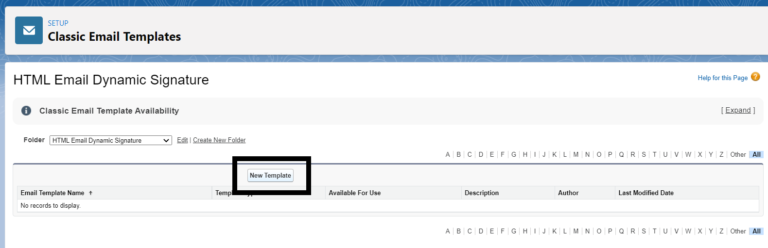
4. Now that we’re in our new folder, let’s click the “New Template” button.
5. Here, in Step 1, select the radio button option for “Text” and click “Next.”
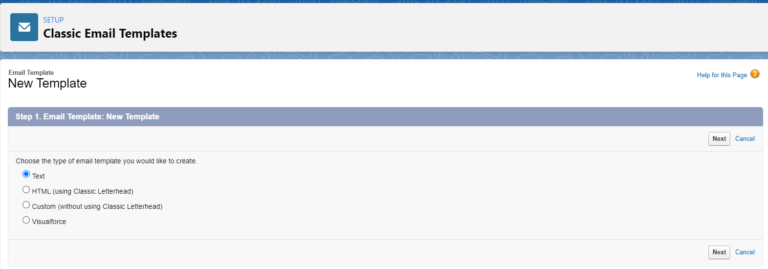
6. In Step 2, we can edit the Subject line and the body (content) of our email template.
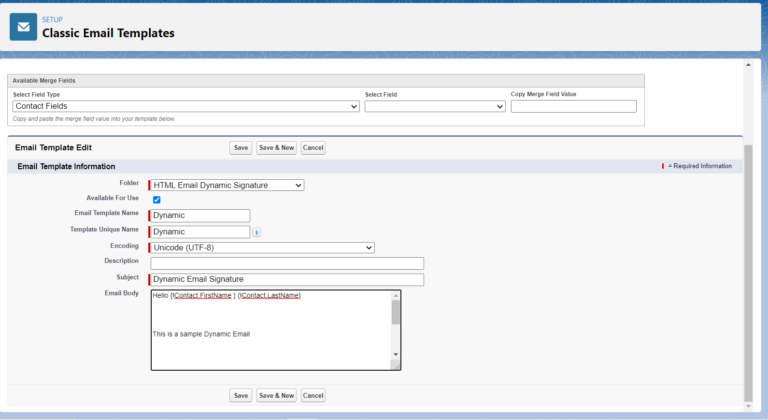
7. Now, personalize the email by merging the First Name and Last Name of the Contact. To do that, in the “Available Merge Fields” box, select the Contact object from the far left picklist labeled “Select Field Type.” Once you do that, notice the middle picklist box labeled “Select Fields” reflects the native and custom fields available from the Contact object. I’ll select the “First Name”, “Last Name”, “User Name”, “User Title”, “User Phone” and “User Email” fields (by clicking it), which in turn displays the {!Contact.FirstName}, {!Contact.LastName}, {!User.Name}, {!User.Title}, {!User.Phone} and {!User.Email} in the “Copy Merge Field Value” box. To get this merge field into our Text email, copy {!Contact.FirstName}, {!Contact.LastName}, {!User.Name}, {!User.Title} }, {!User.Phone} and {!User.Email} from the “Copy Merge Field Value” box and paste it into the body of our email as pictured below.

- 8. And click on the “Save” button to save the Email Template.
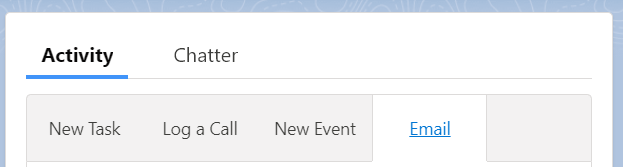
- 9. Now, test your new template. From a Contact record, click the “Email” button from the Activity list.
10. From the email screen, click the “Insert, create, or update template” button and choose your new email template.
And click on the Send button to send an email.

11. Our new Email template loads, and the mail merges in our Contact’s first name and last name along with the sending User’s information.
Conclusion
We hope that you found this blog interesting. If you try out this solution for your business, then do share your valuable feedback with us. We would love to hear from you.
Stay tight with us to know about the latest developments in the Salesforce ecosystem. Do follow us on our social media handles and subscribe to our weekly newsletter for your dose of Salesforce updates. We will be back with another solution soon to make your Salesforce experience a lot better! Till then, happy learning! 🙂





