

A detailed guide on how to transform your data into valuable insights using AI-driven prompt builder and flow automation!
What is Prompt Builder?
Organizations can easily integrate reliable Gen-AI using the prompt builder. It enables admins to create prompt templates, resulting in increased productivity of employees by generating content.
Prompt Builder boosts productivity and responds promptly. The prompt templates use large language models (LLM) to create substantial material.
Please Note: You can read this blog and understand the key steps to set up Prompt Builder in Einstein Generative AI.
Step-by-Step Process of How to Create a Field Generation Prompt Builder
Step 1:
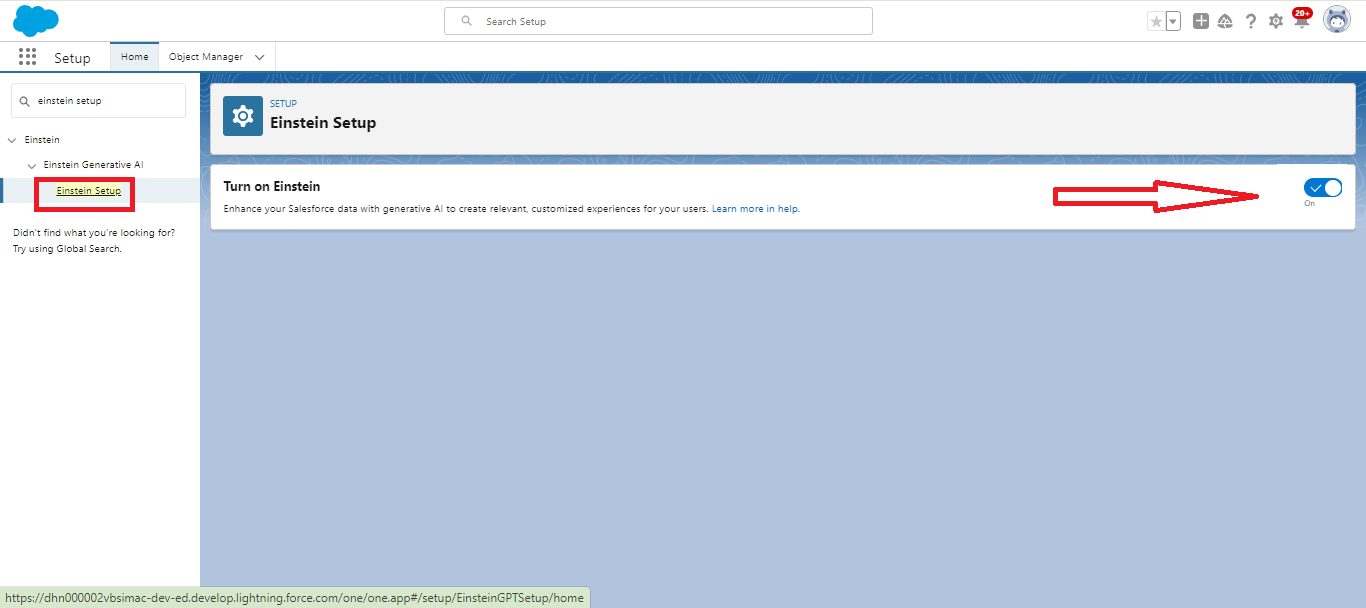
Type and search for “Einstein Setup” in the Quick Find Box, and click on the toggle at the upper right corner. 👇
Step 2:
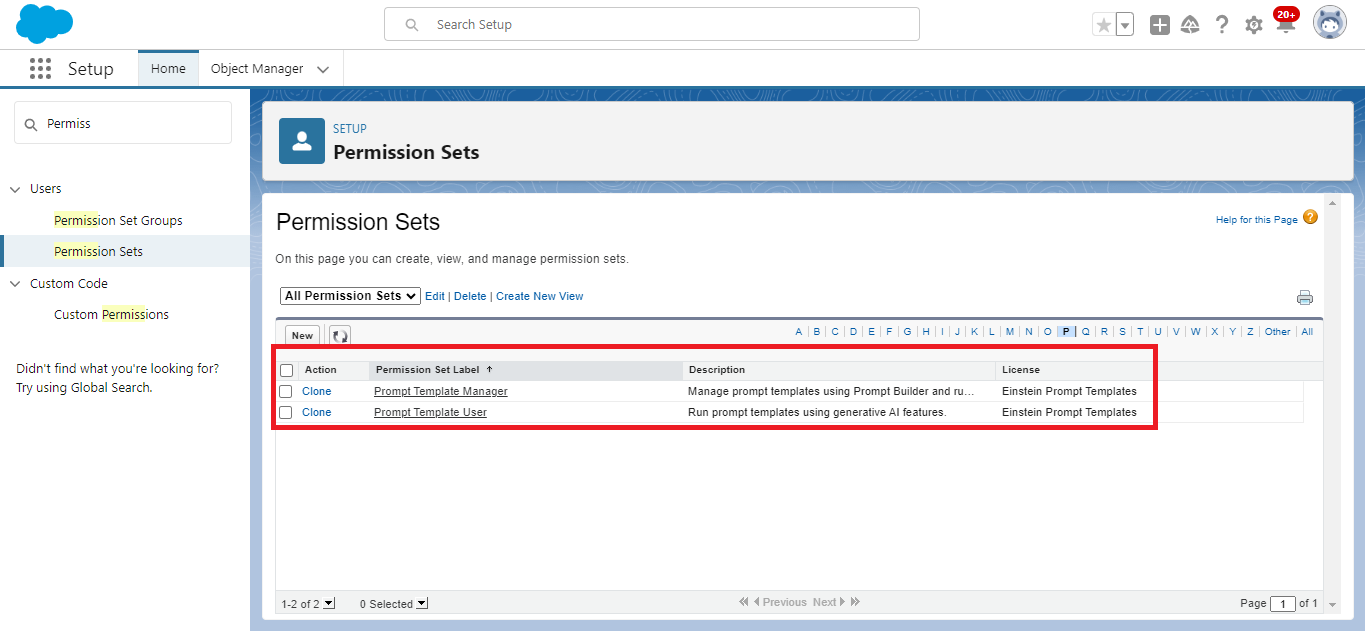
In the Second Step, Quickly find the Search Permission Sets and assign Permission set ‘Prompt Template Manager’ and ‘Prompt Template User.’ 👇
Step 3:
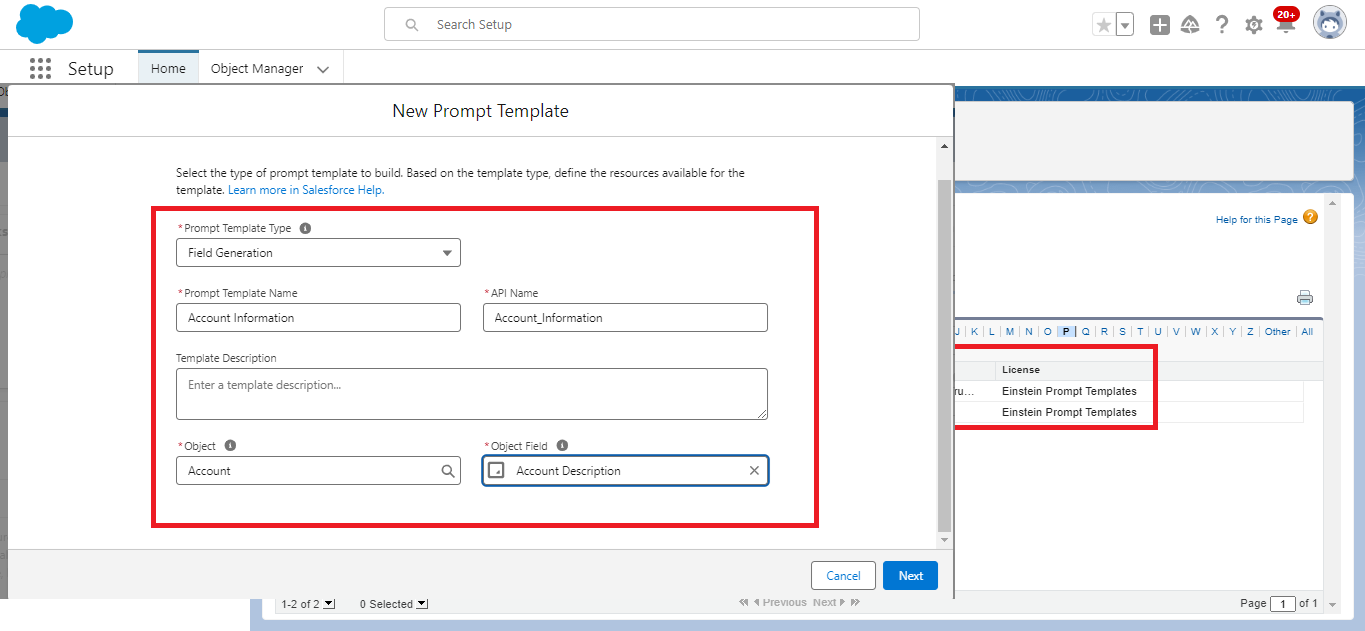
Later, search “Prompt Builder” in the Quick Find Box and create a completely new “Prompt Builder. Afterward, click on New Prompt Template and type prompt builder to create a new “Field Generation. 👇
Step 4:
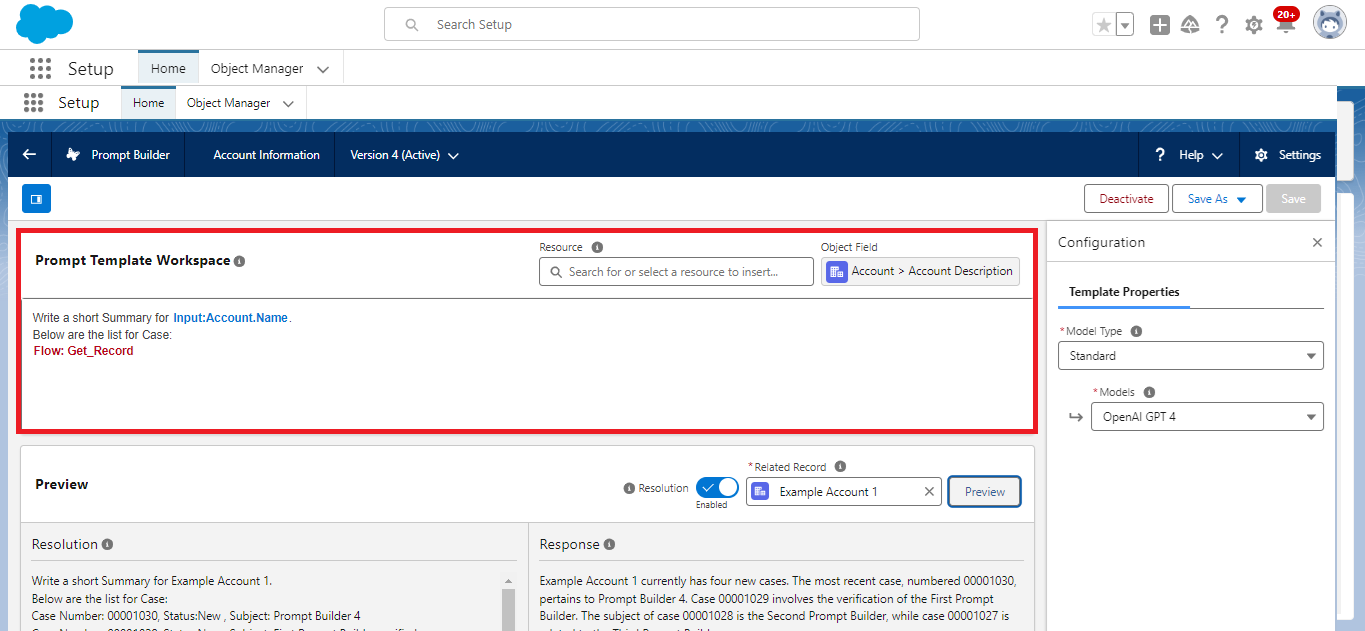
You will find two sections in the Prompt Template – “Resource” and “Object Field”. In order to add “Account” object merge fields, you need to click on “Resource” to display in the prompt template.
You can merge fields like Account Name, Description, etc. Now, in the “Object Field” section, add the required field to set for the Prompt Builder’s Generative AI.
For Reference Check the below Screenshot. 👇
Step 5:
Now, create a Prompt Builder Flow to add the above Prompt Template. Currently, I have created a Flow to get all cases related to an account with Status. In the Quick find box Search flows to Create a new Flow. 👇
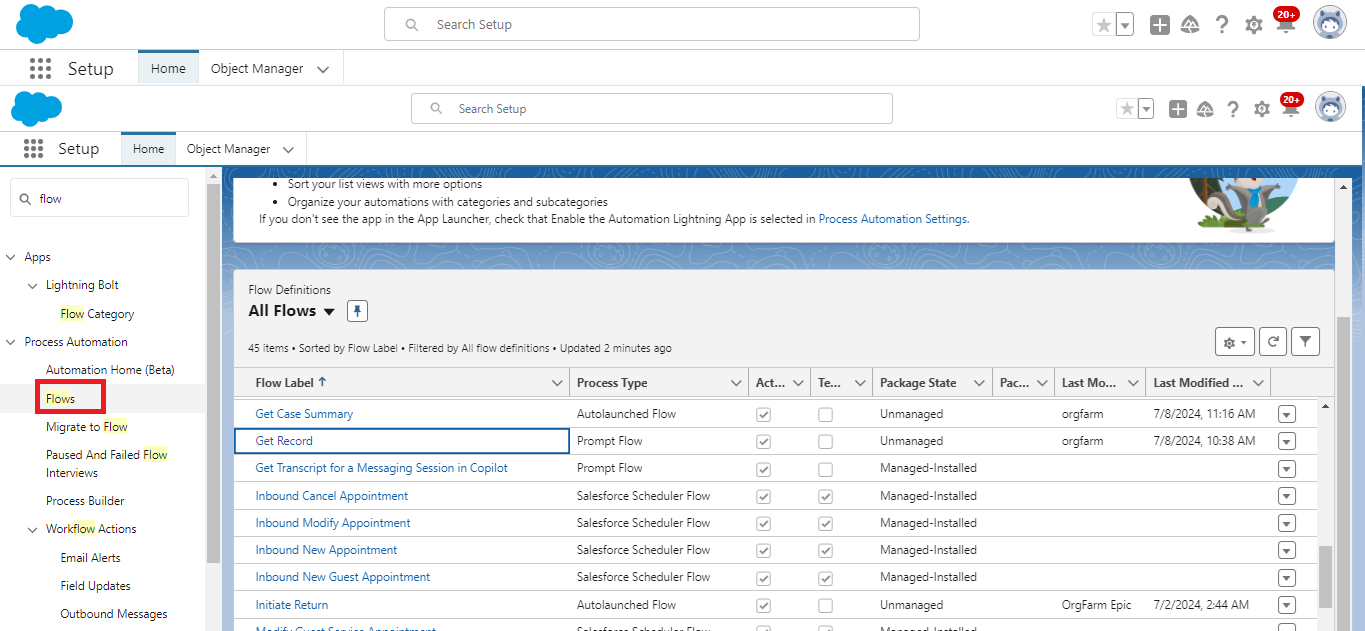
Now, Create a new Prompt flow.
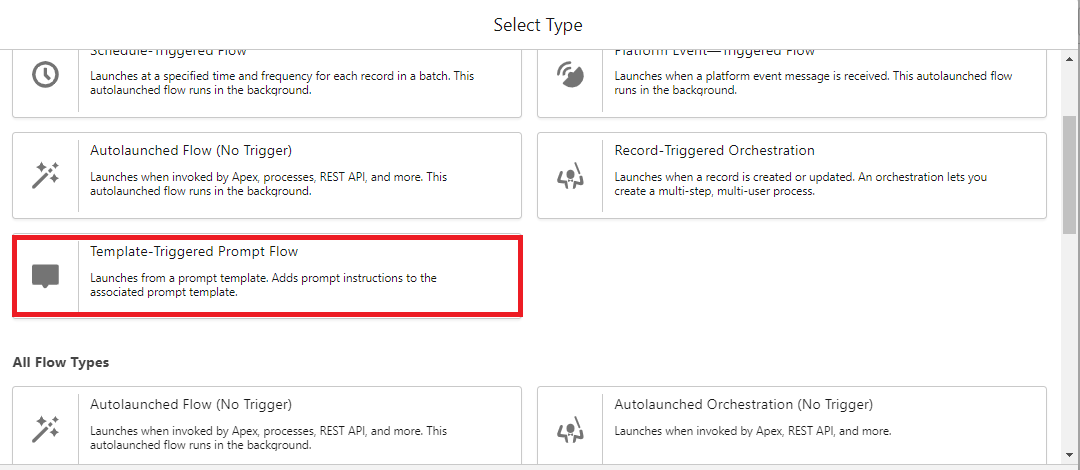
Step 6:
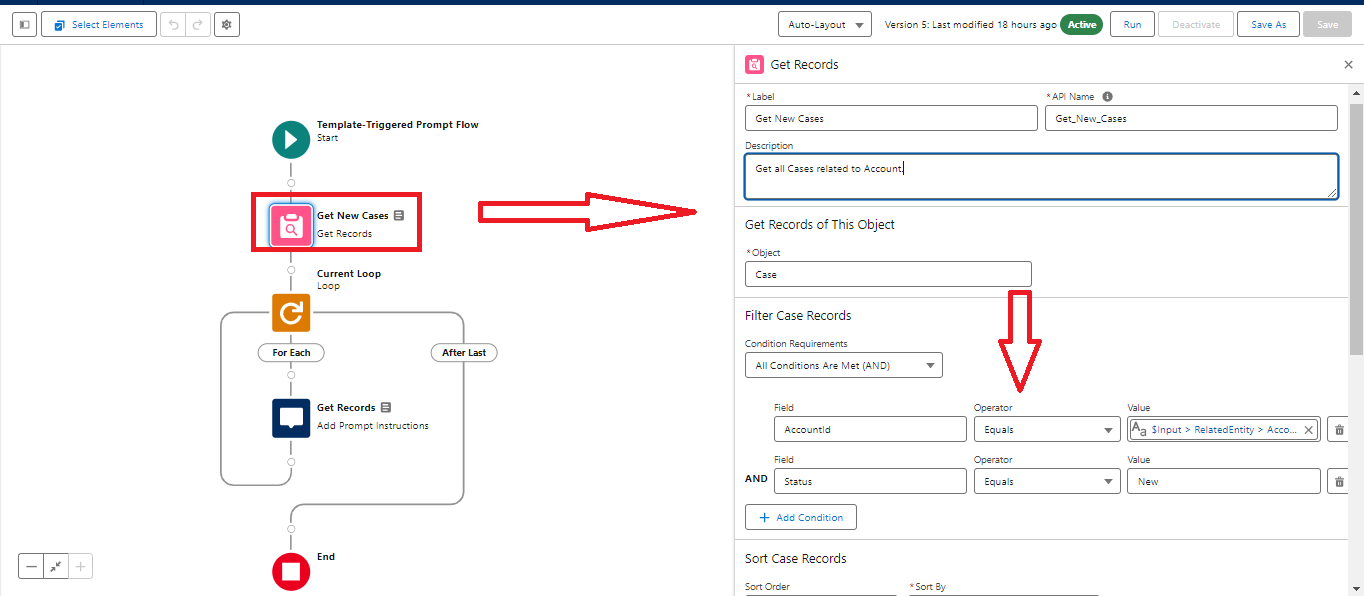
(a.) Now, Create a flow to get all Cases which is related to the Account.
For More reference Check below Screenshot. 👇
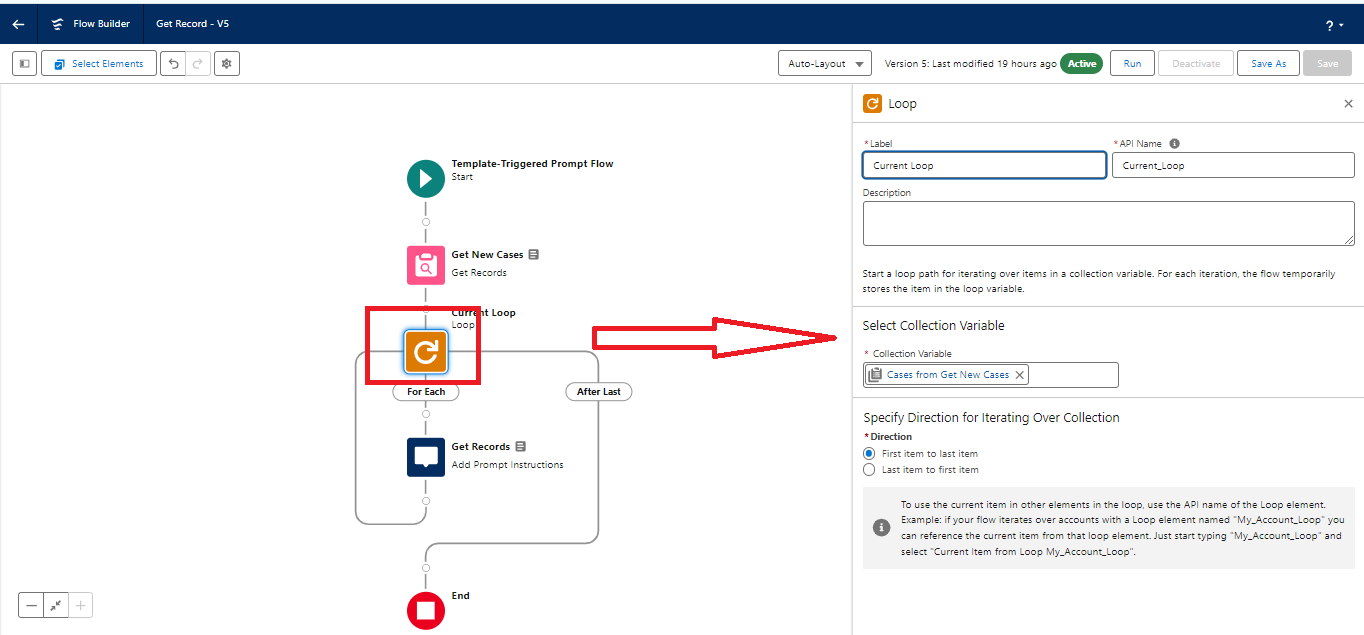
(b.) Add a loop to iterate through all cases retrieved in the above step.
For more reference Check below Screenshot.👇
(c) Now Add the action ‘Add Prompt Instruction’.
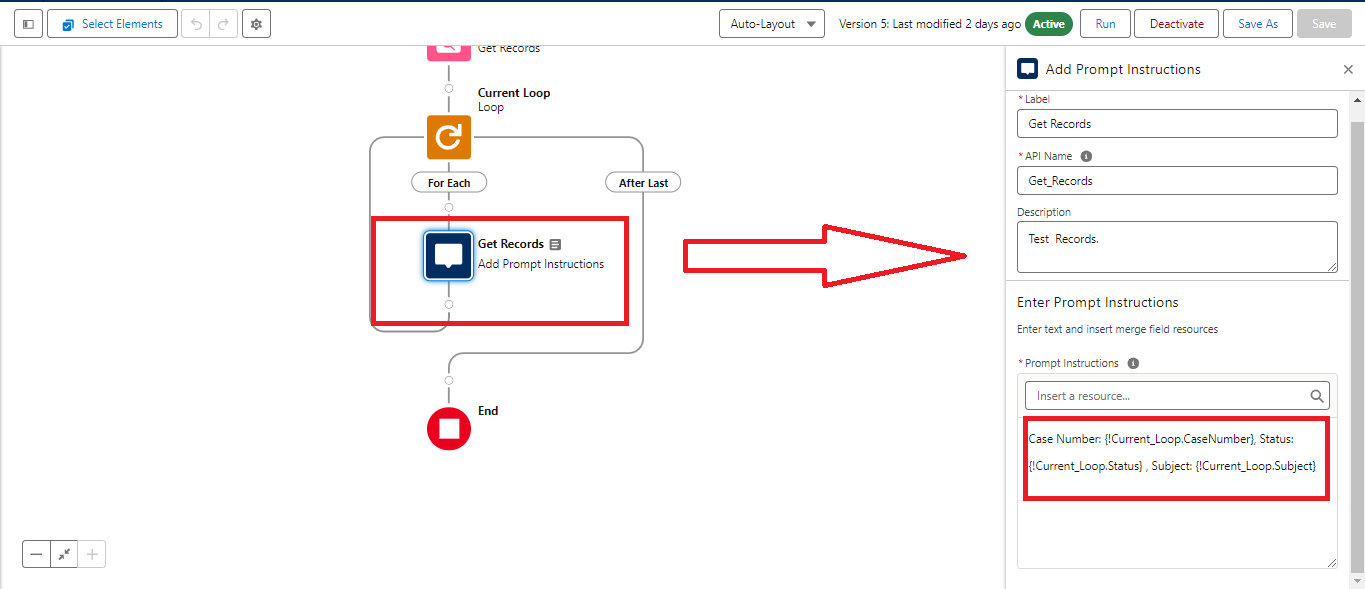
Step 7:
Now add this flow in the Prompt builder that you created in the third step.
For more reference, check the screenshot below.👇
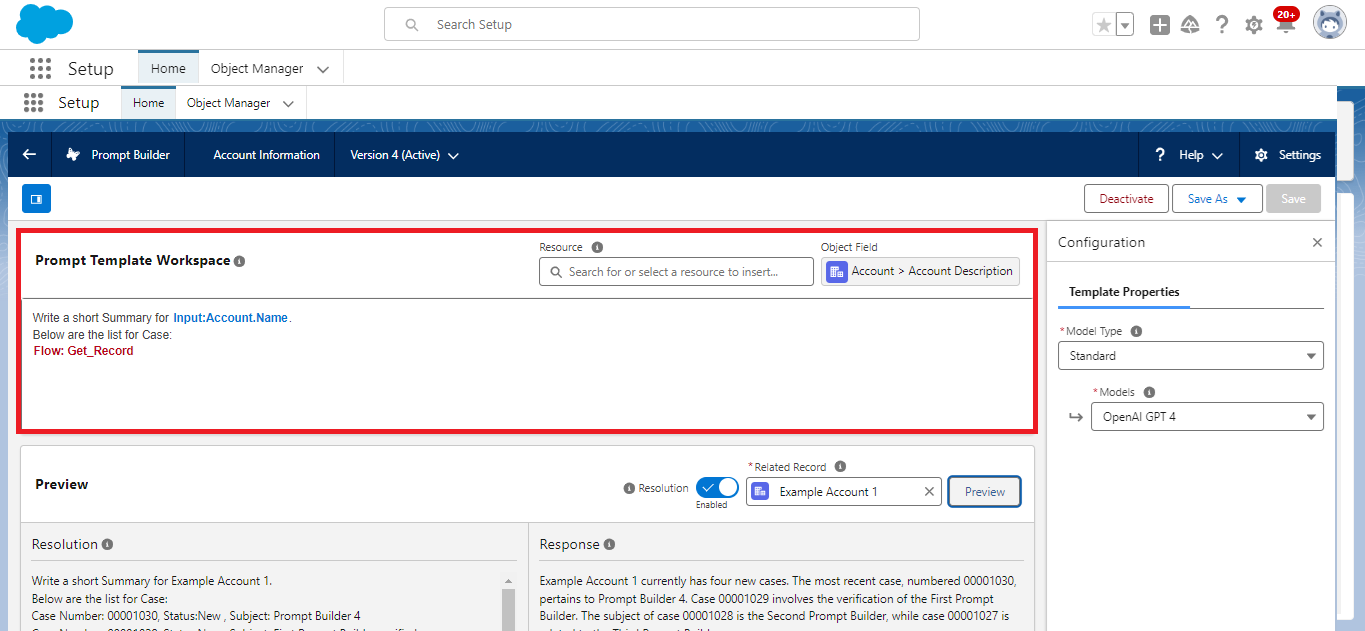
After adding flow in prompt builder. Preview this and test the prompt Builder.
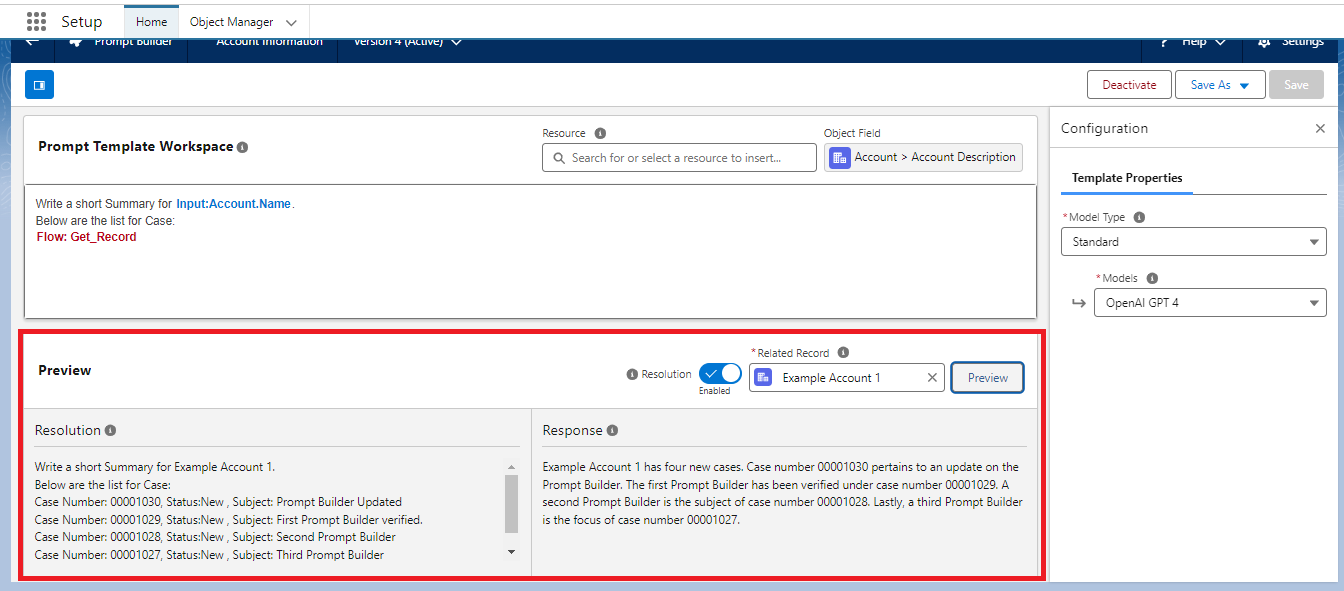
Steps 8:
Now, create a record trigger flow to get the account related to the case and update the Account description with a prompt builder AI generative summary.
(a) Create a Record Trigger Flow on the Case object.
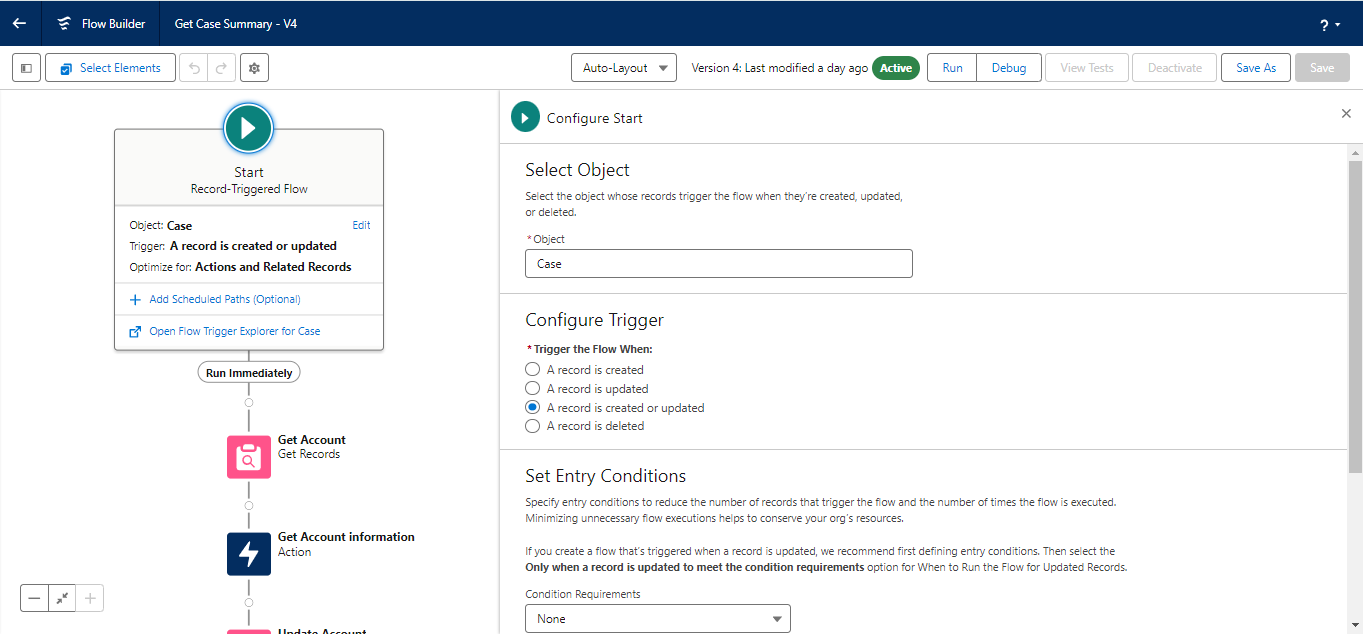
(b.) Get the Account as per the case. 👇
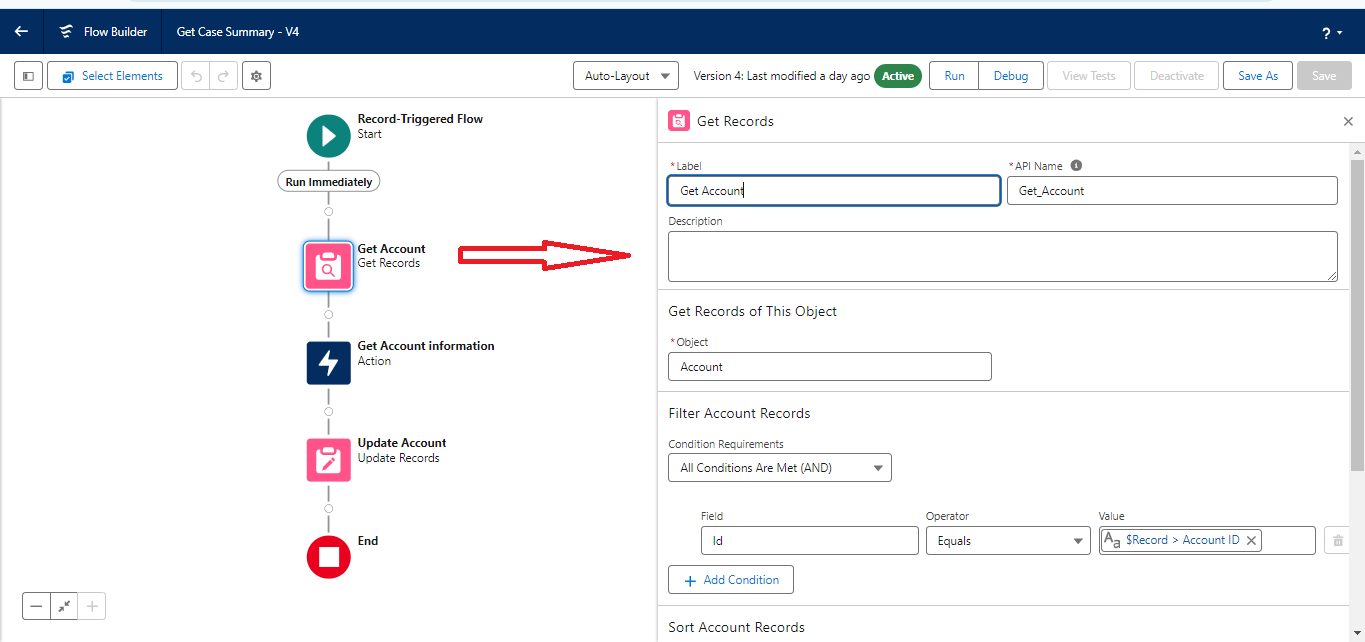
(c.) Now, add an action as a prompt builder which you created in the third step. In-Store Output values, create a resource as text and use it in Store Output values.
For more reference, check the screenshot below.👇
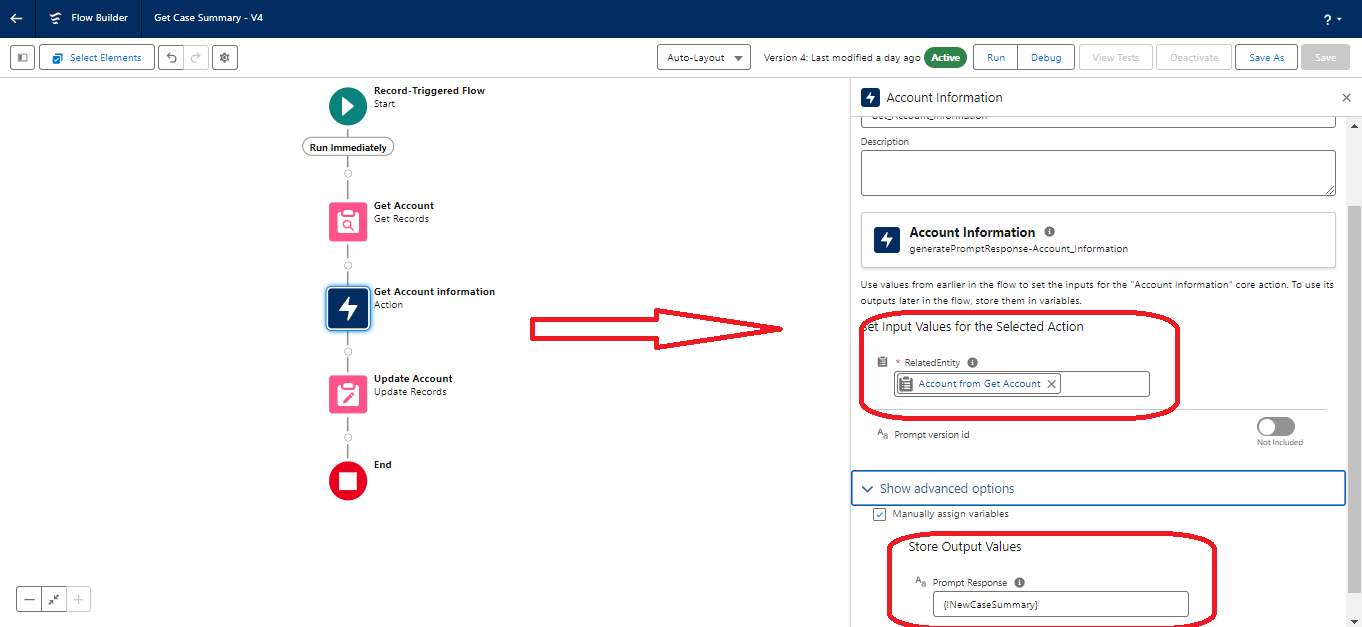
(d) The last step update the Account Description field which is related to the Case.
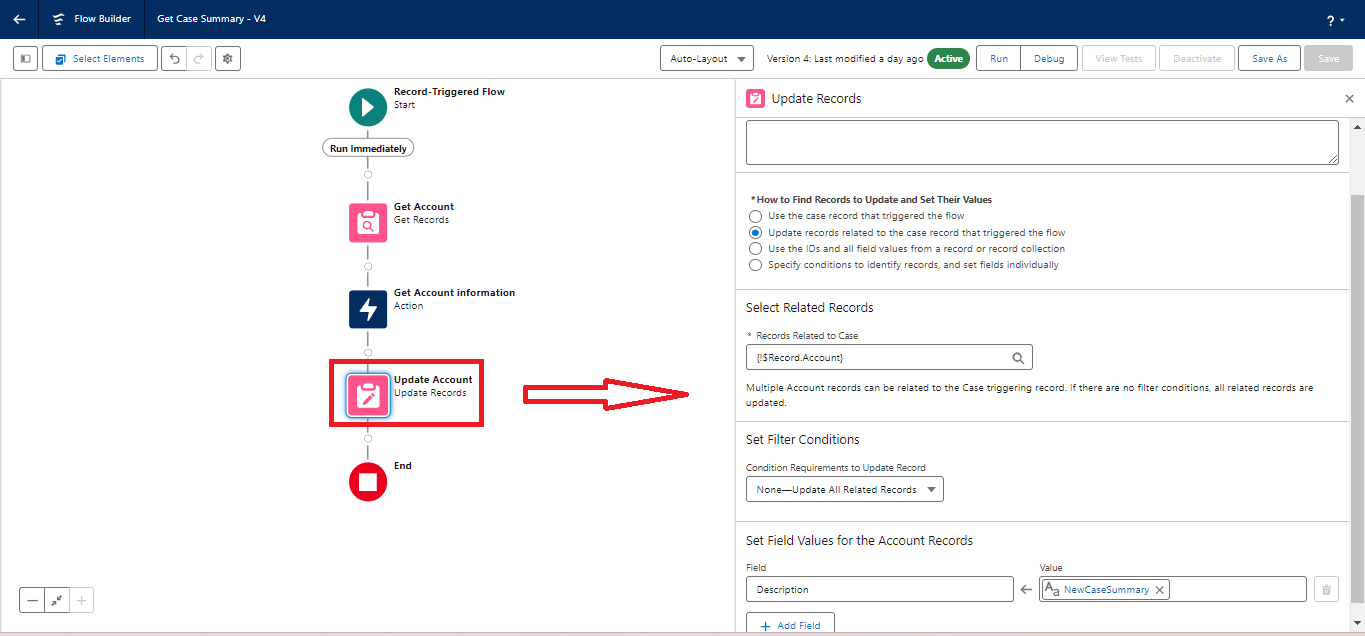
Step 9:
Now, test this flow. Move to the Case object and update a Case record. When the record trigger flow fires on the Case object, it will automatically update the related account description with the Prompt AI generative summary. Suppose I have updated the Subject in the Case object.
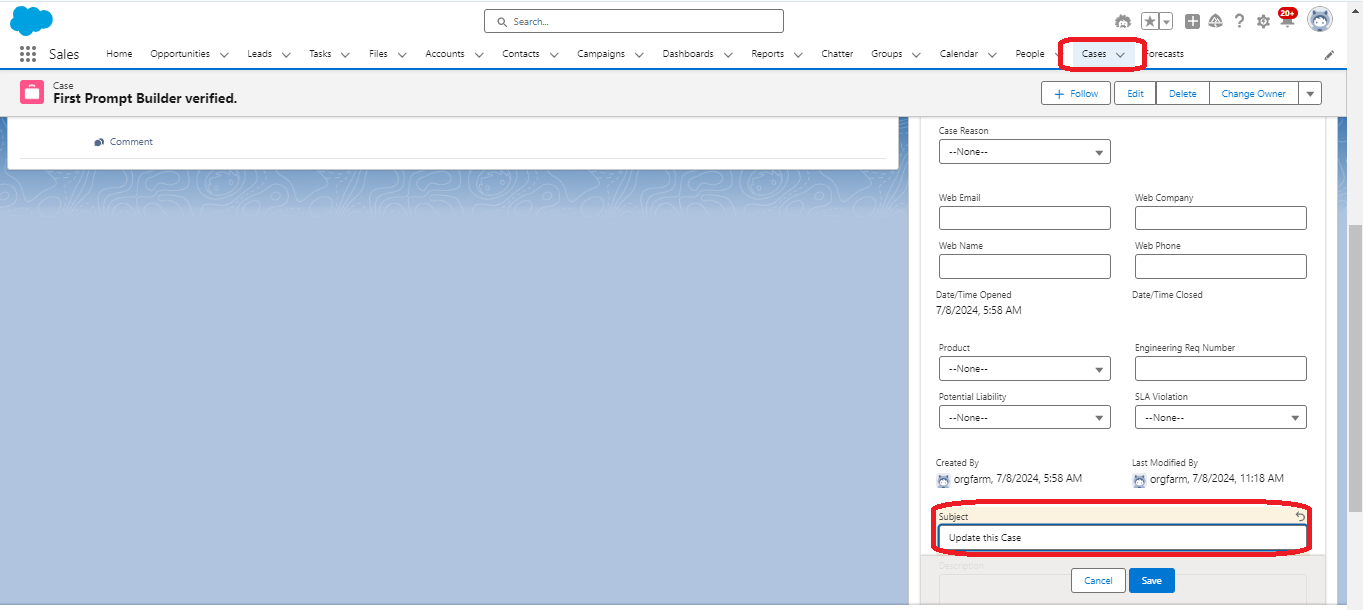
Step 10:
Now, navigate to the related Account and check the Description. The Account Description should be updated with the AI-generated summary related to the Case.
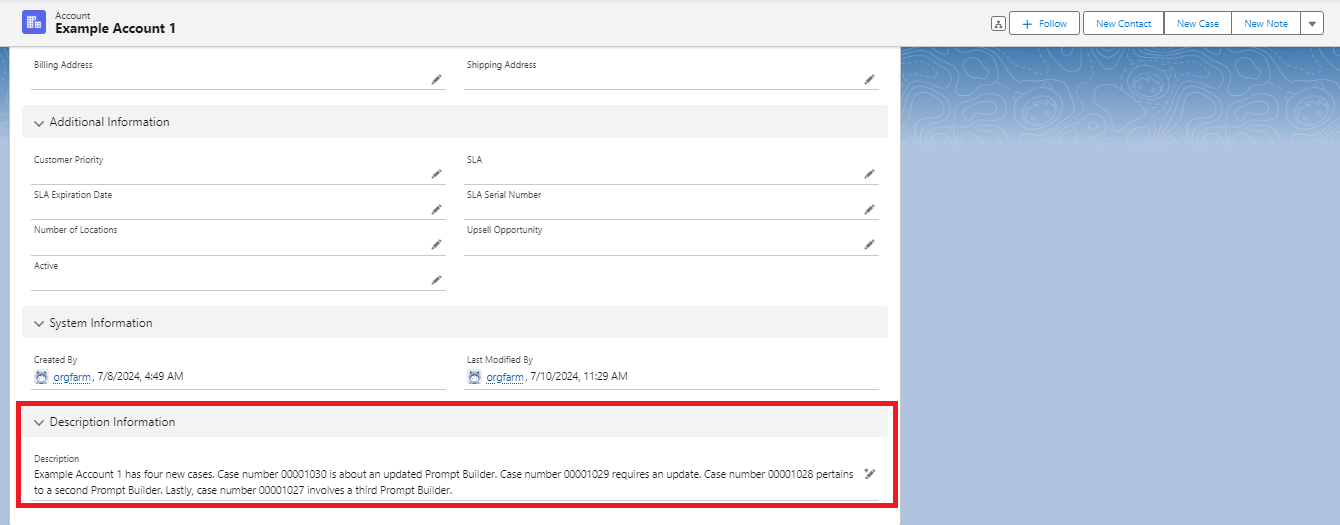
That’s how you can use Prompt Builder to generate AI summaries using flows.
Conclusion:
In a nutshell, the Prompt Builder is a robust tool for creating interactive prompts that guide user input effectively, enhancing the overall user experience. It supports variables, conditions, and loops, offering extensive customization and flexibility.
The Prompt Builder enables the creation of messages with a comprehensive language model and generates substantial content.
Stay tuned for more updates!





