
Understand the steps mentioned below to set up messaging for app and web chat for a streamlined experience.
What is an App and web Chat?
App and Web Chat is a service channel within the Service Console. It allows us to communicate with external users via web chat to solve their problems.
App and web Chat is an integrated tool within the Salesforce CRM platform designed to facilitate real-time communication between customer service teams and website visitors. With this feature, businesses can easily interact with their customers or targeted audience, and deliver instant support and assistance.
Prerequisite of App and Web Chat:
- Create a Digital experience Site. Here is the reference link
- Enable Chat setting.
- Set up Omni channel.
- Enable Messaging Setting.
- Create a Queue.
- Digital Engagement license.
A Step-By-Step Guide on Setting Up App and Web Chat
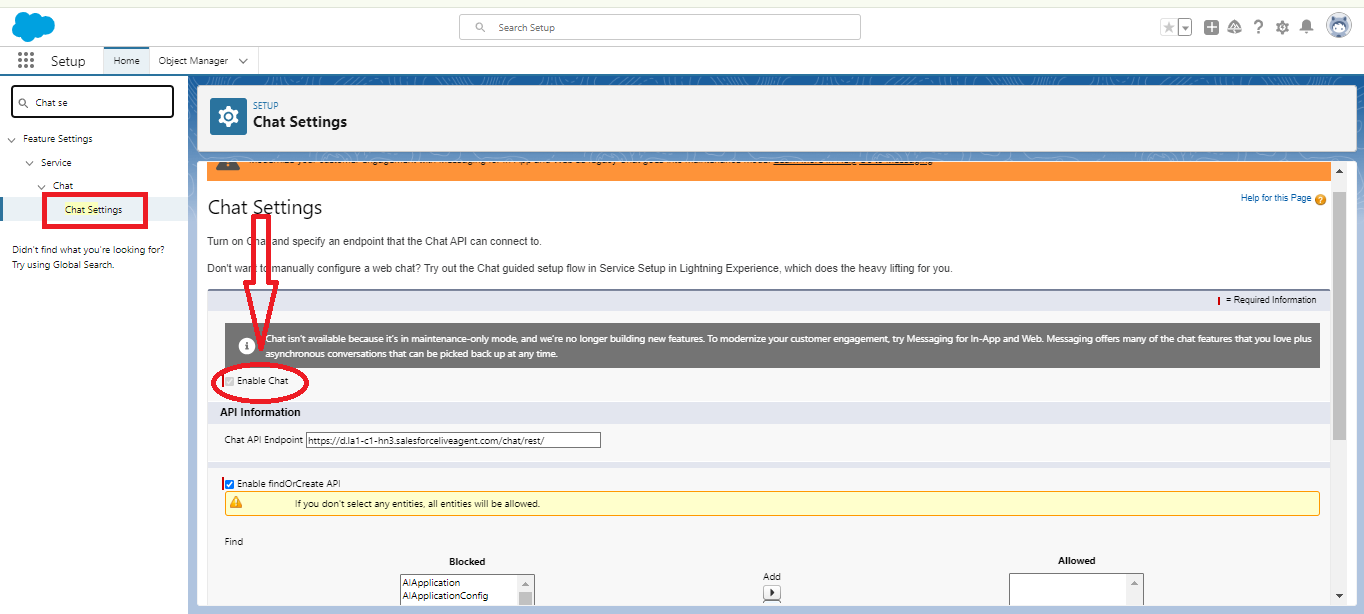
Step 1: In Quick Find, Search>Chat settings>Enable chat. For reference. 👇
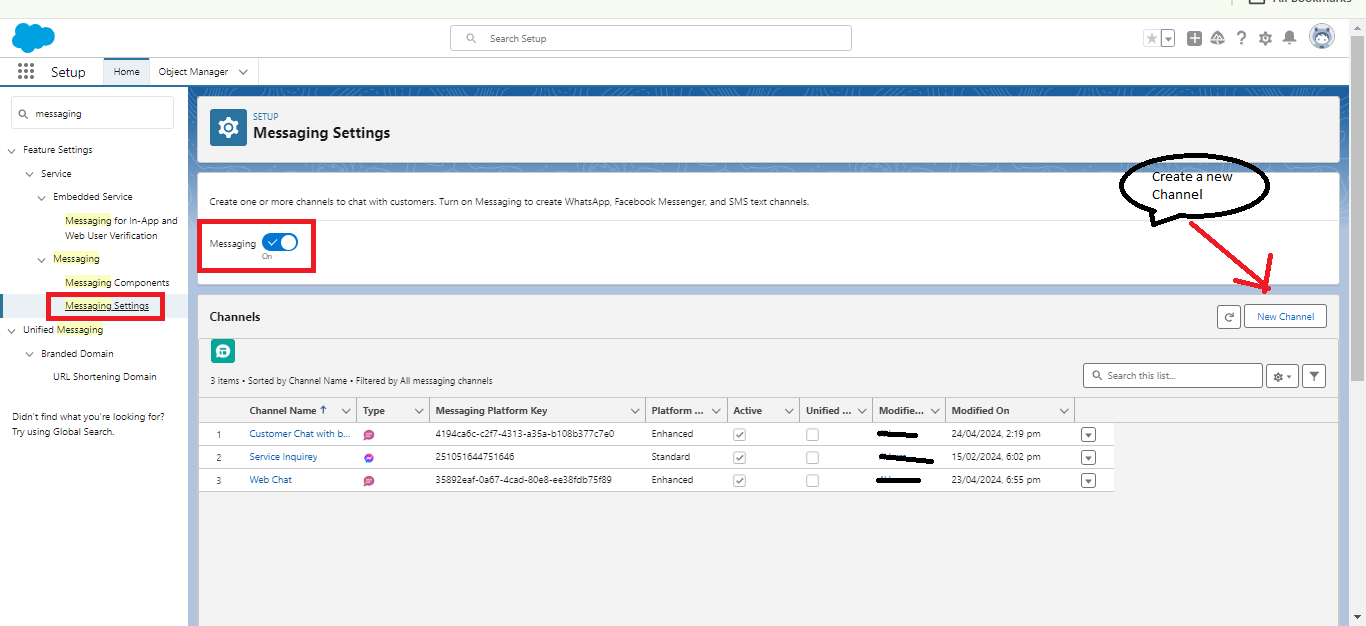
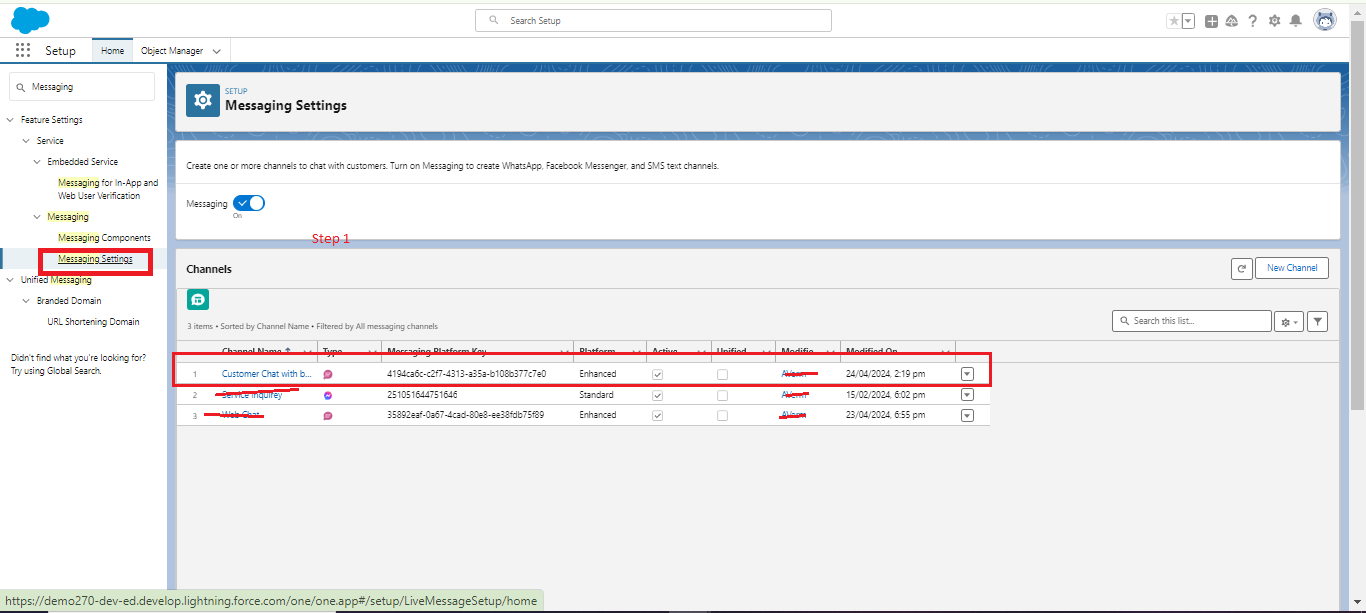
Step 2: Now, Create a Messaging Channel “App and web”. In the Quick Find box Search>Messaging settings>Enable Messaging to create a new Channel. 👇
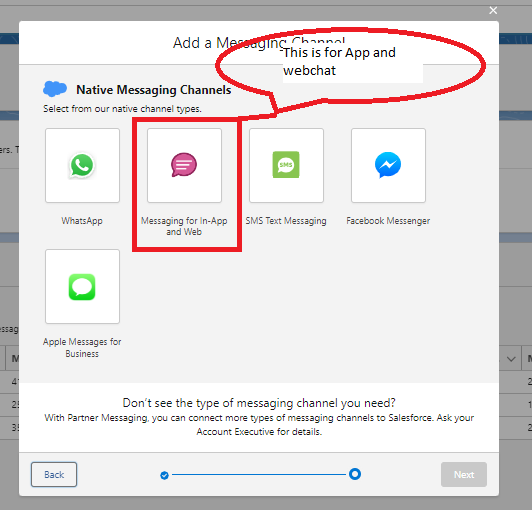
Step 3: Create a New Channel “ Messaging for In-App and Web”. Click on “New Channel” then Choose a Channel type “Messaging for In-App and Web”. For reference. 👇
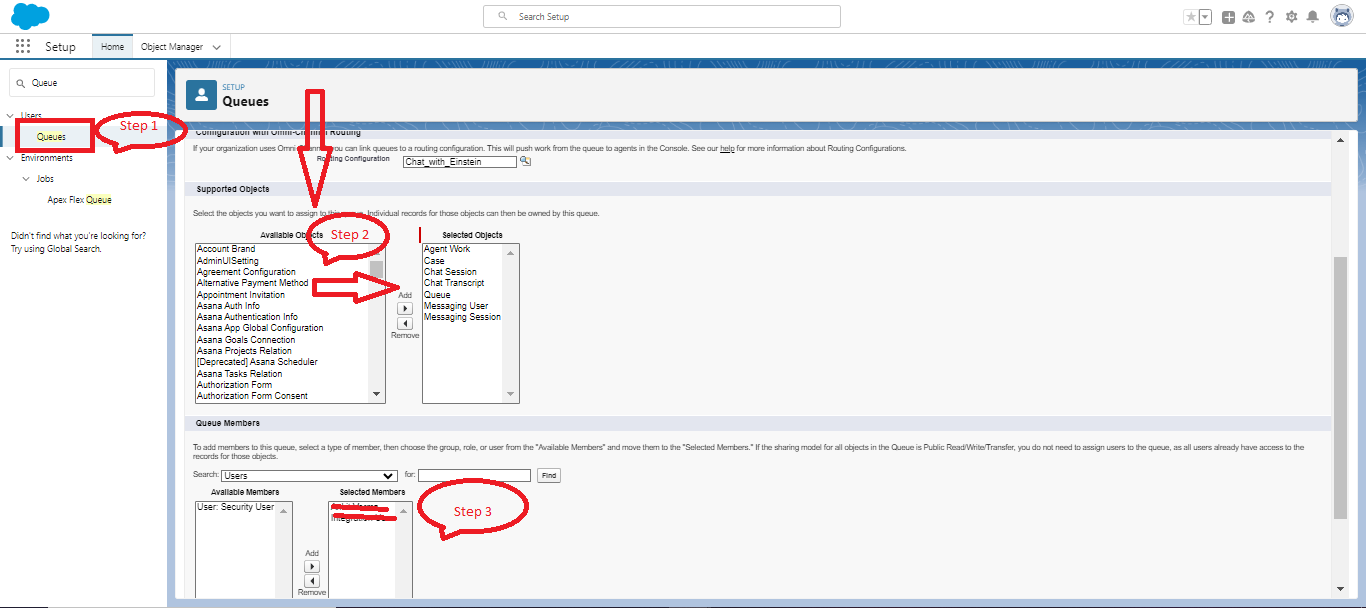
Step 4: Now, create a “Queue” to route the web chat to the appropriate agent. In the Quick Find box, Search>Queue>Click>New. And select objects “Chat transcript”, “Chat session”, “Messaging user,” “Messaging Session” “Queue” and “Agent Work”. For the Queue member section add Members. For reference.👇
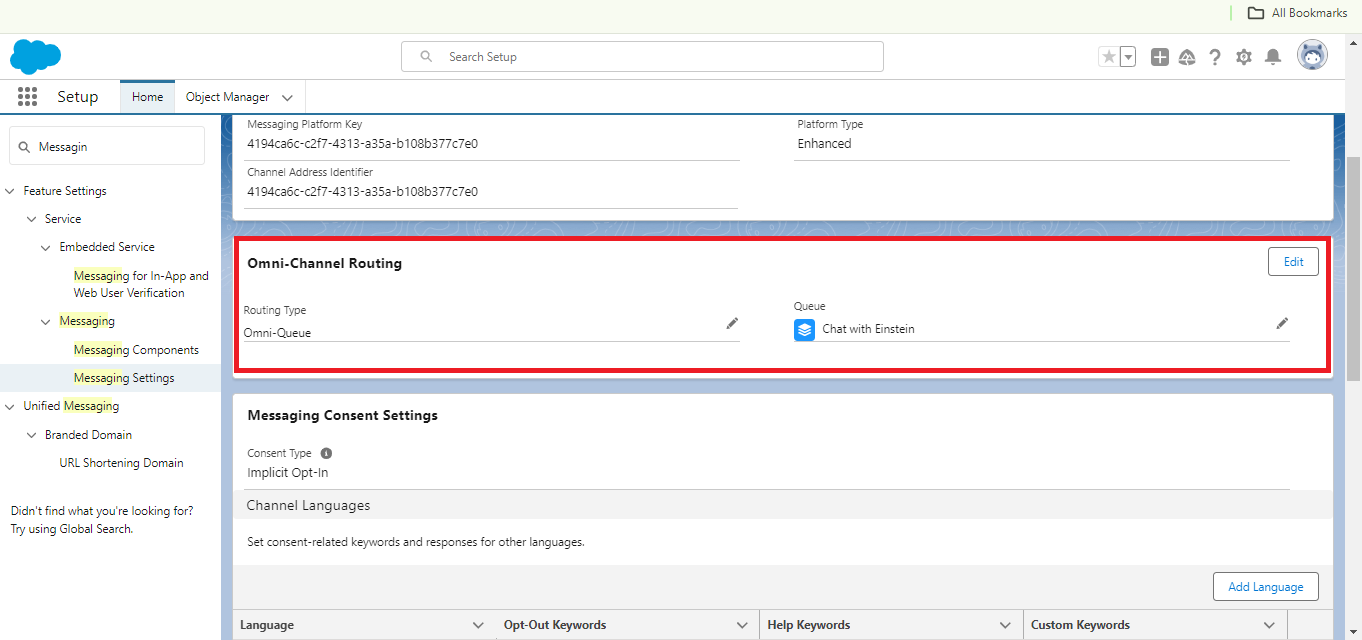
Step 5: Now Add Queue In “Messaging in- For App and web” as the Routing type. In the Quick Find box Search>Messaging Setting>Click on Channel Name> Add Queue Routing type. For more reference. 👇
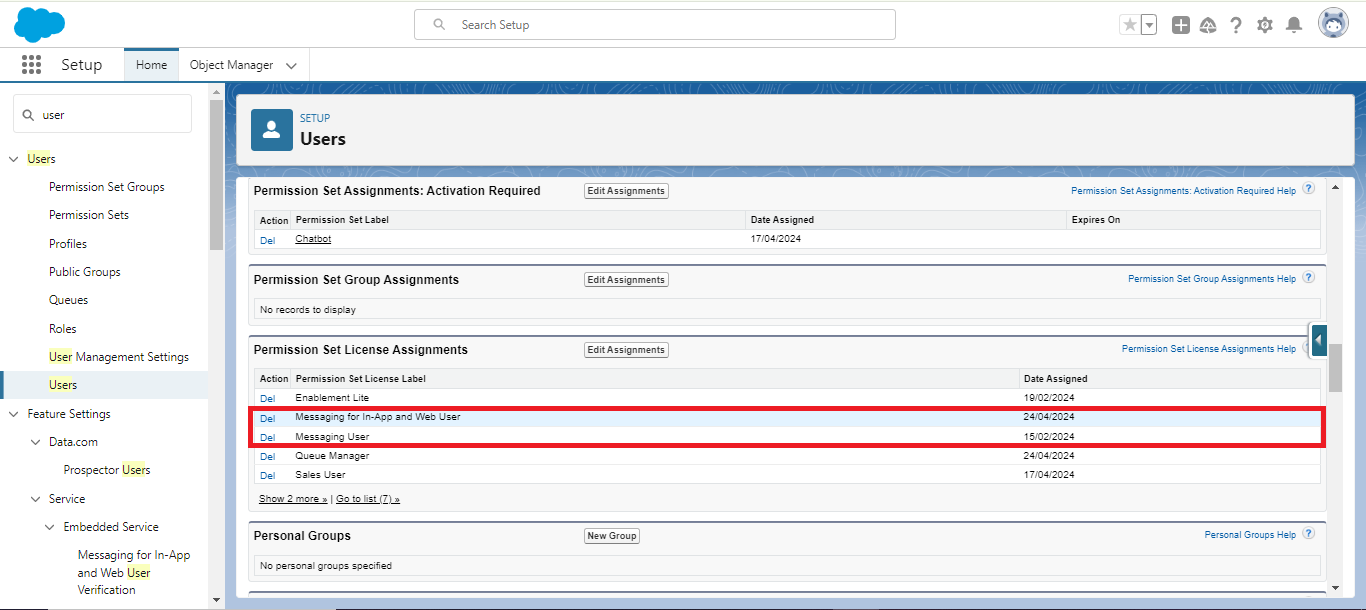
Step 6: In the Quick Find box, search for ‘Users’, click on the user’s name, then navigate to ‘Permission Set License Assignments’ and assign the ‘Messaging for In-App and Web User‘ and ‘Messaging User‘ permissions to the user.” 👇
Step 7: In the Quick Find box, Search “Embedded Service Deployment”. Click on “New Deployment” to Create a new web chat. For reference. 👇
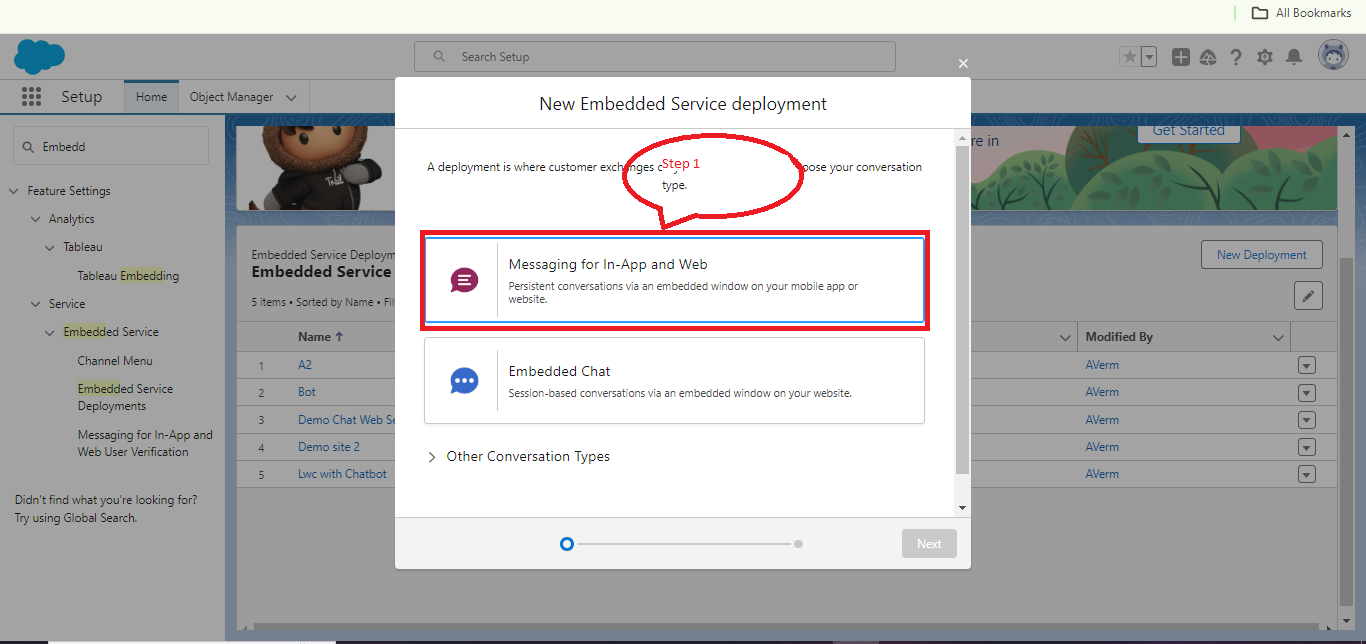
Choose web and in the Domain section add Community site. For reference check the below Screenshot. 👇
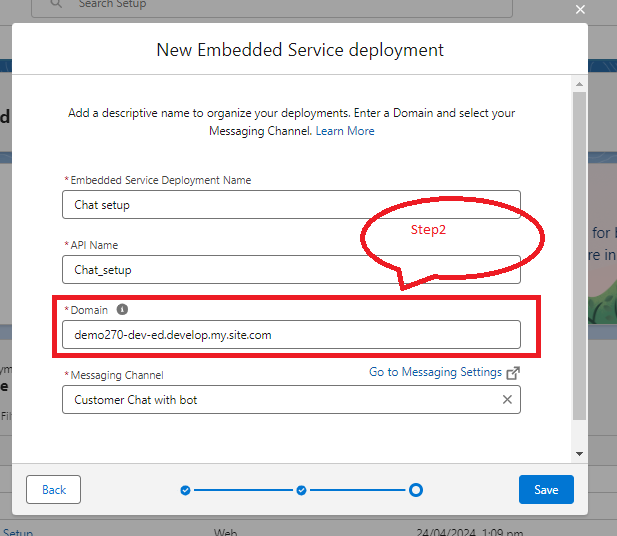
Note: You must add this Domain into “CORS” to allow the origin to Communicate Salesforce to a specific origin.
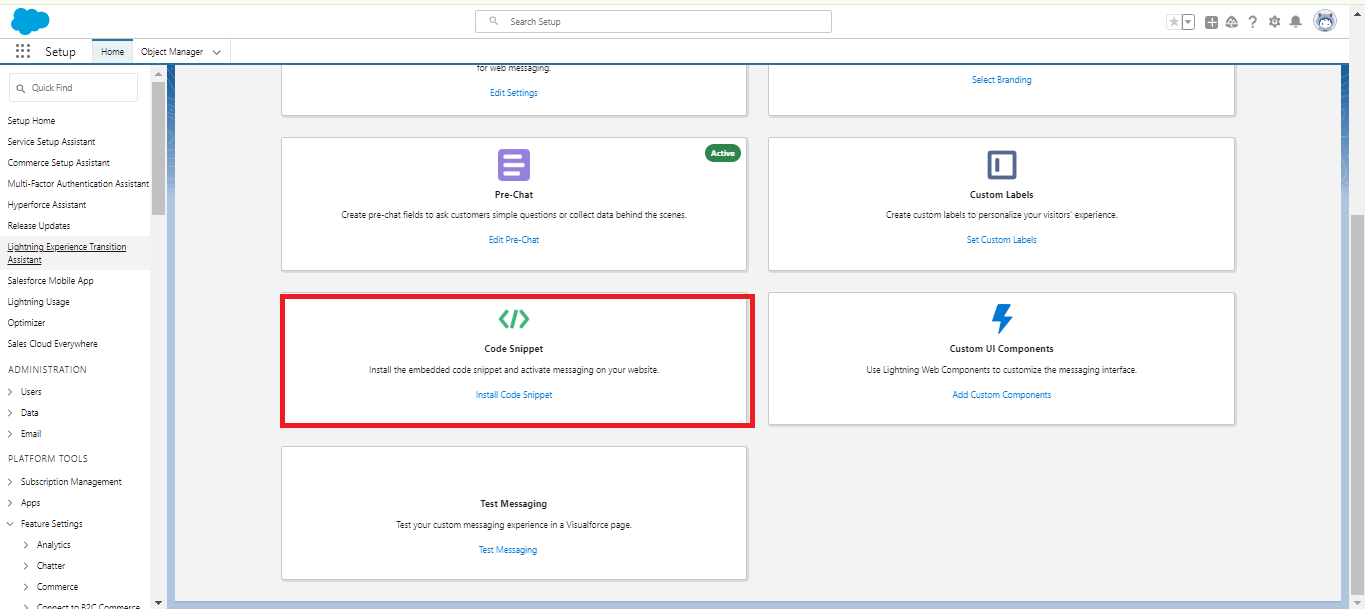
Step 8: In the Embedded Service deployment, go to the ‘Code Snippet‘ section to copy the code and paste it into your website for chatting with the Community user. For reference.👇
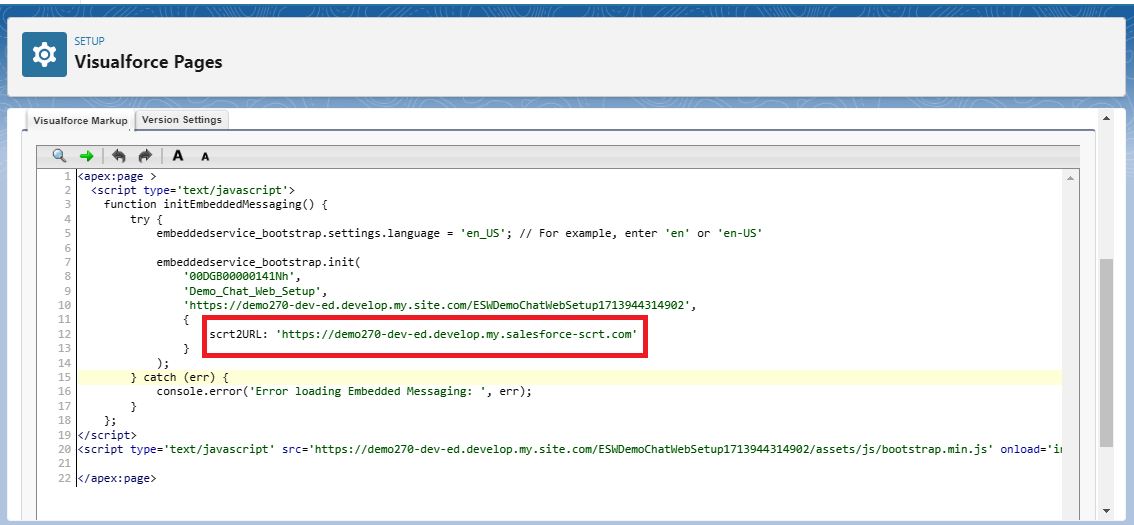
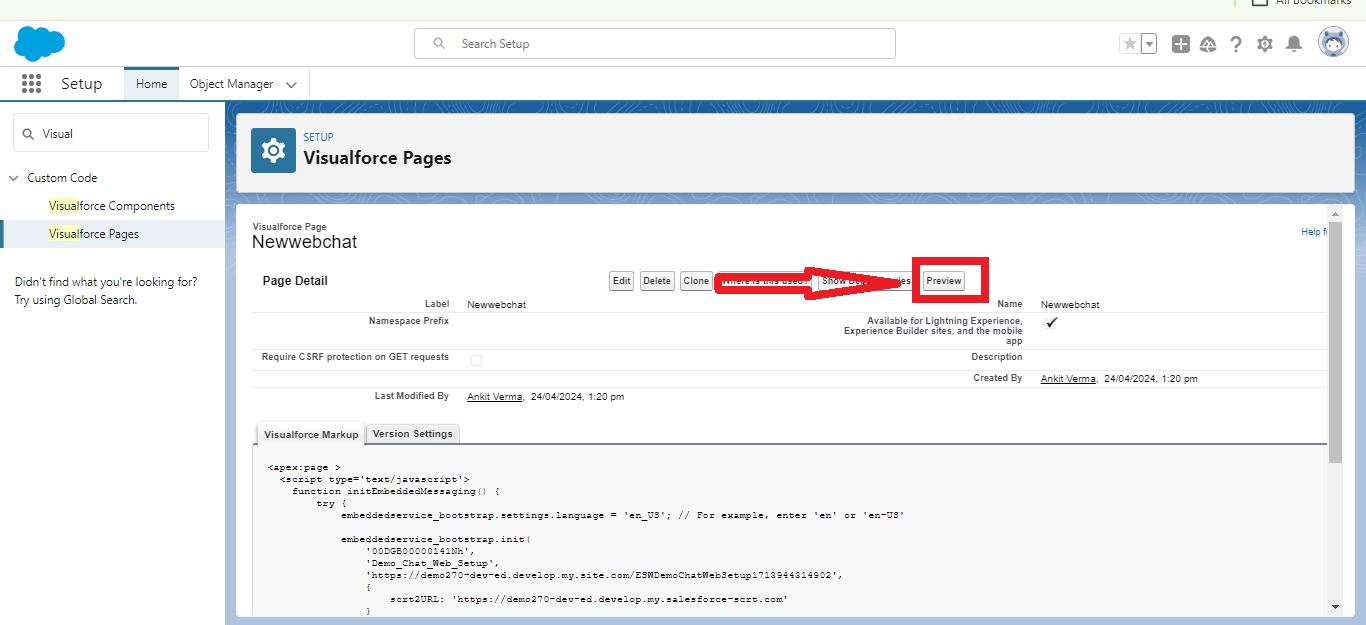
Step 9: Now, create a VF page and paste the snippet code that I copied in Step 8. In the Quick Find box, Search “Visualforce pages”. Create a new “Visualforce page”. 👇
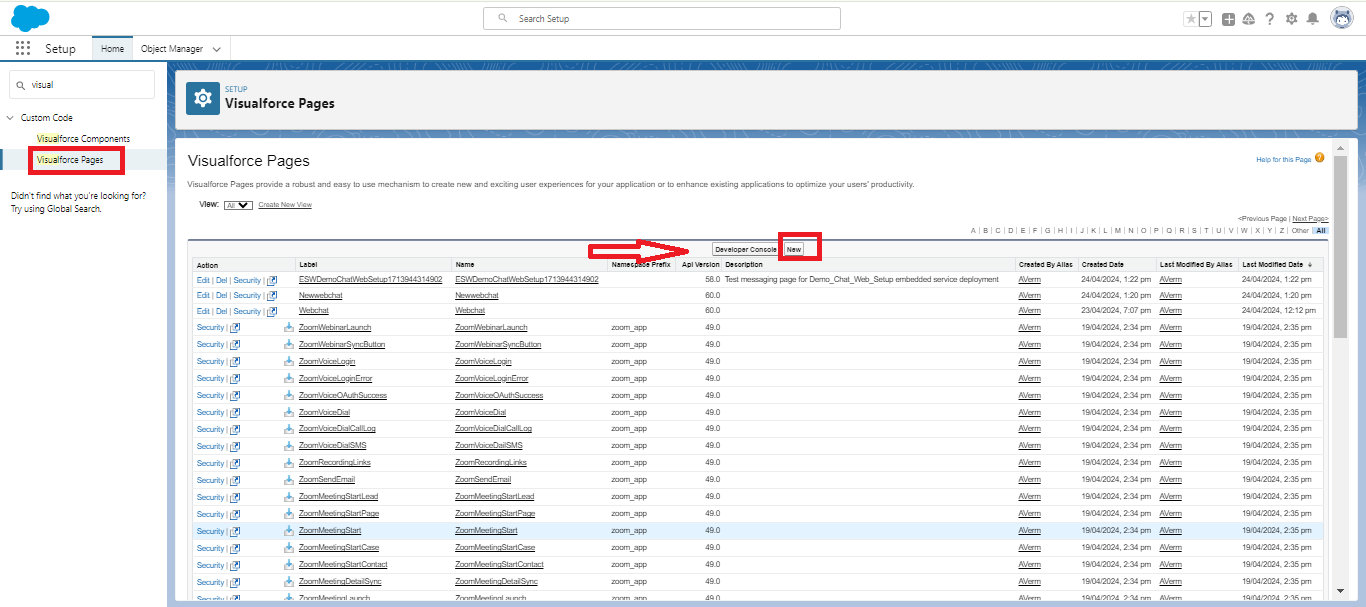
After creating a new VF page, paste the ‘scrt2URL’ into the VF page snippet code.
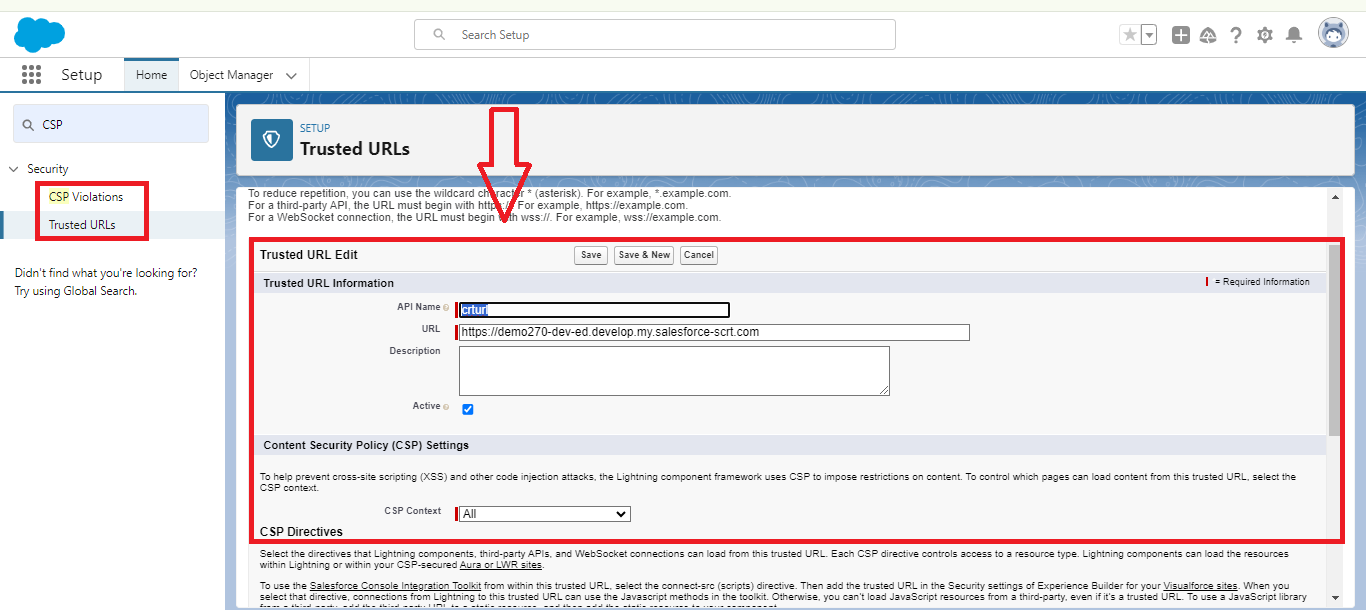
Step 10: In Quick find box>Search>CSP. “Add scrt2URL” into CSP trusted URL. For reference.👇
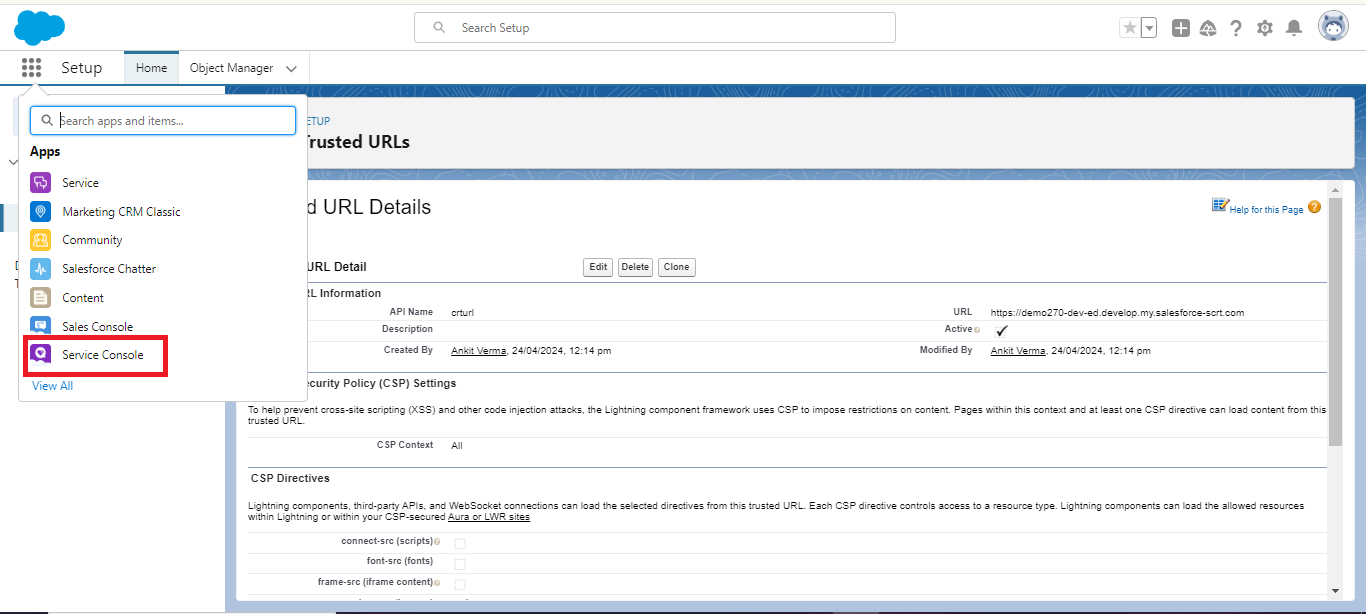
Step 11: Click on the ‘App Launcher’, search for ‘Service Console’, and make “Available Message“ in Omni-Channel.👇
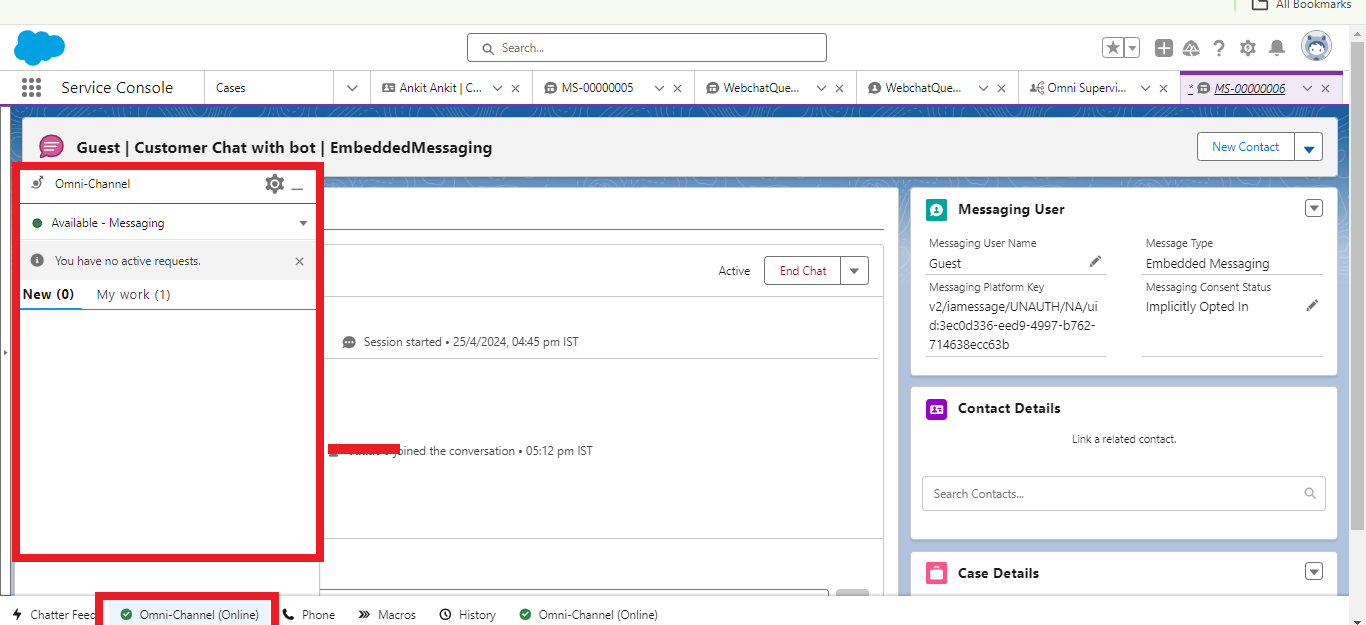
Step 12: Now move to the Visualforce page and Click on “Preview” to Chat with Agent bidirectional.👇
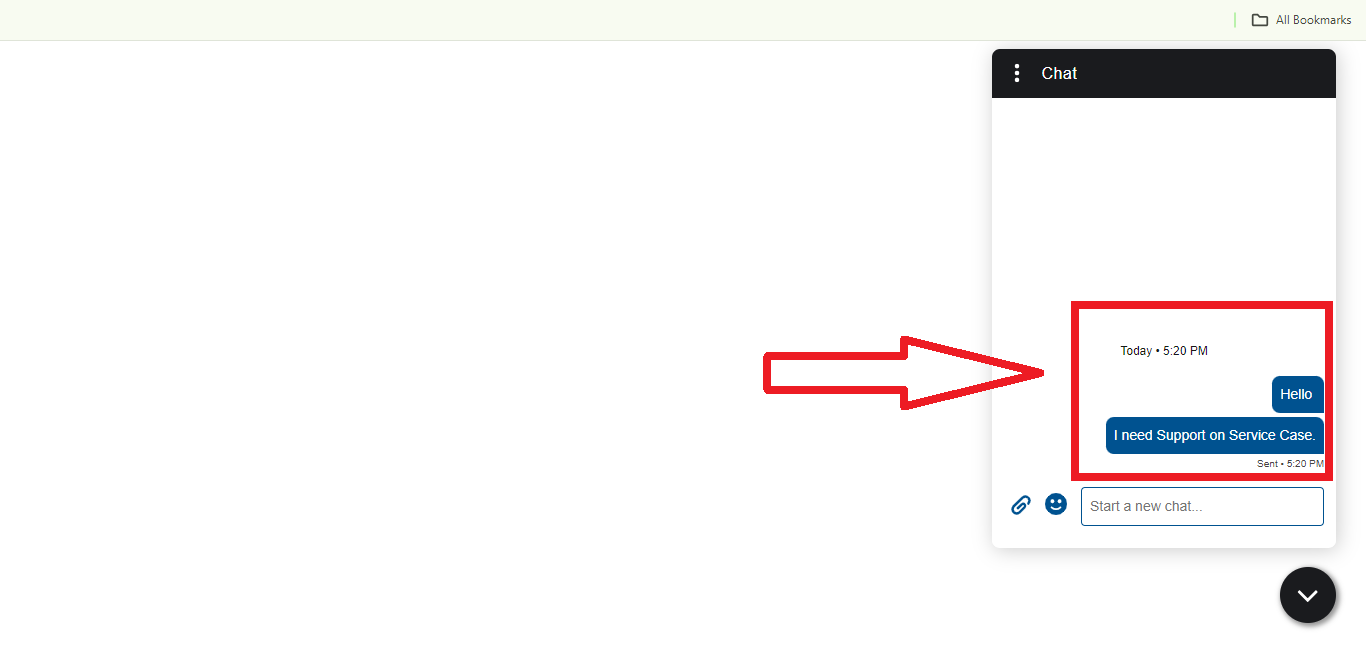
Step 13: We can chat bidirectional Agent to the guest user and guest user to the agent. Check the below Screenshot.👇
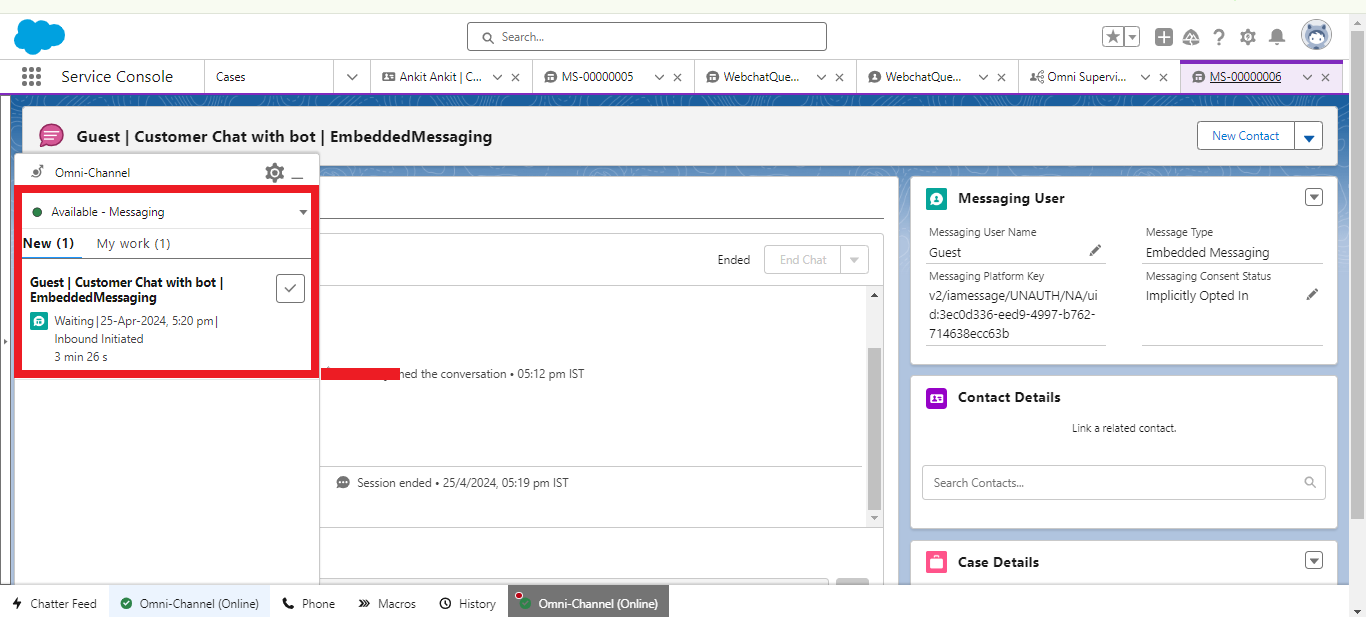
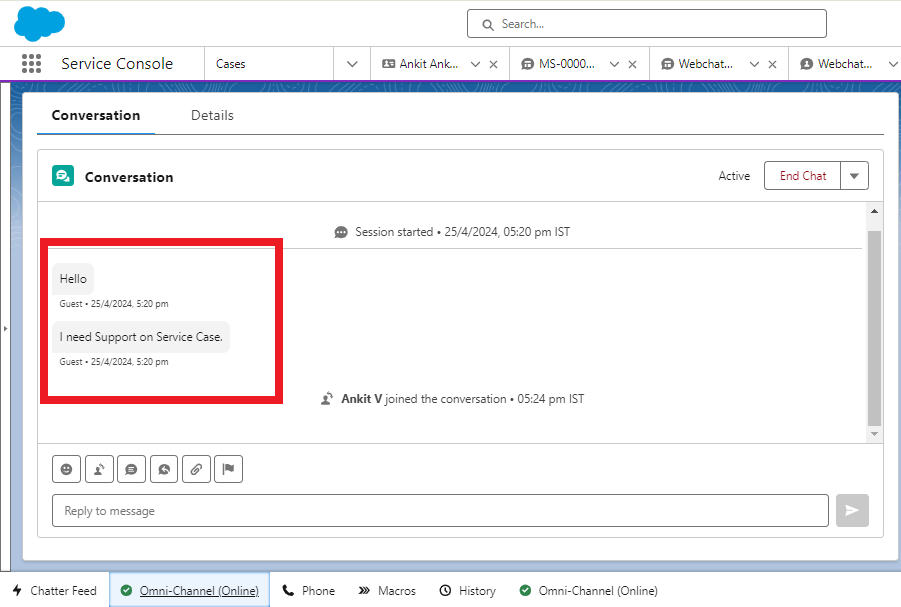
Yay! We have successfully set up ‘App and web chat‘ in Service Cloud!
Conclusion
In a nutshell, the integration of messaging capabilities within both the app and web platforms directly connects users with service agents, facilitating seamless communication and issue resolution. Leveraging app and web chat functionalities significantly enhances the efficiency of customer support processes within Salesforce Services.
By offering users the convenience of instant communication channels embedded within the app and web interfaces, businesses can swiftly address customer queries and concerns. This real-time interaction not only expedites issue resolution but also fosters a more satisfying user experience.





